| Permissions |
|
| Related readings |
|
AI-powered generation helps create document structures and source-backed content, with configurable guidelines, sources, and generation settings for the entire document or individual sections.
TABLE OF CONTENTS
Generate a document structure
If you are starting from a blank document, you can generate an outline automatically.
- Click Generate structure.
- Describe the structure you want to generate.
- Review or modify the selected source documents.
- Click Generate.
The generation runs as a background task visible in the lower-left corner of the editor.
When the task completes, you can review the proposed:
- Document outline.
- Section-specific writing guidelines.
You can edit the proposed structure before inserting it into the document.
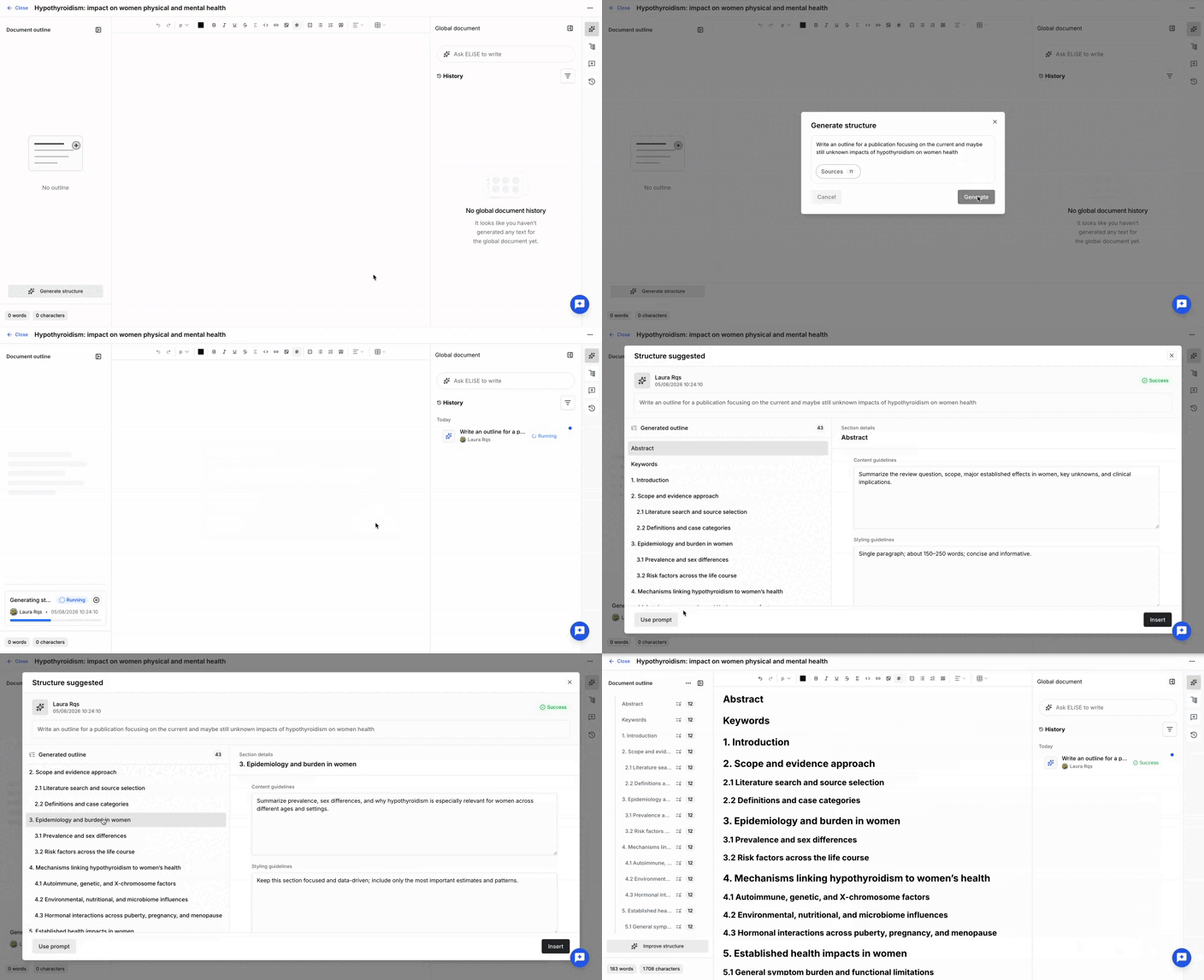
Once a structure exists, Generate structure becomes Improve structure, allowing you to refine the existing outline instead of generating a new one.
Generate content
The Generate panel helps you produce source-backed content directly within your document.
If sources were selected when the document was created, they are automatically available for generation. You can modify this selection at any time.
Configure sources and section settings
You can customize the generation settings for individual sections by clicking Edit guidelines & sources or by editing a section directly in the generate panel.
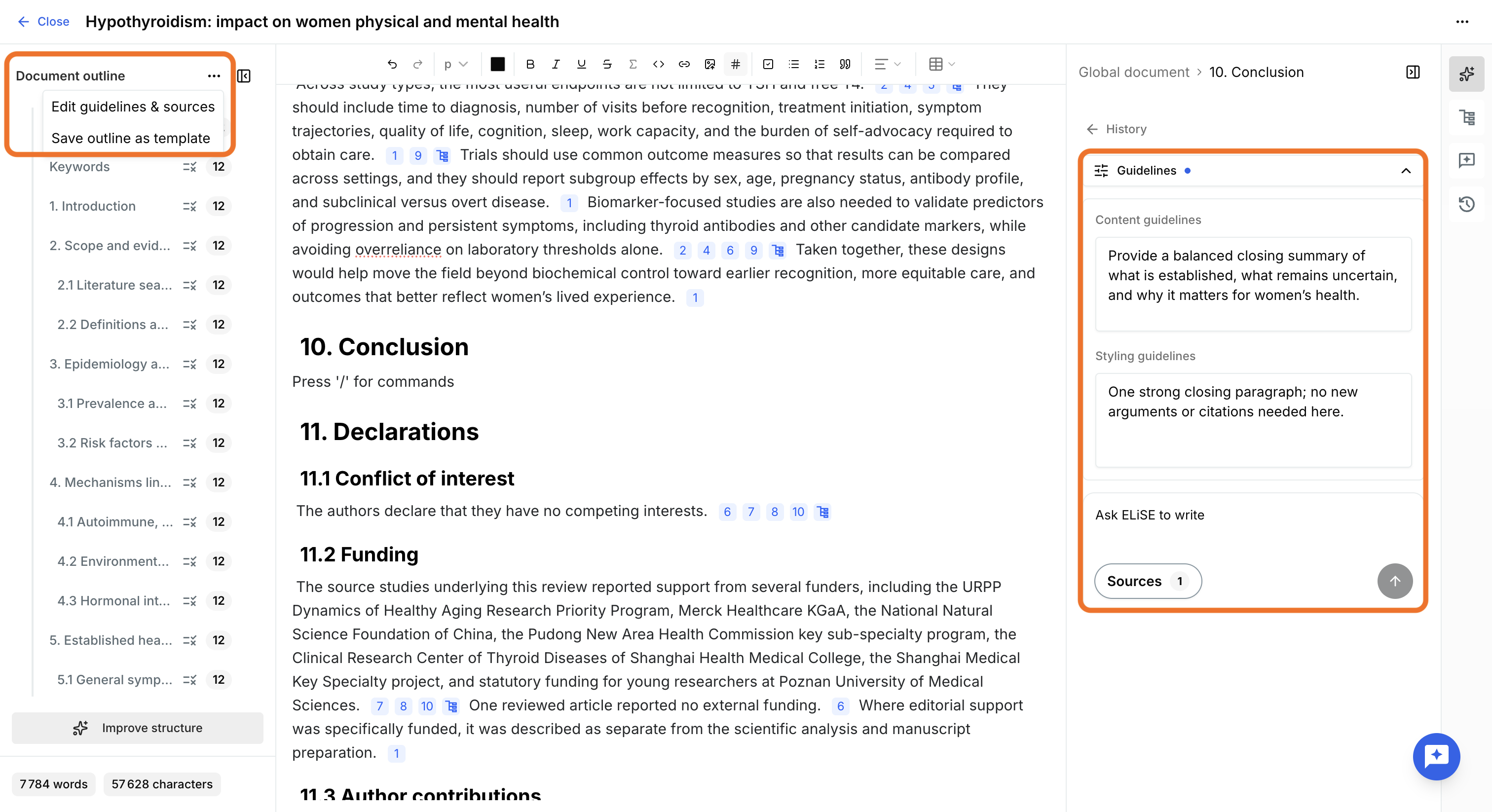
For each section, you can define:
- Content guidelines
- Style guidelines
- Source documents
Section-specific sources override the document's default sources. When sources are defined for a section, only those sources are used to generate its content.
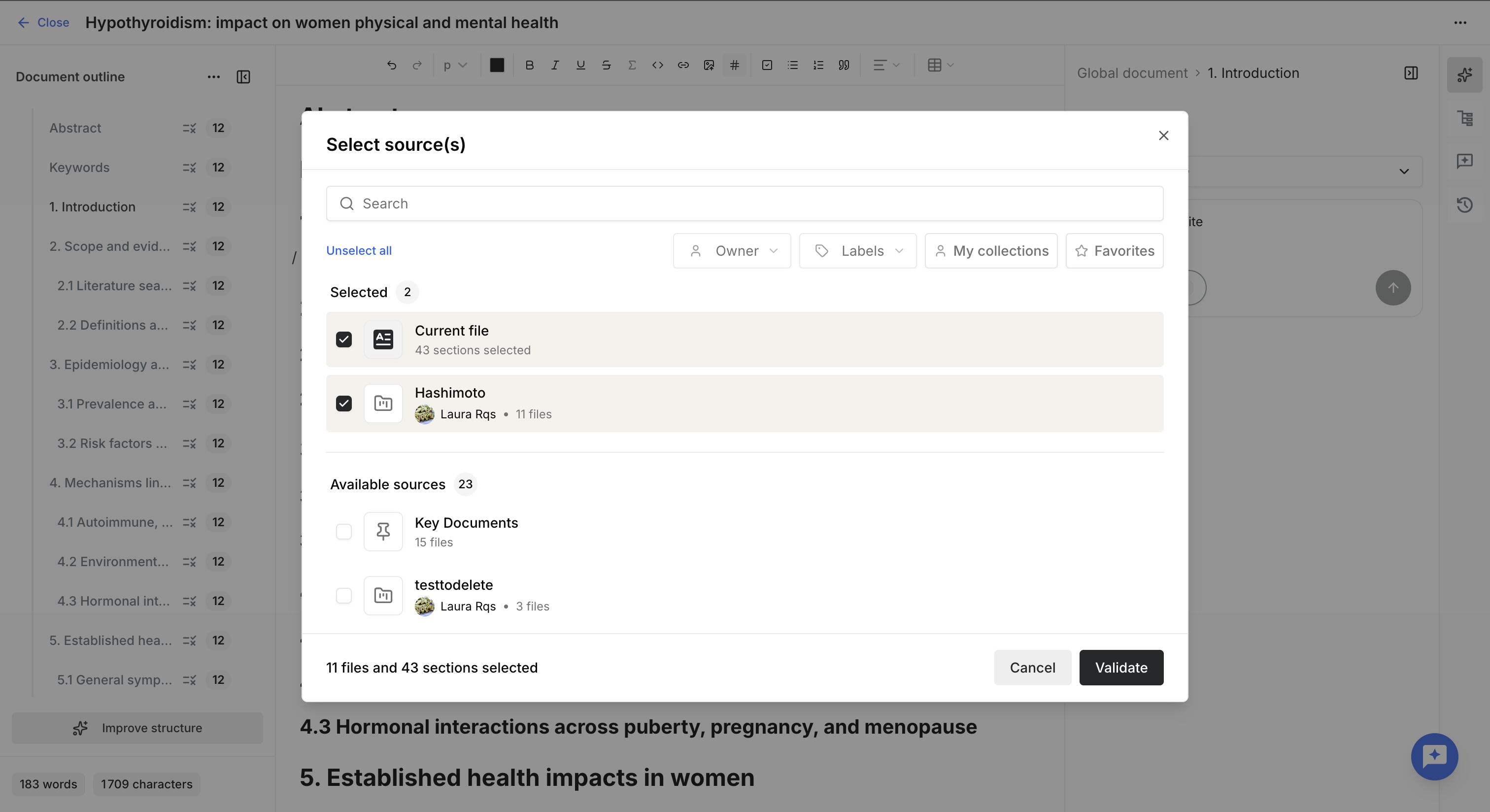
When defining sources, you can use one or more of the following:
- Files or collections available in the project.
- The editable document itself (selected by default).
- Specific sections of the editable document.
Including the current document as a source allows the AI to build on existing content while maintaining consistency.
Restricting generation to the current document or selected sections is useful when generating content such as a conclusion or discussion based only on work already present in the document, without introducing information from additional sources.
Generate an entire document
Global generation is designed for creating a complete document from an empty or nearly empty draft.
Describe what you want to generate and specify any relevant instructions, such as:
- Expected content
- Writing style
- Language
- Length
- Formatting requirements
The generator currently supports:
- Text
- Tables
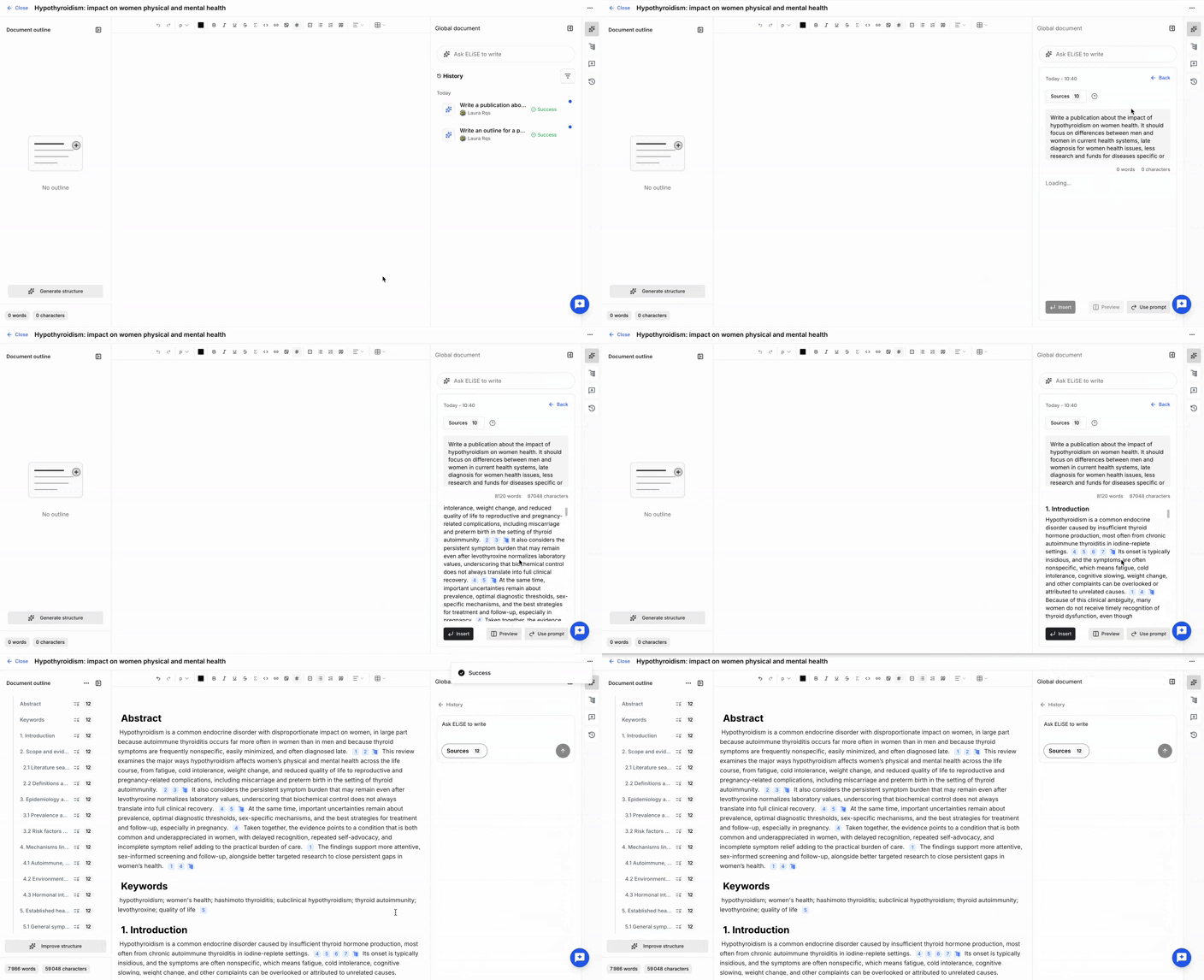
Global generation follows a structured writing process and therefore provides the highest level of consistency, but it also requires the most processing time. Depending on the number and complexity of the selected sources, generation can take from approximately 15 minutes to 2 hours.
You can leave the editor while the task runs. Completed generations are available in the generation history.
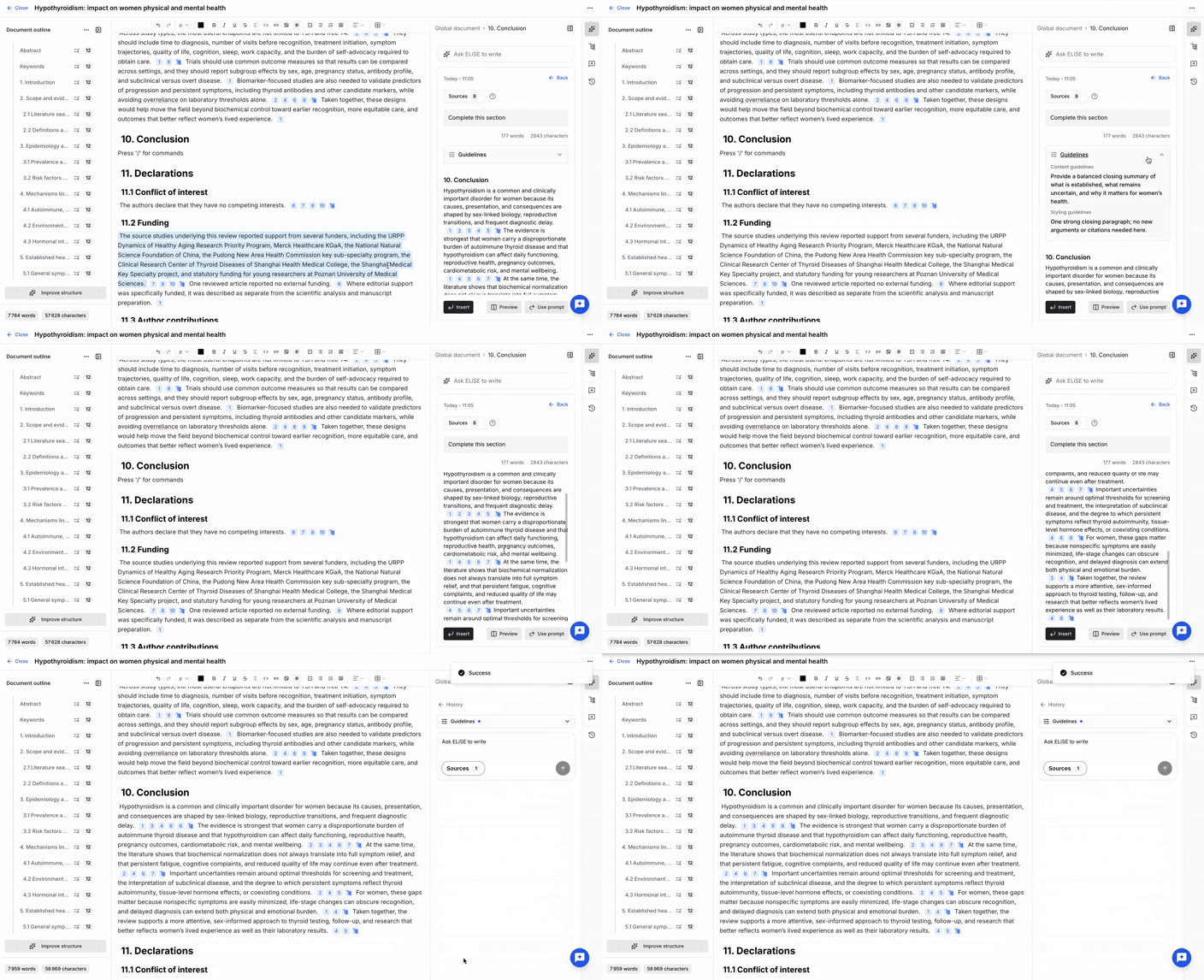
Review the generated content before clicking Insert to add it to the document.
Generate a section
If the document already contains a structure, you can generate content for an individual section.
Select a section from the outline on the left to target the generation.
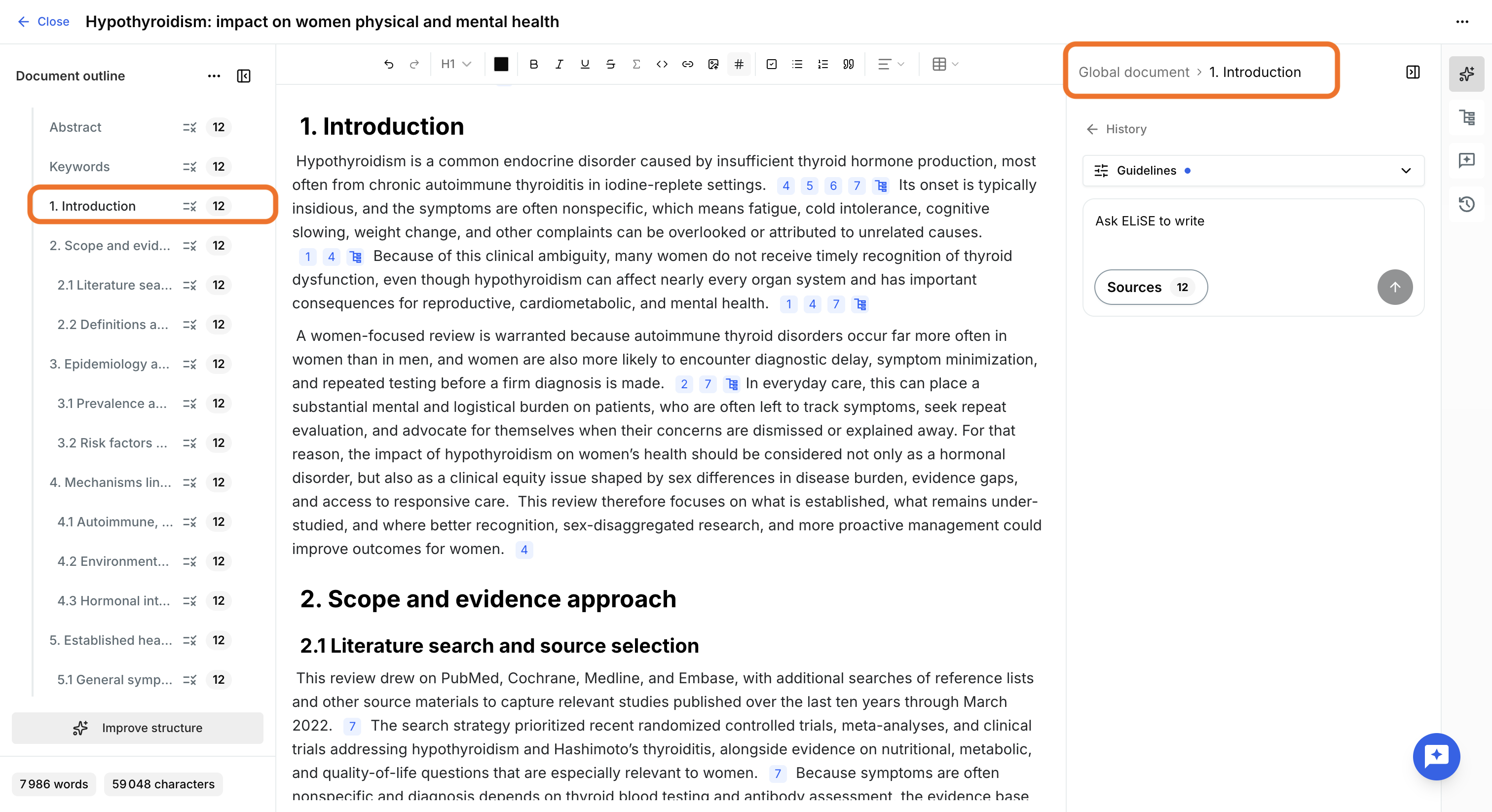
If needed, update the section's guidelines and sources as described in Sources and section settings, then enter your prompt and launch the generation.
Section generation is significantly faster than global generation, although the generated content may be less comprehensive because it focuses only on the selected section.
When you insert the generated content, it is automatically added to the corresponding section, provided the document structure has not changed since the generation was launched.
Review generation history
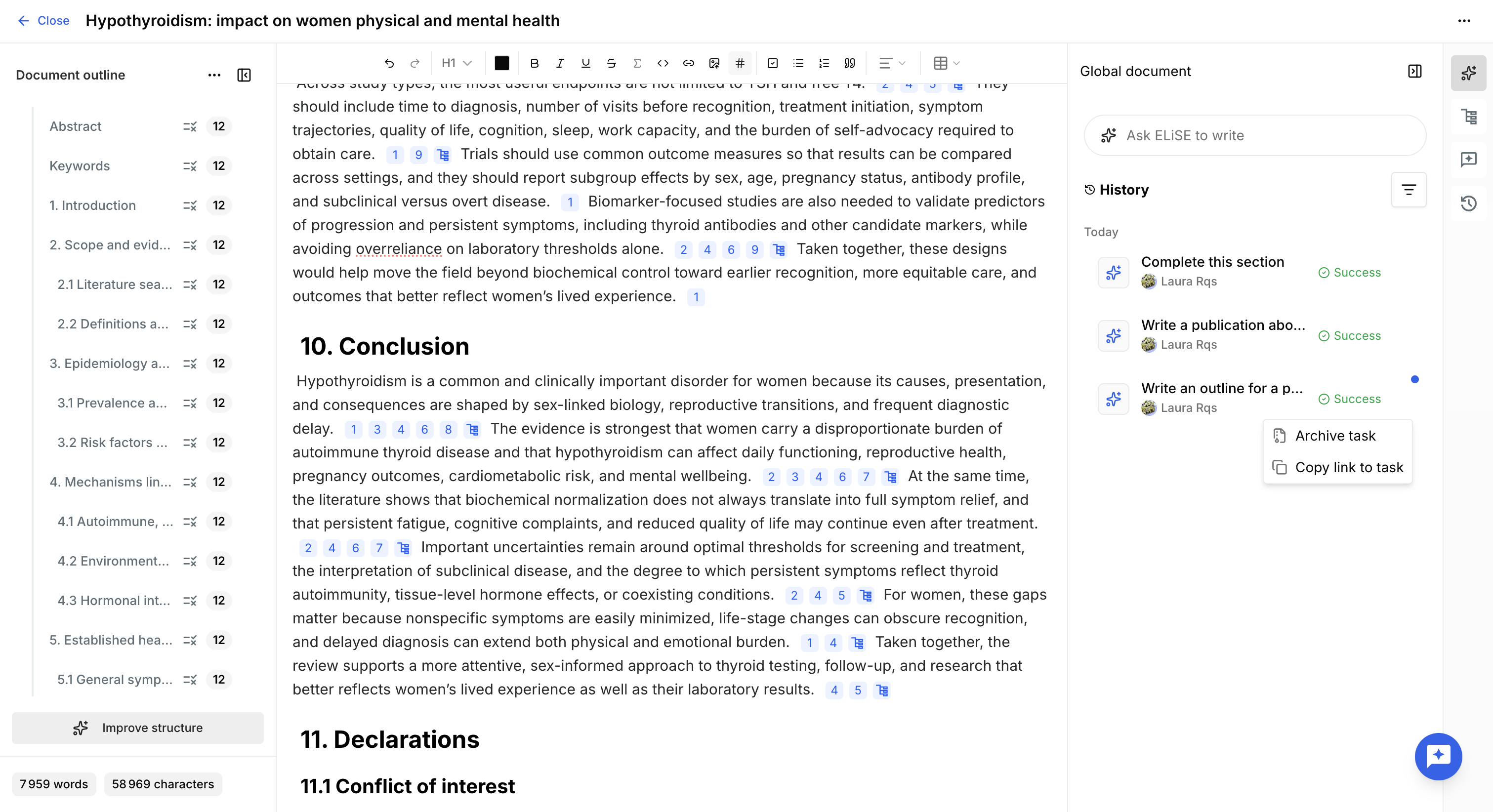
The Generation history records every generation performed for the document.
You can filter generations by:
- Owner
- Generation type (global, structure, section)
- Status
- Read state
On each generation task, you can:
- Open it to see its details:
- Prompt
- Content and style guidelines, if applicable
- Selected sources
- Generated content
- Creation date and time
- Owner
- Explanation
- Copy a link to the generation.
- Archive a generation.
When a section is selected in the outline, the history automatically displays only the generations related to that section.
Was this article helpful?
That’s Great!
Thank you for your feedback
Sorry! We couldn't be helpful
Thank you for your feedback
Feedback sent
We appreciate your effort and will try to fix the article