| Permissions |
|
| Related readings |
Collections are organized sets of files that serve as knowledge sources for your projects and AI-powered features. They can be created, organized, shared, and managed directly from the Library.
TABLE OF CONTENTS
Create a collection
To create a collection:
- Enter a name.
- Optionally, add a description.
- Choose one of the following options:
- Skip and create to create an empty collection.
- Select from repository to browse and select files from a connected provider.
- Launch new search to run an external search and select files from the results.
- Import files from saved search to select files from the results of a previously saved search.
- Complete the selected workflow and click Create.
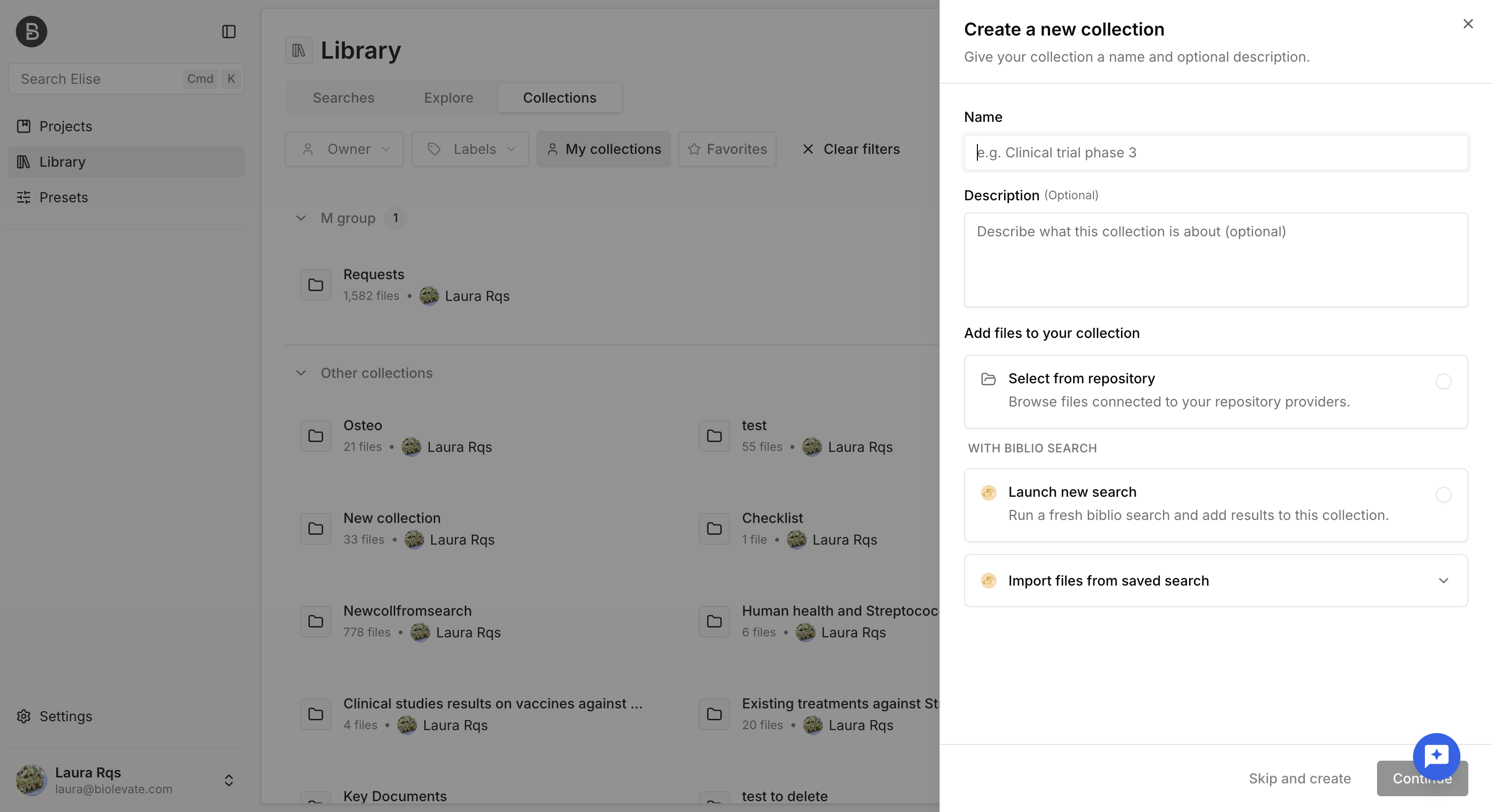
The collection is added to the Library and becomes available for use in your projects.
If you want other users to access the collection, assign an access policy after it has been created.
Manage a collection
Once a collection has been created, you can:
- Add it to your favorites.
- Manage its labels.
- Add it to a group.
- Rename it.
- Delete it.
- View its information.
- Work with its content by adding files, extracting knowledge, or using it as a source for AI-powered features.
Add favorites
You can add or remove a collection from your Favorites from the collection menu.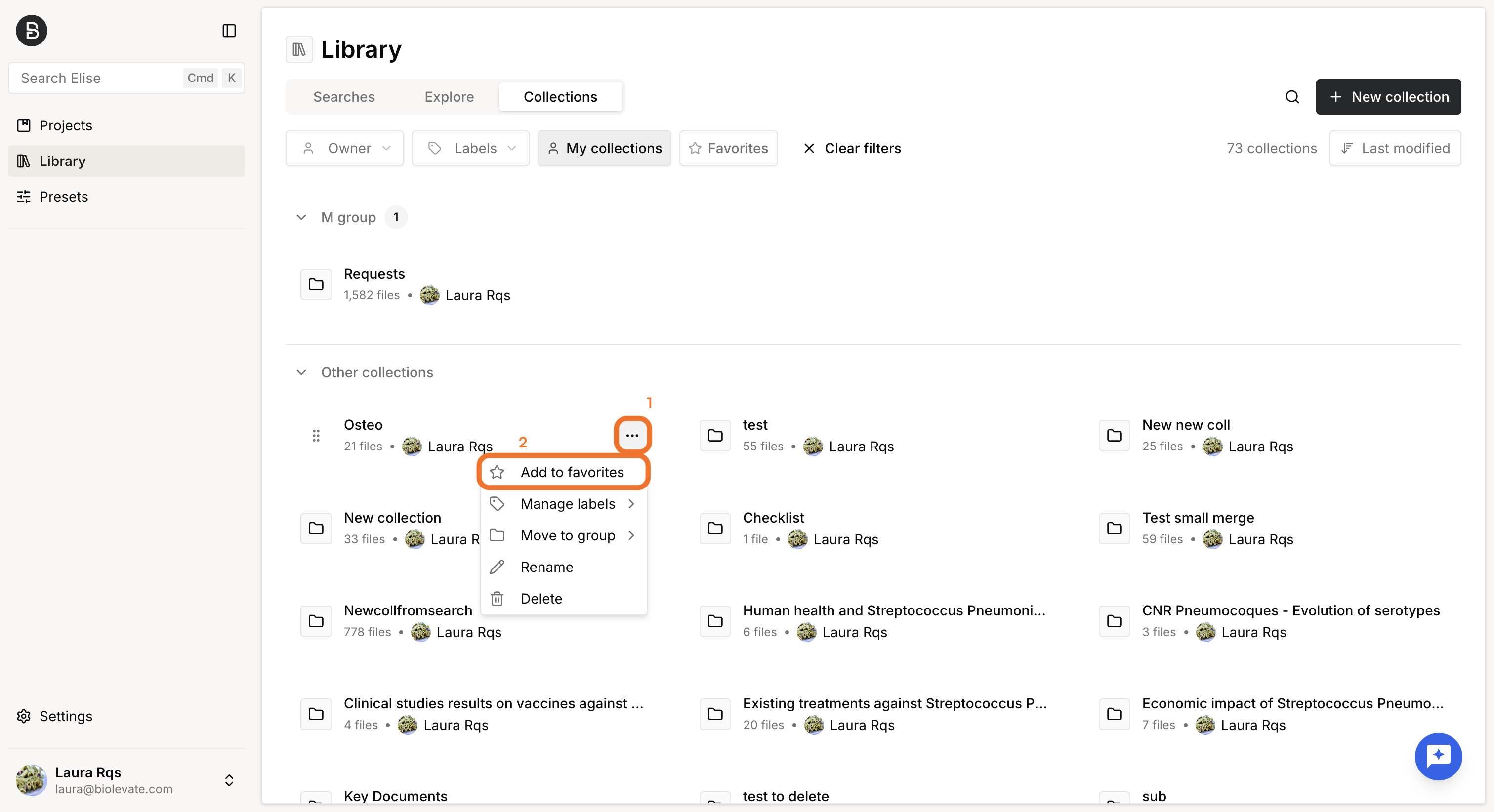
Favorites are personal, allowing you to quickly access frequently used collections.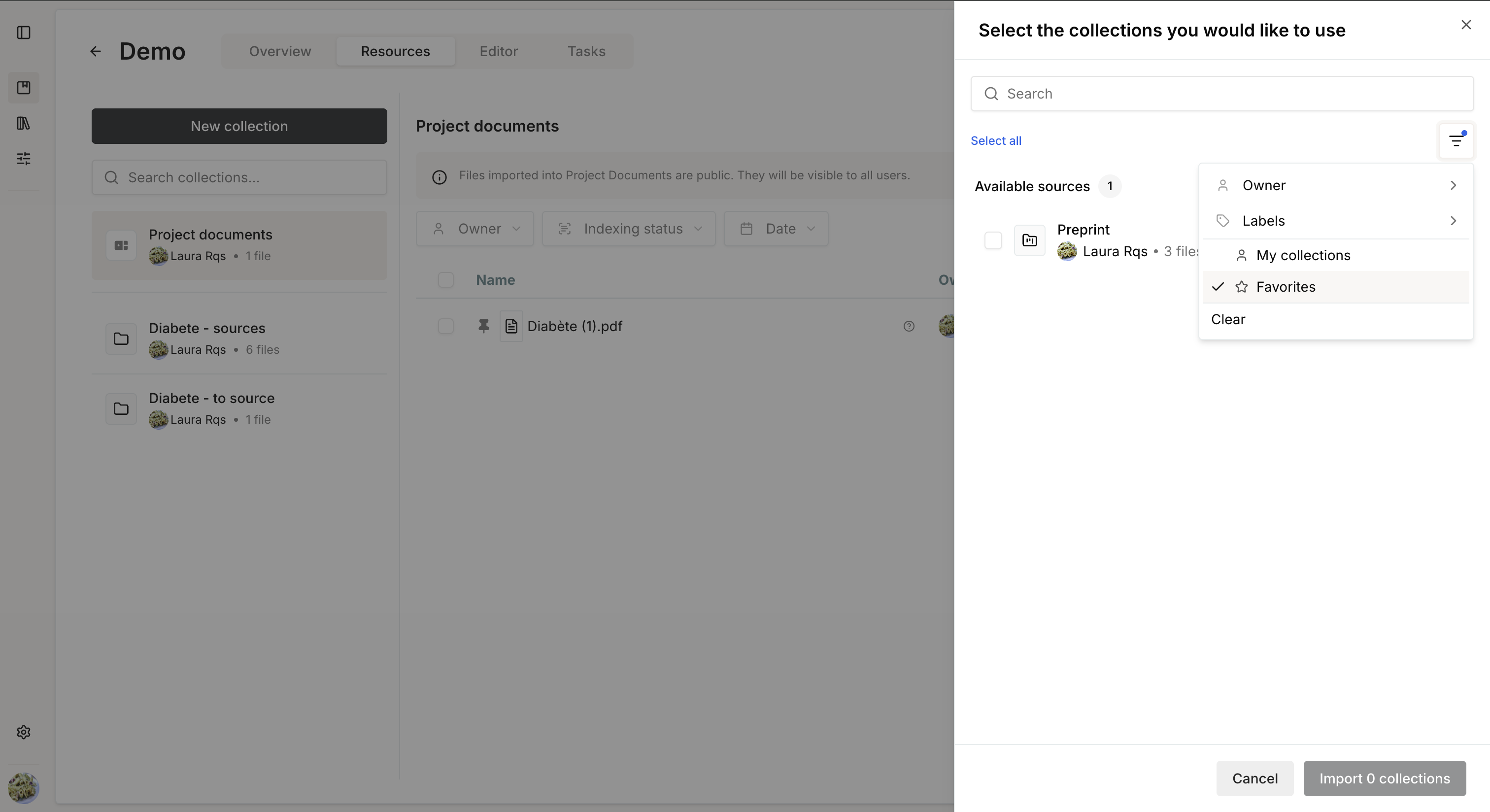
Organize collections with labels
Labels help you categorize and filter your collections.
To add labels to a collection:
- Open the collection menu and select Manage labels.
- Select one or more existing labels, or create a new one by specifying a name and a color.
- Assign as many labels as needed.
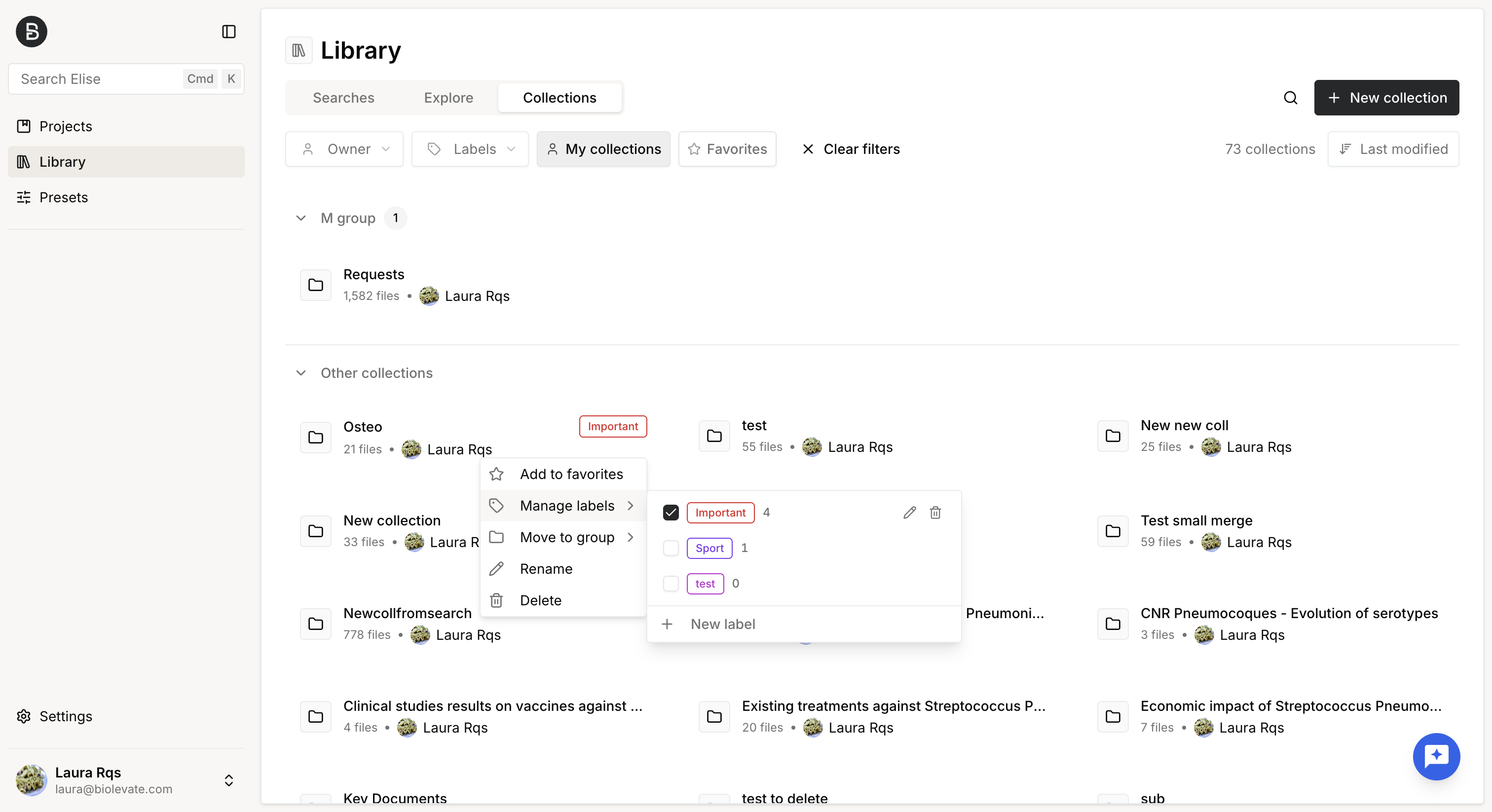
You can use labels to filter the collections list and quickly find related collections.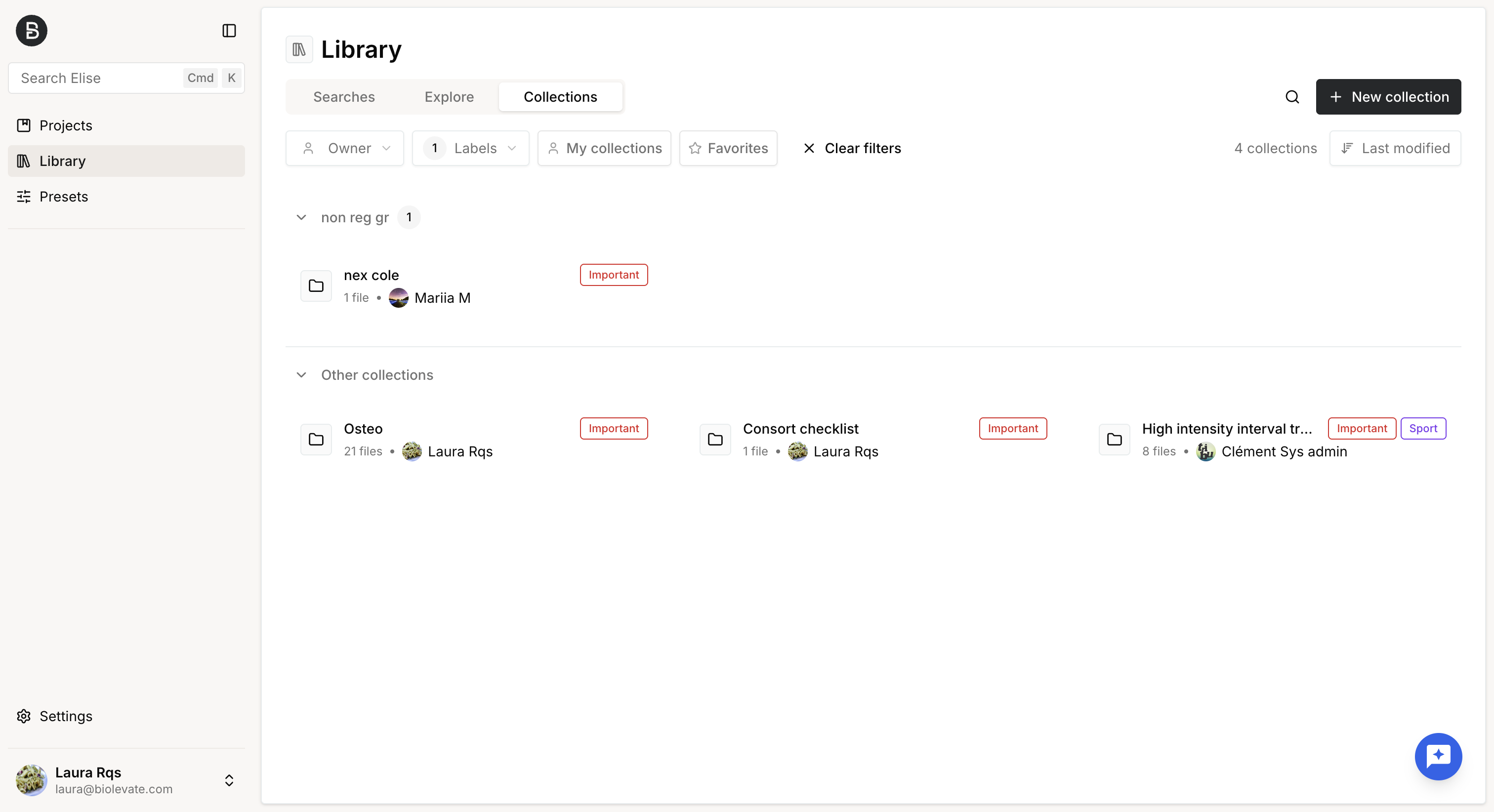
Organize collections with groups
Groups help you organize collections and manage access at a higher level.
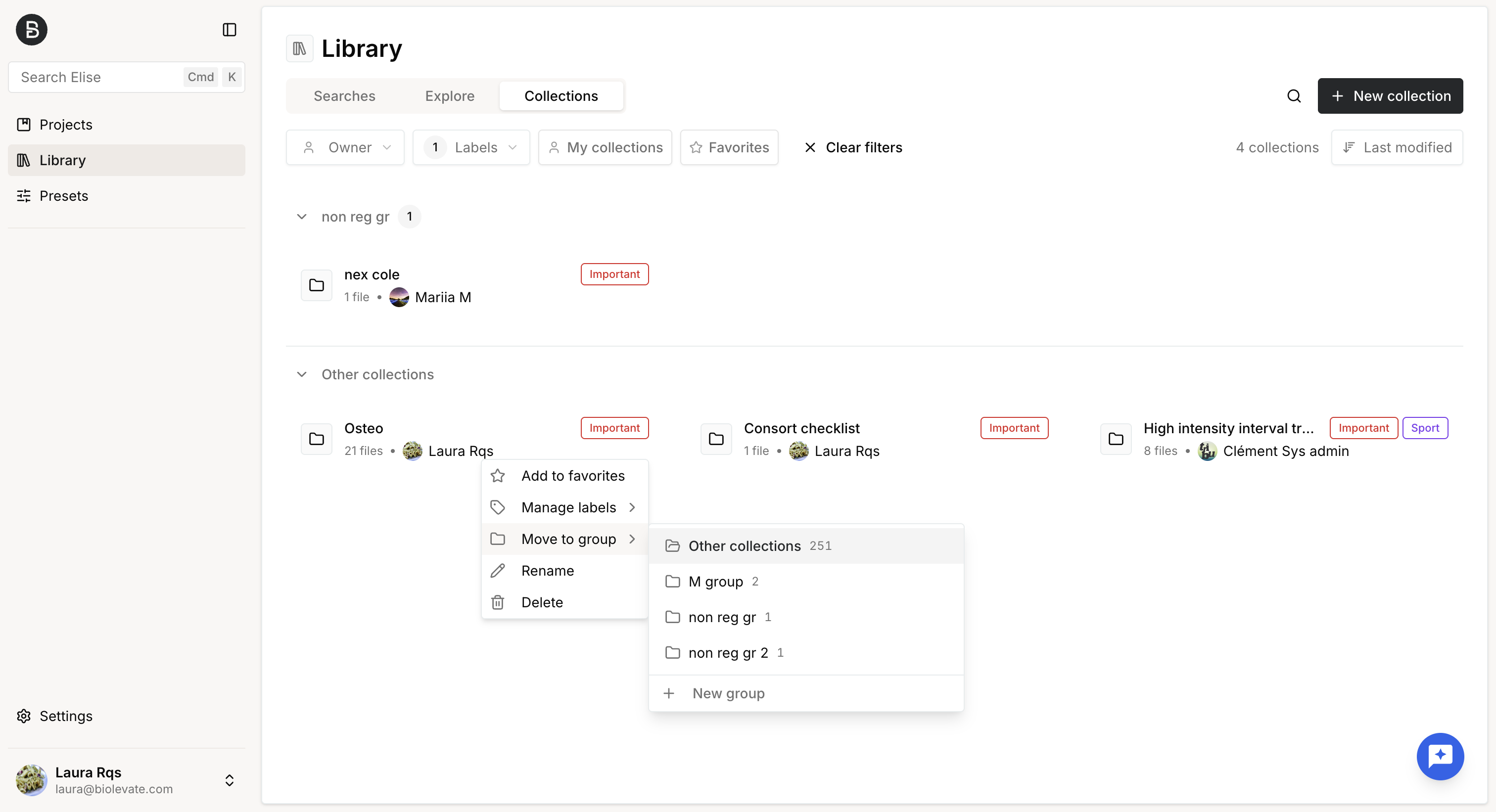
To add a collection to a group:
- Open the collection menu and select "Move to group".
- Select an existing group, or create a new one by entering a group name.
Once a group has been created, you can manage its collections and permissions.
Defining permissions at the group level is the recommended way to manage access.
Permission levels:
- Read: Users can view the group's collections and remove their own collections from the group.
- Write: Users can view collections, add or remove their own collections, and rename the group.
- Owner: Users can view collections, add or remove their own collections, rename the group, manage group permissions, and delete the group.
Important notes:
Only the project owner or a System Administrator can move a collection to a group.
Membership in a group does not automatically grant access to every collection in that group; users can only access collections for which they have explicit permissions.
View collection information
You can open a collection's information panel in two ways:
- Click the collection from the Library.
- Double-click the collection to open its file list, then click the Information (i) icon in the upper-right corner.
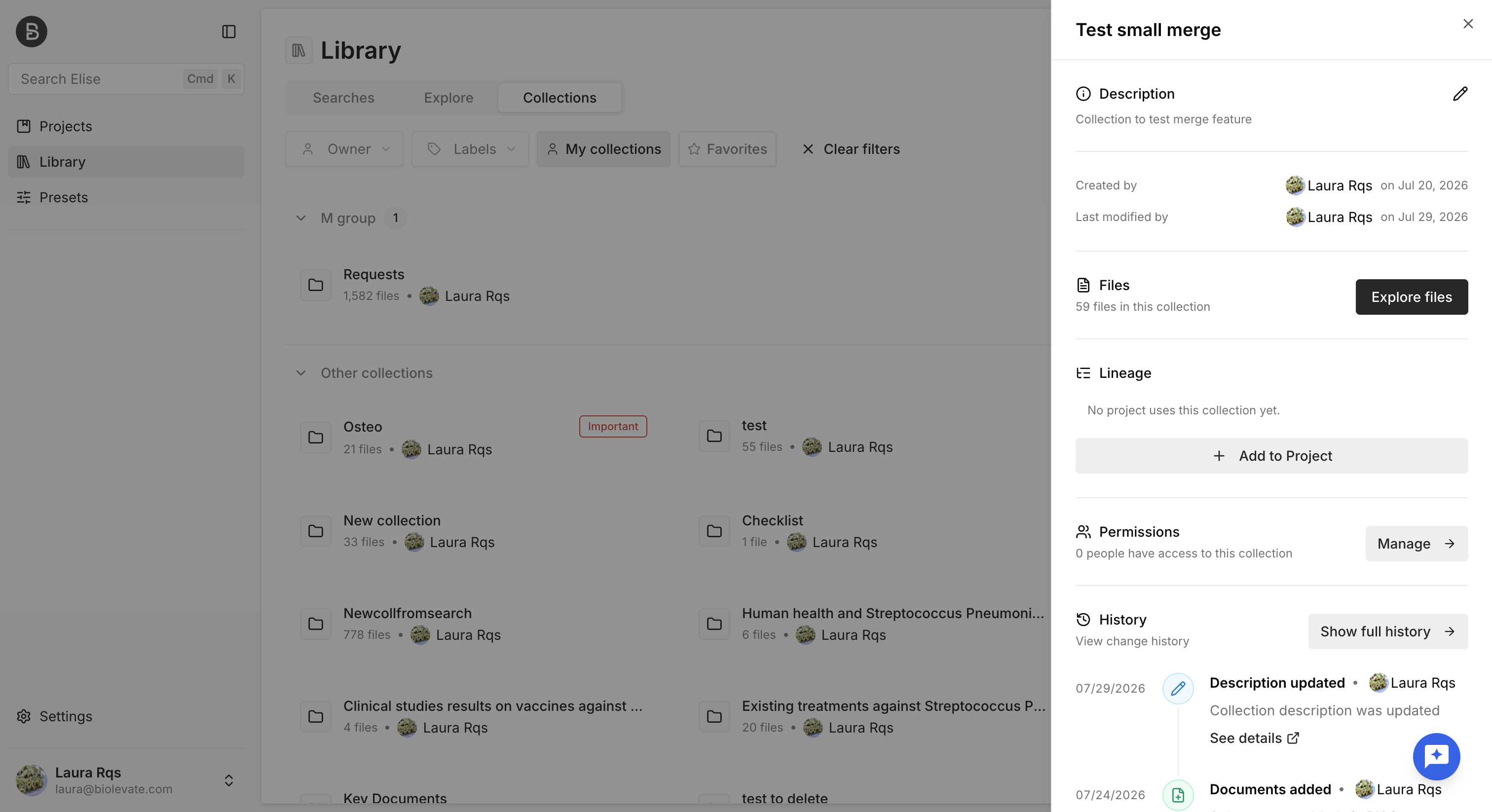
The information panel opens on the right side of the screen.
View general information
The General section includes:
- Labels.
- Description.
- Creation date and owner.
- Last modification date and user.
- Number of files.
View collection lineage
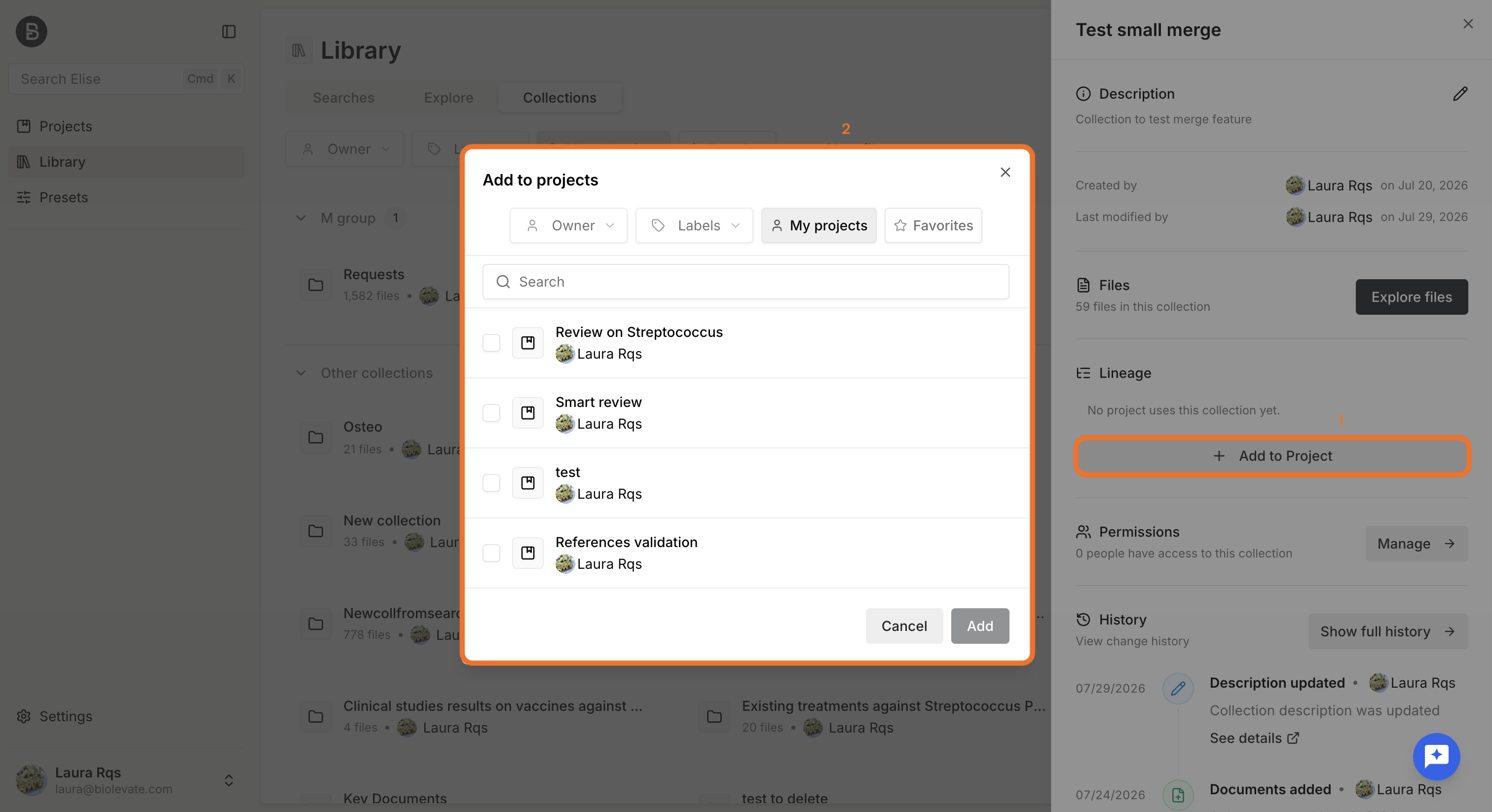
The Lineage section shows where the collection is used.
From this view, you can:
- Click Go to project to open a project's resources.
- Click Add to project to add the collection to another project.
Manage collection permissions
Only the collection owner and system administrators can modify collection permissions.
To update permissions:
- In the Permissions section, click Manage.
- Select an existing policy or create a new one.
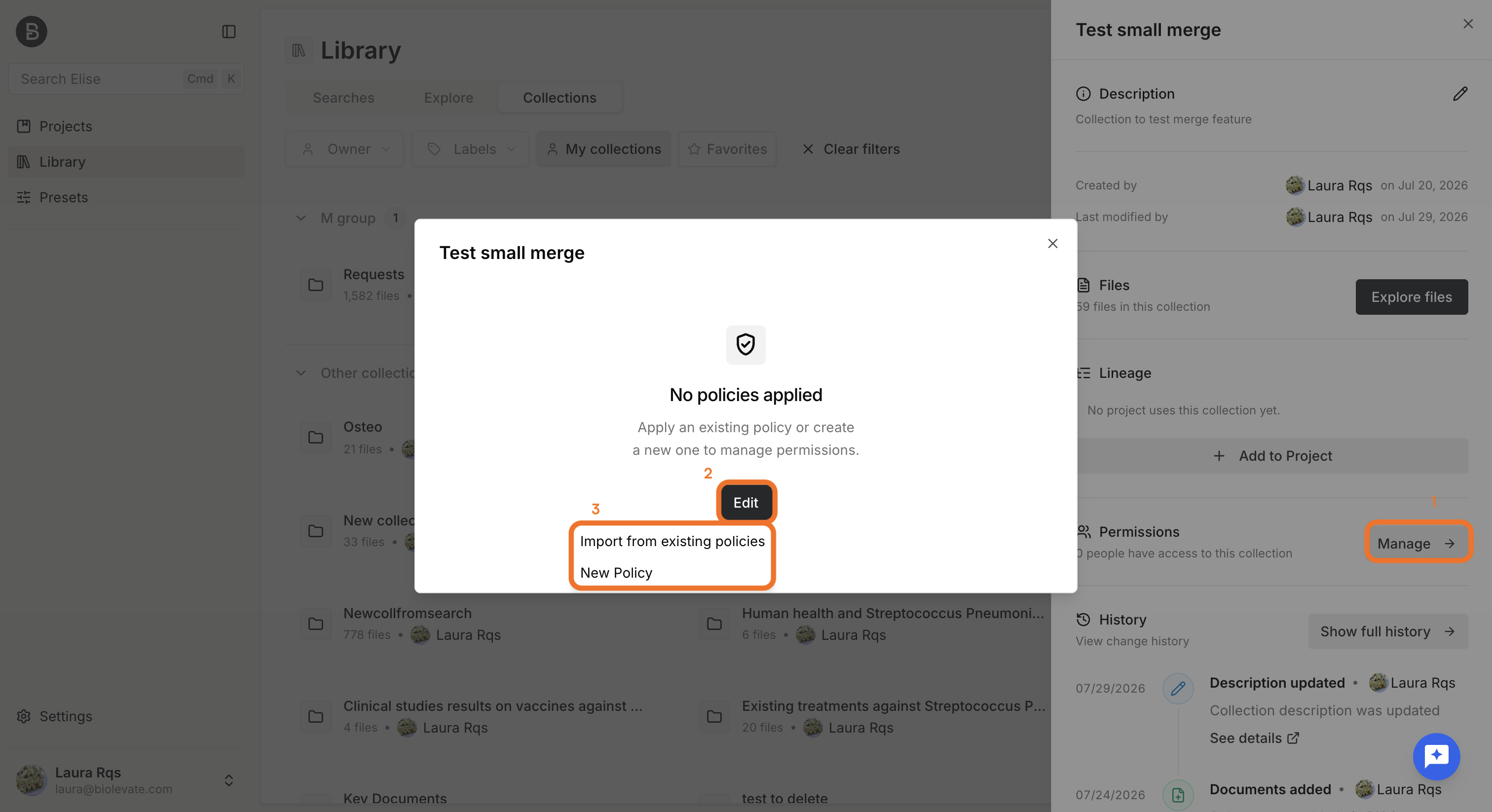
Users included in the selected policy receive Read or Write access according to the policy configuration.
| Actions | Sys admin | User 'write' | User 'read' | User |
| Create a collection | YES | YES | YES | YES |
| Use collection in project | YES | YES | YES | NO |
| Add collection to favorite | YES | YES | YES | NO |
| Read files | YES | YES | YES | NO |
| Download files | YES (from project) | YES (from project) | YES (from project) | NO |
| Access collection history | YES | YES | YES | NO |
| Remove file from a collection | YES | YES | NO | NO |
| Upload a file to the collection | YES | YES | NO | NO |
| Rename collection | YES | YES | NO | NO |
| Edit collection description | YES | YES | NO | NO |
| Modify collection labels | YEs | YES | NO | NO |
| Extract knowledge | YES | YES | NO | NO |
| Delete collection | YES | NO | NO | NO |
| Manage policy | YES | NO | NO | NO |
Review collection history
The History section records all changes made to the collection, including:
- Collection creation
- Collection rename
- Description update
- Files added
- Files removed
- Documents merged
- Documents unmerged
- Files imported from a search
- Permissions updated
- Group changed
- Labels updated
- Collection added to a project
- Collection removed from a project
- Sub-collection created
- Collection lineage broken
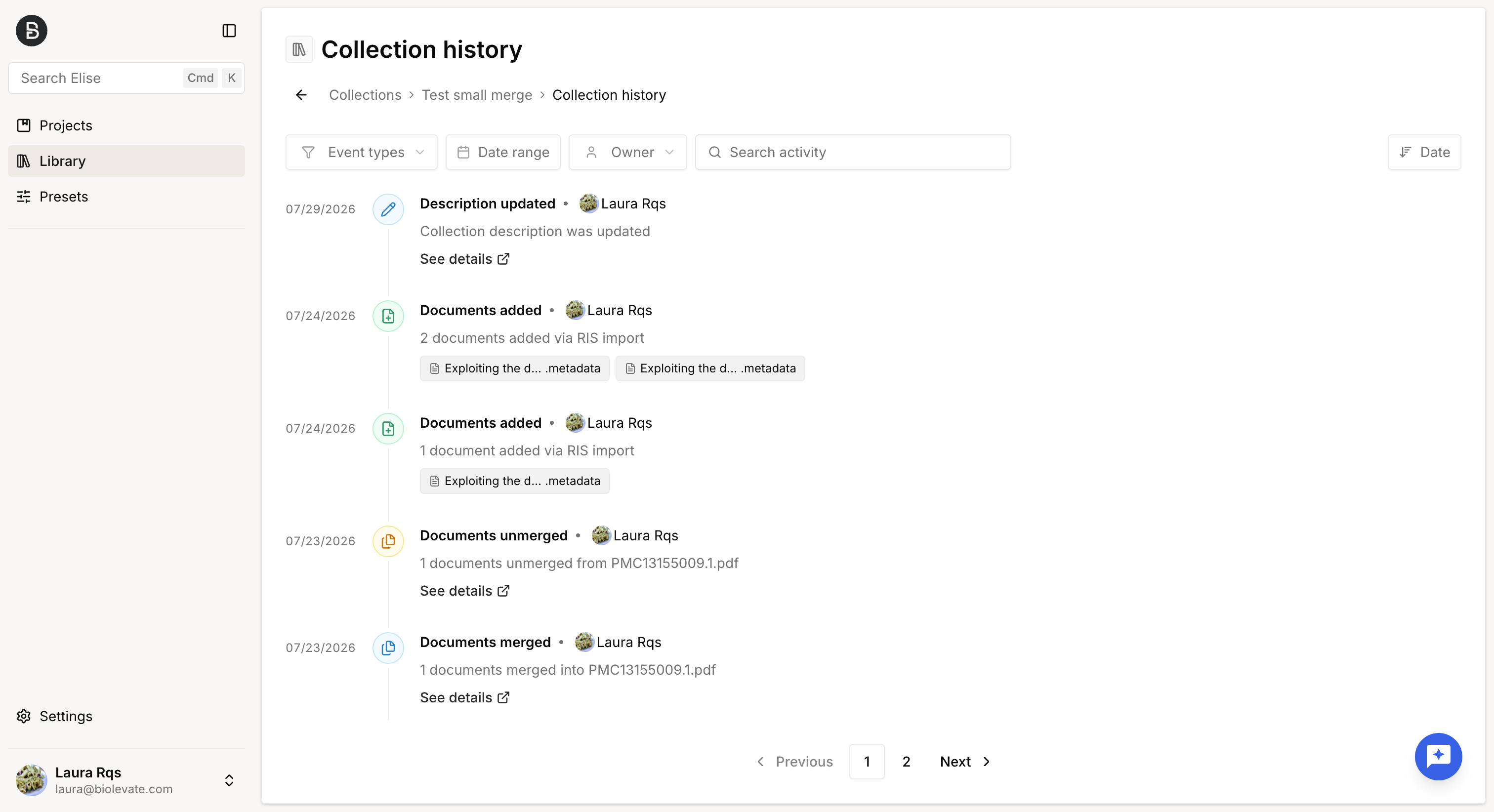
Some events include additional details, available when clicking on "See details".
For Documents merged or unmerged, you can view the previous versions of the merged documents, including the original metadata and full text.
For Files imported from search, you can review the search query, applied filters, selected files, successfully imported files, and the status of each imported document (metadata only or full text).
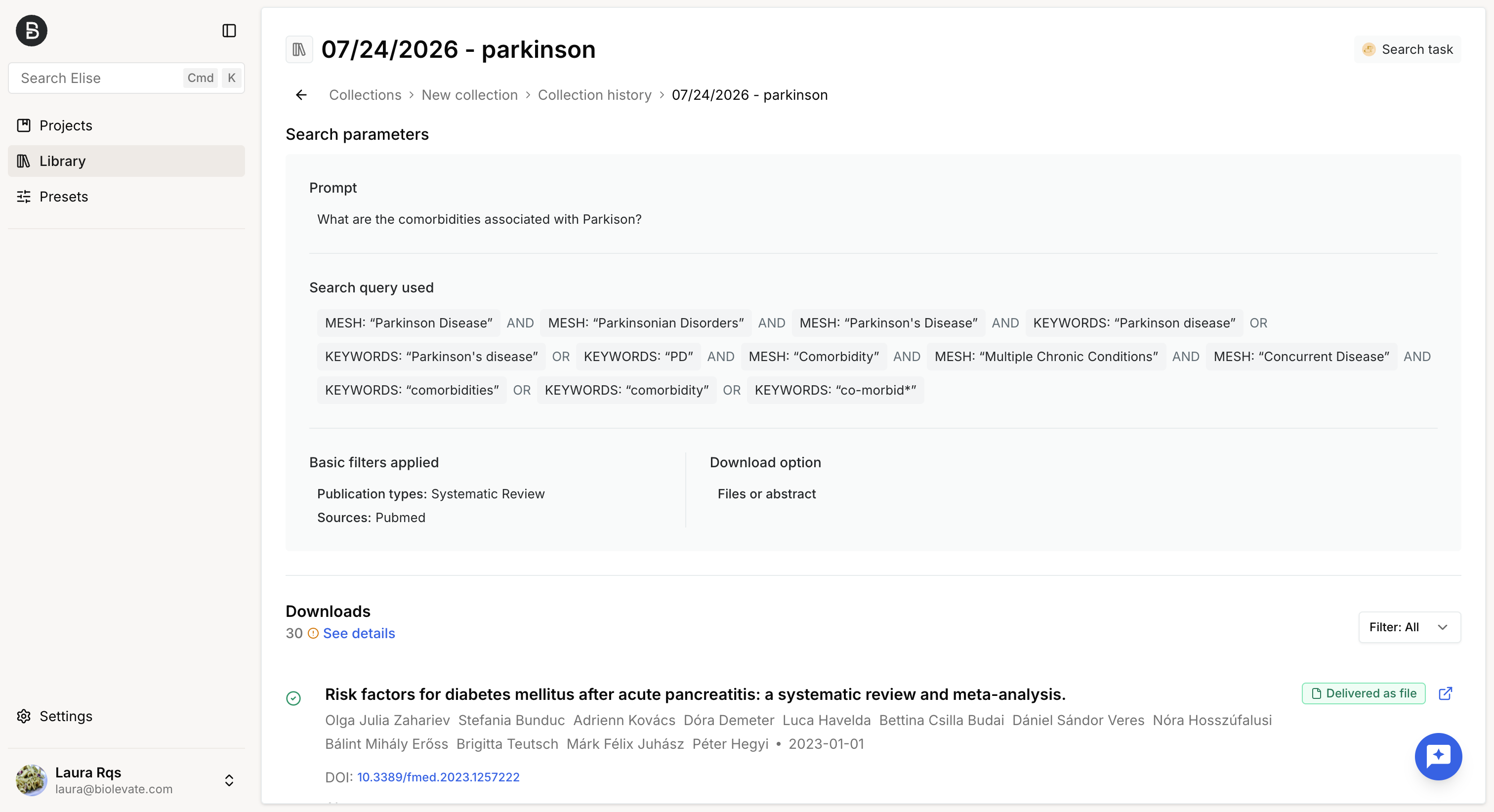
For content updates, such as Description updated, you can see previous and current version.
Use a collection
Once a collection has been created, it can be used throughout your projects.
A collection can serve as a source for AI-powered features, including tasks and content generation.
You can also extract structured information from its files by creating a knowledge table.
Was this article helpful?
That’s Great!
Thank you for your feedback
Sorry! We couldn't be helpful
Thank you for your feedback
Feedback sent
We appreciate your effort and will try to fix the article