| Permissions | Admin Portal is only accessible to organization and workspace admins |
| Related readings |
In the Users tab of the Admin Portal, administrators can manage members and service users.
TABLE OF CONTENTS
Members
Organization roles
Each user has an organization role:
Organization Admin: can manage the organization, including users, workspaces, teams and repositories.
Organization Basic User: has no specific permissions at the organization level.
The organization role is separate from workspace roles. A user can be an Organization Basic User and an Admin or Collaborator in one or more workspaces.
For more information about workspace roles and permissions, see the Workspace roles documentation.
Invite new users
To invite a user to the Biolevate application:
1. Go to the Users tab in the Admin Portal.
2. Click on +Add new user.
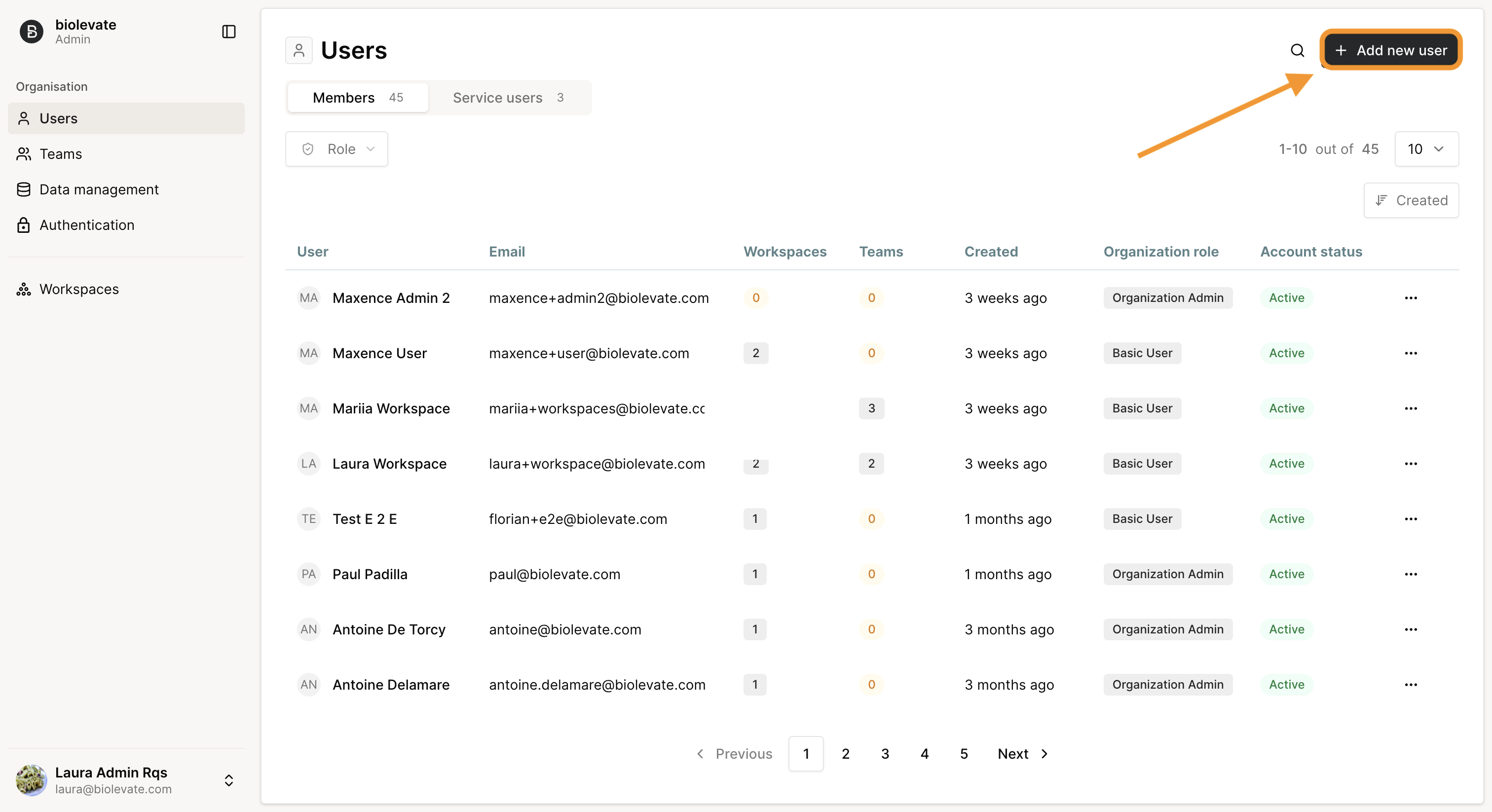
3. Complete the form with the required information:
- First name
- Last name
- Phone number (optional)
- Organization role: Organization admin or Basic user
- Workspace (optional): add a user to a workspace and select his role, Admin or Collaborator

4. Click Create.
The user is added to the users list, and an activation email is sent to the provided email address.
If the email is not received within a few minutes, the user should check their spam folder.
The invitation is valid for 72 hours. If the user exceeds the period, we recommend deleting and resending an invitation.
Manage existing users
The users list displays the following information:
- First name and last name
- Workspaces count, with role by workspace
- Teams count
- Creation date
- Organization role
- Status: Active or Deactivated
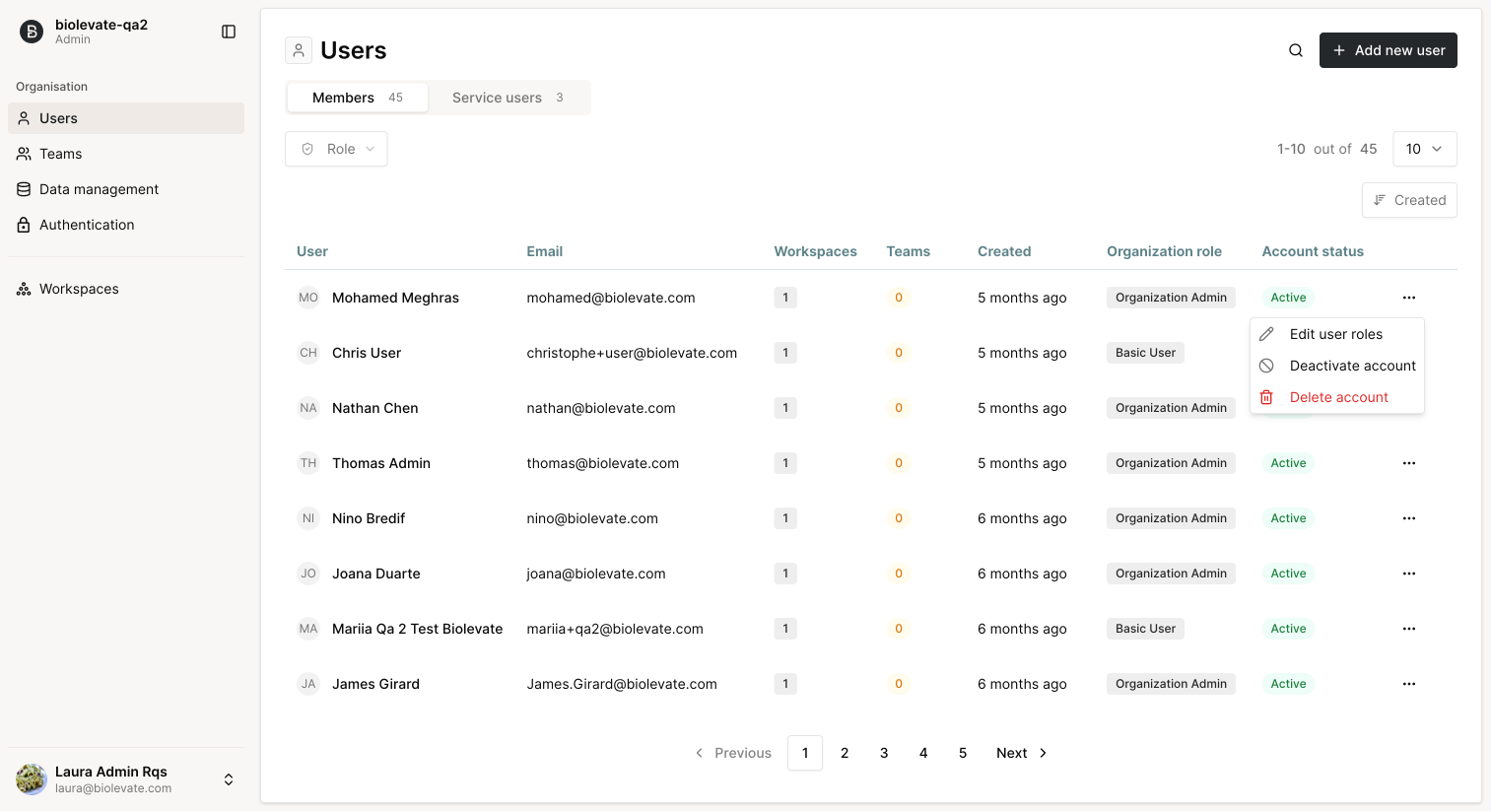
An action menu is available on the right side of each row, allowing administrators to:
- Deactivate account: the user is marked as deactivated and can no longer log in.
- Reactivate account: the user is marked as active and regains access.
- Edit role: upgrade or downgrade role between user and system administrator
- Delete account: the user is permanently removed. Caution: deleted users may be the sole owners of certain artifacts.
Search, sort and navigate
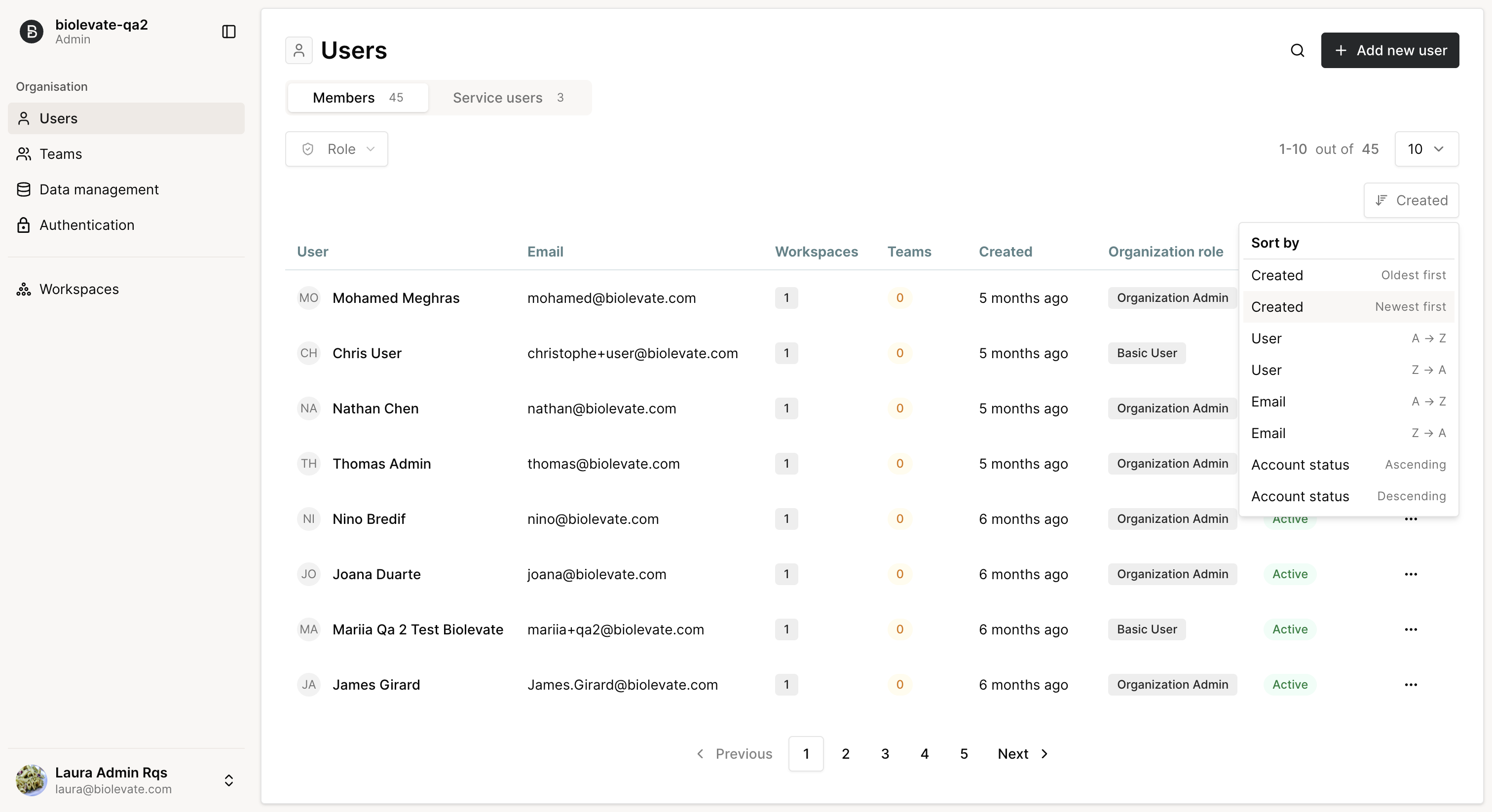
- Navigate through pages to browse the full list of users. Update number of users listed by page.
- Use the search bar to find users by first name, last name or email.
- Filter on role and sort on name, email, creation date or status
Service users
In Service users, administrators can generate and manage personal access tokens for API use.
These users have the same roles and permissions as members.
Create service users
To create a service user:
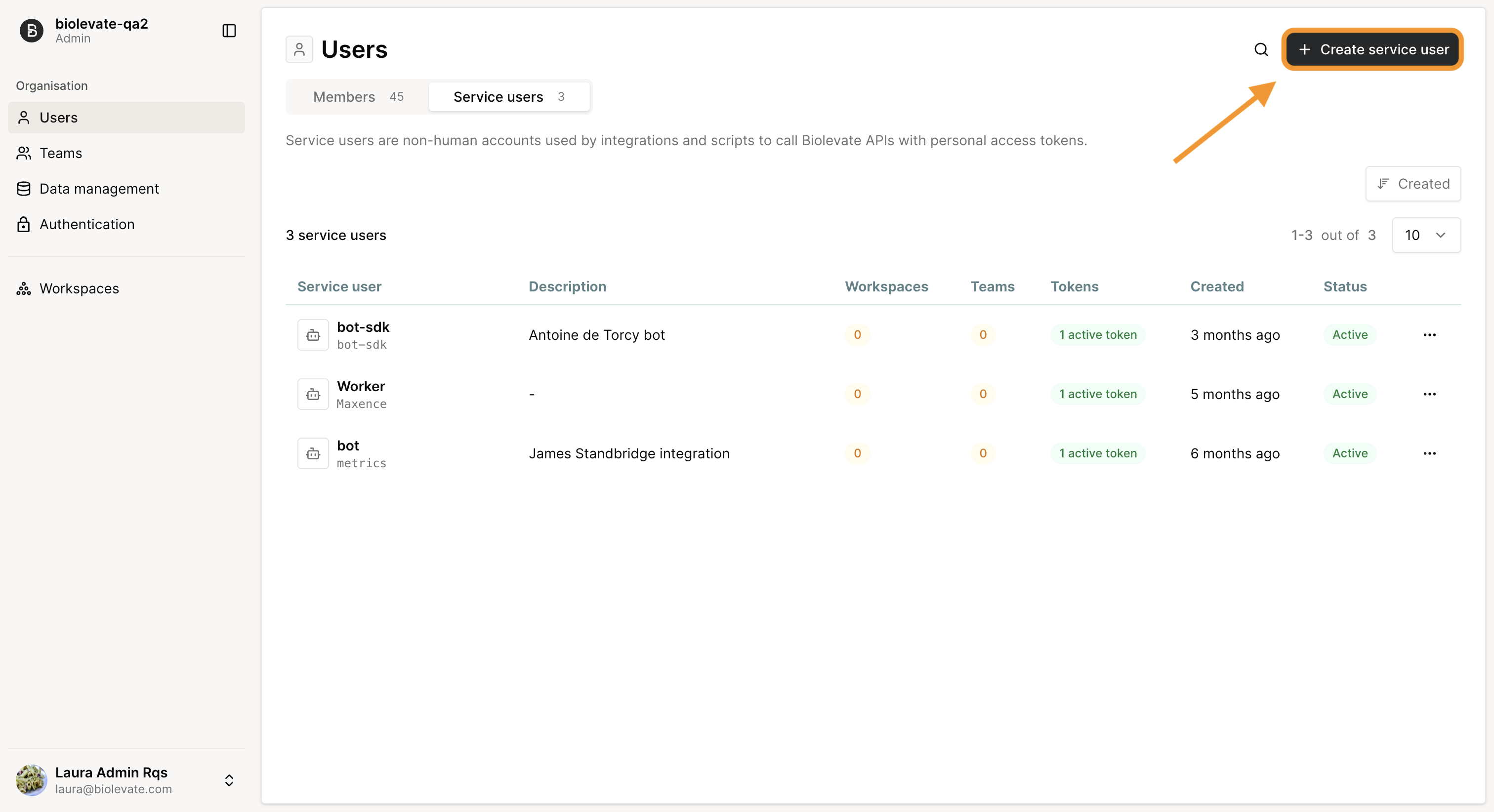
1. Go to the Users tab in the Admin Portal.
2. Click on Service users.
3. Click on +Create service user.
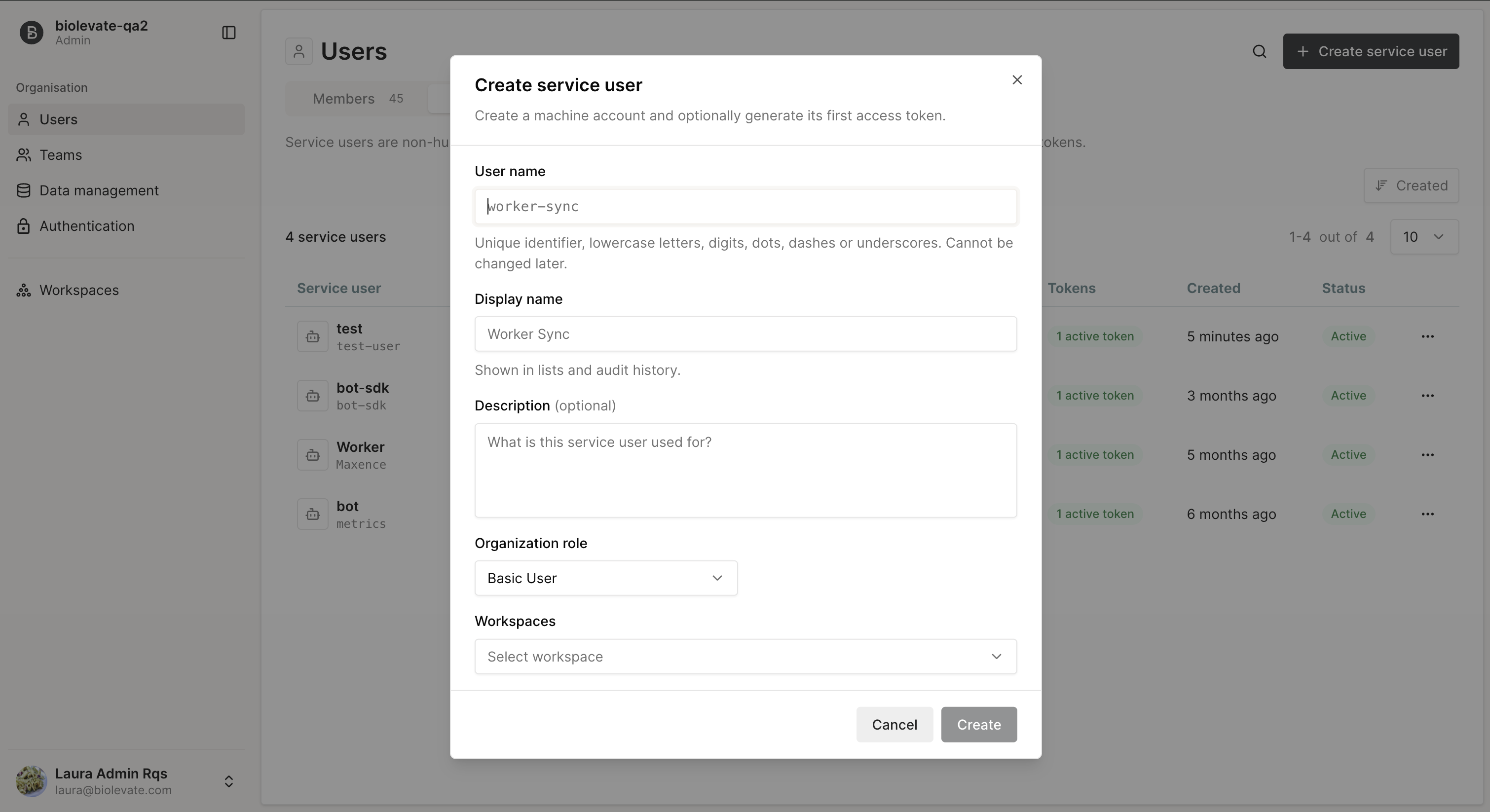
4. Complete the form with the required information:
- User name
- Display name
- Description (optional)
- Organization role: Organization Admin or Basic User
- Workspace (optional): add a user to a workspace and select his role, Admin or Collaborator
5. Click Create.
6. Select an expiry date for the token (optional) and generate the token.
7. Copy the token. It won't be show again.
Manage service users
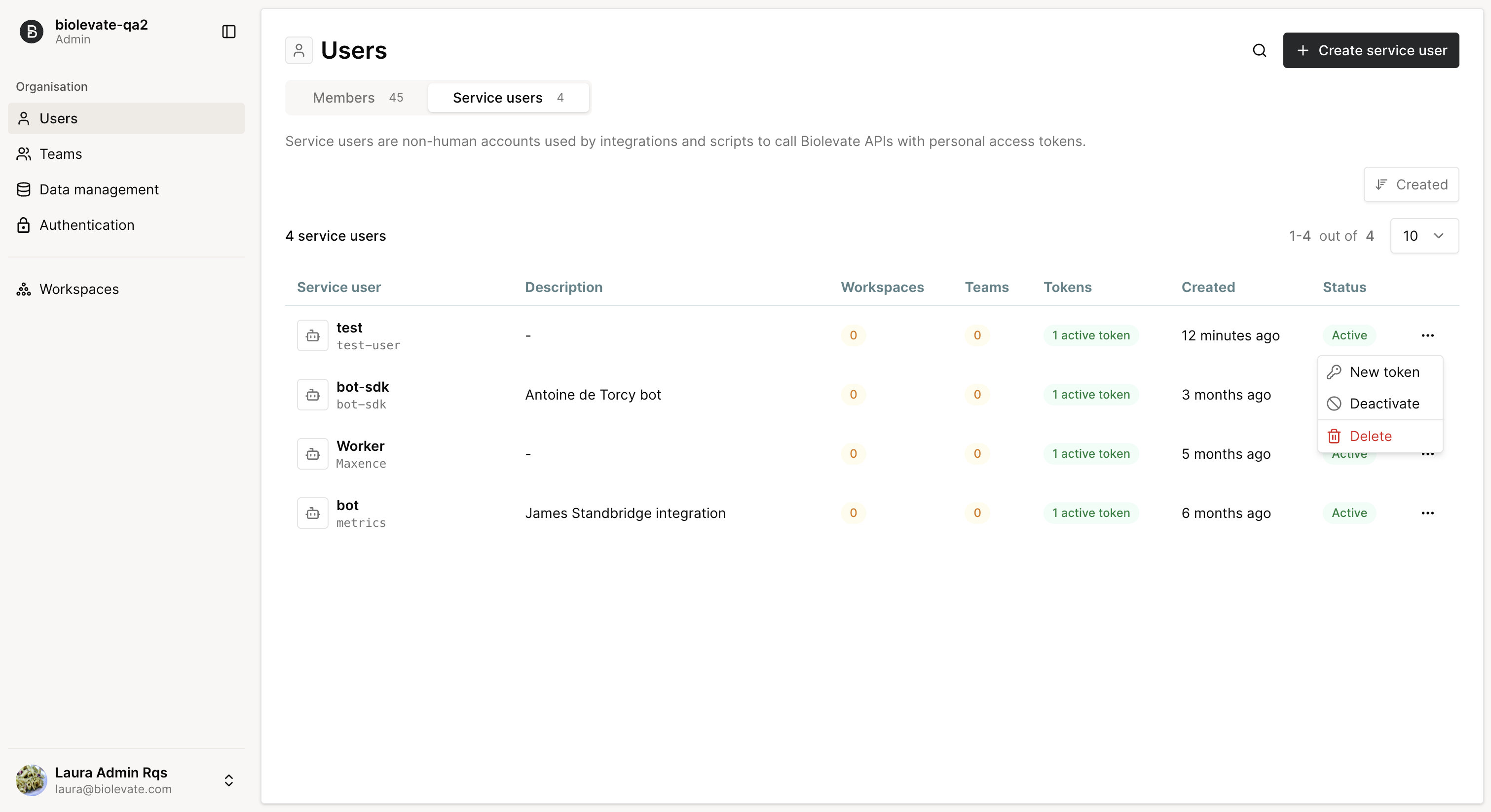
The service users list displays the following information:
- User name and Display name
- Description
- Workspaces count, with role by workspace
- Teams count
- Active tokens
- Creation date
- Status: Active or Deactivated
An action menu is available on the right side of each row, allowing administrators to:
- Deactivate account: the user is marked as deactivated and can no longer log in.
- Reactivate account: the user is marked as active and regains access.
- Generate a new token: a new token is added to the list after the creation process
- Delete account: the user is permanently removed. Caution: deleted users may be the sole owners of certain artifacts.
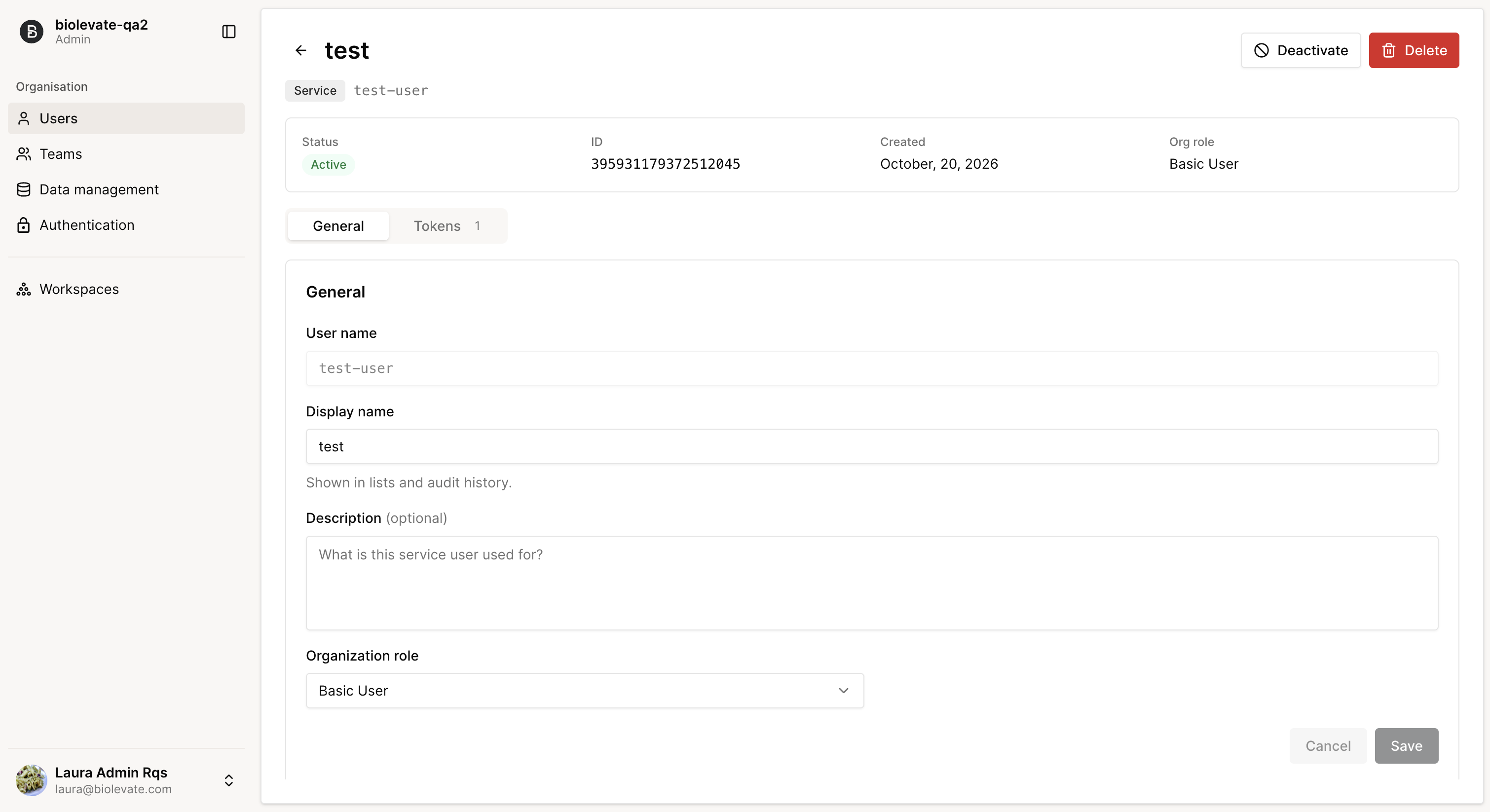
Click on a service user to access its details:
- status, ID, creation date and organization role
- general: user name (cannot be edited), display name, description, organization role
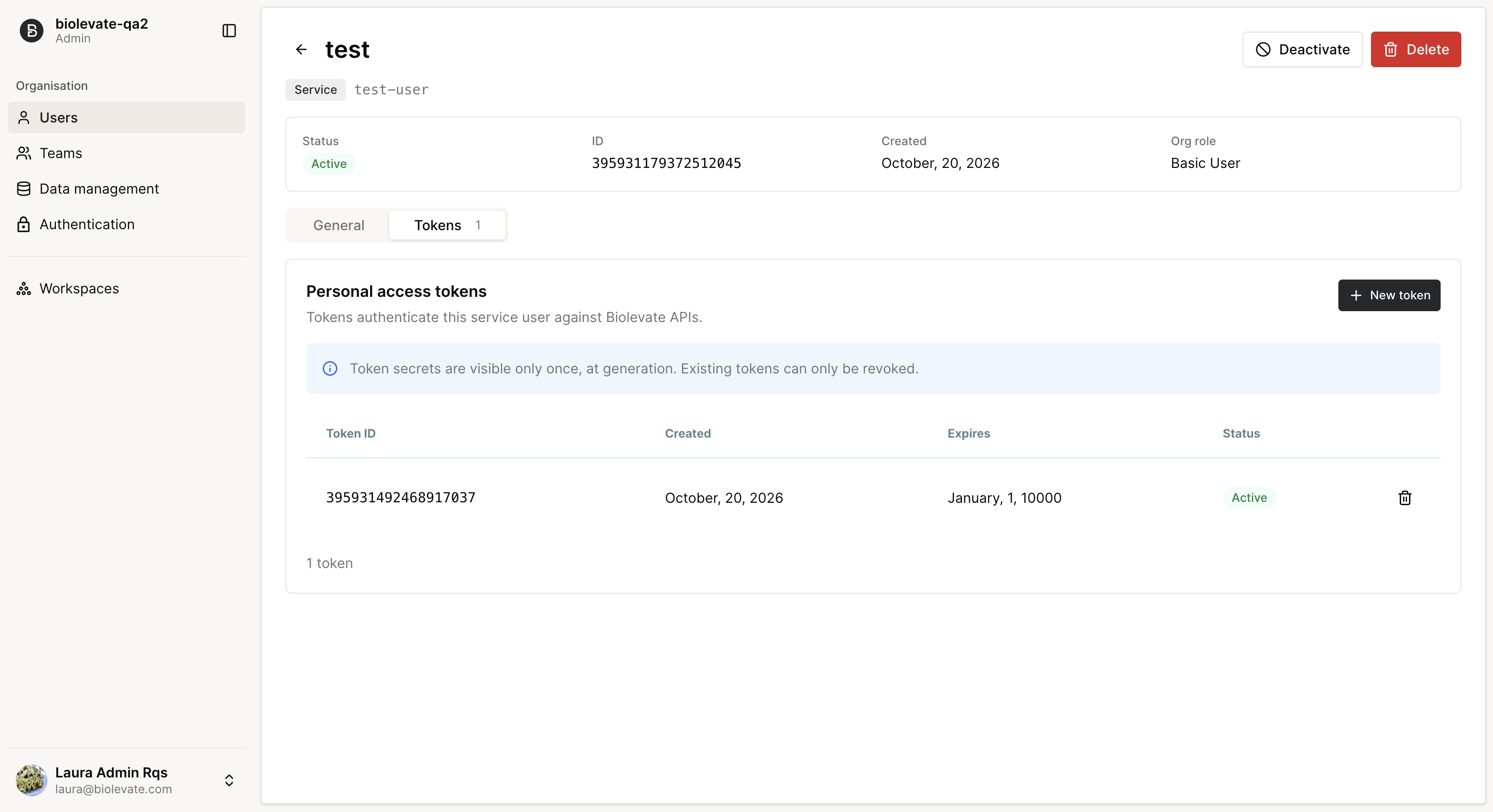
- tokens: list of active tokens with possibility to revoke them or add new ones
Was this article helpful?
That’s Great!
Thank you for your feedback
Sorry! We couldn't be helpful
Thank you for your feedback
Feedback sent
We appreciate your effort and will try to fix the article