| Permissions | Only sys admins can manage providers |
| Related readings |
You can connect to external or local providers to access and load data for your projects.
From the Data Management tab on the admin portal, sys admins can manage providers and select which one should be used as default.
TABLE OF CONTENTS
Integrated providers
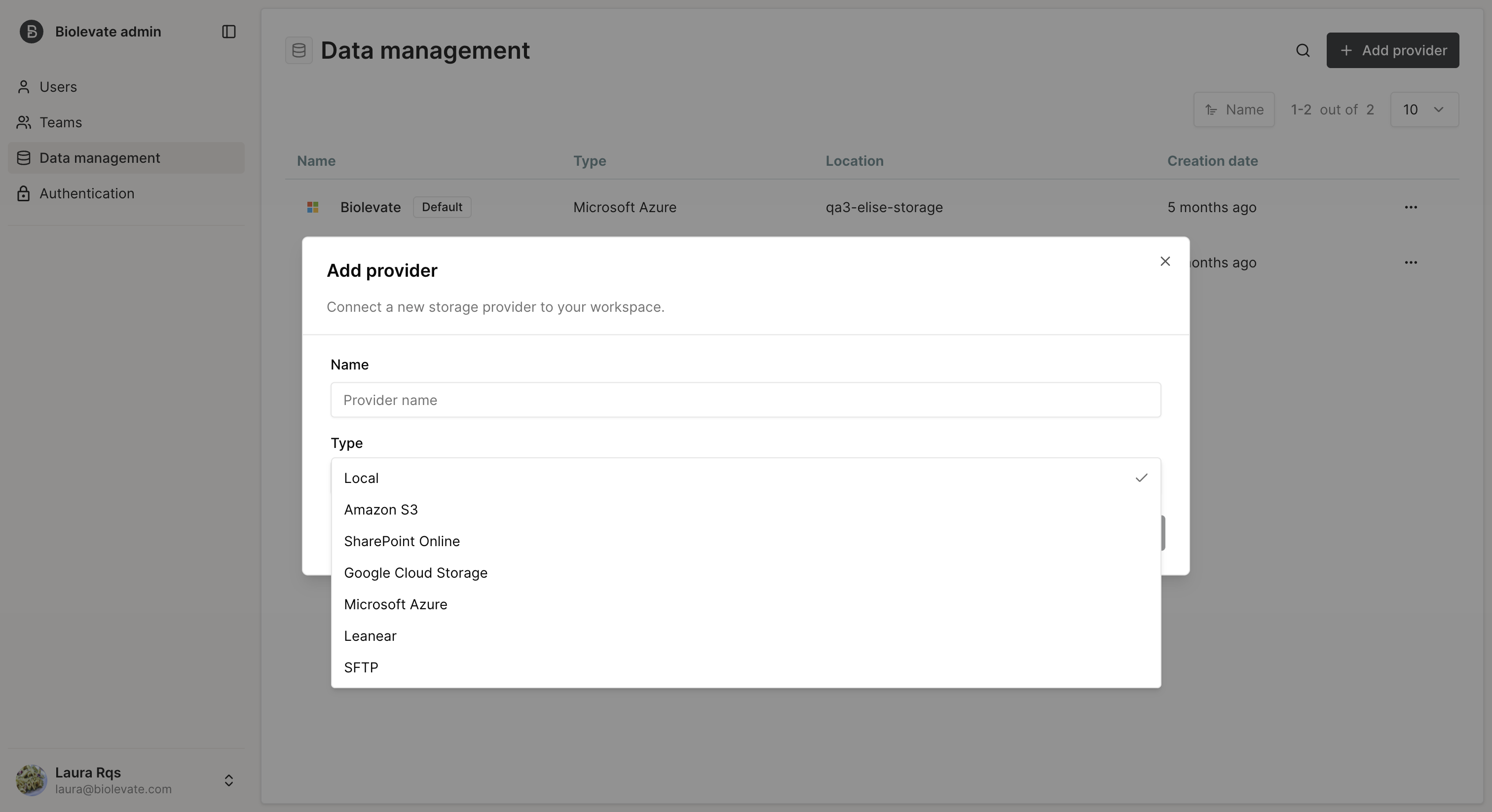
Local
If you cannot integrate with an external provider yet or if the application is hosted on your environment directly, you can add a local repository (on-premise).
This will allow to use a disk attached to the application.
It can store a dedicated volume on a dedicated customer tenant; the disk encryption method and details is available on request.
AWS S3
To integrate with AWS S3, you need to add a repository with 'S3' as type.
Then, you will need to fill in your AWS Access Key Id, AWS Secret Access Key, Region and Bucket name.
Sharepoint
To integrate with Sharepoint Online, you need to fill in your site URL, Document Library, Client ID, Client Secret and Tenant ID.
Google Cloud Storage
To integrate with GCS, you need to fill in your GCS Secret JSON Key, Bucket Name, Region and Project ID.
Azure
To integrate with Azure, you need to fill in your Azure Connection String and Container Name.
Leanar
To integrate with Leanar, you need to fill in your Access Key Id, Secret Access Key, Bucket Name, Project ID and Default Policy.
SFTP
To connect a SFTP, you need to provide: Host, Port, Username, Root path (optional), and the authentication method.
Once the provider is connected and if the credentials give full access to the provider, the application will display the content of the repository in real-time.
We recommend giving a complete access to the provider and then using policies on this provider to restrain users' actions (see Repository policy part below). This will prevent actions from being allowed in the application but later rejected by the provider.
Repository actions
Depending on the level access authorized by the provider, you should be able to:
- See folders and files in real-time
- Upload new files and folders
- Rename existing files and folders
- Delete existing files and folders
- Index existing files (allows to apply AI modules on the file like Q&A)
- Download files (action authorized from projects only)
Beware, uploading, editing or deleting files are impacting your data at their source.
If a file or folder is uploaded in context (from a project or a collection), it will be stored in the default repository.
You can define the default repository from the general settings.
Repository policy
After connecting a repository, you should apply it a policy to make sure users have the right level access to it.
If you do not add a policy, users won't be able to access files nor upload files to work on outside of the collections they have access to.
To manage a repository's access policy:
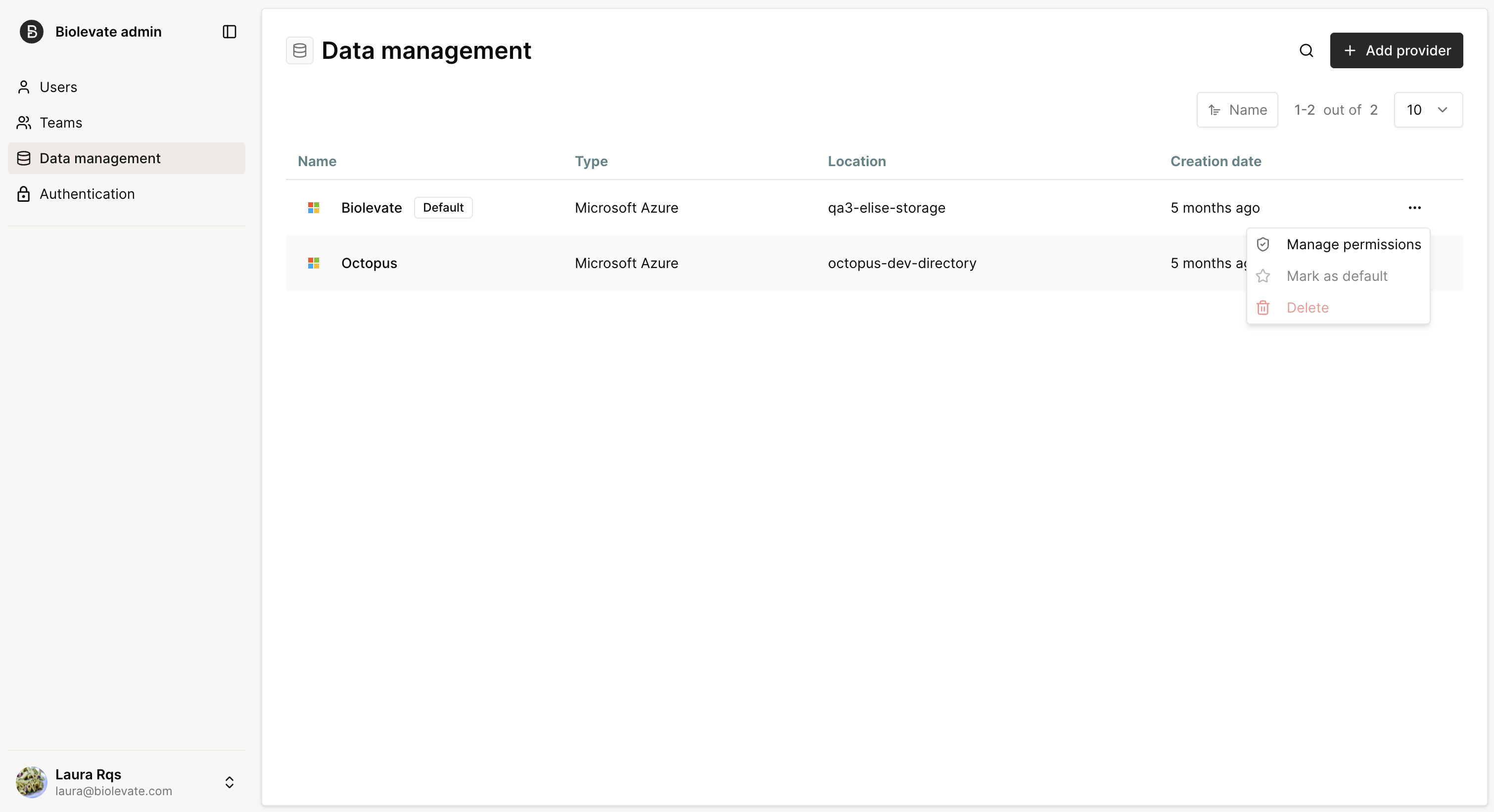
- Go to the Data management tab.
- Open the repository's menu.
- Select "Manage permissions".
- Choose an existing policy or create a new one.
The table below lists the actions authorized with the different roles and permissions.
| Action | Sys admin | User 'write' | User 'read' | User |
| Create folder | YES | YES | NO | NO |
| Upload folder/file | YES | YES | NO | NO |
| Preview file | YES | YES | YES | NO |
| Rename folder/file | YES | YES | NO | NO |
| Delete folder/file | YES | YES | NO | NO |
| Add file to collection | YES | YES | YES | NO |
| Manage repository settings | YES | NO | NO | NO |
Was this article helpful?
That’s Great!
Thank you for your feedback
Sorry! We couldn't be helpful
Thank you for your feedback
Feedback sent
We appreciate your effort and will try to fix the article