| Permissions |
|
| Related readings |
When adding a document to the platform, you can access several features, organised in tabs, to help you work.
Don't forget to assign your document to a collection and to verify that it is well-indexed to ensure the good functioning of the tools.
TABLE OF CONTENTS
General information
When opening your document, you land on the first tab on the right of the document preview.
General knowledge
When your document is indexed, the platform automatically extracts some general information:
- Document Type: scientific publication, technical document, regulation, patent, clinical trial report, regulatory approval, or other
- Description: 1-line description
- Keywords: either found in text or generated
- additional information depending on the document type: first and last author, authoring organization, inventors and so on.

It is important to note that these additional information (visible when clicking on 'See more') are used to facilitate citation and bibliography management in the Editor. If they are not computed, we highly recommend to click on the arrow on the top-right to relaunch the computation.
Personal notes
At any moment, you can add notes to your document. Those notes are personal and only visible by you.

Metadata
Metadata of the document are also available.
They are composed of:
- the last parsing date (internal data)
- the creation date (internal data)
- the format (external data, if available)
- the creator (external data, if available)
- the producer (external data, if available)
- the size (external data, if available for images only)
- the mode (external data, if available for images only)
- the class (external data, if available for images only)
References
In References, the second tab in the menu on the right, you can identify and manage the references of your document.
Find references
The References finder is a tool that will identify the best in-favor arguments for the selected statement:
- With the toolbar, choose a selection mode between text or bloc: text selection is more precise but will not be available for all file formats; if your document is scanned for example, the bloc selection will be the best option.
- Select the file(s) or collection(s) you want as document sources.
- Then, launch the References finder: it might take some time depending on the number of sources to analyze, but you can continue your work by selecting a new part of the document or moving to another task; the tool will run in the background.
- Several references and their respective arguments are proposed, you can either accept or reject them: you can consult the arguments within each reference before making a decision.


If the results are insufficient or empty, you should consider reducing the number of sources or adapting the size of the statement you selected. Indeed, a statement with too much or too little information might not work.
Navigate your references
Statements selected in the document are highlighted in blue.
When clicking on the highlighted text, it displays the related references on the right.

Knowledge
In Knowledge, the third tab in the menu, you can access all the meta associated to your document.
From there, you can:
- Add knowledge specific to your document: you can extract information by adding a field or using the same presets as in the knowledge table and consult arguments and explanation for each.

- Apply knowledge to a collection: if the work you have done can apply to the other documents of your collection, you can spread it in one click. It will appear on other documents and in the knowledge table of your collection.
- Recompute the meta of your file: if your data is stale or you encountered some errors that prevented the computation, you can recompute all your file metas at once by clicking on the arrow.
Parsing
In Parsing, the fourth tab in the menu, you can access the parsing output of the file.
It is interesting to understand what has been understood by the computer when treating your document and to get immediate value right after the indexation fo your file.
From there, you can:
- Navigate between the parsed elements: you can click on the part of your interest on the document, the right window will scroll to the corresponding parsing output

- Filter on the output that matter: you can filter by output type if you want to focus on figures or tables for examples

- Copy or download raw outputs: you can copy or download figures and tables that have been extracted from your document in just a click

- Get access to semantic description: figures have an additional semantic description created by the model

Reviews
In Reviews, the fifth tab in the menu, you can access the comments added on the file.
The comments can be added by all coworkers having at least READ permission on the file, and by the tool itself when using the AI Smart Review.
To add a comment, you need to select the text, or a bloc if the text cannot be selected, and click on 'Add comment'.
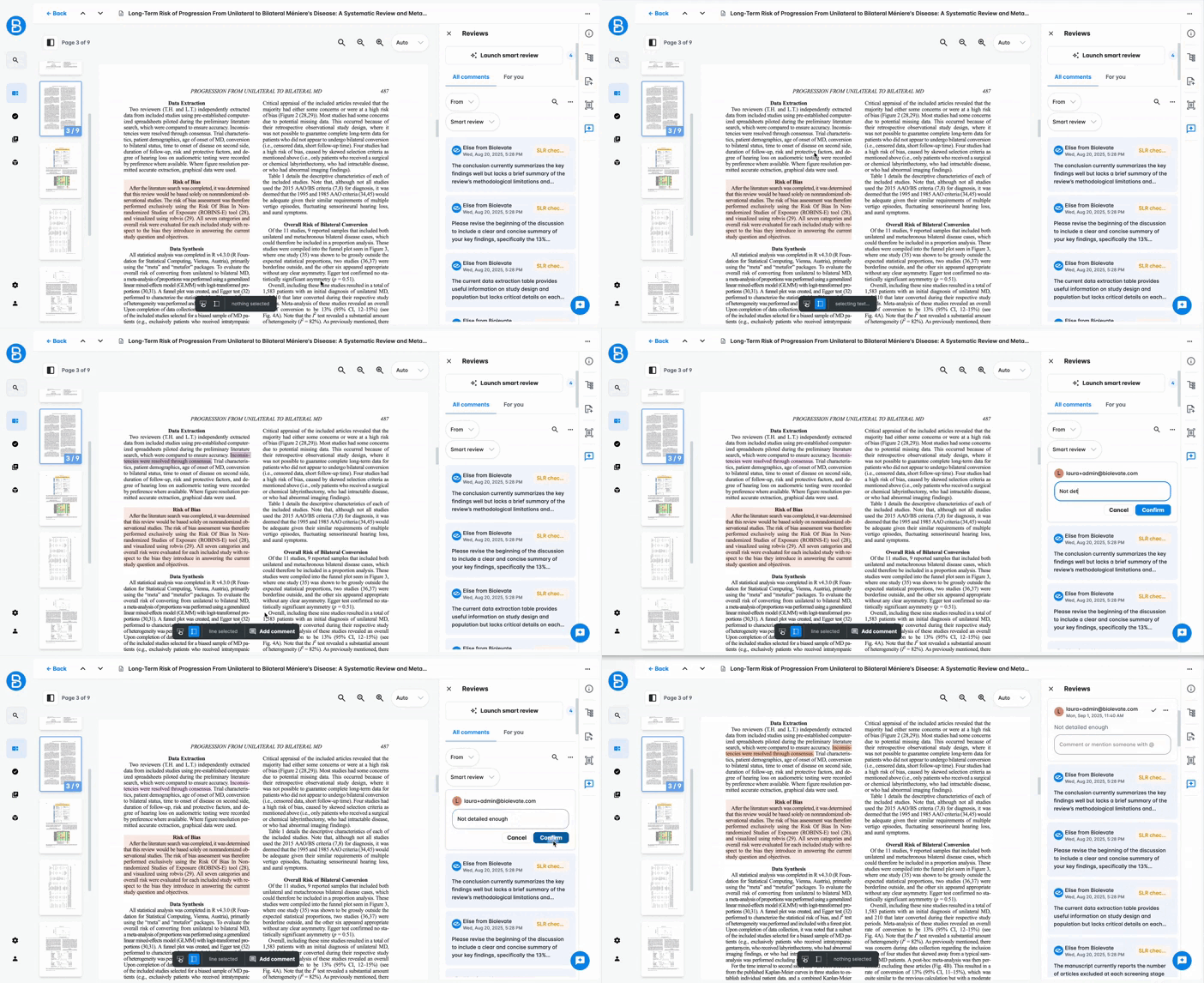
You can mention a user in your comment.
Notifications are not managed for now but it will allow your coworker to filter on the comments that are meant for him thanks to the "For you" tab.
Comments can be answered in a thread form.
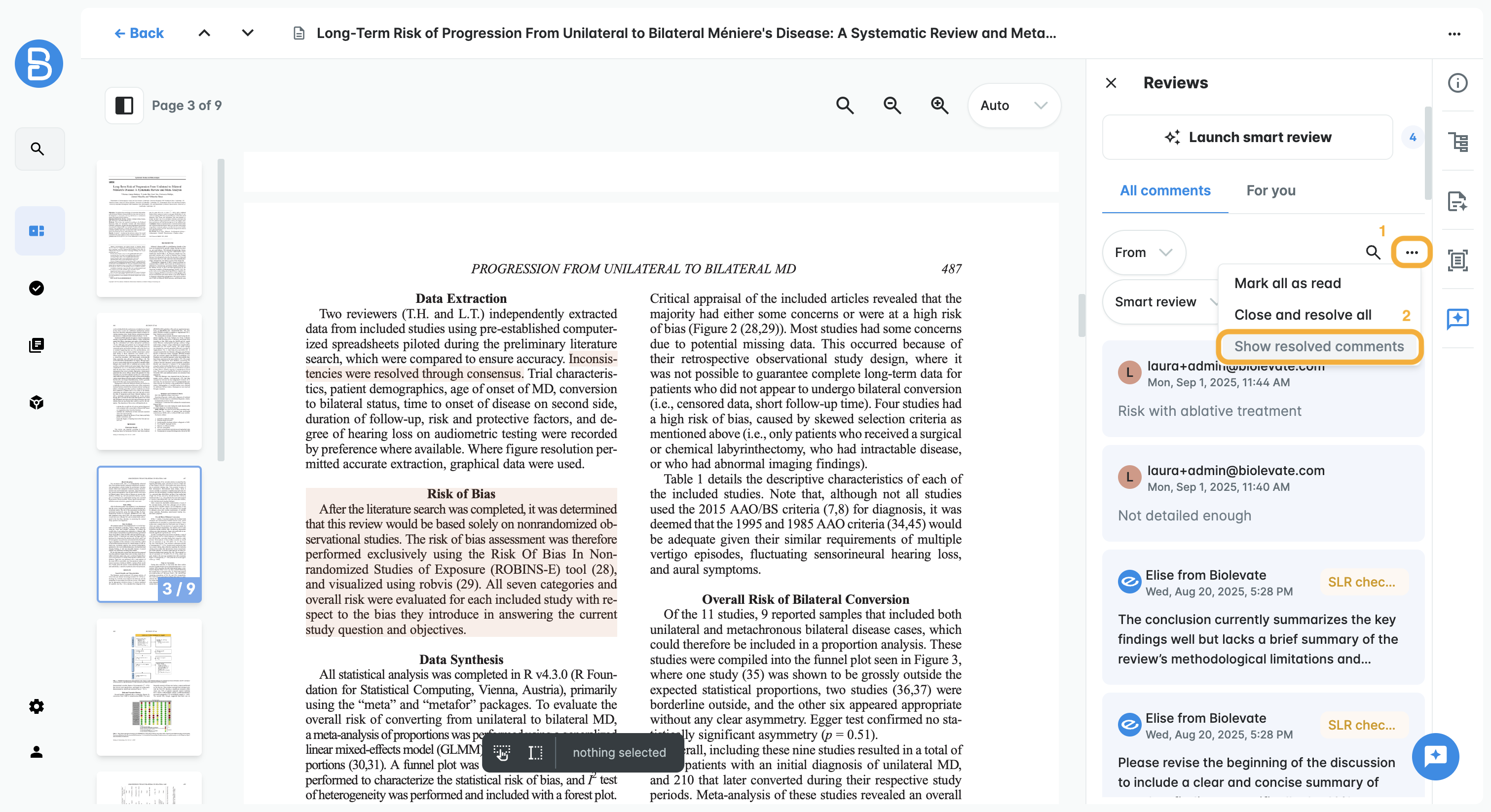
When the discussion is resolved, you can mark your initial comment as Resolved to archive the thread.
Resolved comments are still accessible by clicking on the menu and on "Show resolved comments".
File actions
You can access file actions by clicking the three dots at the top-right of a file.
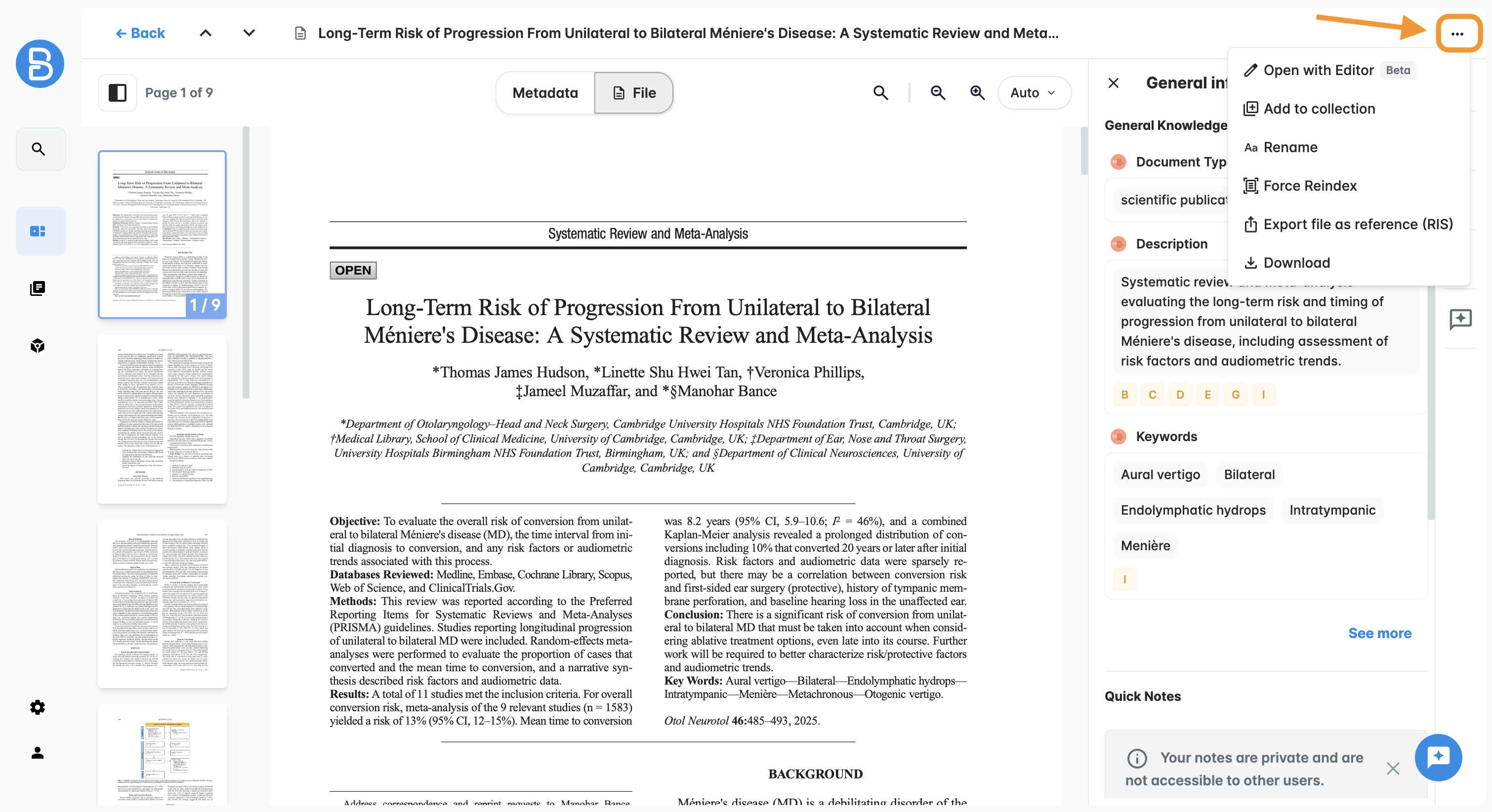
Open with Editor
You can open your file within the Editor.
This creates an editable document in your current project, filled in with all the file content accessible.
This feature is currently in Beta and has some limitations: annotations (such as comments or references) are not transferred.
The document content is directly linked to the parsing output. It is recommended to review the parsing output first to make sure the quality is sufficient.
Add to collection
You can add your file to any collection where you have at least a WRITE permission.
Rename
You can rename your file to make it easier to organize and find within your Library, collections or project resources.
Force reindex
You can force the file to go through the reindexing process again.
This is useful if the parser has been improved and could produce better parsing results, which may impact how the file performs across the platform when used as a source.
It can also be used to retry the process if an error occurred.
While a file is being reindexed, its status is shown ad "indexing", but it remains usable as a source. Tasks will run on the most recently indexed version.
Export file as reference
You can export your file(s) as an RIS file.
This exports the metadata (not the file itself) in a .txt file that follows the RIS format.
Download
You can download the file in its original format. The file is saved to your computer's download folder and remains unchanged on the platform.
Was this article helpful?
That’s Great!
Thank you for your feedback
Sorry! We couldn't be helpful
Thank you for your feedback
Feedback sent
We appreciate your effort and will try to fix the article