| Permissions |
|
| Related readings |
Knowledge tables can be exported in CSV or XLSX format, saved directly to a project, or reused as table templates.
TABLE OF CONTENTS
- Export a knowledge table
- Export multi-dimensional data
- Save to project documents
- Save fields as table template
Export a knowledge table
Knowledge tables can be exported as:
- CSV
- XLSX
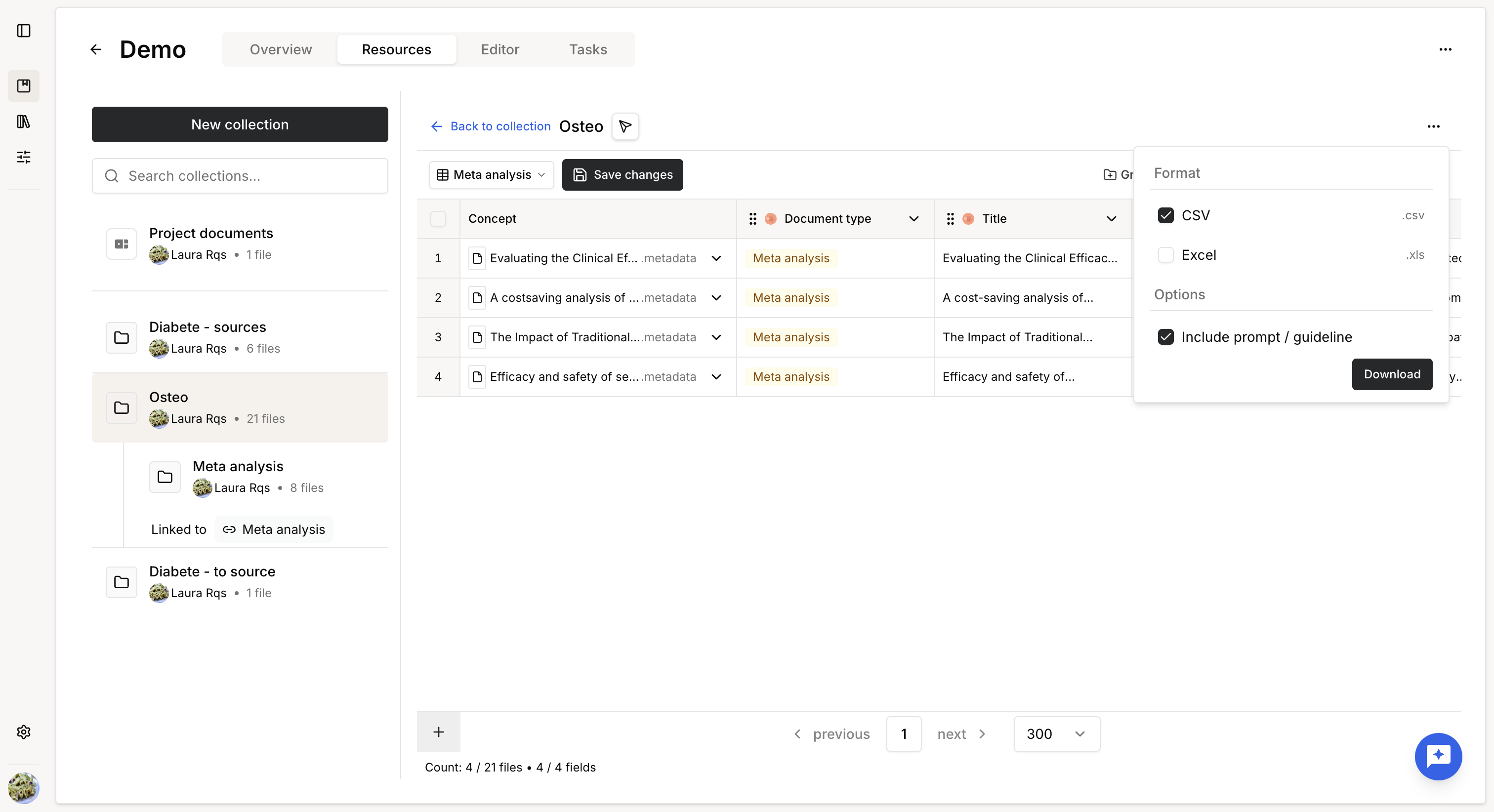
To export a table:
- Click Download in the upper-right corner.
- Select the export format.
- Choose whether to include field guidelines.
When guidelines are included, each extracted field is accompanied by an additional column containing its guideline.
For manually edited cells, the export displays the edit timestamp instead of the original guideline.
Export multi-dimensional data
Knowledge tables containing Multi-dimensional Extract fields can only be exported in XLSX format.
Each multi-dimensional field is exported as a separate worksheet in the Excel file:
- The main worksheet contains the standard table and its regular fields.
- Each additional worksheet contains the nested data extracted for one multi-dimensional field.
This structure preserves the relationship between the documents in the main table and the multiple entities extracted for each document.
Save to project documents
You can save a Knowledge table directly to the Project documents folder.
The same export options are available when saving the table.
Once saved, the exported file is indexed like any other project document and can be used as a source for new tasks.
Save fields as table template
You can save a Knowledge table configuration as a reusable table template.
To do so:
- Open the table menu.
- Select Save fields as table template.
- Configure the template:
- Template name: enter the name of the template.
- Fields: select which fields to include.
- Field configuration: hover over a field and select the edit action to review or modify its task configuration.
- Click Save template.
The table template is then available from the Presets menu and can be reused to create consistently configured Knowledge tables.
Was this article helpful?
That’s Great!
Thank you for your feedback
Sorry! We couldn't be helpful
Thank you for your feedback
Feedback sent
We appreciate your effort and will try to fix the article