| Permissions |
|
| Related readings |
|
Use fields, views, sorting, filtering, and sub-collections to organize data and support efficient screening workflows.
TABLE OF CONTENTS
Manage fields
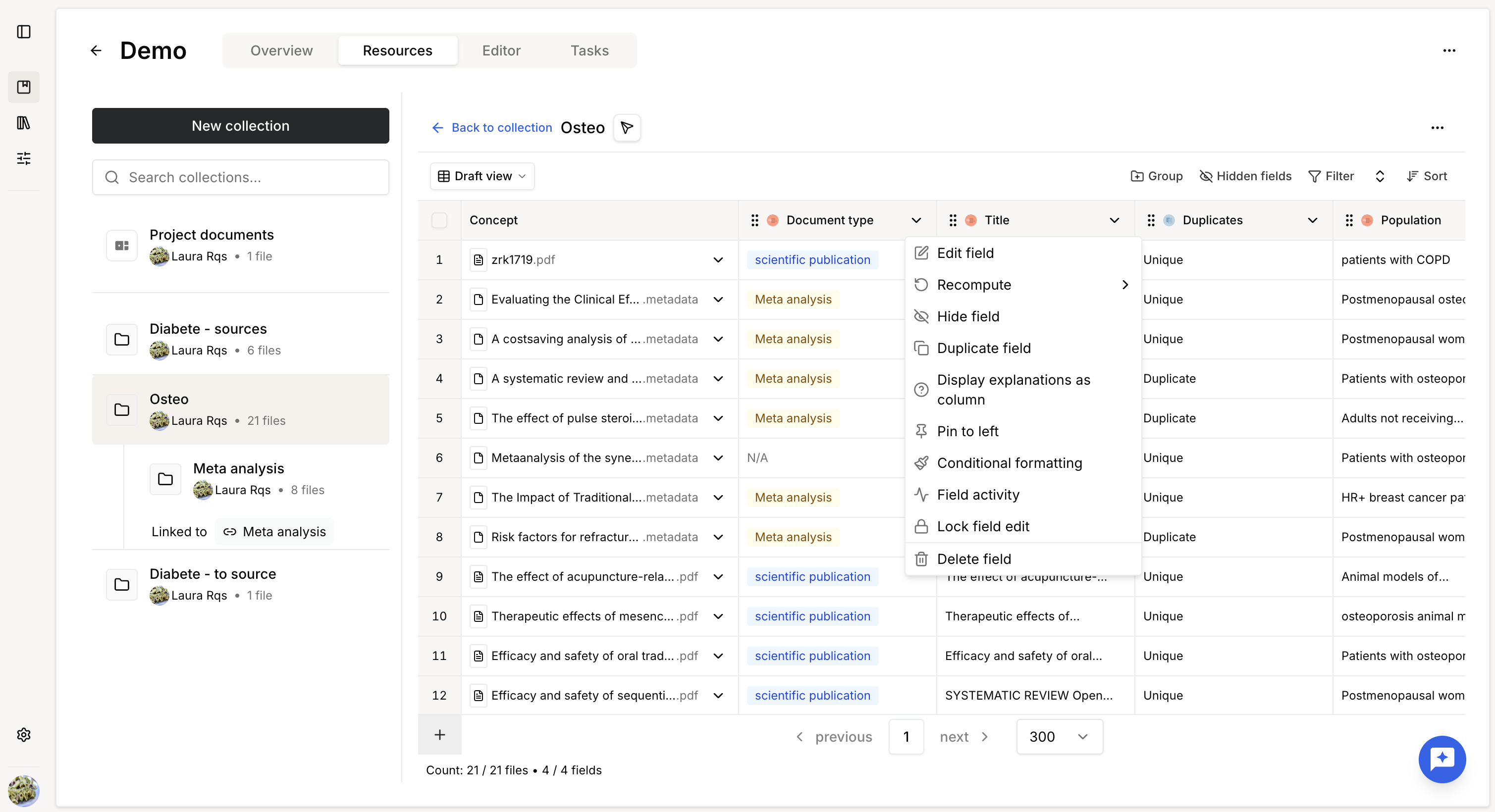
Field actions are available from the column menu.
Available actions include:
- Edit
- Duplicate
- Delete
- Recompute
- Hide
- Resize
- Pin to the left
- Reorder using drag and drop
- Apply conditional formatting
Editing a field automatically marks all affected cells as stale and launches recomputation after validation.
Manage views
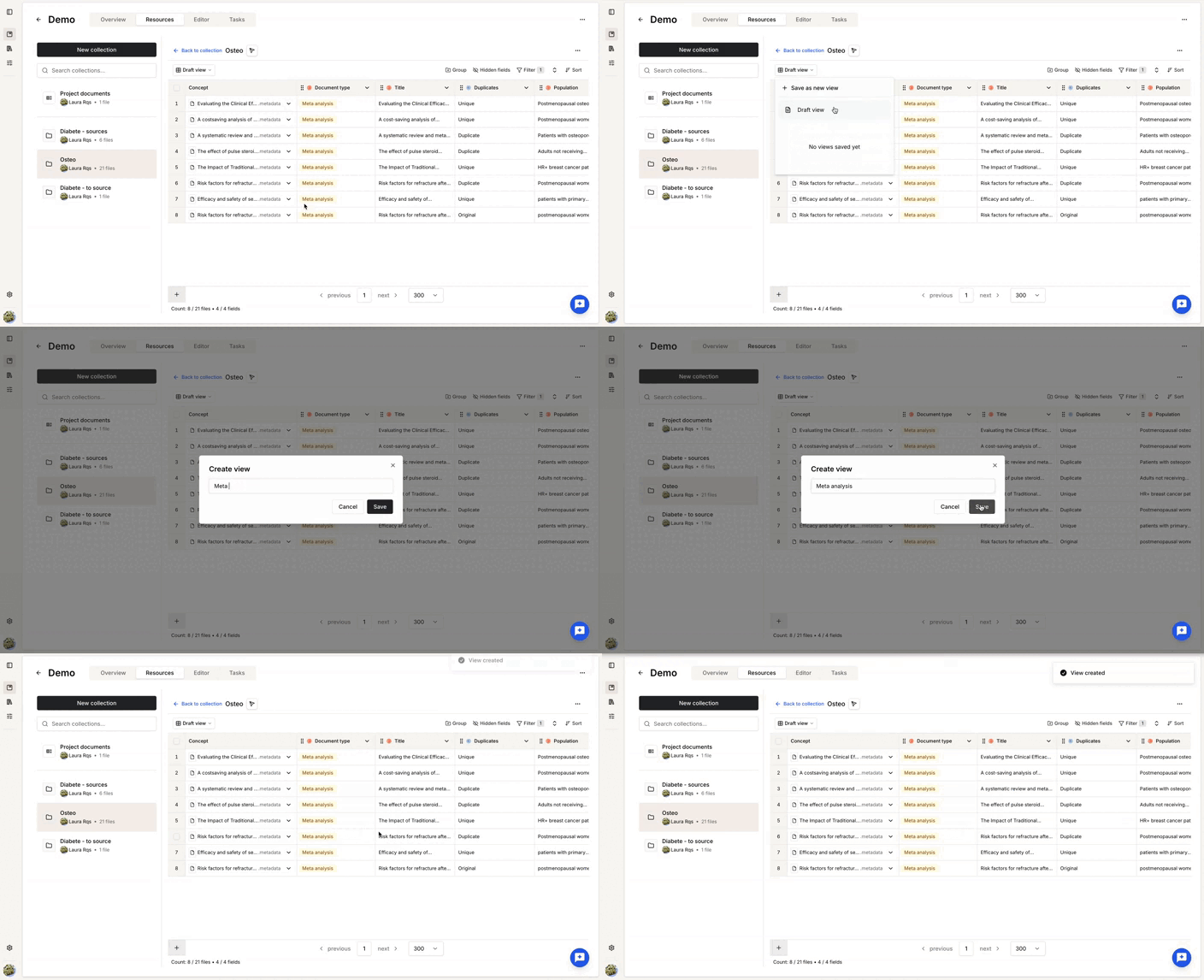
Views save the visual configuration of a Knowledge table.
A view stores:
- Filters
- Sorting
- Hidden columns
- Conditional formatting
Views are shared using the same permissions as the collection.
Each user can define a personal default view.
When modifying a view, you can either update the existing one or save it as a new view.
Sort
Rows can be sorted by one or more fields.
Supported sort orders depend on the field type:
- Text
- Number
- Boolean
- Date
- Select
Sorting priority follows the order of the selected fields.
Filter
Three filtering mechanisms are available.
Value filters
Filter rows using field values.
Supported operators depend on the field type.
Conditional formatting filters
Display only rows matching one or more conditional formatting rules.
Manual filters
Create filters directly from selected rows.
You can choose to:
- Show only the selected rows.
- Hide the selected rows.
Manual filters override the other filters.
Only visible rows are processed when computing newly added fields.
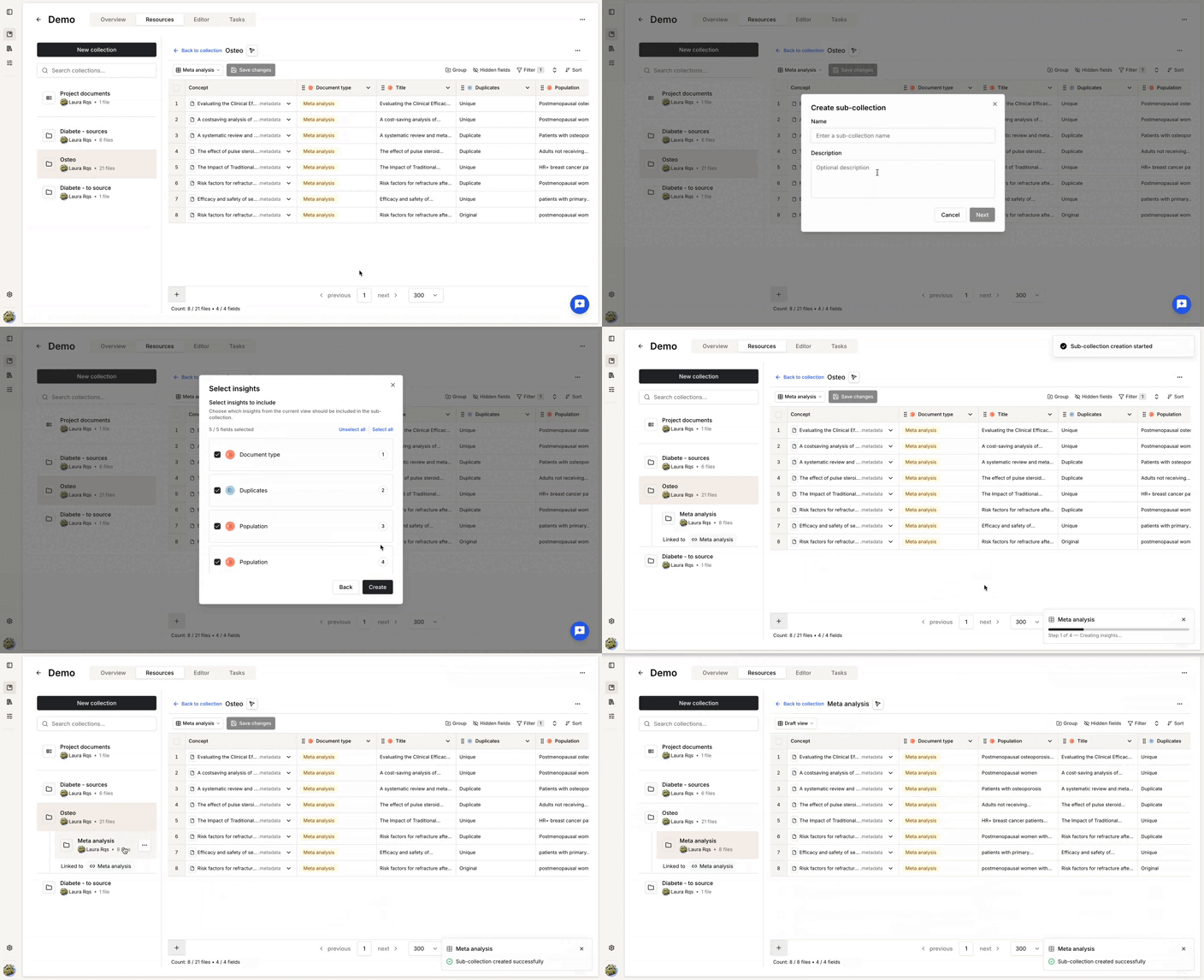
Create a sub-collection
A sub-collection can be created from the visible rows of a view.
This is particularly useful for progressive screening workflows.
Collections are linked as a chain.
For example:
A → B → C → D
Key behaviors:
- Each collection can have only one child.
- Child collections contain the visible rows of the parent view.
- Fields can optionally be copied during creation.
- Copied fields become independent from the parent.
- Deleting or unlinking a collection breaks the chain.
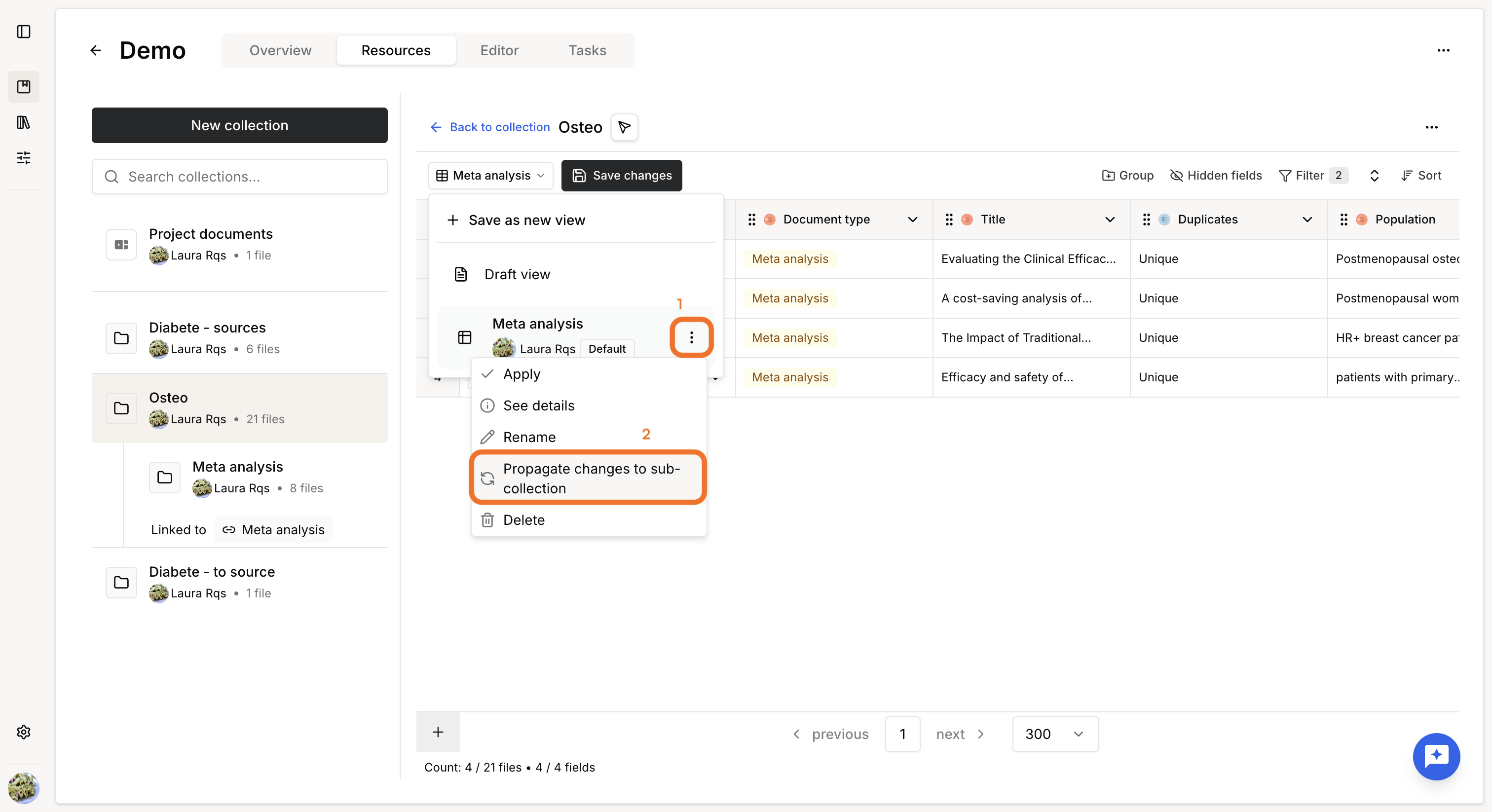
When a parent view changes, you can propagate the updated file list to the child collection, and decide how to update the fields in the child table.
Field definitions and extracted values are not synchronized after creation.
Was this article helpful?
That’s Great!
Thank you for your feedback
Sorry! We couldn't be helpful
Thank you for your feedback
Feedback sent
We appreciate your effort and will try to fix the article