| Permissions |
|
| Related readings |
The Knowledge table lets you extract, organize, enrich, and review structured information from large collections of documents.
It automates repetitive extraction tasks so you can focus on reviewing and analyzing the results.
Knowledge extraction is available for all file formats that support parsing. See Accepted resources for the list of supported formats.
TABLE OF CONTENTS
Create a Knowledge table
A Knowledge table is associated with a collection and can be accessed either from the Library or from a Project.
Because the table belongs to the collection:
- Changes made from a project are immediately reflected in the Library.
- User permissions are inherited from the collection.
- Users with Read permission can view the table but cannot modify it.
To open the table, open a collection and click Knowledge table.
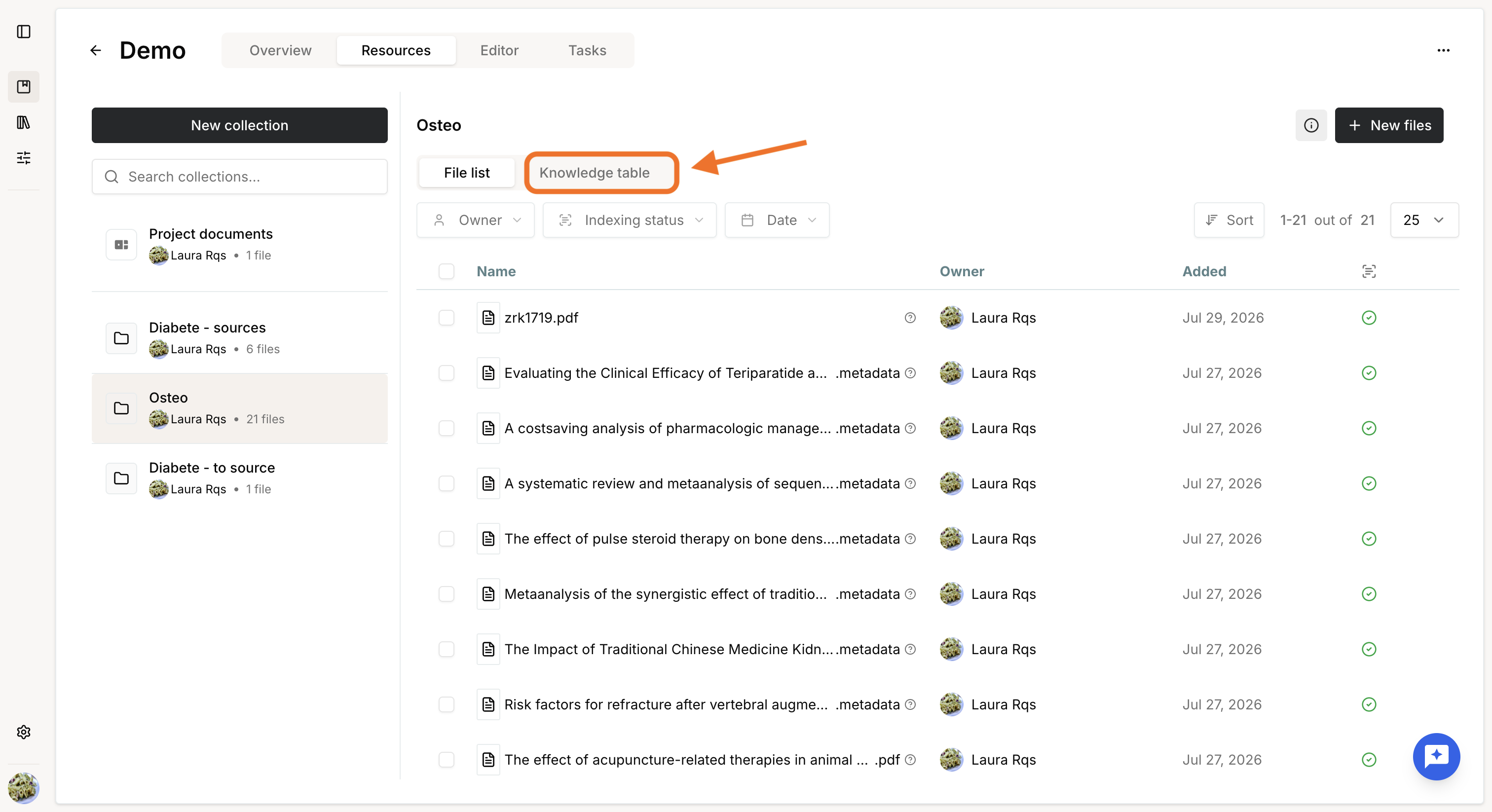
Configure the table
The first column always contains the files from the collection.
If the collection is empty, you can add files directly from the table by:
- Uploading files or folders from your computer.
- Selecting files from your Library.
- Dragging and dropping files onto the table.
Files must be indexed before extraction can start.
To add a new column, click + next to the file column.
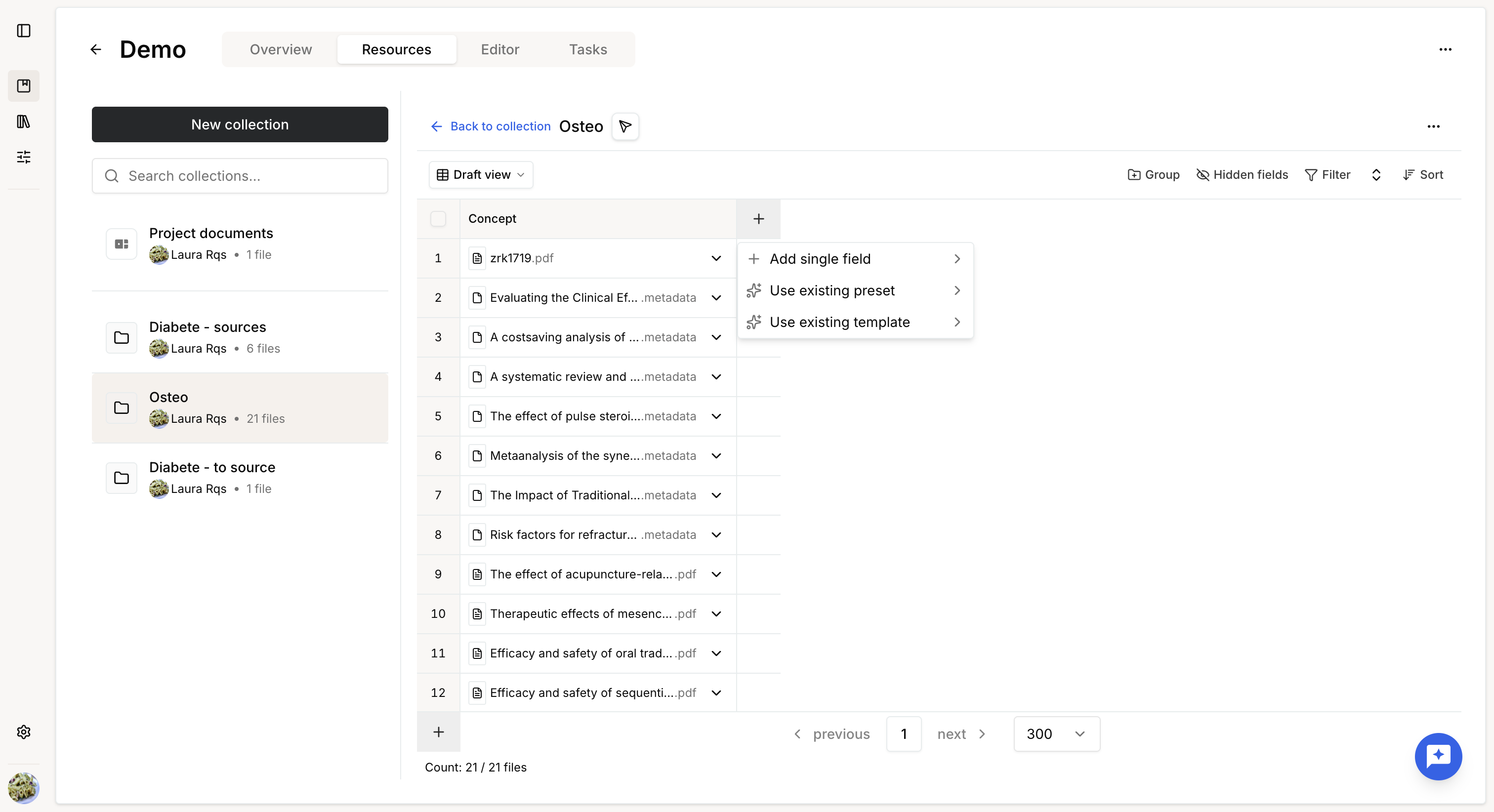
Add a single field
A Knowledge table supports four field types:
- Extract
- Enrich
- Manual
- Duplicate detection
Extract
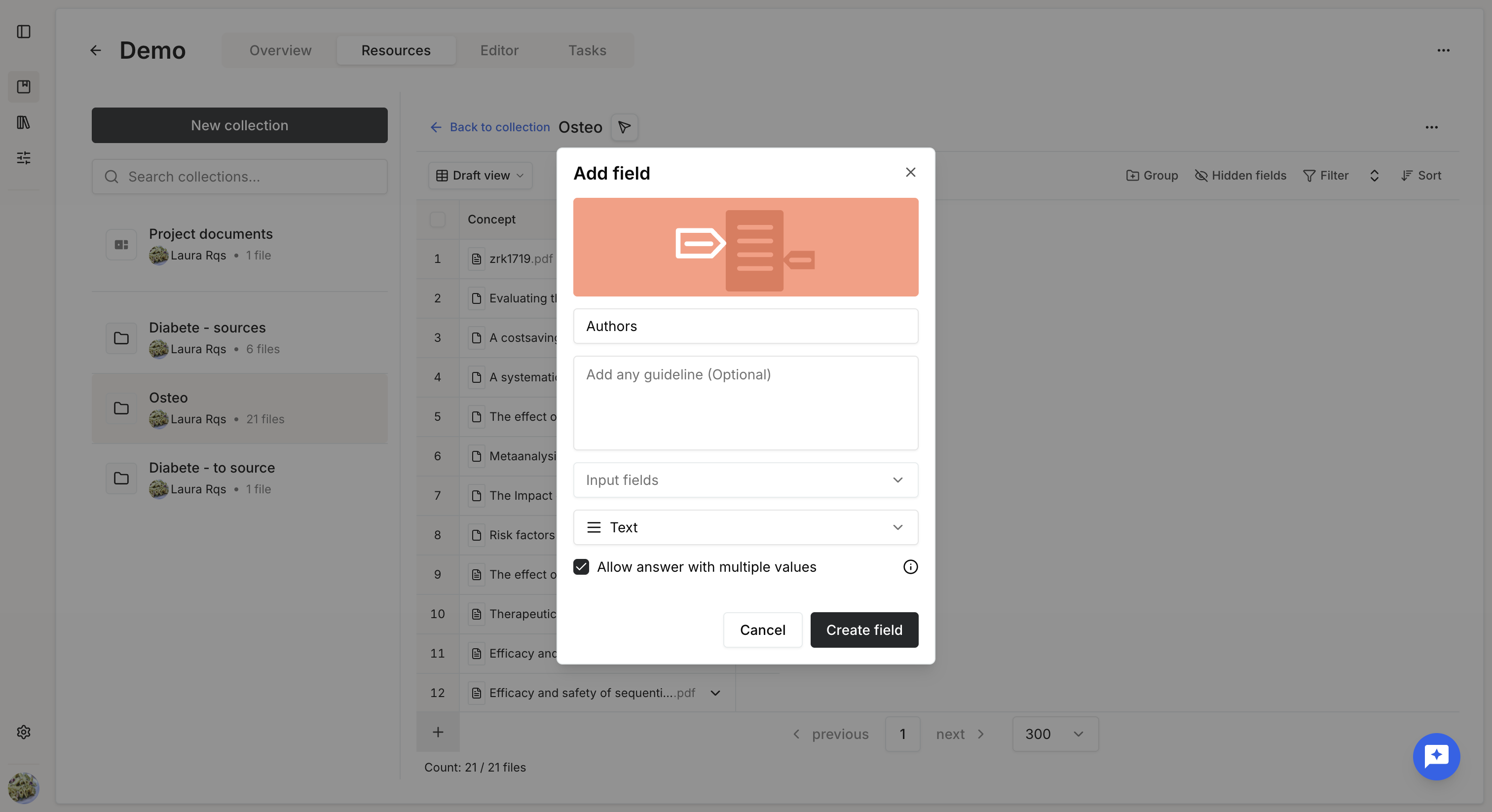
Extract fields retrieve structured information directly from the document.
When creating an Extract field, define:
- Field name
- Guidelines (optional)
- Output type
- Multiple values (optional)
Guidelines can specify formatting requirements, expected length, or any additional extraction instructions.
If Multiple values is enabled, the field can return several results (for example, multiple authors).
Supported output types are:
- Text
- Number
- Boolean
- Date
- Options
- Multi Dimensional Extract
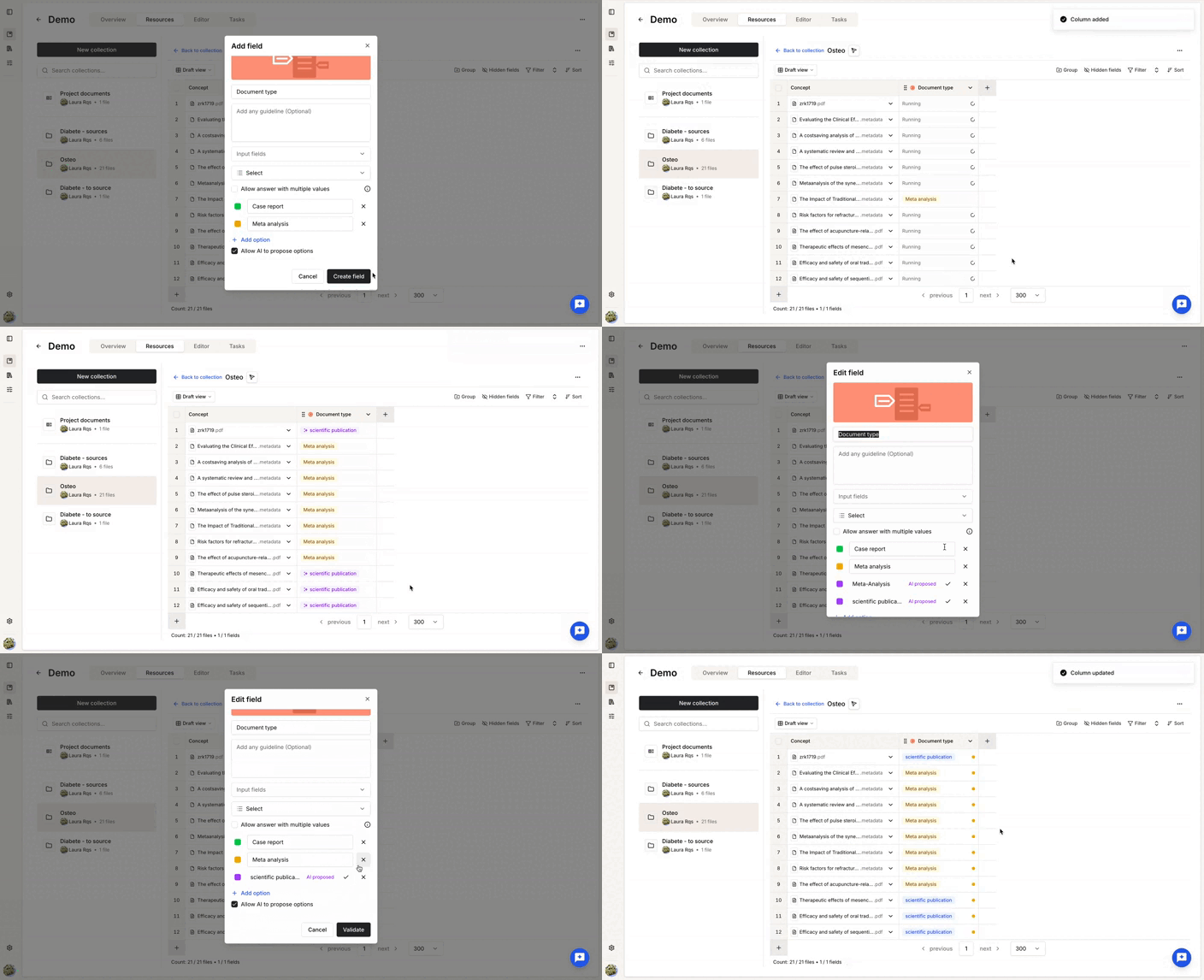
For Options fields, you can provide a list of allowed values.
Optionally, enable Allow AI to propose options. The model first prioritizes your predefined values and proposes new ones when none are suitable. Proposed values can later be accepted or rejected.
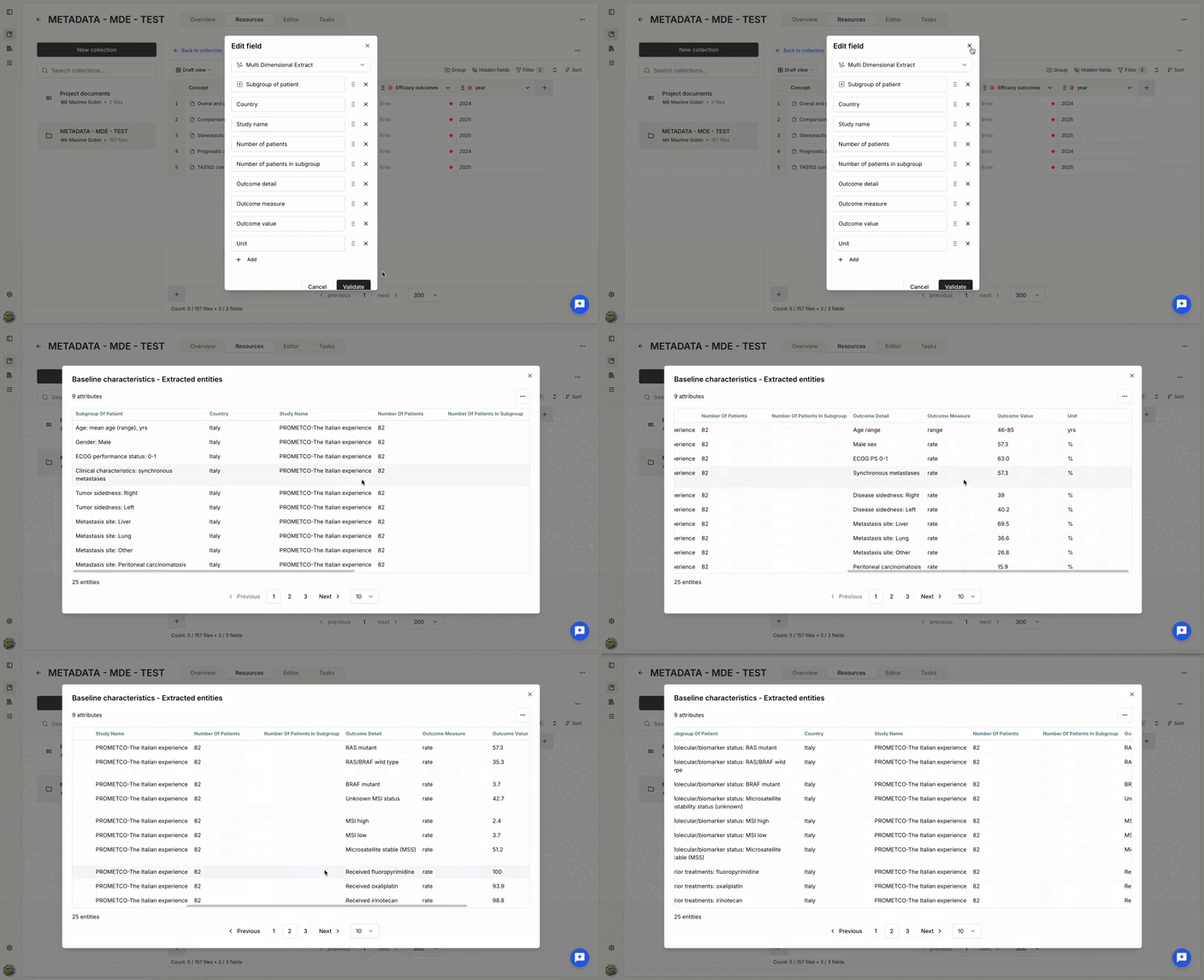
Multi-dimensional extraction lets you extract repeated structured entities from a document by creating a nested table within a single cell.
When configuring a multi-dimensional extraction, you define:
- Identifier(s): one or more fields that uniquely identify each extracted entity. At least one identifier is required. If multiple identifiers are defined, their combination is used to determine uniqueness.
- Attributes: additional information extracted for each unique identifier.
For example, when extracting study arms, the identifiers could be:
- Drug
- Dose
- Time of prescription
The combination of these three fields uniquely identifies each study arm.
You can then extract attributes for every identified study arm, such as:
- Adverse effects
- Symptom reduction
- Mean clinical test results
- Standard deviation
The system first identifies every unique entity using the identifier fields, then extracts the requested attributes for each one.
Because it performs multiple extraction steps, multi-dimensional extraction requires additional processing time compared with standard extraction.
Enrich
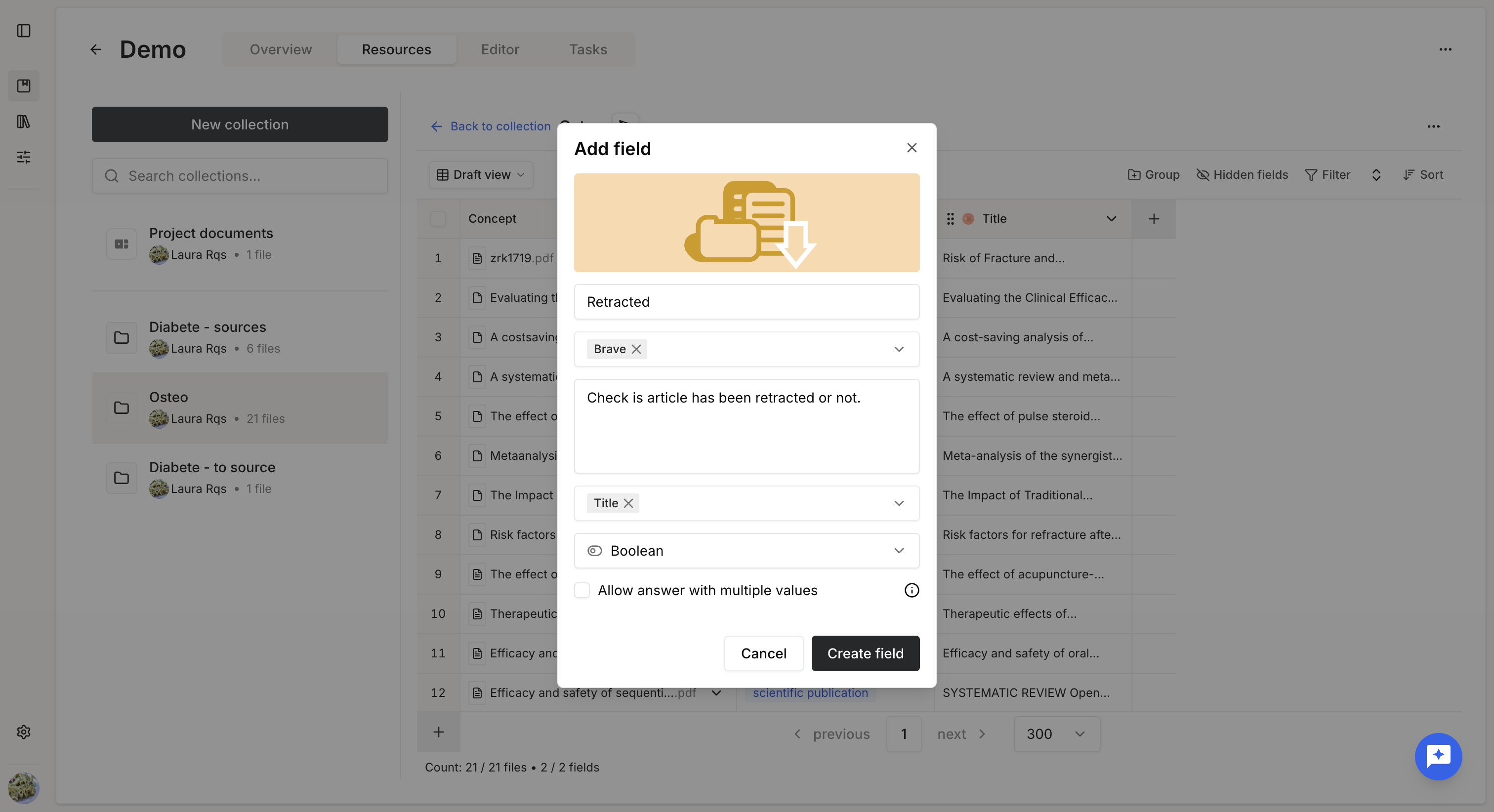
Enrich fields retrieve complementary information from external sources.
Supported enrichment sources include:
- Wikipedia
- Web search (Brave)
- Other collections
Configure:
- Field name
- Source
- Guidelines (optional)
- Output type
- Multiple values (optional)
- Input field(s)
Input fields determine which existing column is used to perform the enrichment.
Manual
Manual fields store information entered directly by users.
Typical use cases include:
- Internal classifications
- Notes
- Validation status
- Review comments
Configure:
- Field name
- Output type
- Multiple values (optional)
Values can then be entered manually while respecting the selected format.
Duplicate detection
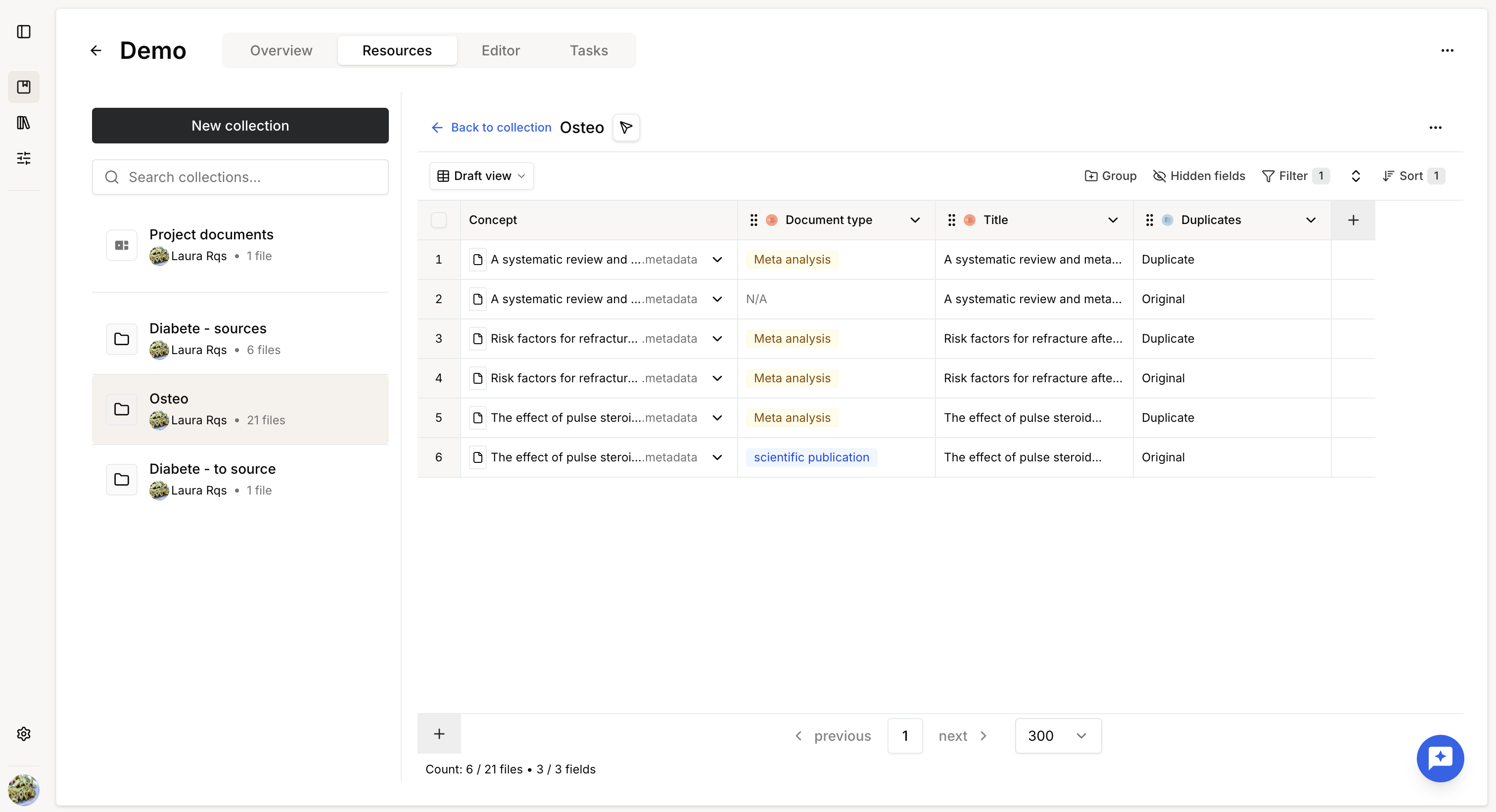
Duplicate detection compares one or more existing fields to identify similar records.
Configure:
- Field name
- Input field(s)
If several fields are selected, their values are concatenated before comparison.
The comparison uses normalized values and fuzzy matching.
Results are classified as:
- Unique
- Original
- Duplicate
Add predefined fields
Task presets
Task presets automatically add one or more preconfigured extraction columns.
The generated columns are immediately computed.
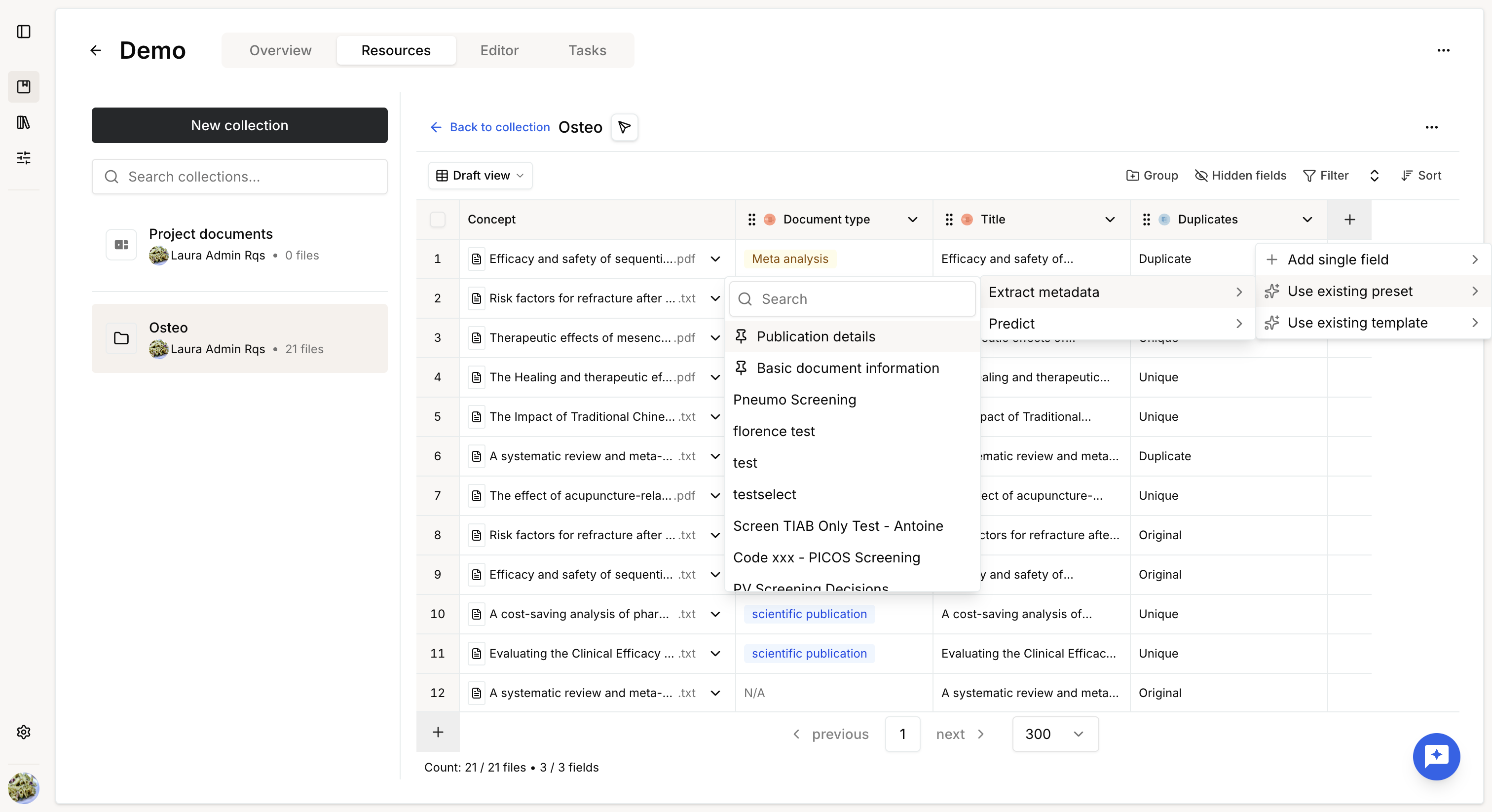
To create new presets, please refer to the article Create and manage presets.
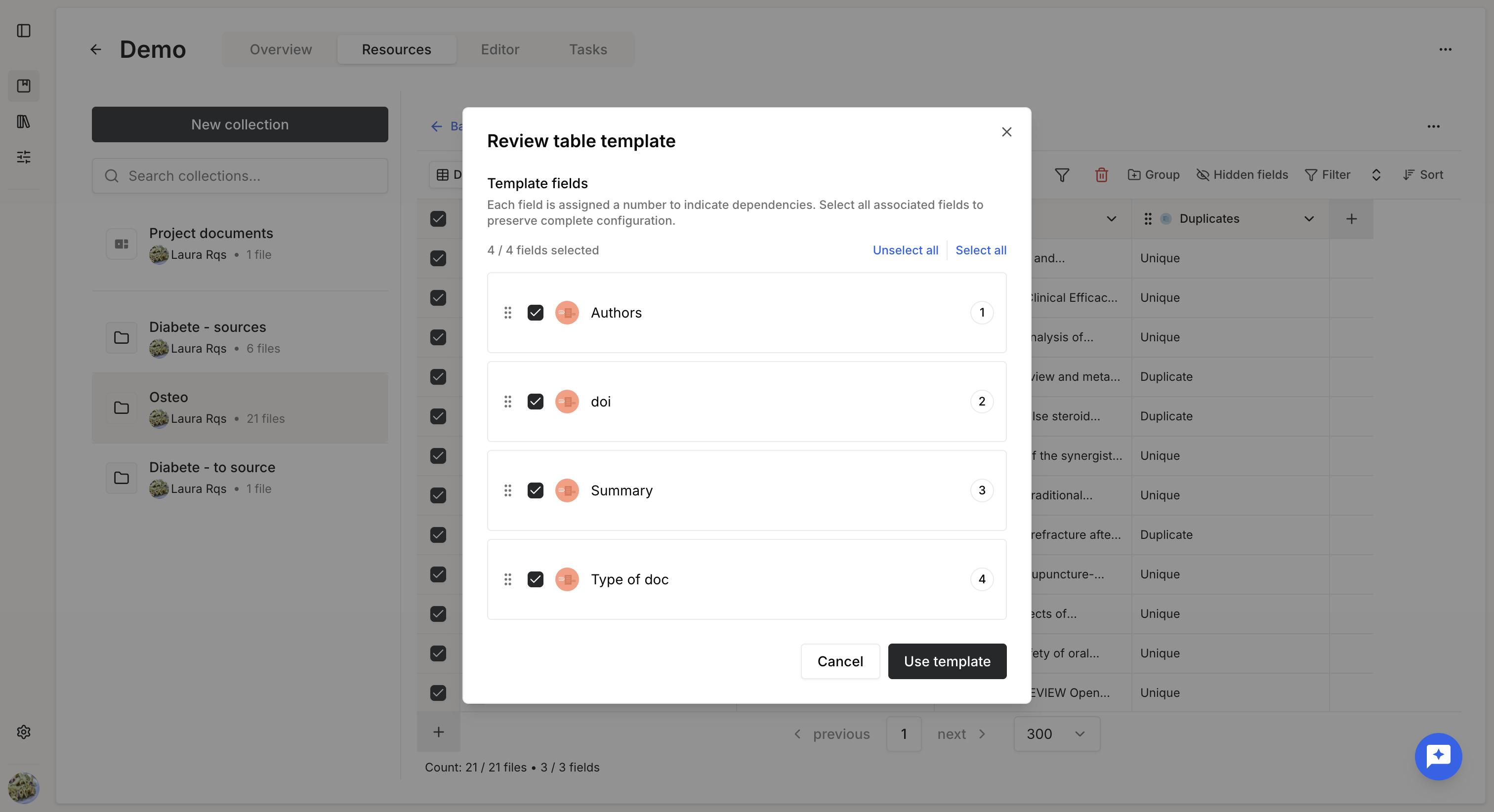
Table template
Table templates reproduce complete table structures, including:
- Extract fields
- Enrich fields
- Manual fields
- Duplicate detection fields
- Field dependencies
Templates provide the fastest way to recreate a previously designed Knowledge table.
See Create and manage table templates to know more.
Add files
Adding files to the table also adds them to the underlying collection.
New files can be added by:
- Clicking +.
- Uploading files or folders.
- Selecting files from the Library.
- Dragging files into the table.
- Clicking the last empty row.
Once indexing is complete, every computed column is automatically generated for the new files.
Remove files
You can remove a file from the file menu, or several files by selecting them and choosing Remove in the bulk actions.
Removing a file from the table also removes it from the collection.
Was this article helpful?
That’s Great!
Thank you for your feedback
Sorry! We couldn't be helpful
Thank you for your feedback
Feedback sent
We appreciate your effort and will try to fix the article