| Permissions |
|
| Related readings |
Tasks allow you to analyze one or more documents using AI. Two task types are available:
- Extract Meta: extract structured information from documents.
- Q&A: answer questions based on document content and optionally evaluate the answers against expected criteria.
TABLE OF CONTENTS
Extract Meta
Configure an Extract Meta task
Extract Meta extracts structured information from one or more documents.
For each metadata field, configure:
- Metadata field: the information to extract (for example, Authors or Publication date).
- Output type:the expected data format:
- Text
- Number
- Boolean
- Date
- Select
- Guidelines (optional): additional instructions, such as the expected format or a maximum response length.
- Multiple values: enable this option when more than one value may be returned (for example, multiple authors).
For Select fields, you can define a list of allowed values.
Optionally, enable Allow AI to propose options. The model prioritizes your predefined values but can propose additional ones when they better match the document. Proposed values can later be accepted or rejected.
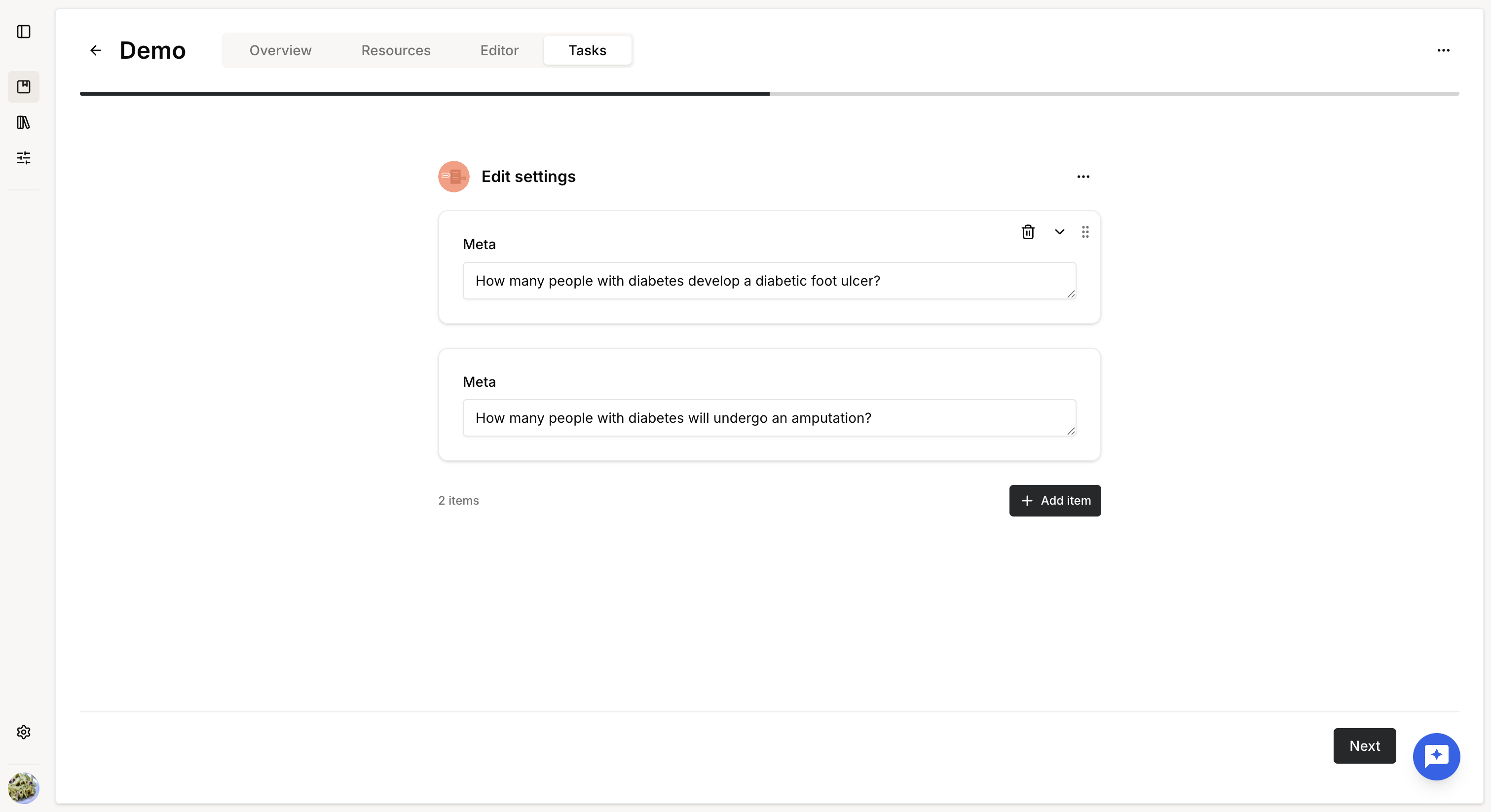
Once the configuration is complete, select the document(s) to analyze and launch the task.
Extracted results remain available in the Tasks page for two weeks.
To preserve them permanently and reuse them across the platform, add them to a Knowledge table.
Review extracted metadata
When the task completes successfully, it appears in the task list.
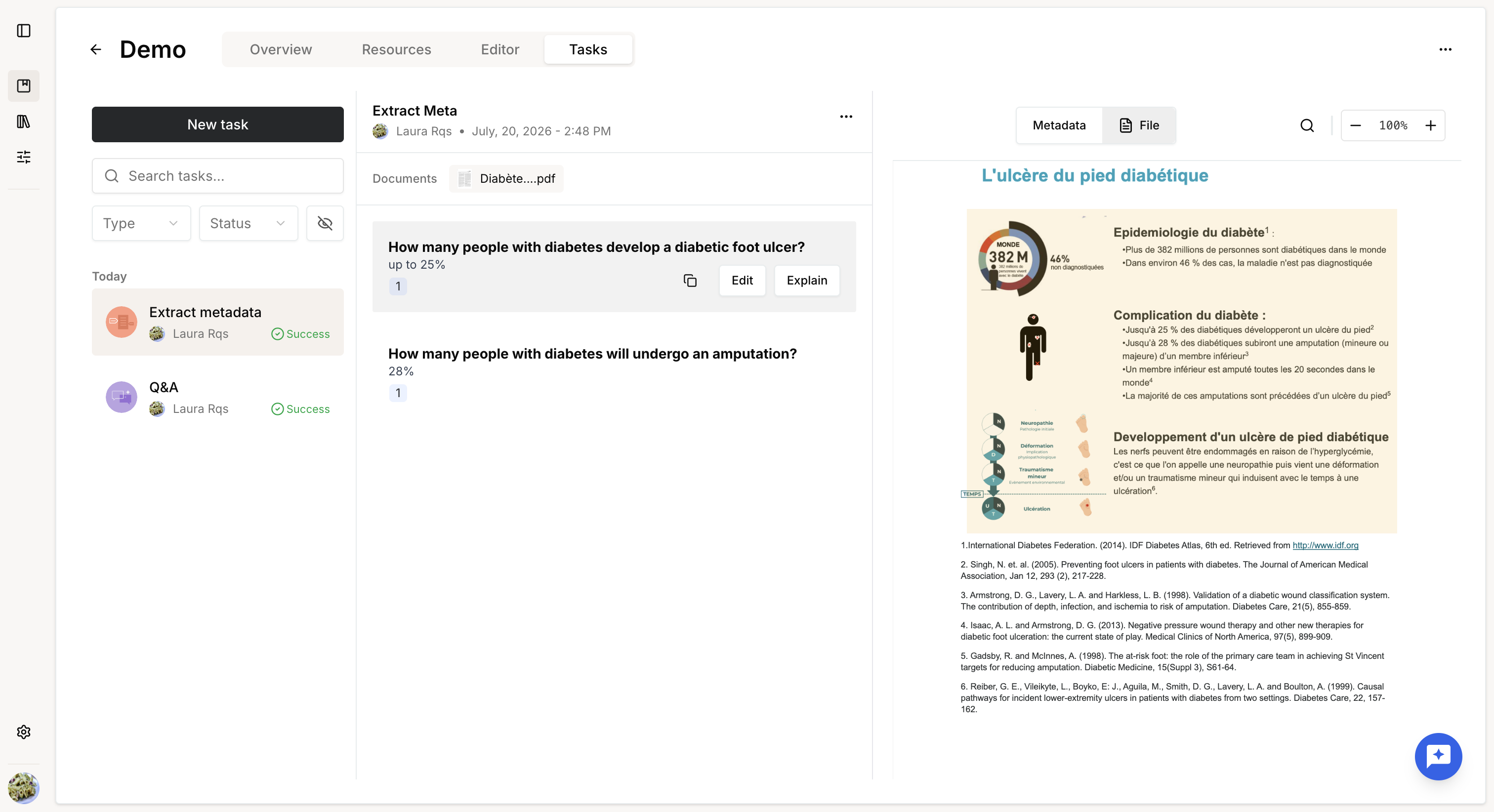
Select the task to review the extracted metadata.
Each result includes:
- the extracted value
- supporting evidence
- an explanation of how the result was generated
Available actions:
- Reference: open the supporting passage in the source document.
- Explain: display additional information about the extraction process.
- Edit: manually modify the extracted value.
- Copy: copy the value together with its supporting reference for reuse in the Editor or another application.
Q&A
Configure a Q&A task
Q&A answers questions using one or more documents and can optionally verify whether each answer satisfies predefined requirements.
For each question, configure:
- Question: the question to ask.
- Guidelines (optional): additional instructions, such as the desired format or maximum answer length.
- Compliance check (optional): define the expected answer or validation criteria used to evaluate the generated response.
- Additional processing (optional): use the output of previous questions as input for subsequent questions.
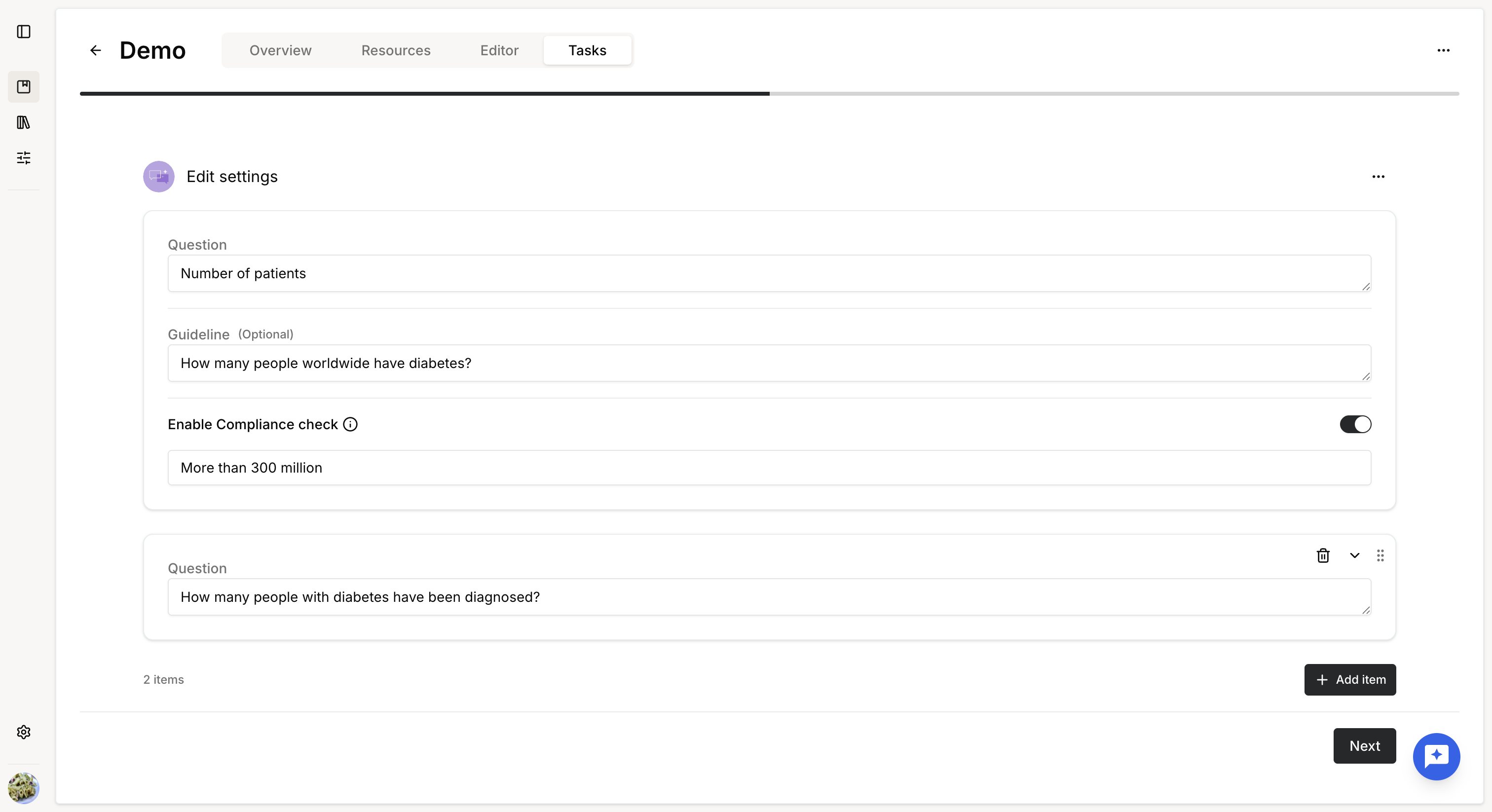
Once your questions are configured, select the document(s) to analyze and launch the task.
Review answers
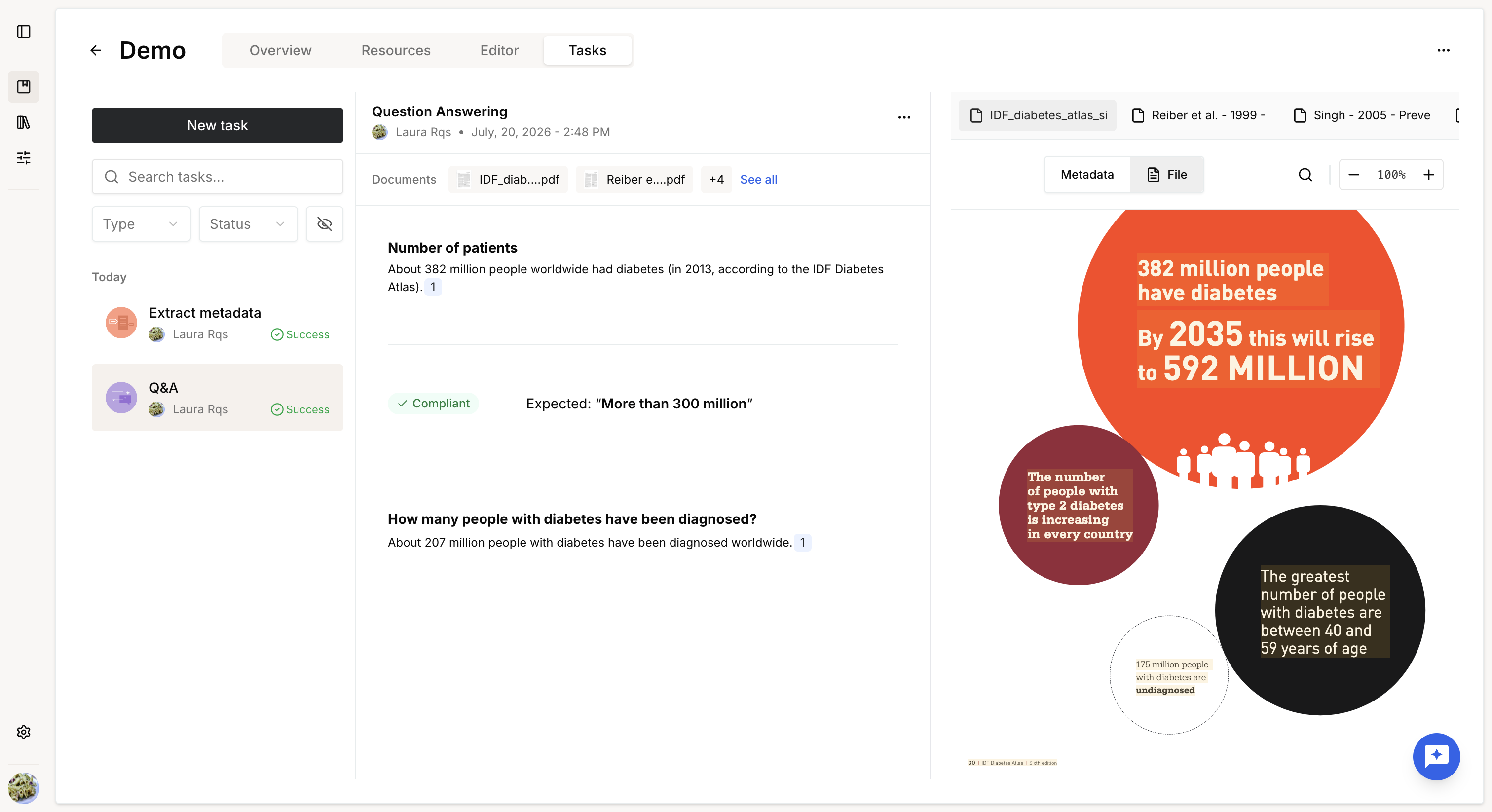
When the task completes successfully, it appears in the task list.
Each answer includes:
- the generated response
- supporting evidence
- an explanation
- the compliance assessment, when configured
Available actions:
- Reference: open the supporting passage in the source document.
- Explain: display additional information about both the generated answer and the compliance evaluation.
- Copy: copy the answer together with its supporting references.
Manage tasks
Tasks page
The Tasks page is divided into three areas.
Left panel
Use this panel to:
- create a new task
- search tasks by name or preset
- filter tasks by status
- filter tasks by type
- access archived tasks
- browse the task history (last two weeks)
Center panel
The center panel displays the selected task, including:
- task name
- preset used (if applicable)
- owner
- creation date and time
- task configuration
- analyzed documents
- extracted metadata or generated answers
- explanations and supporting evidence
Available actions include:
- rename
- archive
- edit and relaunch
- view task details
Right panel
The right panel displays previews of the source documents.
Supporting passages are highlighted, allowing you to quickly verify the evidence used to generate each answer or extracted value.
Tasks status
Tasks continue running even if you leave the page.
Available statuses are:
- Pending: waiting in the processing queue.
- Running: currently being processed.
- Success: completed successfully.
- Failed: processing failed.
Processing time depends on both the number of documents and the complexity of the requested analysis.
Use tasks presets
If you regularly perform the same analysis, save the configuration as a preset.
Presets allow you to launch identical tasks without recreating the configuration each time.
Before launching a task, you can:
- use the preset without modification
- temporarily modify the configuration for the current run
- update the existing preset
- save the modified configuration as a new preset
For more information, see Create and manage presets.
Rename task
Tasks created without a preset are automatically named after their task type.
You can rename a task at any time to make your history easier to organize.
Edit and relaunch a task
Completed tasks can be executed again by selecting Edit and relaunch.
The previous configuration is automatically restored.
You can:
- modify the configuration
- update the selected documents
- launch the analysis again
Each execution creates a new task.
The original task and its results remain unchanged.
Was this article helpful?
That’s Great!
Thank you for your feedback
Sorry! We couldn't be helpful
Thank you for your feedback
Feedback sent
We appreciate your effort and will try to fix the article