| Permissions |
More information below |
| Related readings |
A project is a space dedicated to a subject you need to work on.
This allows to have a specific context for your work, your data and the people you want to collaborate with.
TABLE OF CONTENTS
Create a new project
The Projects tab is the first item in the left-hand menu.
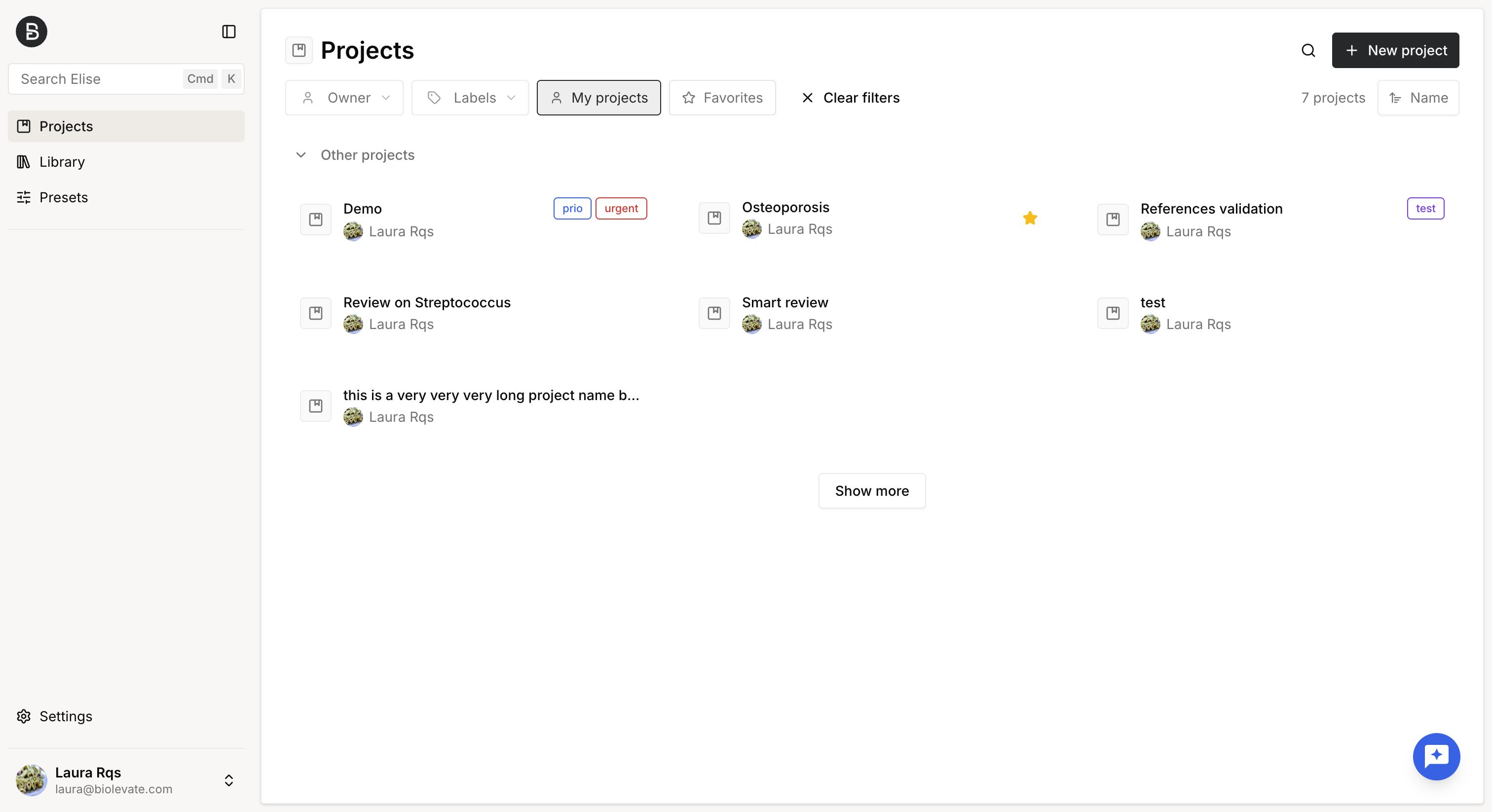
Click Projects, then select New project to create a new project.
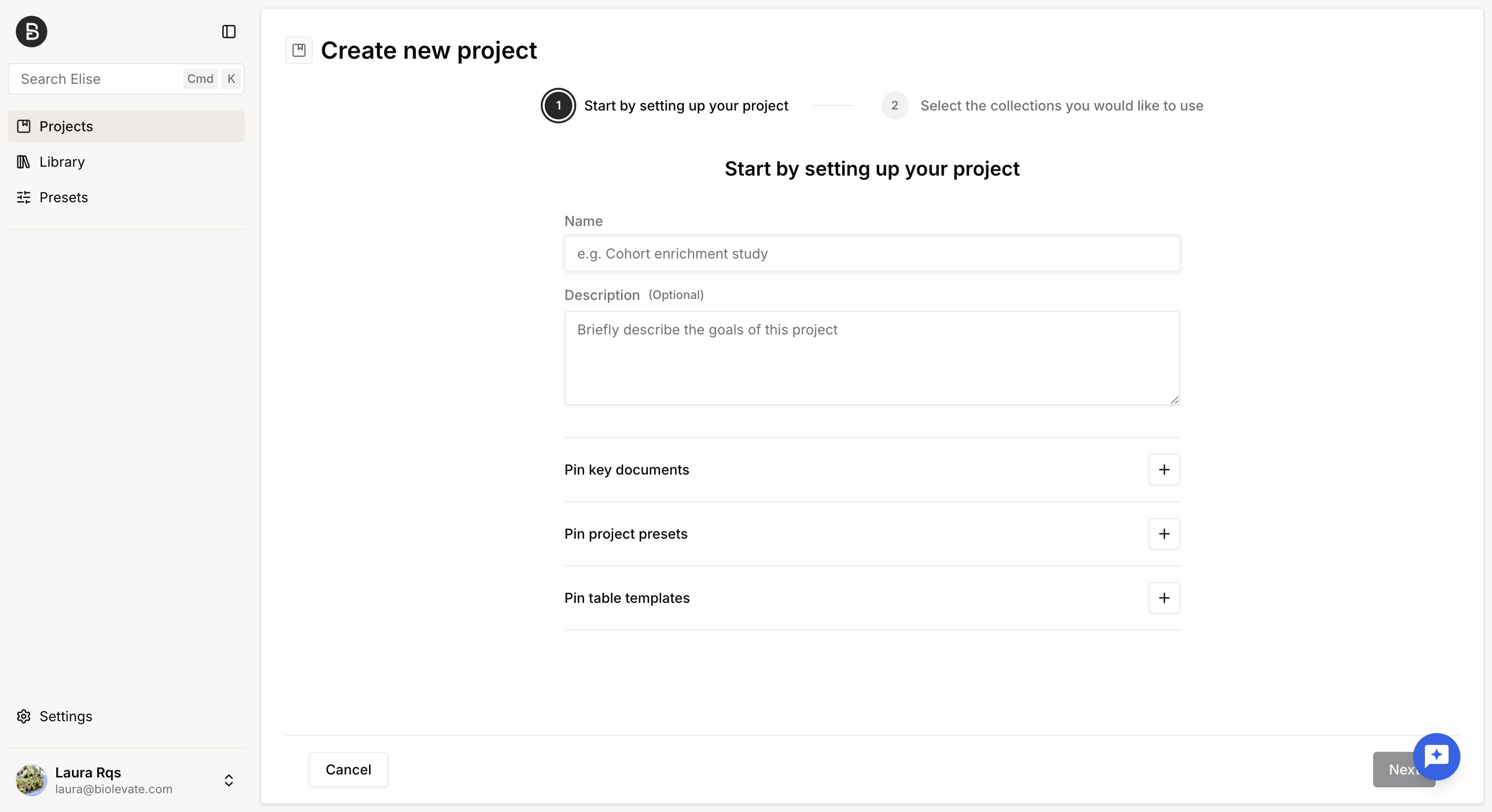
Complete the following fields:
- Name (required): Enter a name for your project.
- Description (optional, recommended) : Provide a brief description to help identify the project's purpose.
- Key documents (optional): Select documents to prioritize when browsing the project's resources.
- Project presets and table templates (optional): Select presets and table templates to prioritize when browsing available configurations.
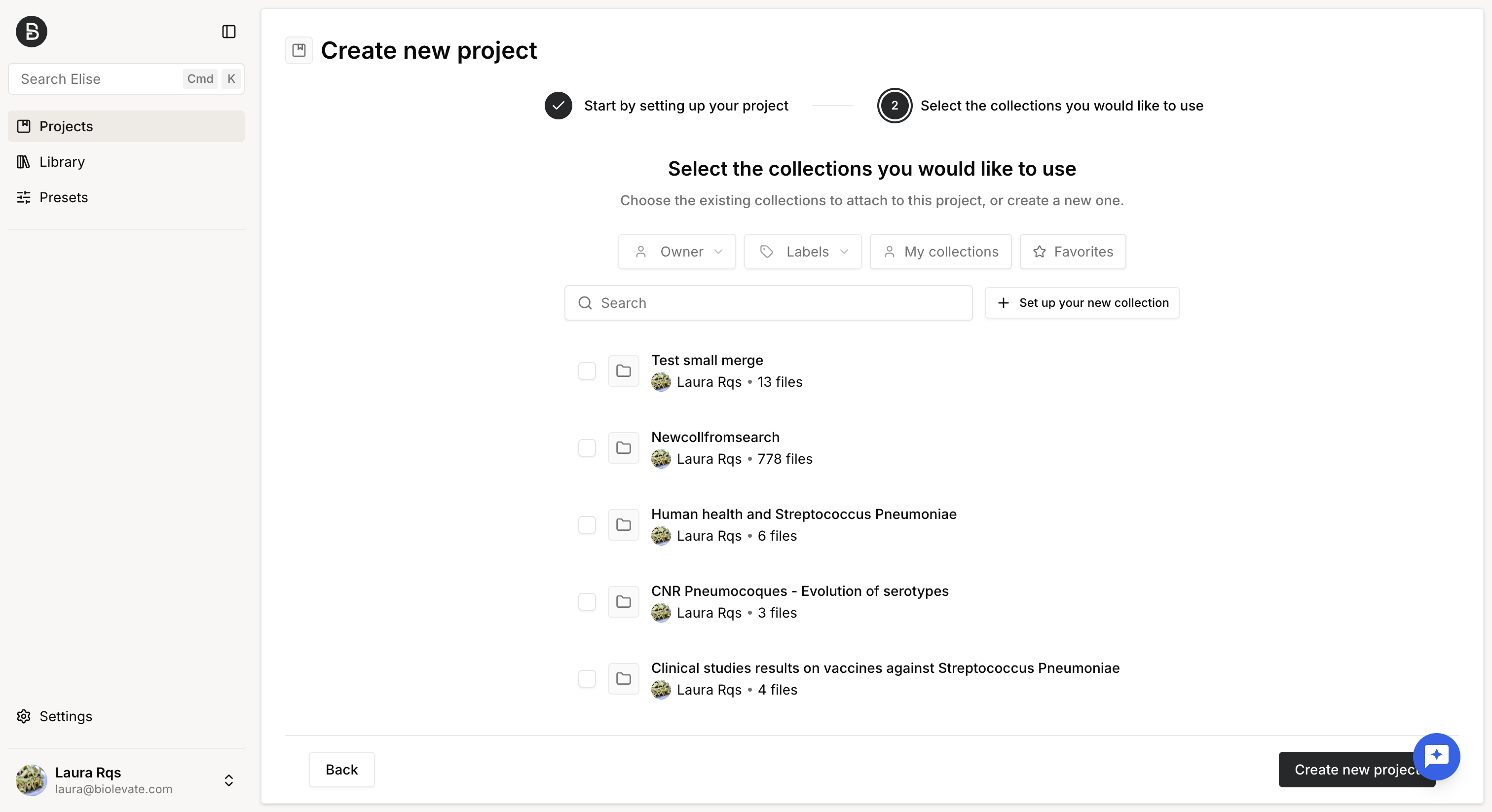
You can then choose collections from your Library to add resources to the project.
If you do not add resources at this stage, you can do so later by:
- Searching external sources.
- Importing files manually.
- Selecting resources from your Library.
Once you have finished configuring the project, click Create new project to save it.
Organize projects
The Projects tab displays all the projects you can access, including projects you own and projects shared with you with Read or Write permissions.
Several features are available to help you organize your workspace.
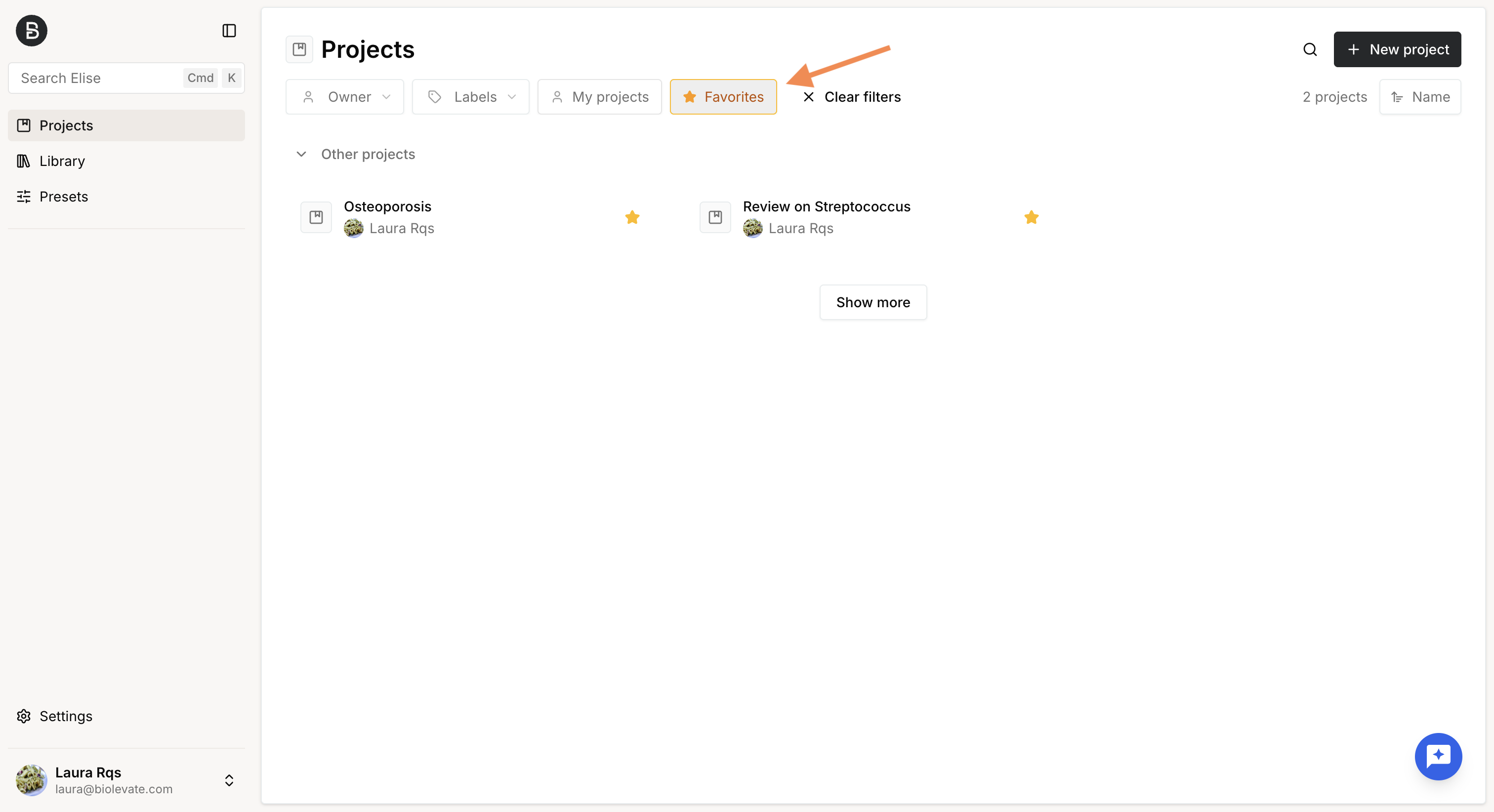
Add favorites
You can add or remove a project from your Favorites from the project menu.
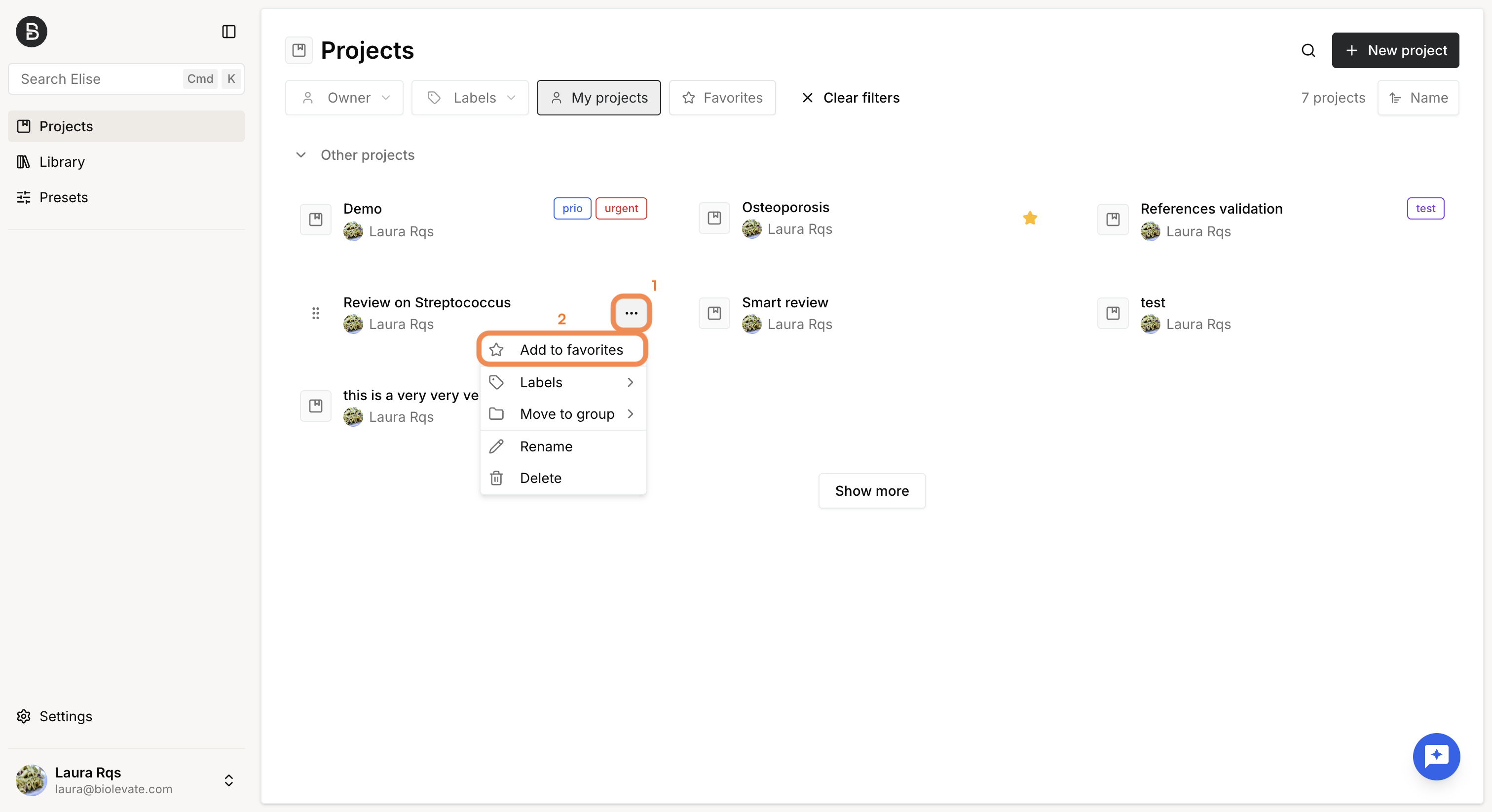
Favorites are personal, allowing you to quickly access frequently used projects.
Organize projects with labels
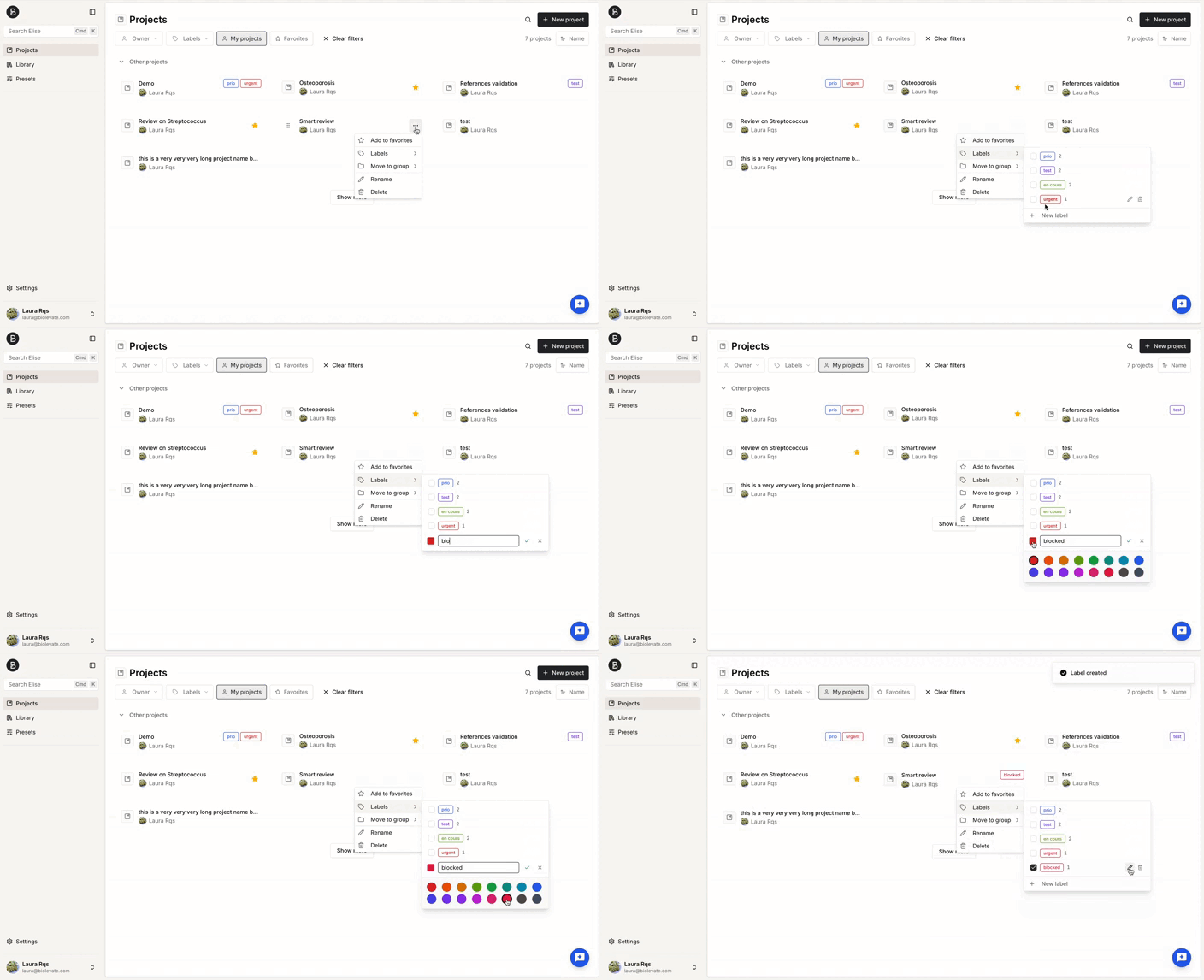
Labels help you categorize and filter your projects.
To add labels to a project:
- Open the project menu and select Labels.
- Select one or more existing labels, or create a new one by specifying a name and a color.
- Assign as many labels as needed.
You can use labels to filter the projects list and quickly find related projects.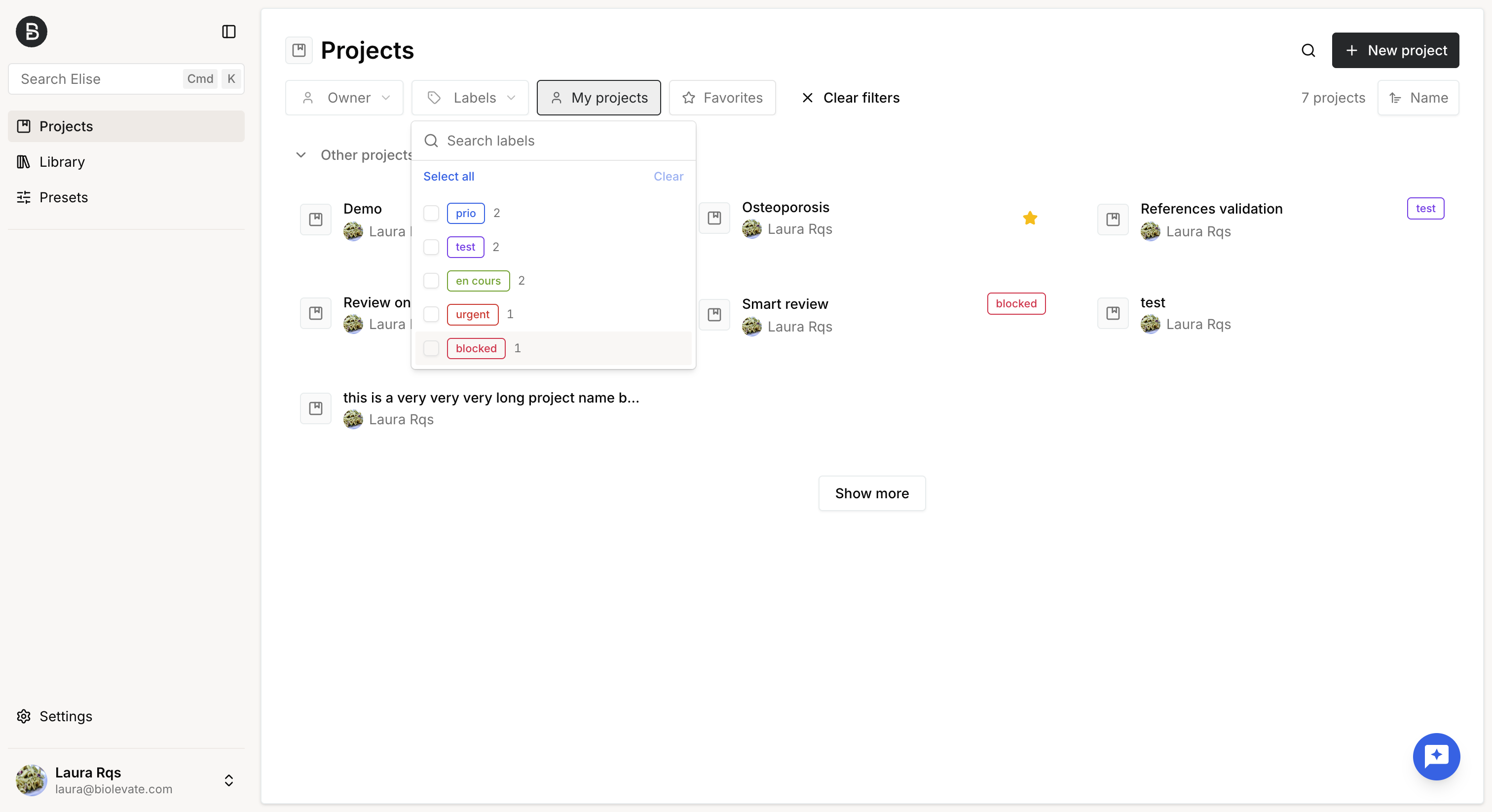
Organize projects with groups
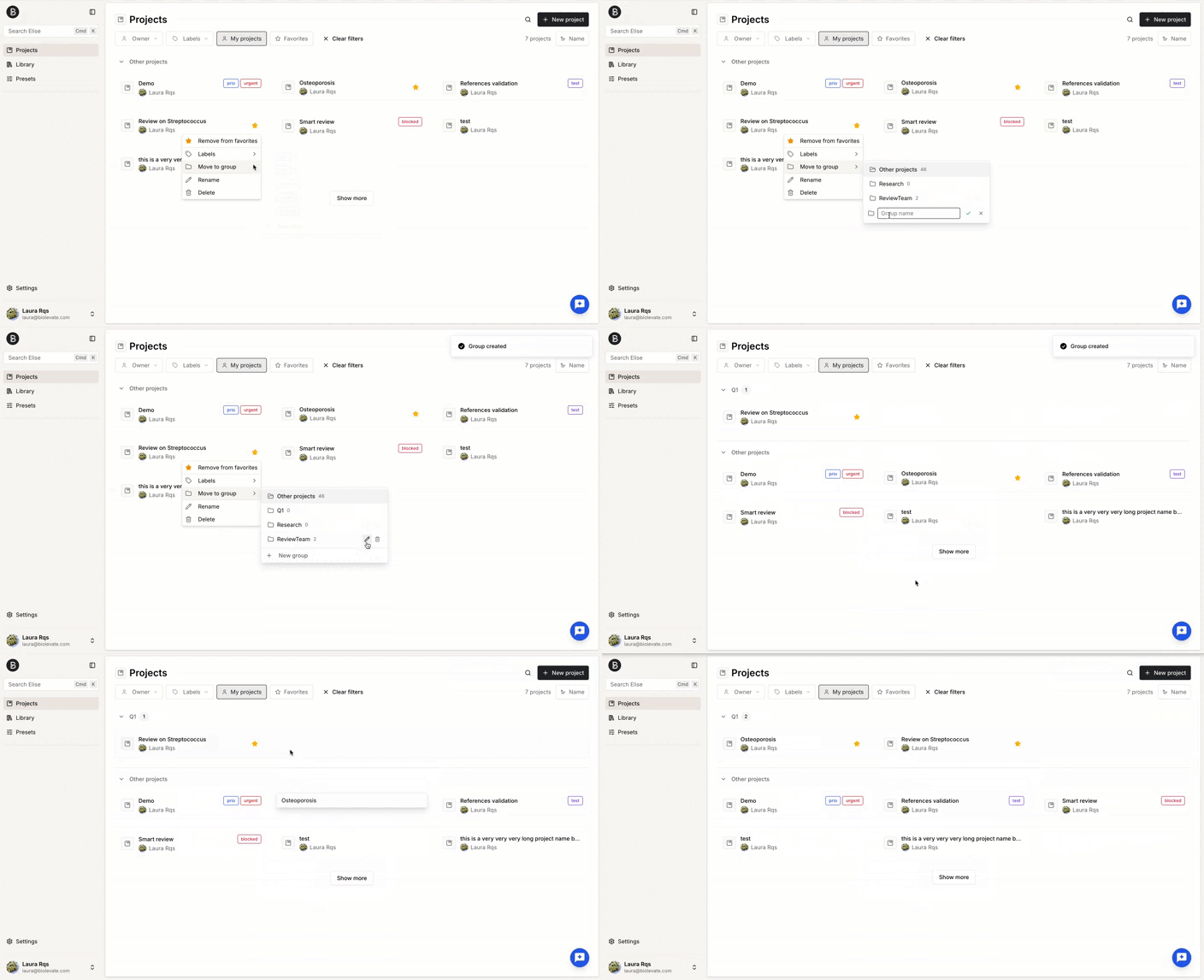
Groups help you organize projects and manage access at a higher level.
To add a project to a group:
- Open the project menu and select Move to group.
- Select an existing group, or create a new one by entering a group name.
Once a group has been created, you can manage its projects and permissions.
Defining permissions at the group level is the recommended way to manage access.
Permission levels:
- Read: Users can view the group's projects and remove their own projects from the group.
- Write: Users can view projects, add or remove their own projects, and rename the group.
- Owner: Users can view projects, add or remove their own projects, rename the group, manage group permissions, and delete the group.
Important notes:
Only the project owner or a System Administrator can move a project to a group.
Membership in a group does not automatically grant access to every project in that group; users can only access projects for which they have explicit permissions.
Work on a project
Once your project has been created, you can build your workspace by adding resources, exploring your data, creating documents, and collaborating with other users.
Monitor your project from the overview
The Overview tab provides a summary of your project, including:
- Project description.
- Key documents (if configured).
- Project presets (if configured).
- Table templates (if configured).
- Project management board.
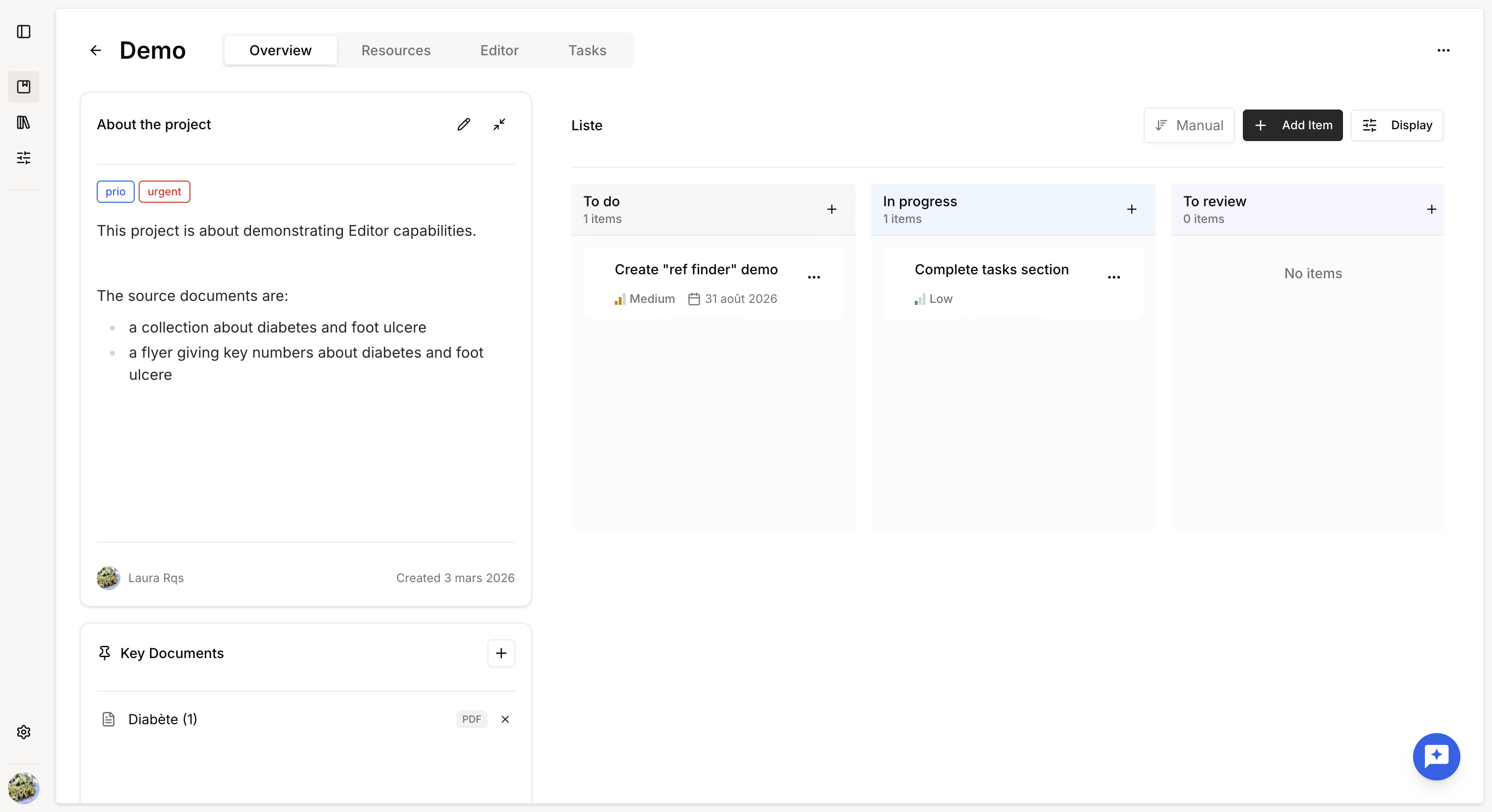
Key documents are visible first when selecting sources in the project.
Pinned presets and table templates are visible first when searching for presets in tasks or in the Knowledge table.
Manage project resources
The Resources tab is where you manage the data available in your project.
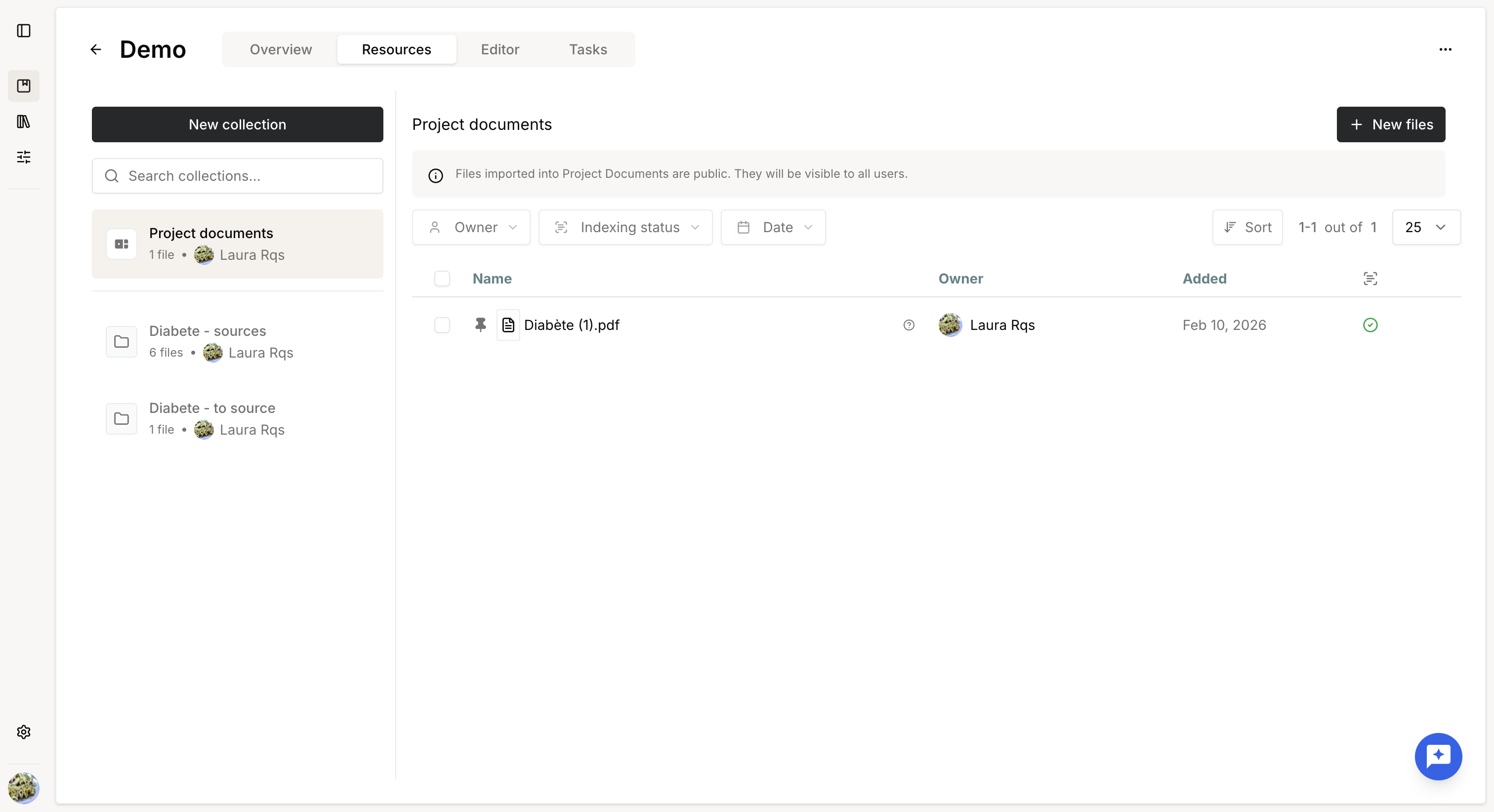
You can:
- Use existing collections from your Library
- Create new collections
- Organize and enrich your data
- Ask questions about your documents
- Extract specific information
- Search for additional information from external sources
To know more, check the Resources articles.
Generate content in the Editor
The Editor tab allows you to create and edit documents.
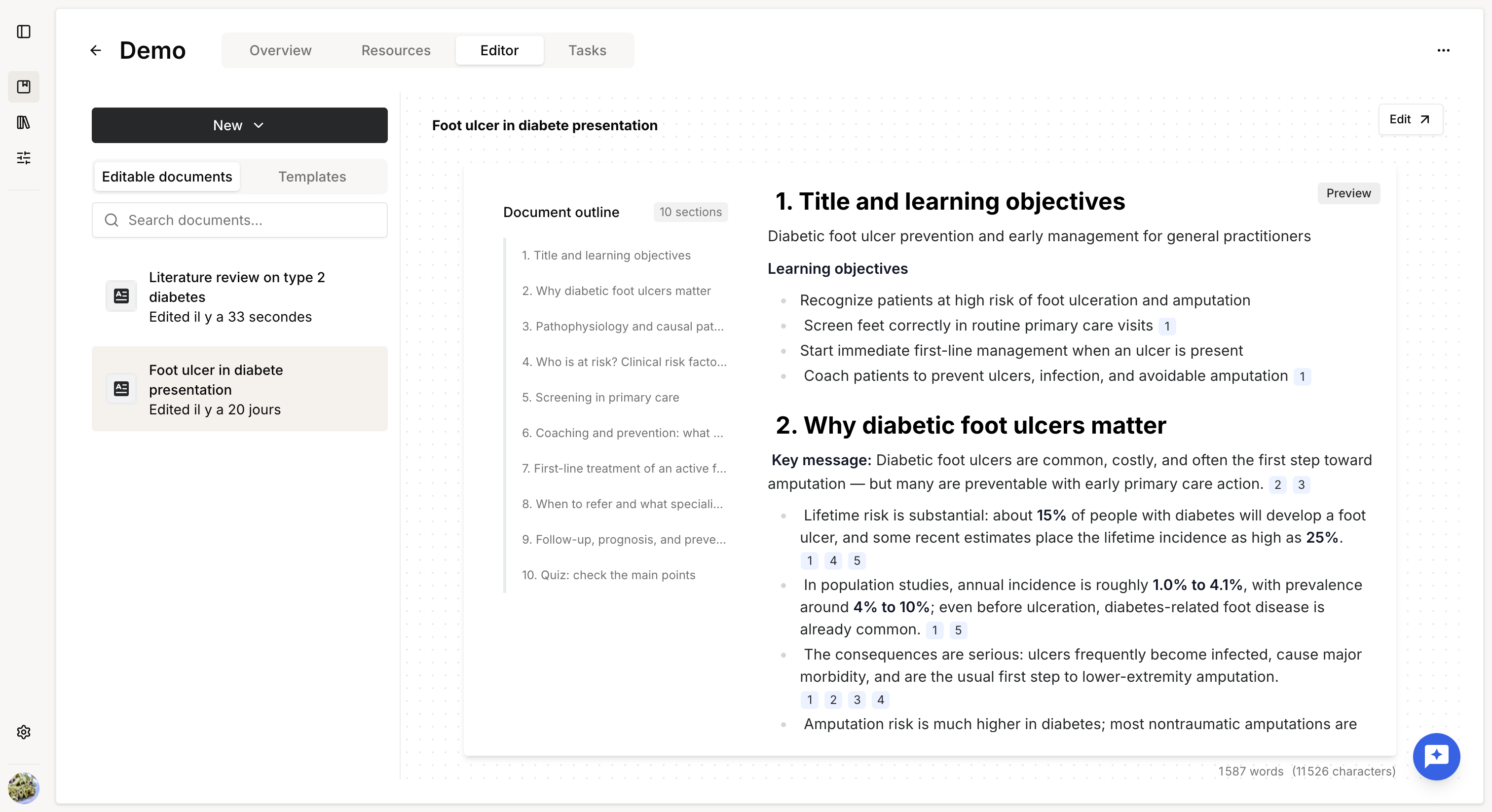
When collections are available in your project, you can use them as source to generate referenced content.
To know more, check the Editor articles.
Launch tasks
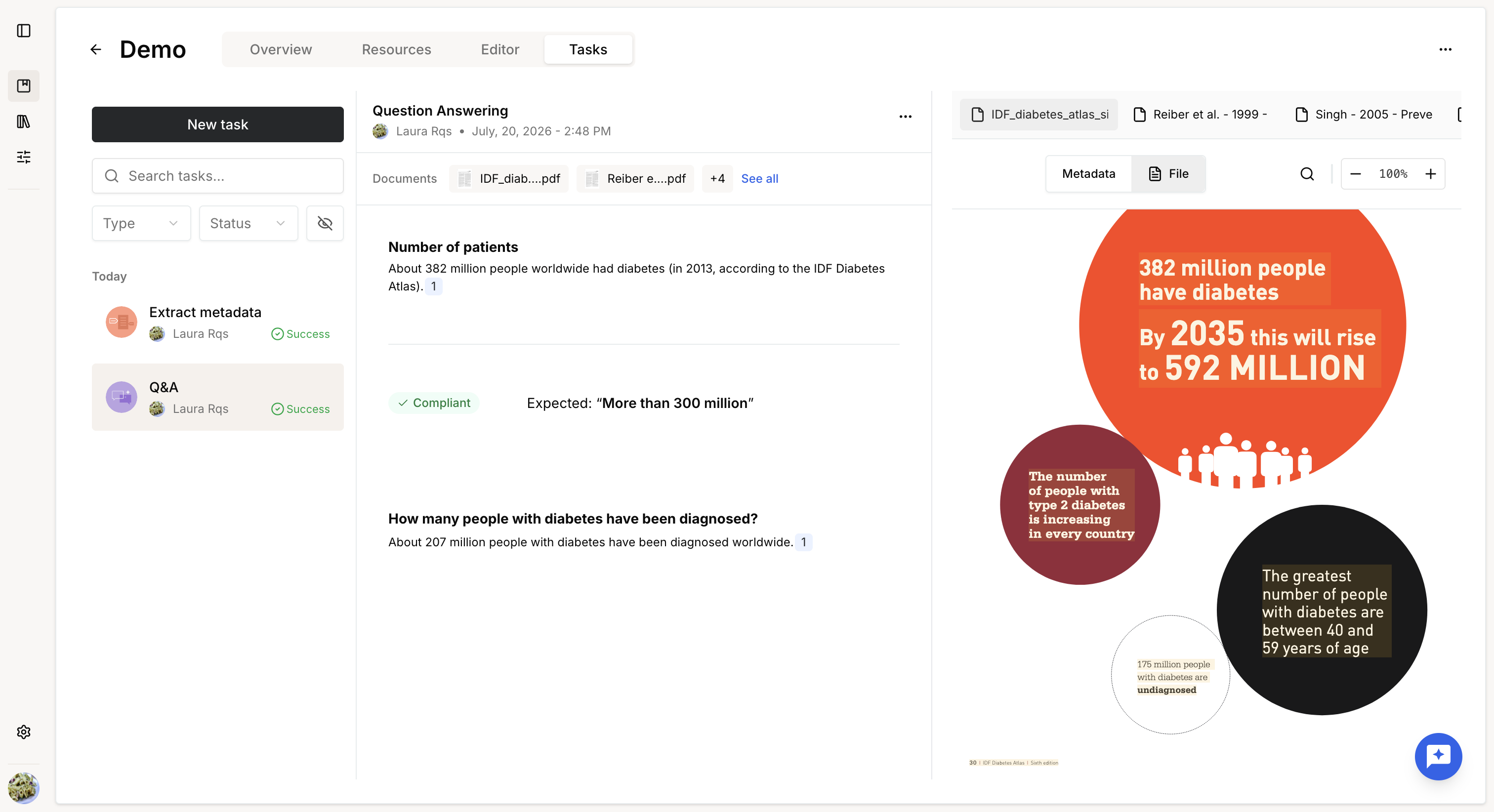
Available task types include:
- Q&A: Ask questions about your documents and evaluate compliance against defined criteria.
- Extract metadata: Extract structured information from your documents.
- KOL analysis (on demand): Identify key opinion leaders for a given disease.
To know more, check the article Launch tasks.
Collaborate on a project
To collaborate with other users, you must grant them access to both the project and any collections they need.
You will have to use policies.
Manage project policies
To manage access to a project:
- Open the project.
- Click the project menu.
- Select Manage permissions.
- Select an existing policy or create a new one.
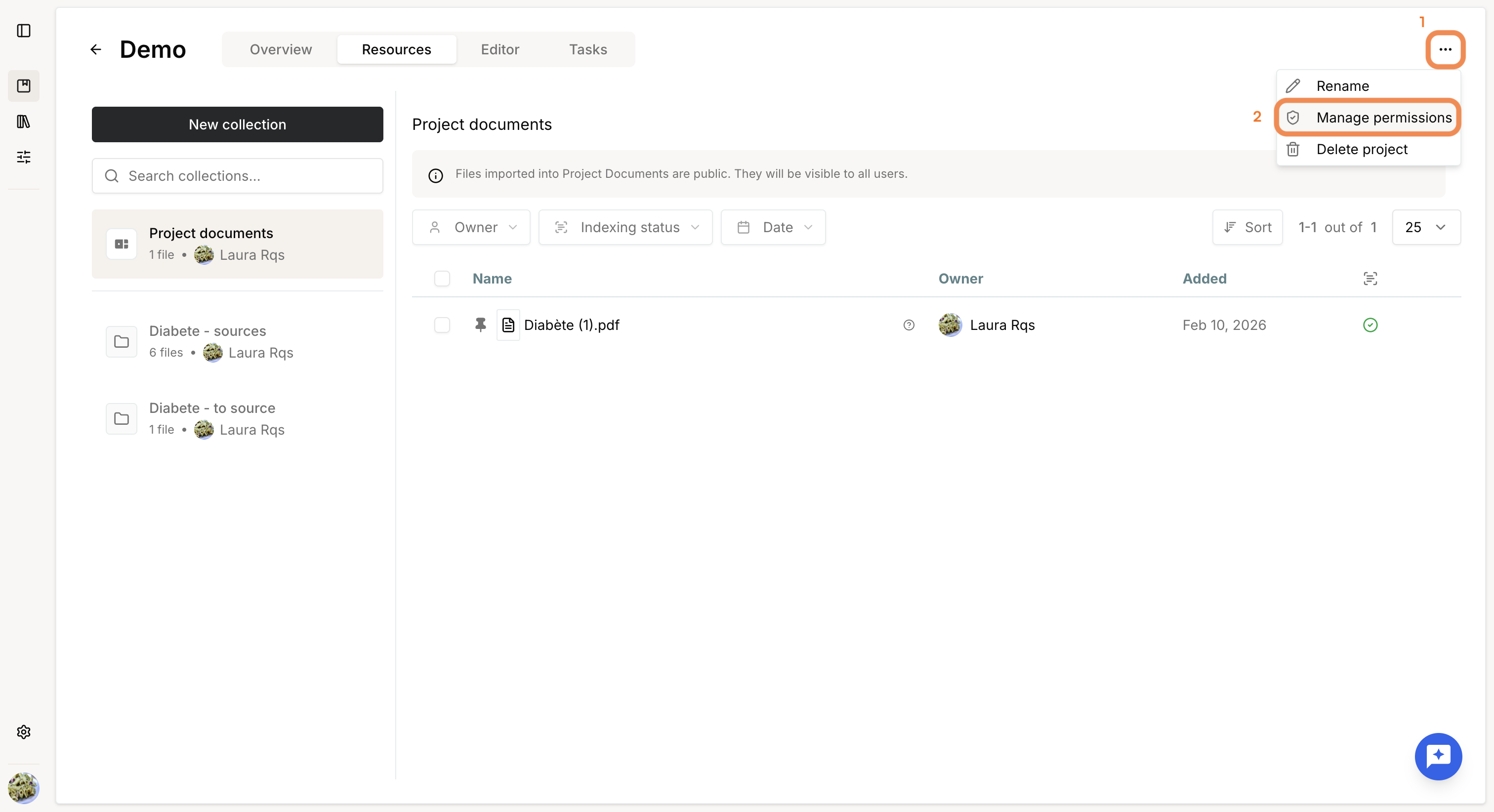
Users included in the selected policy receive Read or Write access to the project, depending on the permissions defined in the policy.
| Action | Sys Admin | User 'write' | User 'read' | User |
| Delete project | YES | NO | NO | NO |
| Edit project policy | YES | NO | NO | NO |
| Edit project details | YES | YES | NO | NO |
| Upload documents | YES | YES | NO | NO |
| Add/remove/create collections | YES | YES | NO | NO |
| Modify collections | YES | see collection policy | see collection policy | NO |
| Ask review for a PDF | YES | see collection policy | see collection policy | NO |
| Create dynamic document | YES | YES | NO | NO |
| Read dynamic document | YES | YES | YES | NO |
| Edit/rename/delete/request review of dynamic document | YES | YES | NO | NO |
| Launch task | YES | YES | NO | NO |
| See tasks results | YES | YES | YES | NO |
| Edit a task result | YES | YES | NO | NO |
Manage collection policies
Project permissions do not automatically grant access to the collections used within the project.
To manage access to a collection:
- Open the Library.
- Locate the collection.
- Apply the appropriate access policy to the collection.
Collection permissions apply only to the collection itself.
If the same collection is used in multiple projects, granting access to the collection does not grant access to those projects.
Was this article helpful?
That’s Great!
Thank you for your feedback
Sorry! We couldn't be helpful
Thank you for your feedback
Feedback sent
We appreciate your effort and will try to fix the article