| Permissions |
|
| Related readings |
|
Presets are reusable task configurations that help standardize analyses and avoid recreating the same settings across projects and Knowledge tables.
Presets are available from the Presets tab in the left navigation menu.
TABLE OF CONTENTS
Create an Extract Meta preset
Extract Meta presets can be created in two ways:
- Manually: configure the preset directly in the application.
- From a CSV file: download the template, complete it locally, then upload it to create the preset.
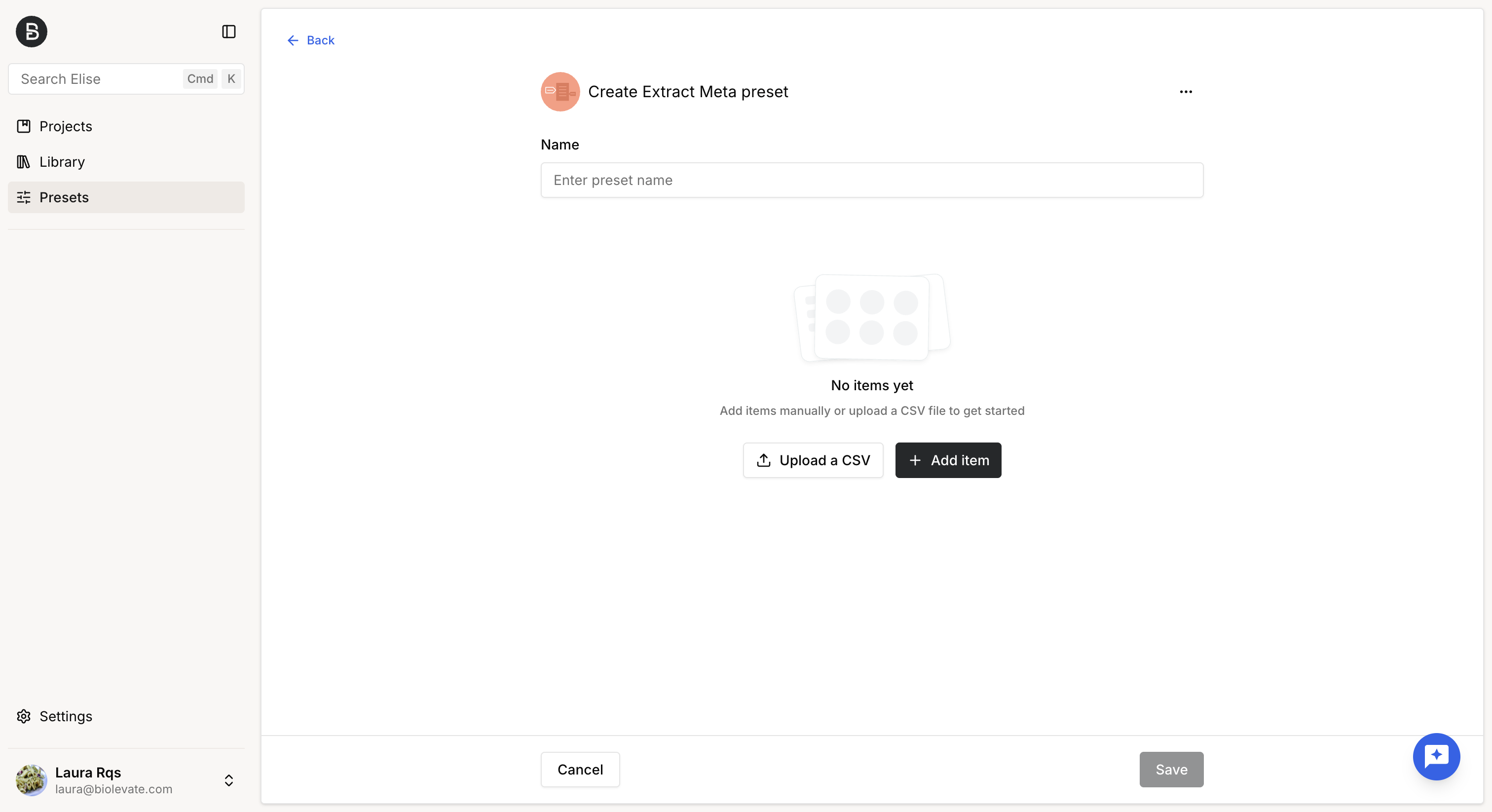
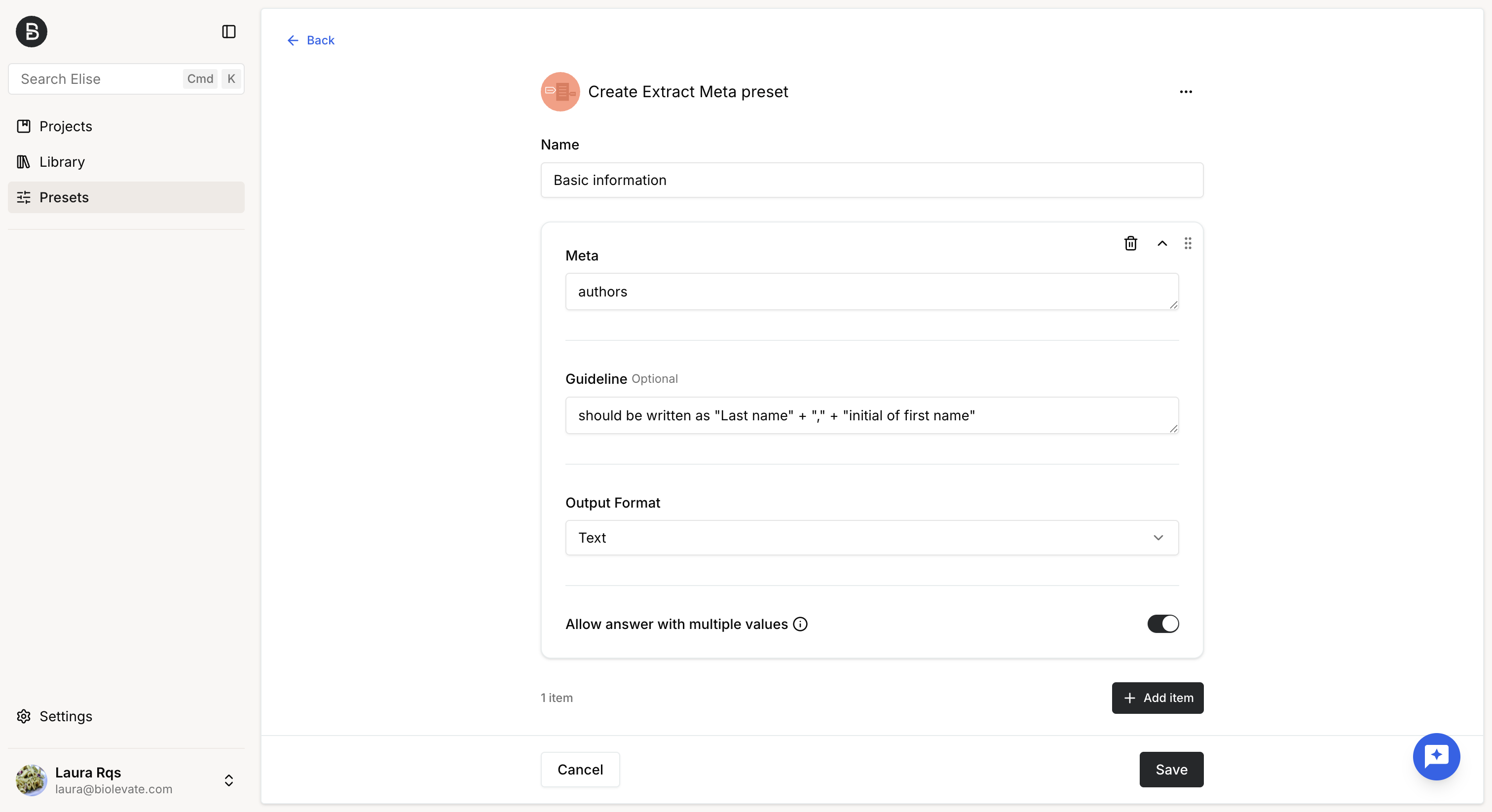
An Extract Meta preset can contain as many metadata fields as needed. For each field, configure:
- Metadata field: the information to extract (for example, Authors).
- Guideline (optional): additional instructions to guide the extraction, such as the expected format or a maximum response length.
- Output type:the expected output format:
- Text
- Number
- Binary
- Date
- Select
- Allow multiple values: enable this option when multiple values may be returned (for example, several authors).
When using the Select output type, you can allow the model to propose additional values. The predefined options remain the preferred choices, but the model may suggest new ones when they better match the document. Proposed values can be reviewed and accepted or rejected.
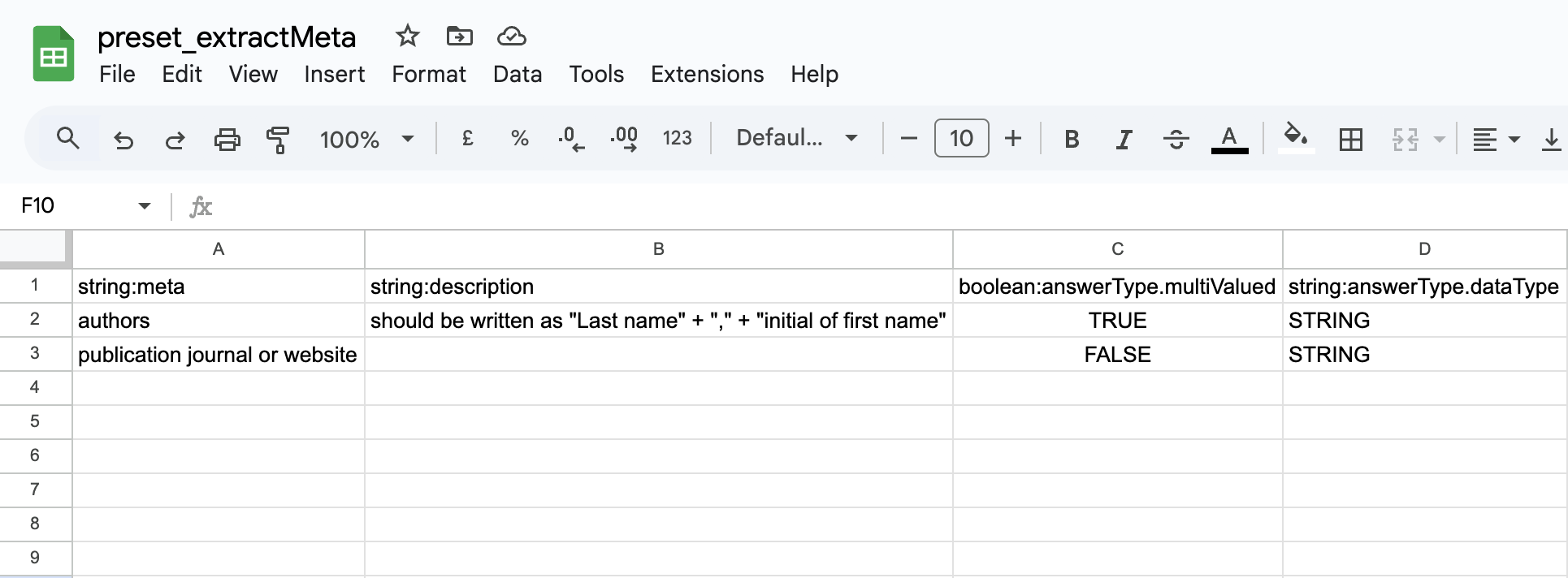
When importing a preset from a CSV file, supported answerType values are:
- STRING
- BOOL
- INT
- FLOAT
Create a Q&A preset
A Q&A preset can contain as many questions as needed.
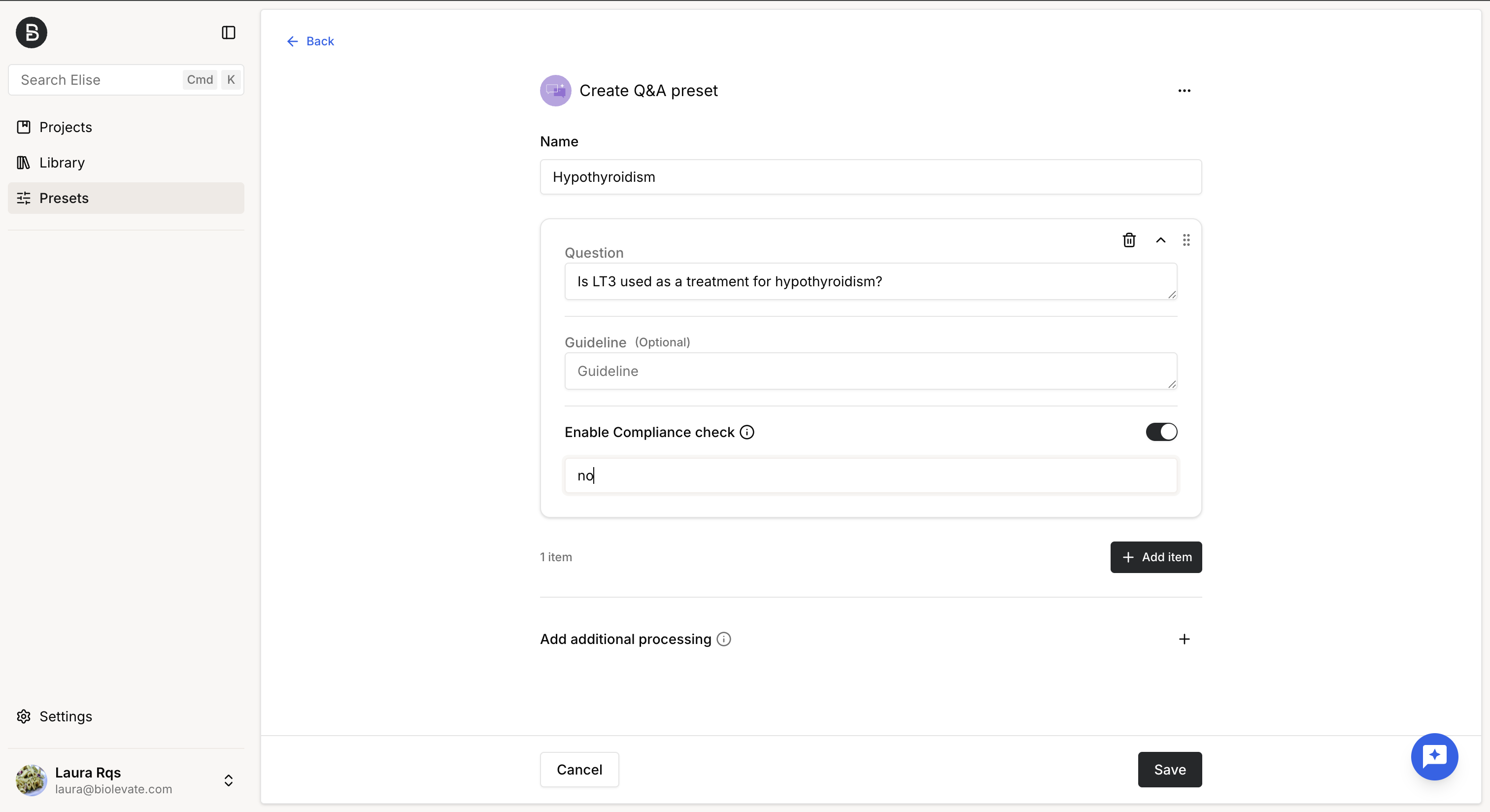
For each question, configure:
- Question: the question to answer (for example, Is LT3 used as a treatment for hypothyroidism?).
- Guideline (optional): additional instructions, such as the expected output format or a maximum response length.
- Compliance check (optional): define the expected result or validation criteria used to evaluate the generated answer.
- Additional processing (optional): create follow-up items that use the outputs of previous questions as input. This can be used, for example, to combine several answers into a summary or a table.

When importing a preset from a CSV file, supported answerType values are:
- STRING
- BOOL
- INT
- FLOAT
Manage presets
The Presets tab displays every preset you have permission to access.
Depending on your permissions, you can perform the following actions:
With Read permission:
- View a preset.
- Duplicate a preset.
- Download a preset.
With Write permission:
- Edit a preset.
- Duplicate a preset.
- Download a preset.
When editing a preset, you can modify its name and configuration.
Preset permissions and deletion can only be managed by the preset owner or a System Administrator.
Presets can also be edited directly when launching a task. Any changes can be:
- used only for the current task,
- saved by updating the existing preset, or
- saved as a new preset.
Manage preset permissions
To manage a preset's permissions:
- Open the Presets tab.
- Open the preset menu.
- Select Manage permissions.
- Select an existing policy or create a new one.
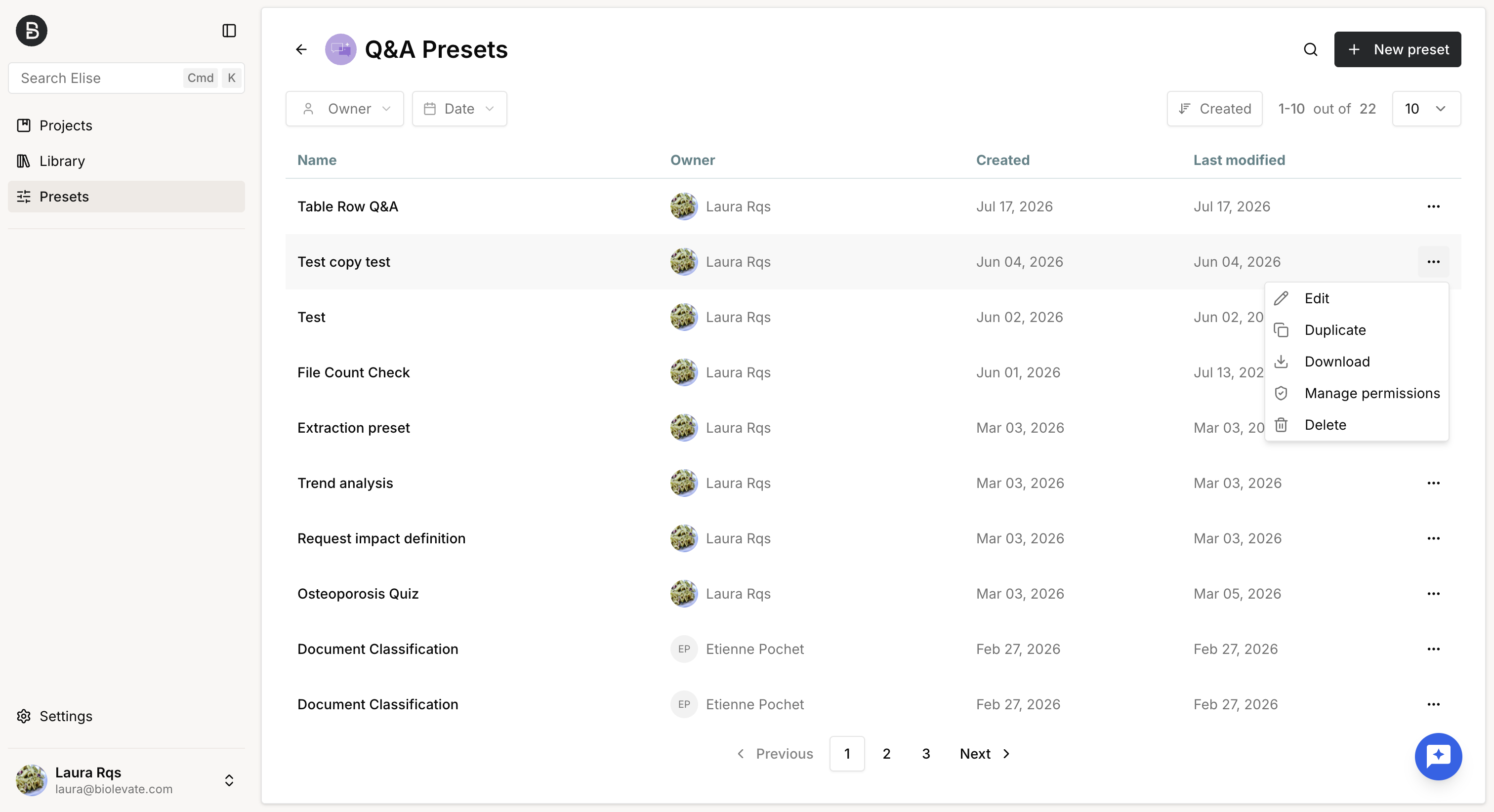
Users included in the selected policy receive Read or Write access according to the permissions defined in that policy.
| Action | Sys admin | Owner | User 'write' | User 'read' | User |
| Create a preset | OK | OK | OK | OK | OK |
| Duplicate a preset | OK | OK | OK | OK | KO |
| Use preset | OK | OK | OK | OK | KO |
| Edit a preset | OK | OK | OK | KO | KO |
| Delete a preset | OK | OK | KO | KO | KO |
| Manage preset policy | OK | OK | KO | KO | KO |
Was this article helpful?
That’s Great!
Thank you for your feedback
Sorry! We couldn't be helpful
Thank you for your feedback
Feedback sent
We appreciate your effort and will try to fix the article