| Permissions |
|
| Related readings |
All edits to an Editable document are automatically saved and stored as versions.
Versions keep a complete history of changes and allow you to compare edits, identify approved versions, and restore previous versions.
TABLE OF CONTENTS
View versions
Navigate versions
Changes to an Editable document, including text additions or removals, reference edits, outline changes, guideline or source updates, and comments, are automatically saved and stored in the Version history panel.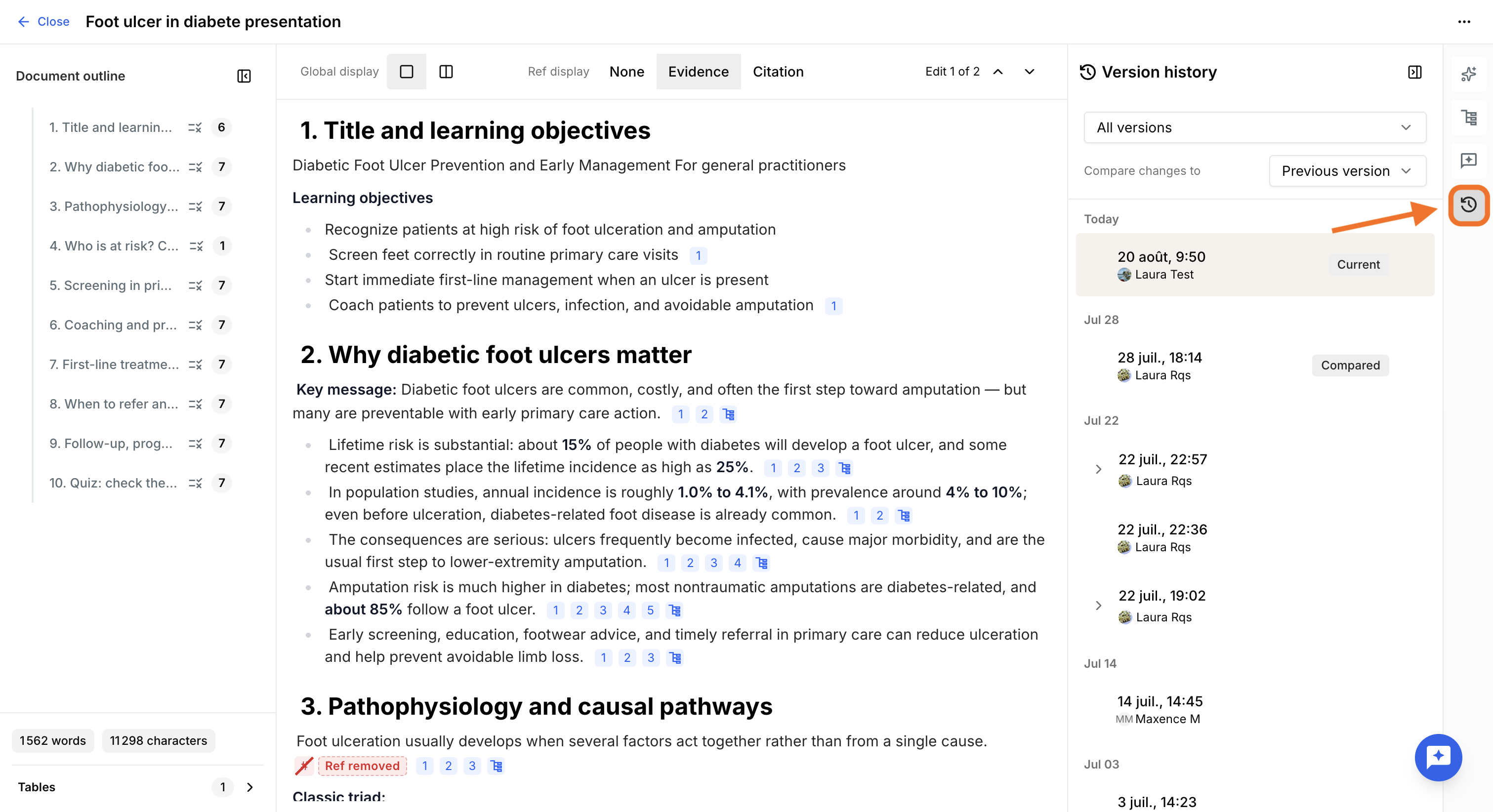
When you open the Version history panel, the document becomes read-only.
Versions are listed on the right side of the screen.
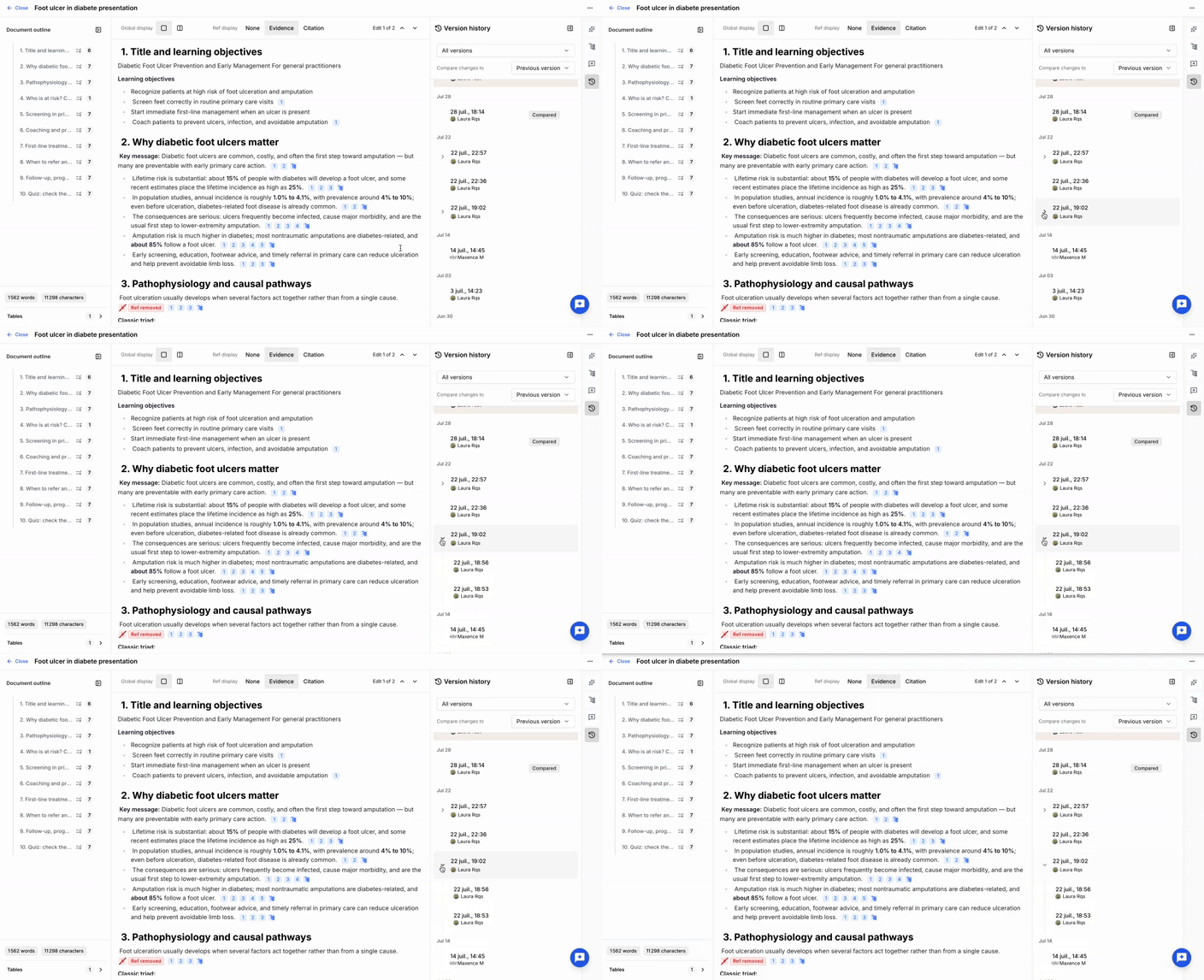
To reduce noise, changes made within a short period are grouped into a single version. You can expand a group to view its individual sub-versions.
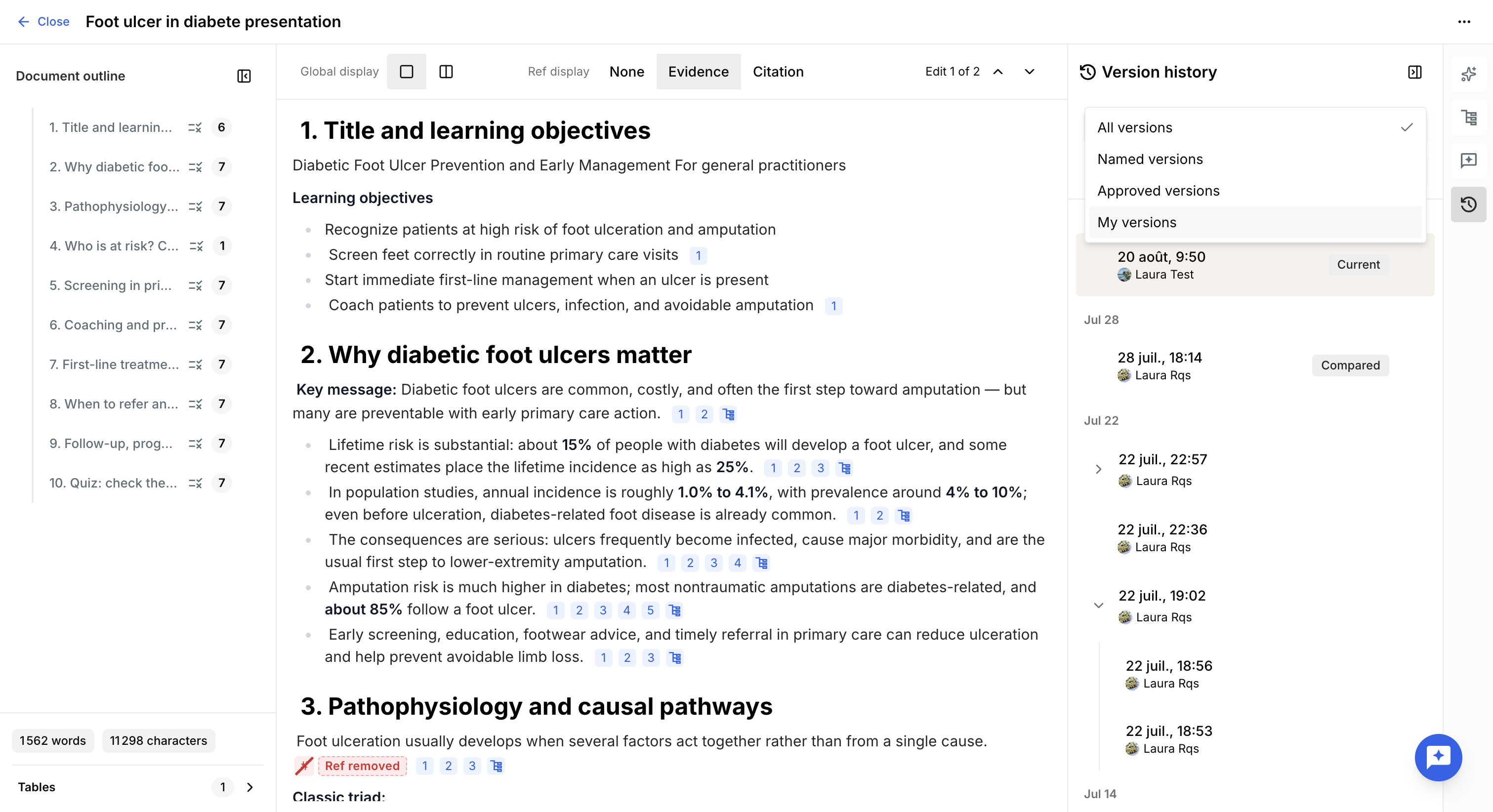
By default, all versions are displayed. You can filter the list to show only:
- Named versions
- Approved versions
- Owned versions: versions in which you made changes. Several users may contribute to the same version if they work on the document simultaneously.
Compare versions
By default, the latest version is selected and displayed, and its changes are compared with the previous version.
You can select any other version to display it. It will automatically be compared with the previous version or group.
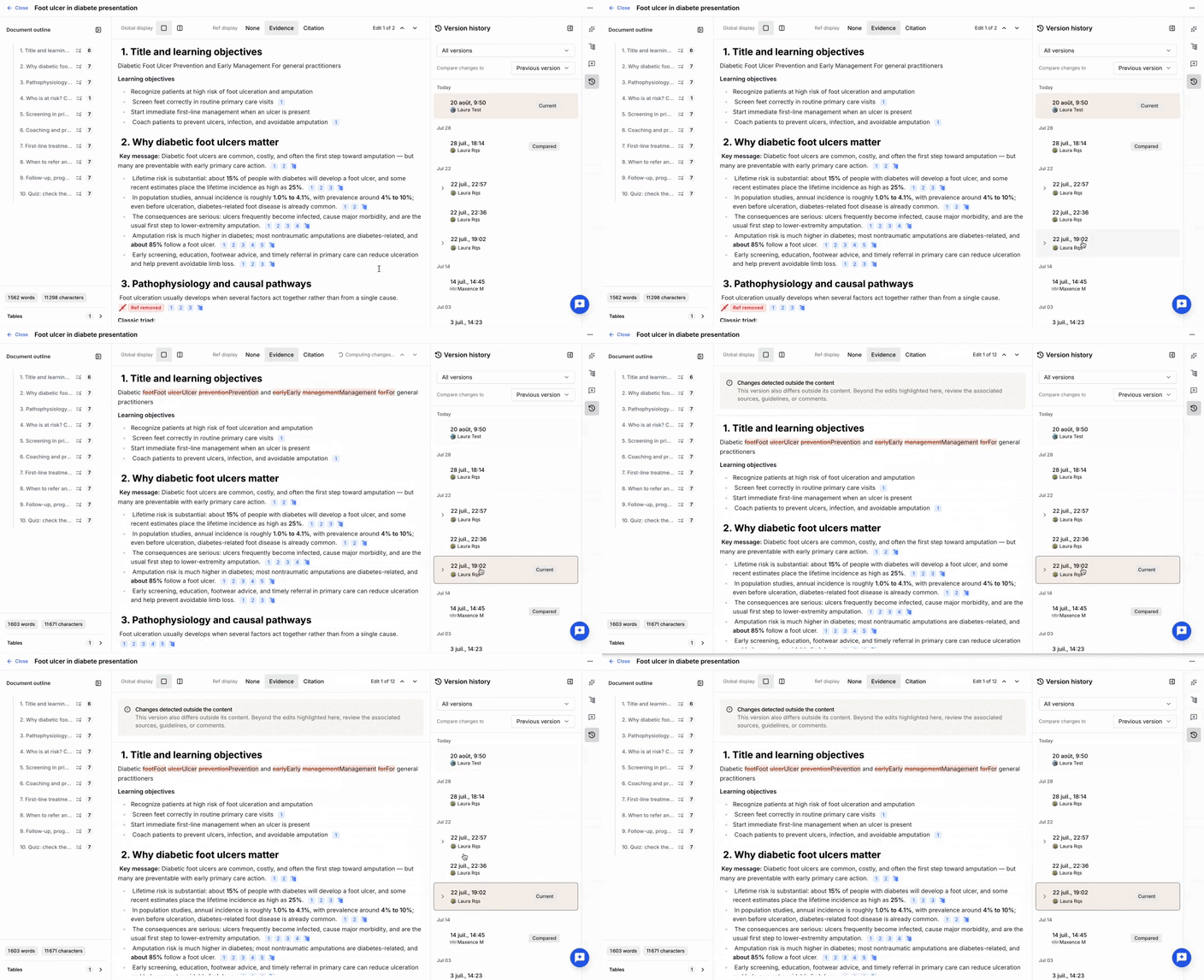
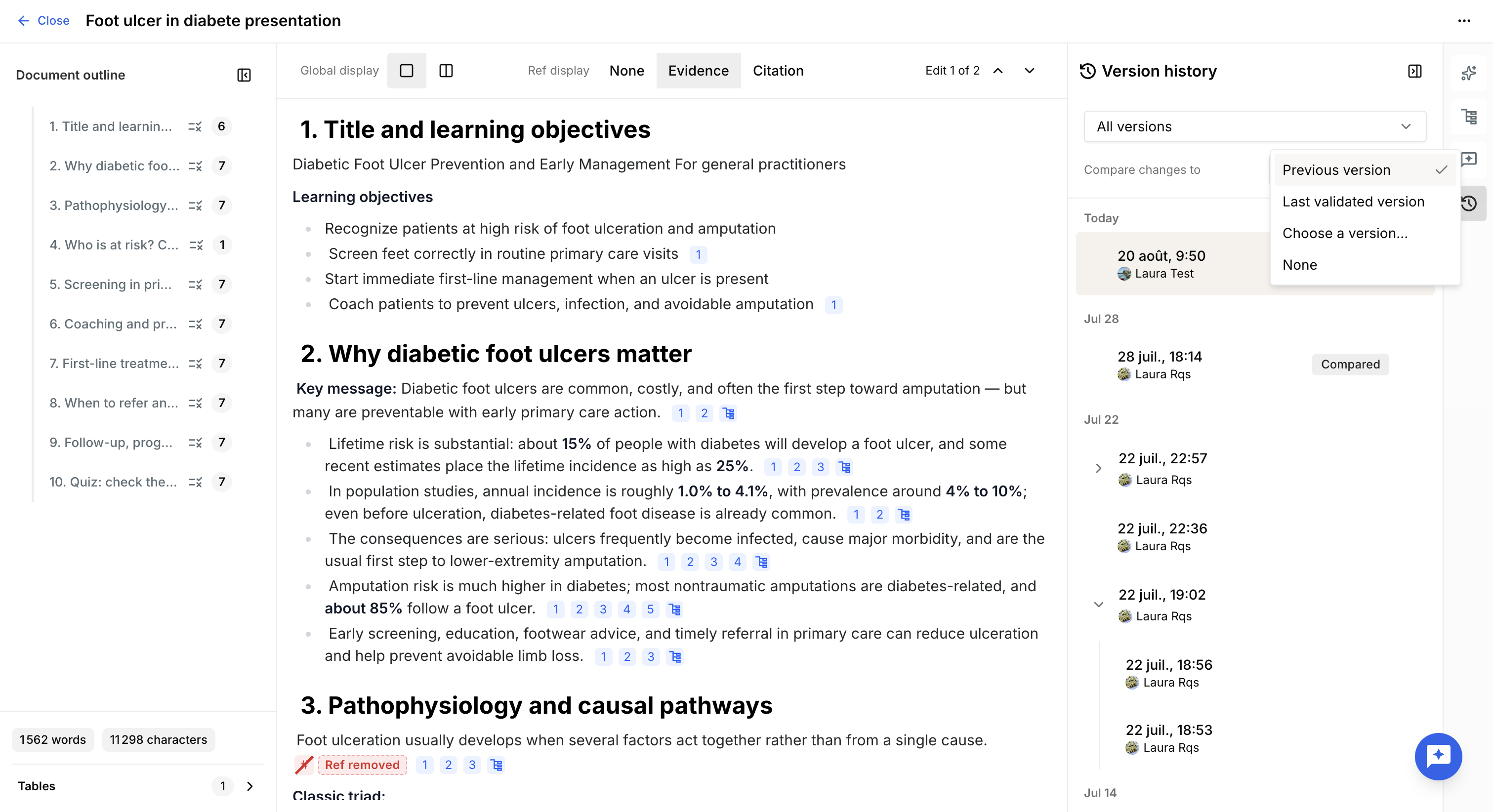
You can also choose which version to compare against using Compare changes:
- Previous version: compares the selected version with the previous version or group. This is the default.
- Last validated version: compares the selected version with the most recently approved version.
- Choose a version: select any version from the list as the comparison version.
- None: displays the selected version without highlighting changes.
Work on a version
Open the version menu to access the available actions.
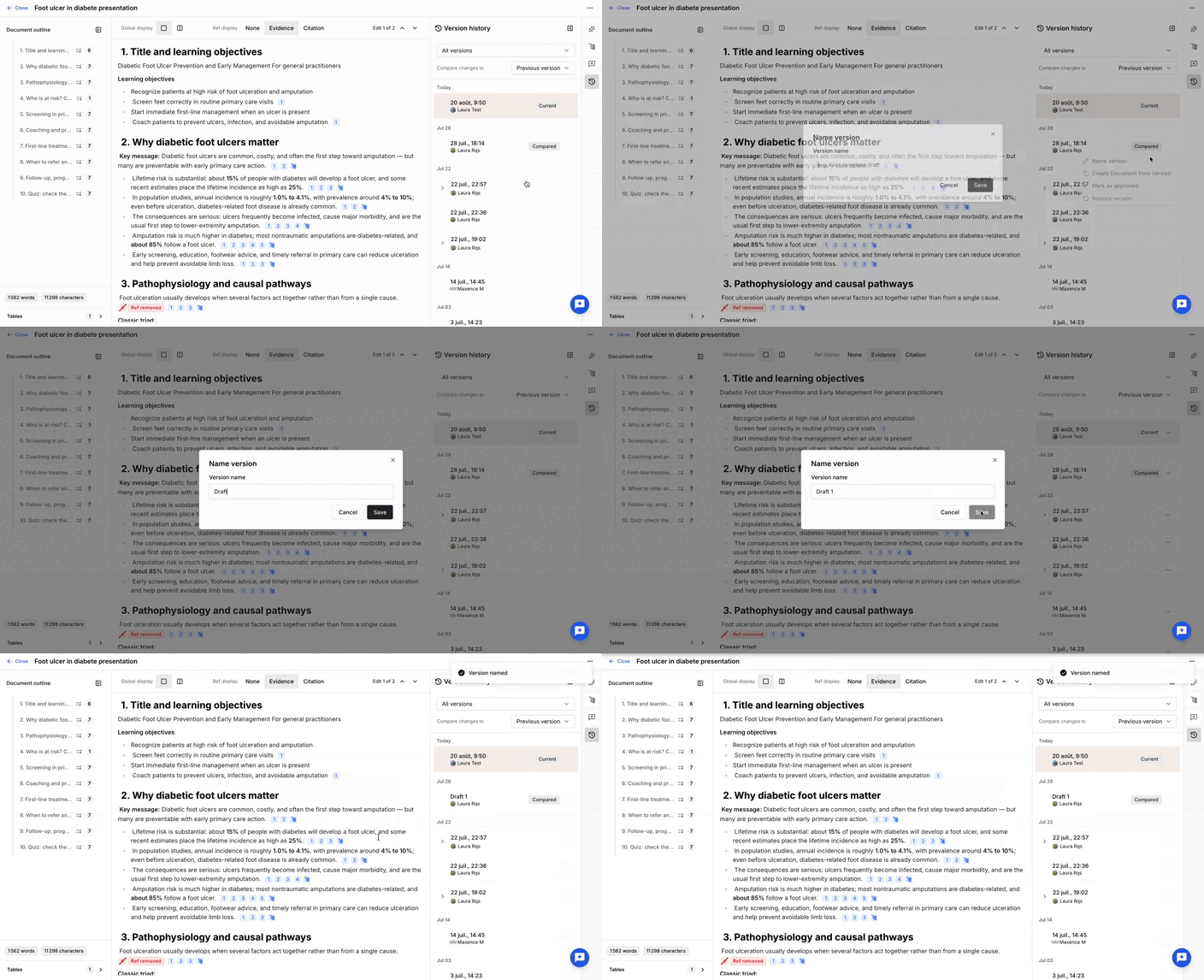
Name version
By default, versions are identified by their timestamp.
You can assign a name to a version to make it easier to identify and organize.
Named versions can also be found using the corresponding filter.
Create document from version
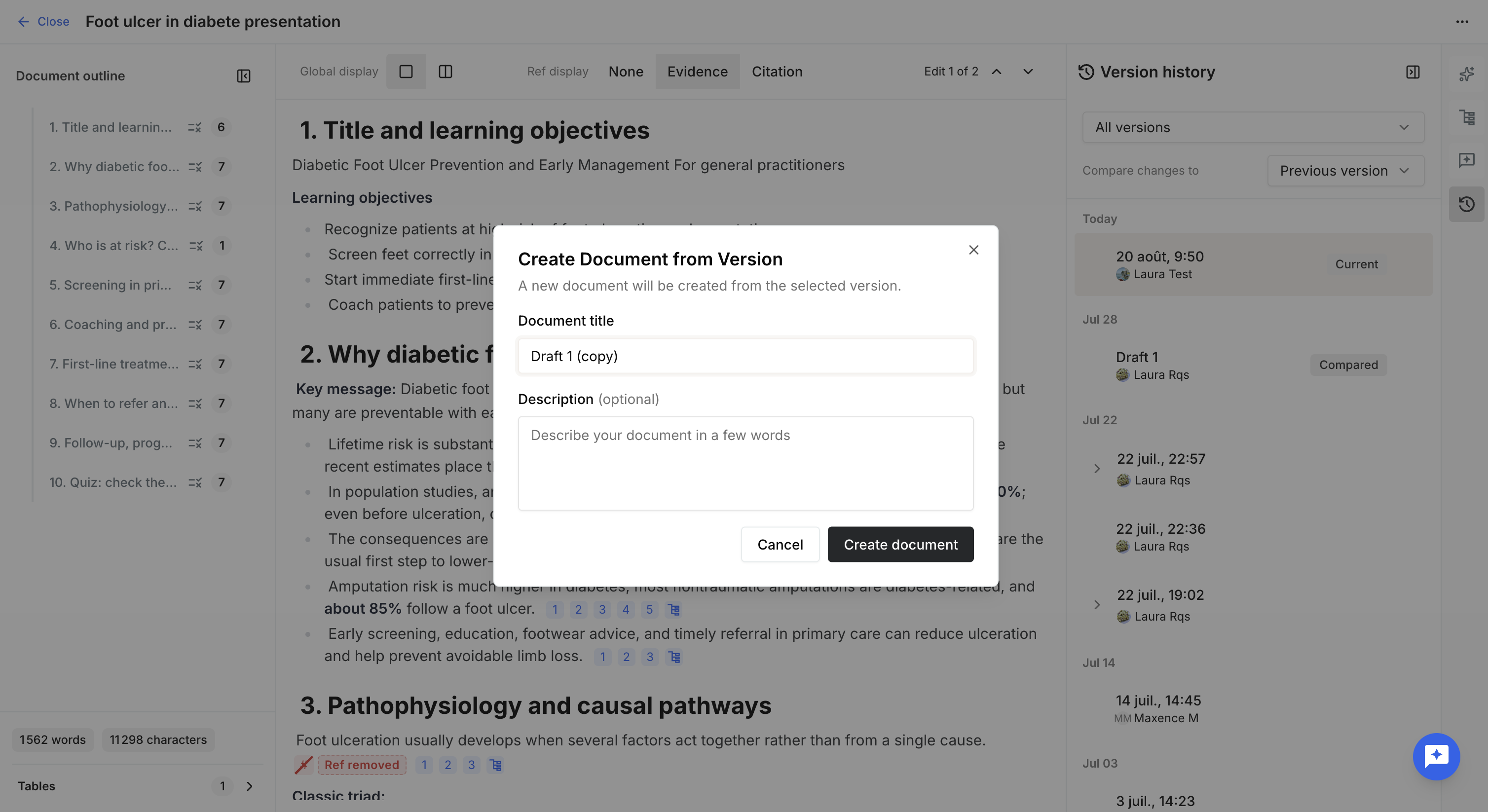
You can create a new Editable document from any version.
To do so, provide a title and, optionally, a description.
The new document is created in the current project as an exact copy of the selected version, including:
- content
- outline
- guidelines
- sources
- comments
Mark as approved
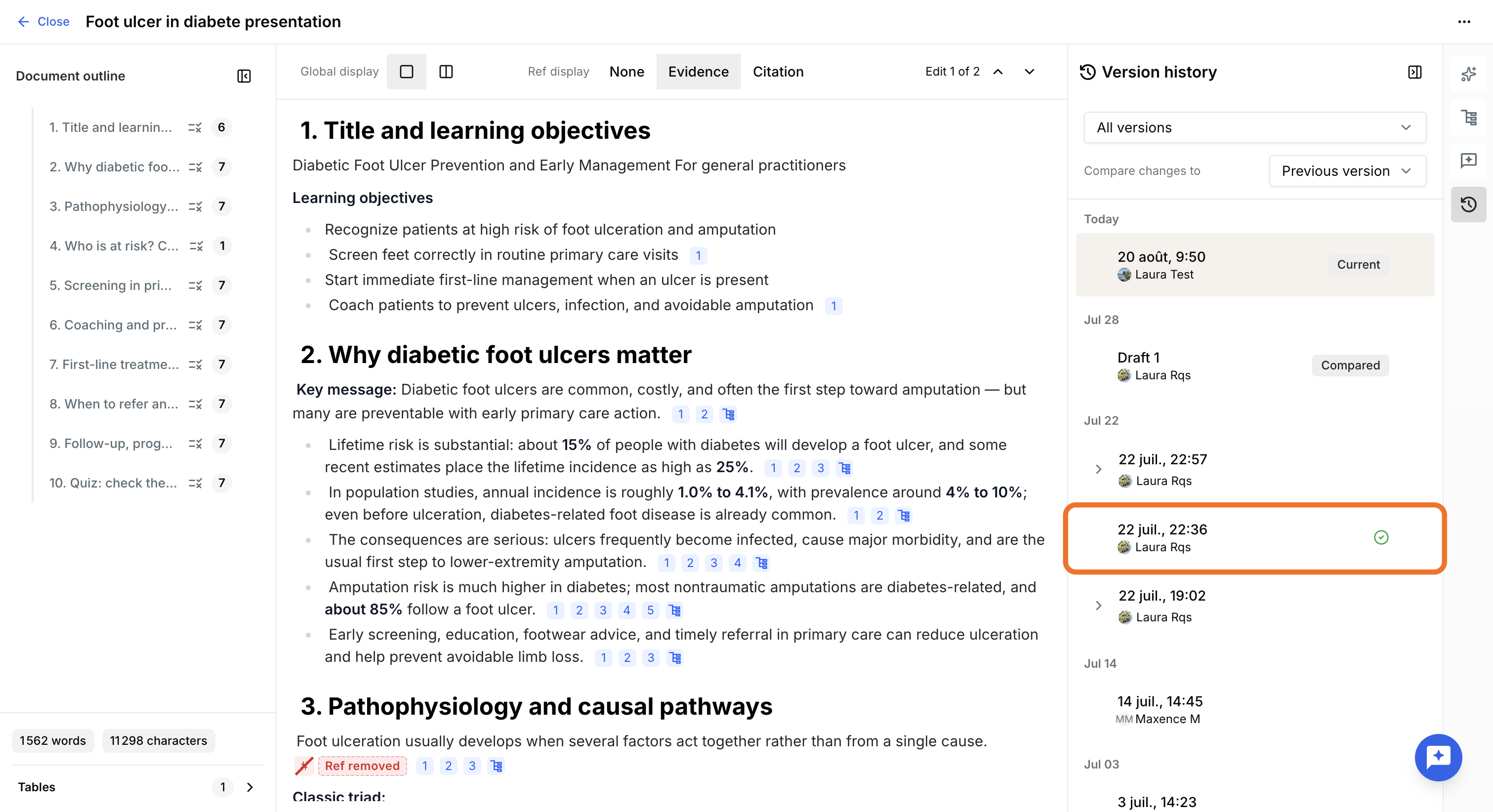
You can mark a version as Approved to identify it as a validated state of the document.
Approved versions display a badge in the version list and can be easily found using the corresponding filter or selected as a comparison point.
Restore version
You can restore a previous version to return the Editable document to its state at that point in time.
Restoring a version updates the document's:
- content
- outline
- guidelines
- sources
- comments
A new version is created for the restoration, using the current timestamp. Versions created after the restored version are not deleted and remain available in the version history.
Review changes
When comparing two versions, the differences between them are displayed directly in the document. Several display options are available to make the comparison easier.
Global display
By default, the current version is displayed with changes highlighted:
- Added content such as text, figures, tables, or formulas is highlighted in a color associated with the editor who added it.
- Removed content is displayed with strikethrough.
- Removed references are indicated with an icon.
- Changes to comments, sources, or guidelines are not displayed directly in the document but are indicated in the version information.
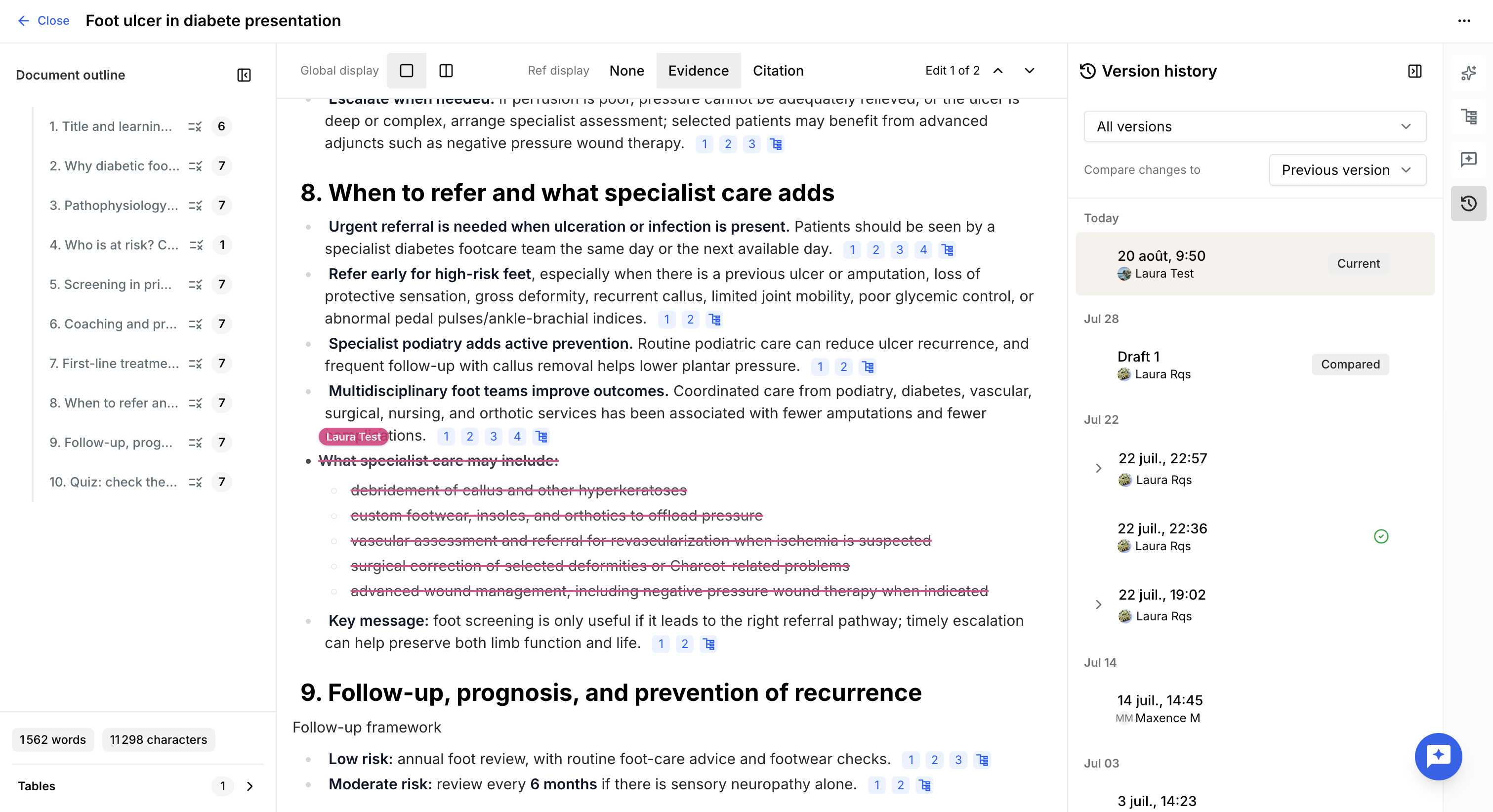
You can switch from the global display to Split screen using the toolbar menu above the document.
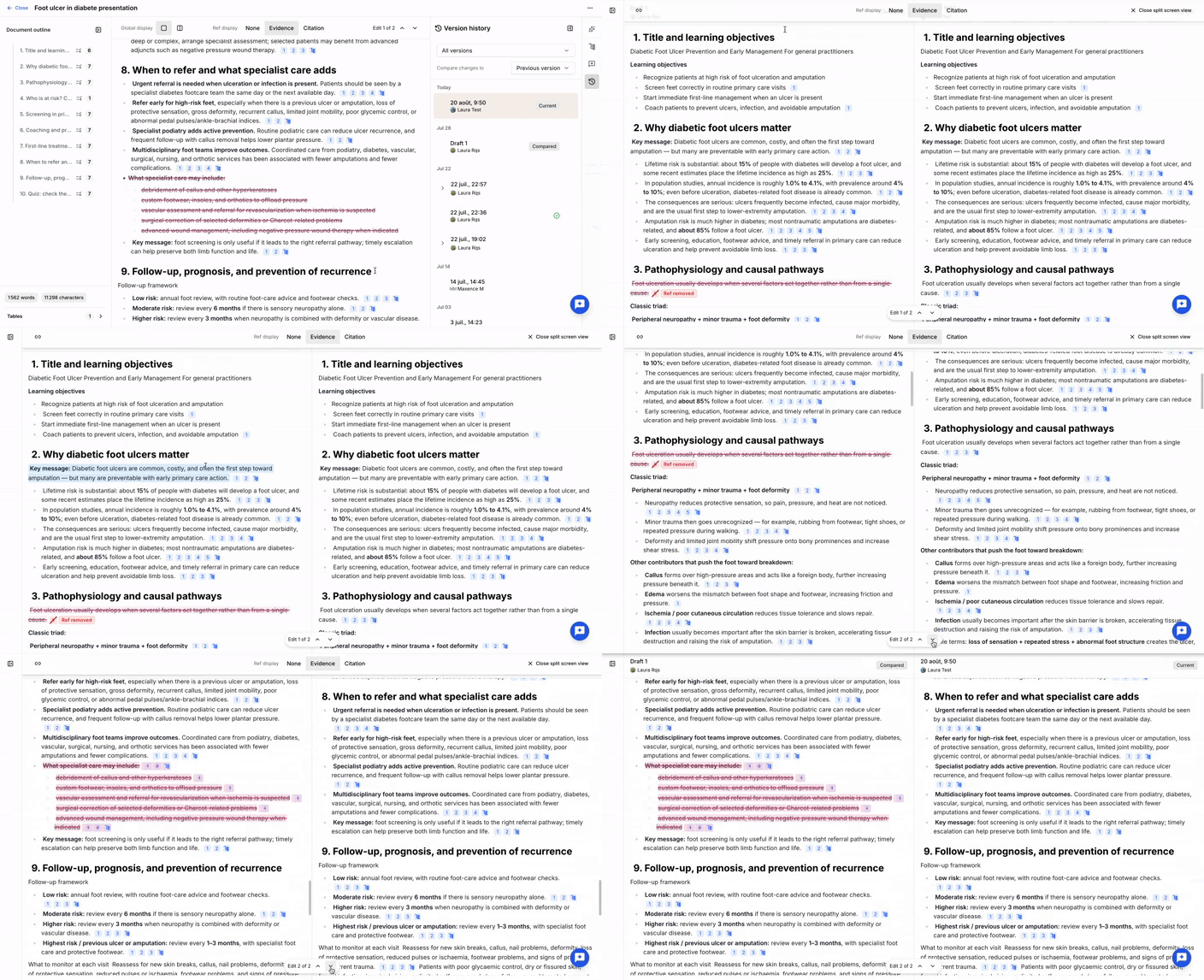
In Split screen mode, the two compared versions are displayed side by side:
- Compared version on the left, showing removed content.
- Current version on the right, showing added content.
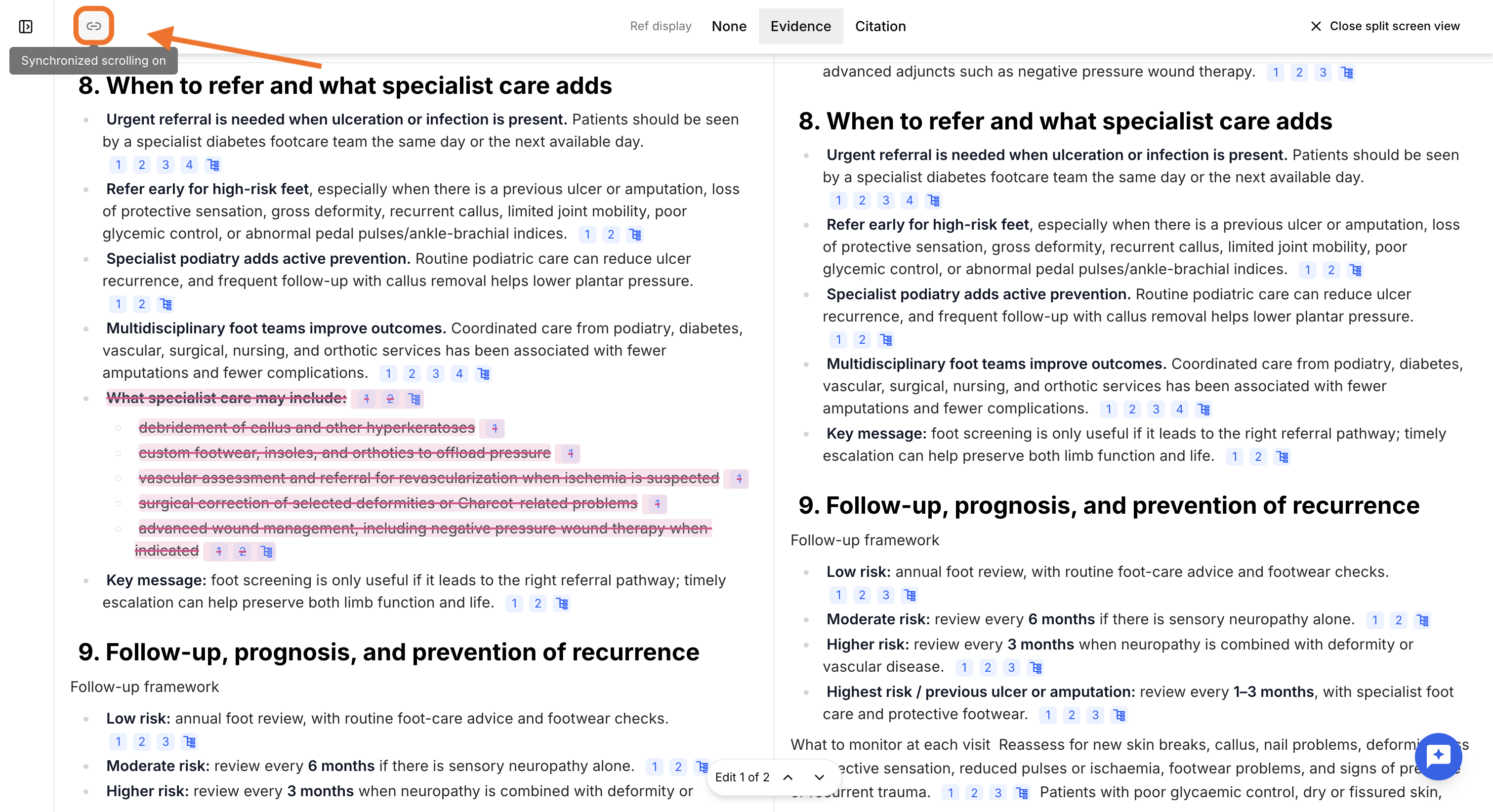
Navigation between the two versions is synchronized by default. You can disable synchronized scrolling from the top-left of the toolbar if needed.
References display
By default, references are displayed in Evidence mode. Reference numbers are shown and you can access the supporting arguments and their previews.
You can change the reference display mode to:
- None: references are hidden.
- Citation: references are displayed using the in-text citation style defined for the bibliography. Supporting arguments are not accessible.
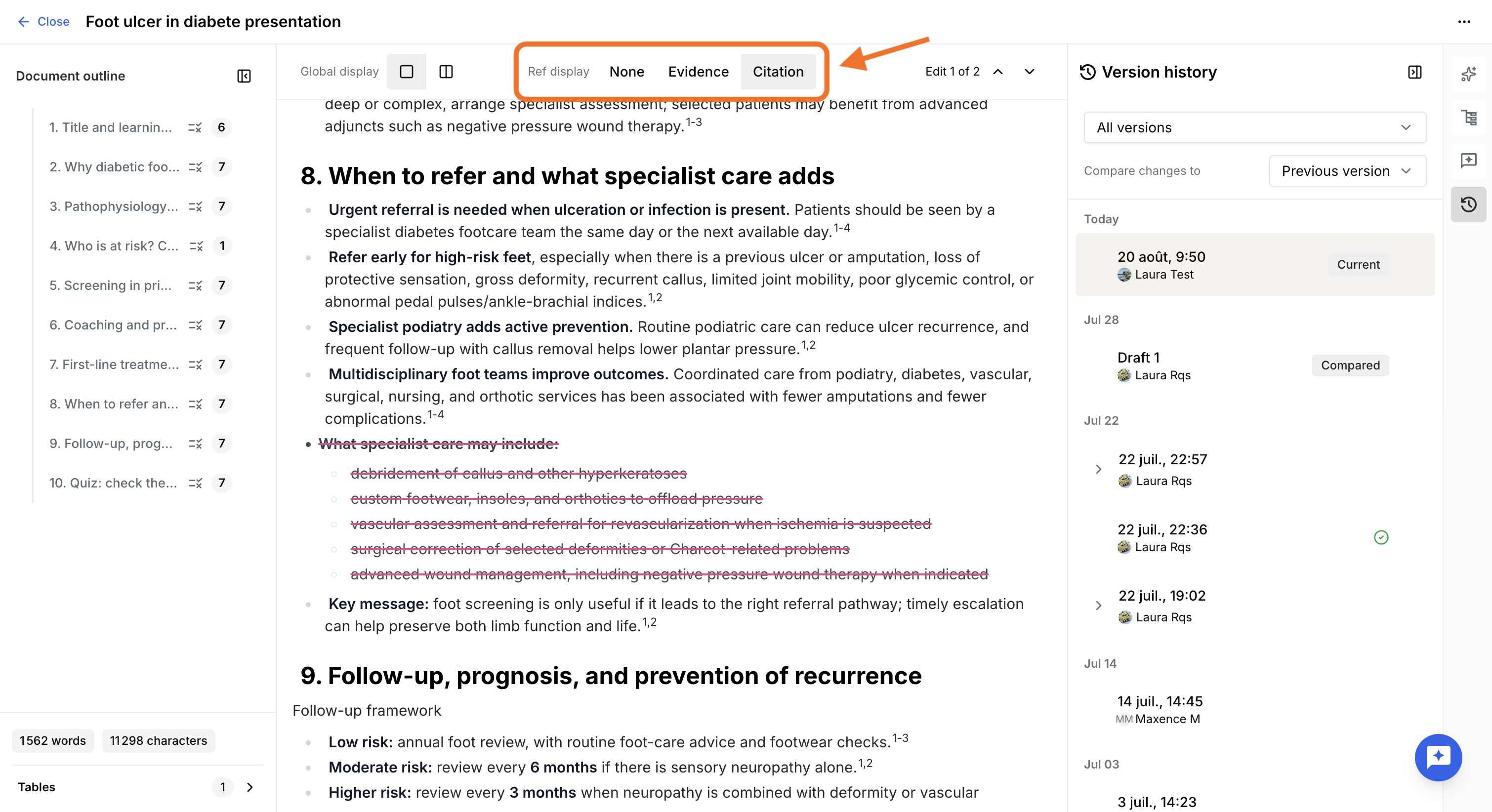
Was this article helpful?
That’s Great!
Thank you for your feedback
Sorry! We couldn't be helpful
Thank you for your feedback
Feedback sent
We appreciate your effort and will try to fix the article