| Permissions |
|
| Related readings |
Table templates are saved configurations of a table to avoid repetition when building knowledge in collection.
They are available in the Presets tab in the left menu.
Create a table template
You can create a table template:
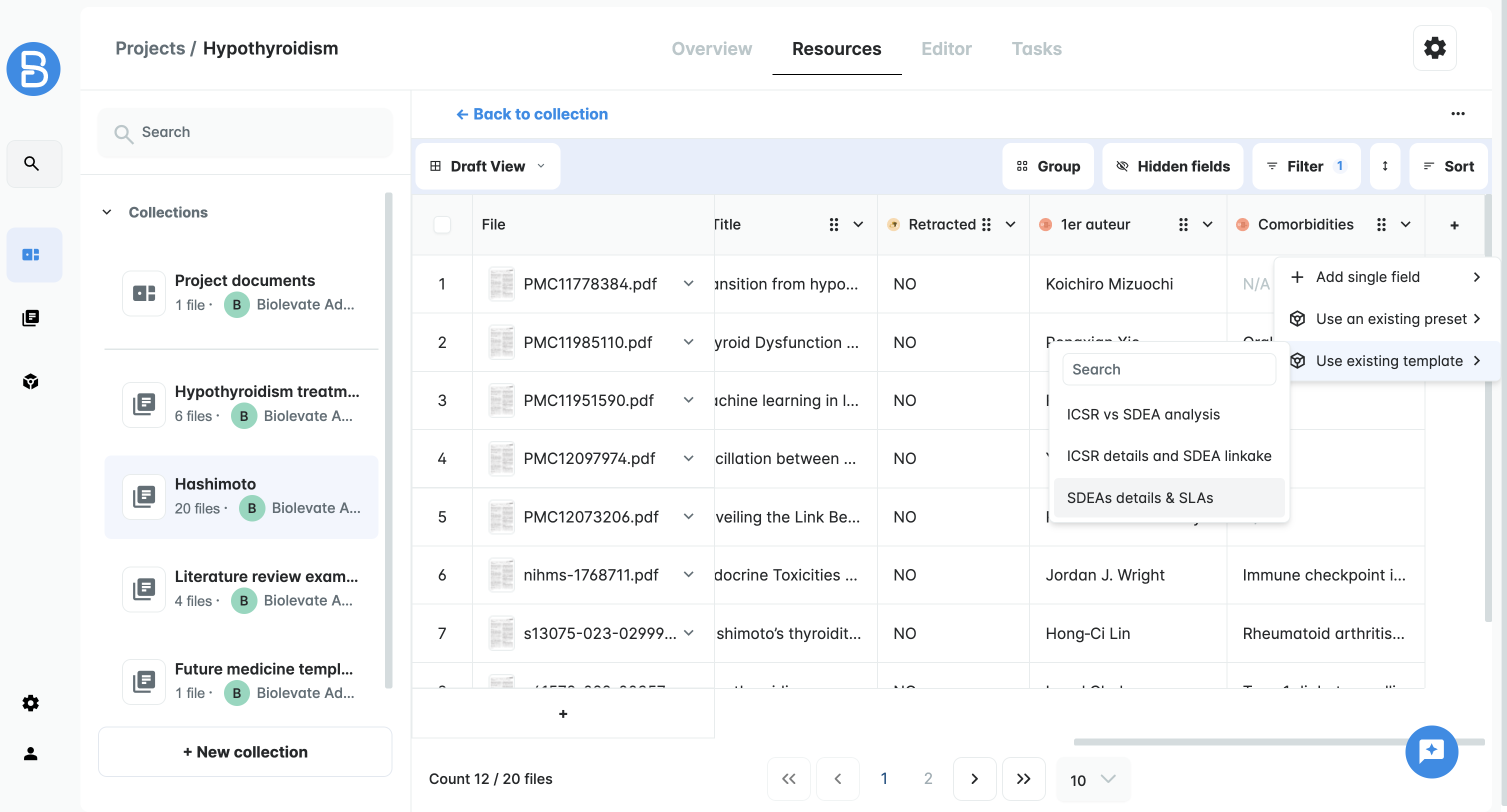
- from a table, by saving the selected fields (see Extract knowledge from your resources article)
- from the Presets tab by manual creation
- from the Presets tab by uploading a csv file
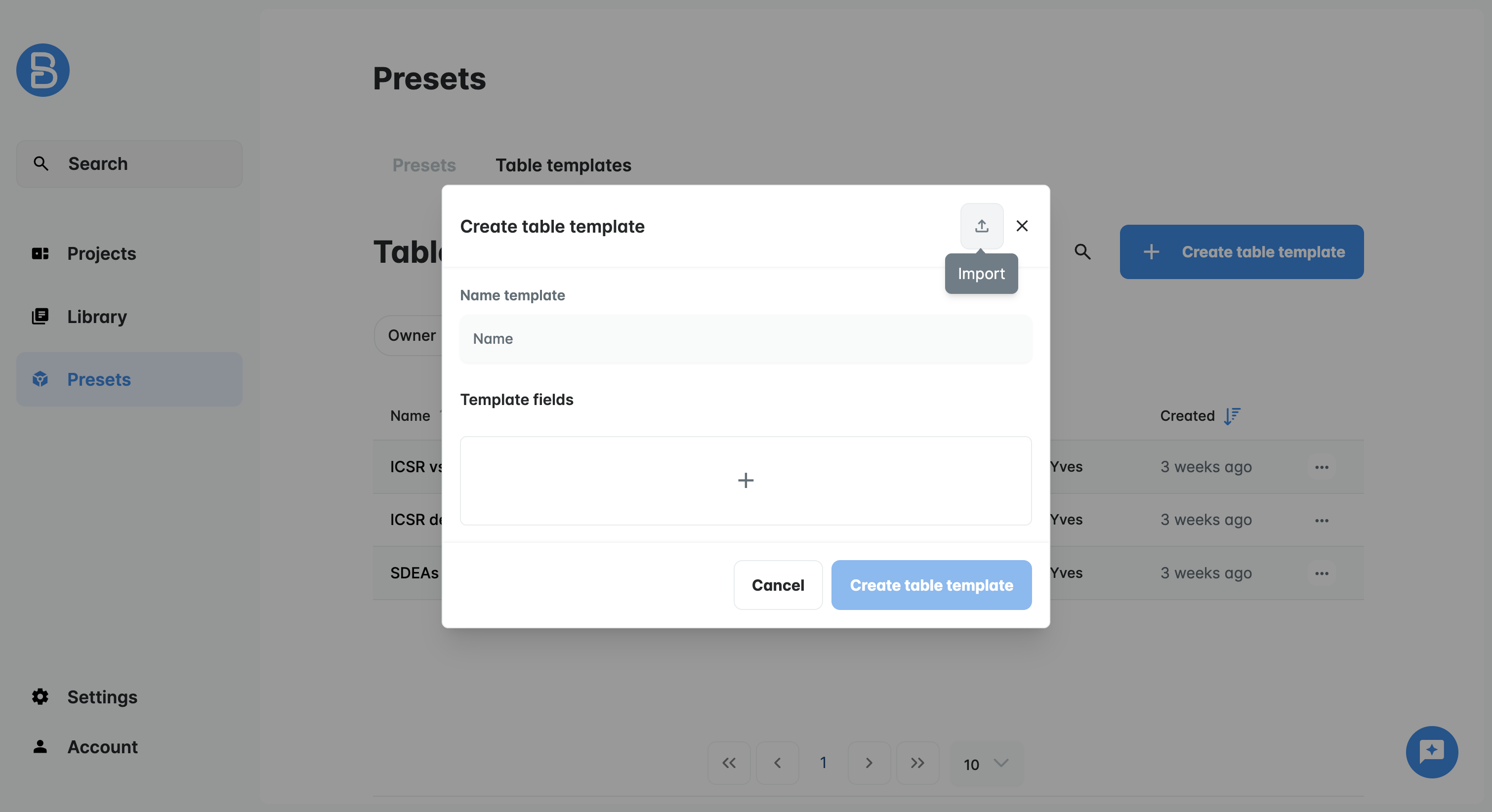
When configuring a table template, you must fill in a name and at least one field.
The fields available are the same ones as in the Knowledge table: extract, enrich, manual or duplicate detection.
Like in the table, you can use an existing field as input of another field.
This will show in the template configuration.
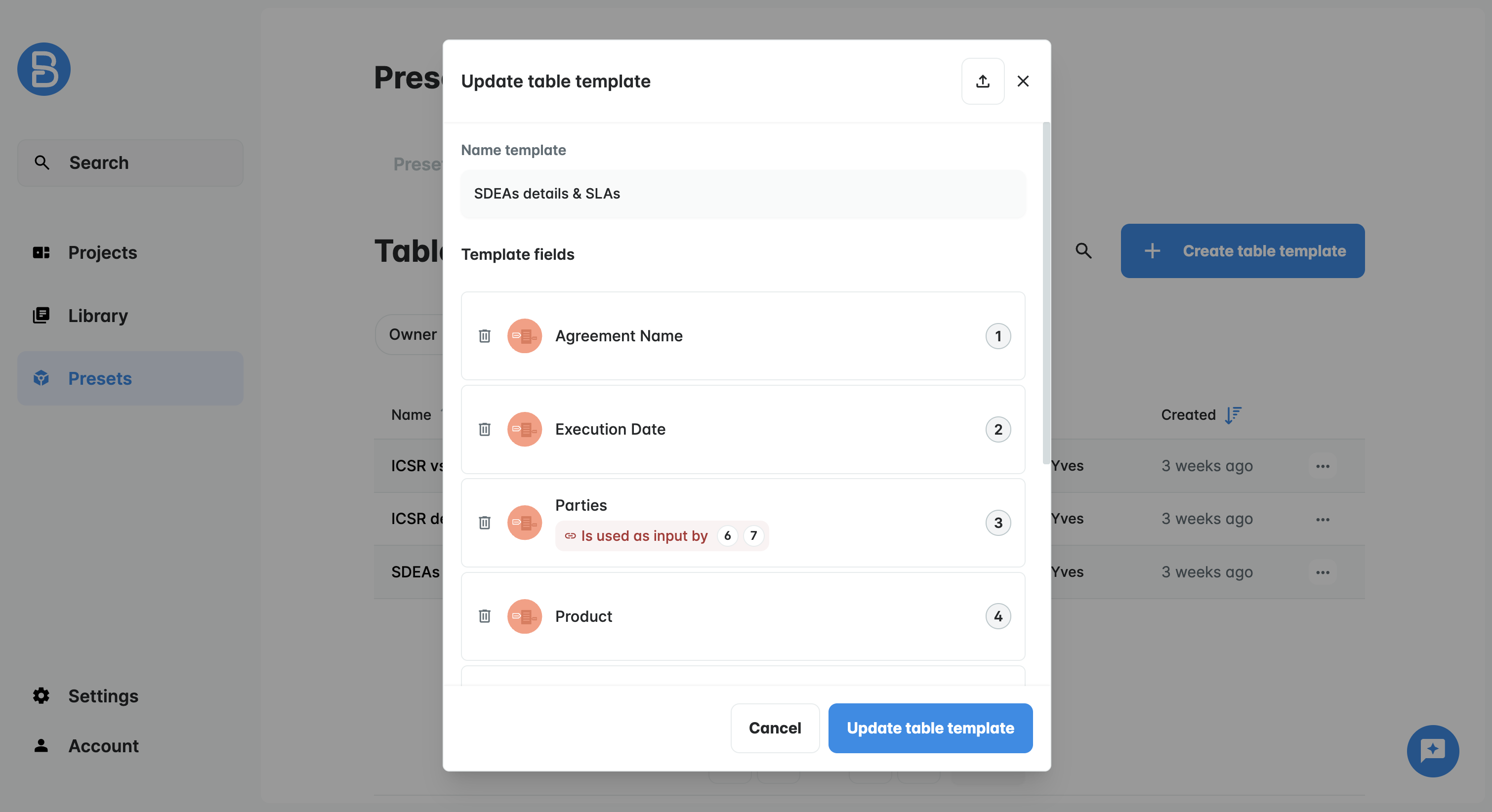
Once you are done, click on "Create table template" to finalize the creation.
When created, a template is available from management in the table templates list and for use in any knowledge table.
Manage table template
From the Table templates tab, you can see all the templates you have access to, meaning with at least READ access.
If you have WRITE permissions on a template, you can edit and duplicate it.
If you have READ permissions on a preset, you can see it and duplicate it.
When editing a preset, you can modify its name and configuration, but not manage policies.
Only the owner and sys admins can update policies and delete objects.
Templates policies
To manage a template policy, you must go to the table template tab and click on the menu of the template you need to edit.
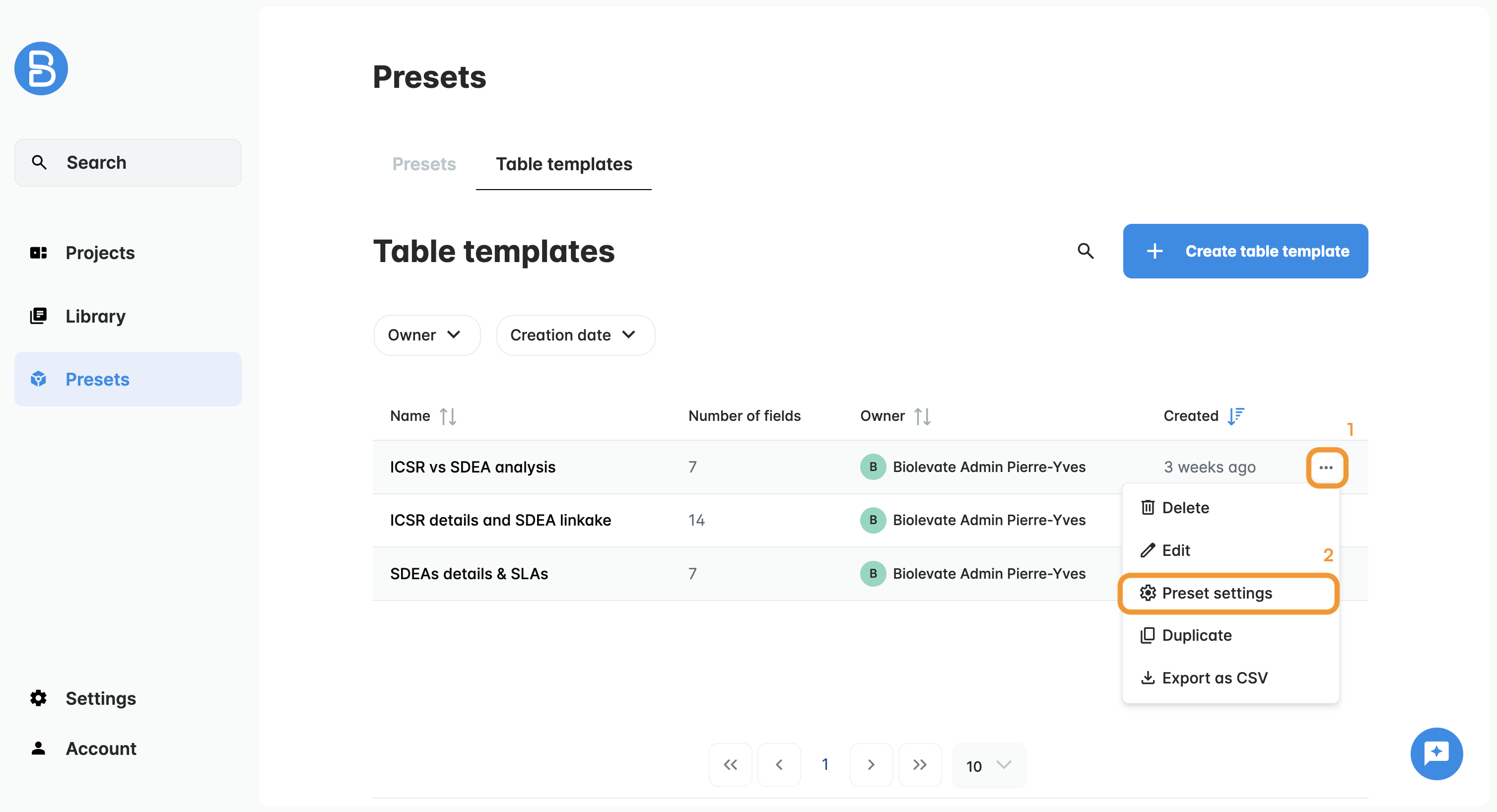
Then select a policy or create a policy.
Users in this policy will have access to your preset with READ or WRITE permissions:
| Action | Sys admin | Owner | User 'write' | User 'read' | User |
| Create a template | OK | OK | OK | OK | OK |
| Duplicate a template | OK | OK | OK | OK | KO |
| Use template | OK | OK | OK | OK | KO |
| Edit a template | OK | OK | OK | KO | KO |
| Delete a template | OK | OK | KO | KO | KO |
| Manage template policy | OK | OK | KO | KO | KO |
Was this article helpful?
That’s Great!
Thank you for your feedback
Sorry! We couldn't be helpful
Thank you for your feedback
Feedback sent
We appreciate your effort and will try to fix the article