| Permissions |
|
| Related readings |
Templates provide reusable starting points for editable documents.
They can be created from existing documents, outlines, examples, or guidelines, and shared within a project.
TABLE OF CONTENTS
Create a template
You can create a template in three ways.
From an Editable document
Any editable document can be saved as a template.
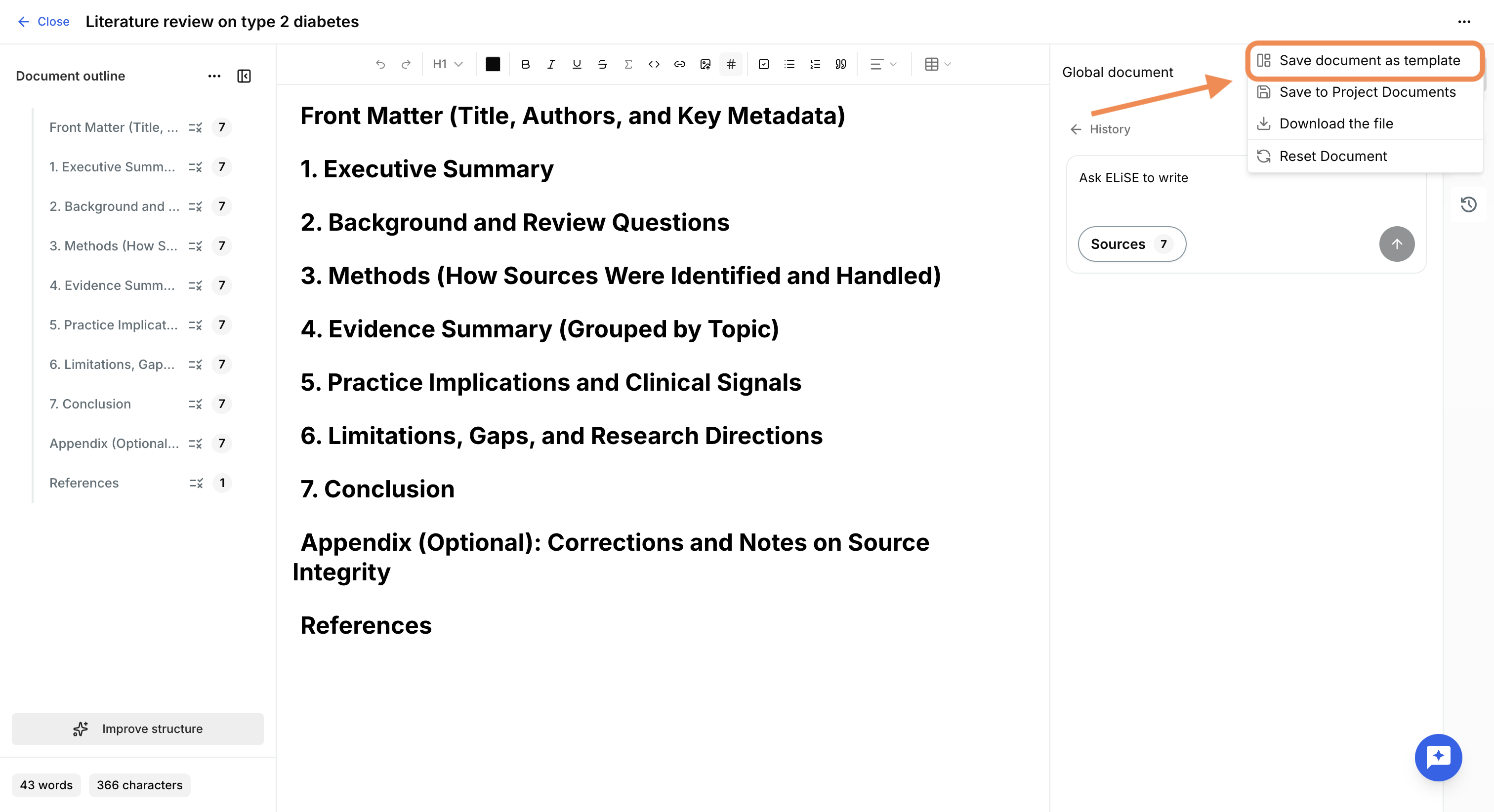
- Open the editable document.
- Click the menu in the upper-right corner.
- Select Save document as template.
- Enter a template name.
- Optionally, add a description.
The template is saved and becomes available when creating new editable documents.
From an outline
Any outline can be saved as a template.
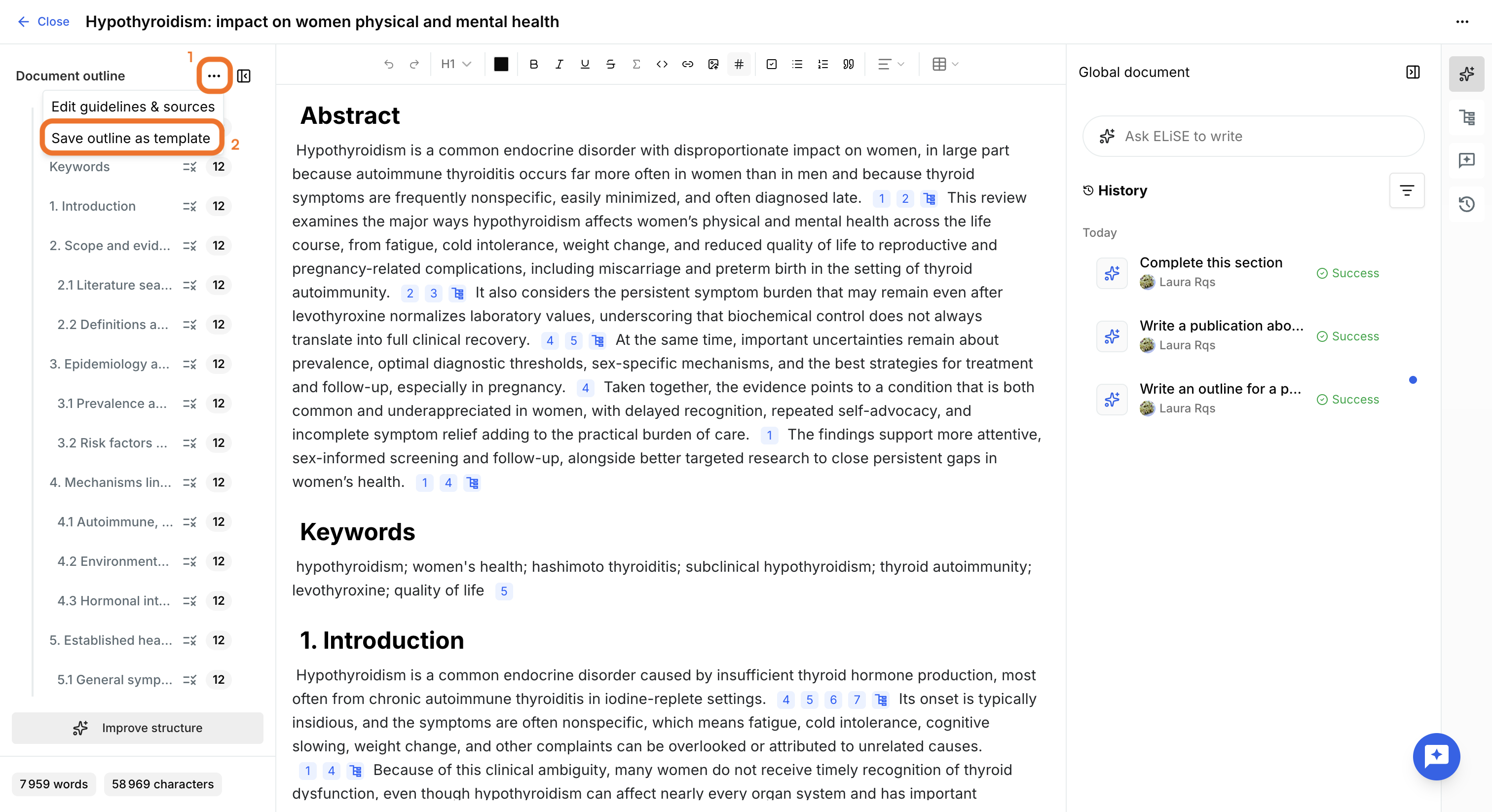
- Open the editable document.
- Click the menu in the document outline on the left
- Select Save outline as template.
- Enter a template name.
- Optionally, add a description.
The template is saved within your project and becomes available when creating new editable documents.
Generate a template with AI
From example documents
You can generate a template automatically from existing documents.
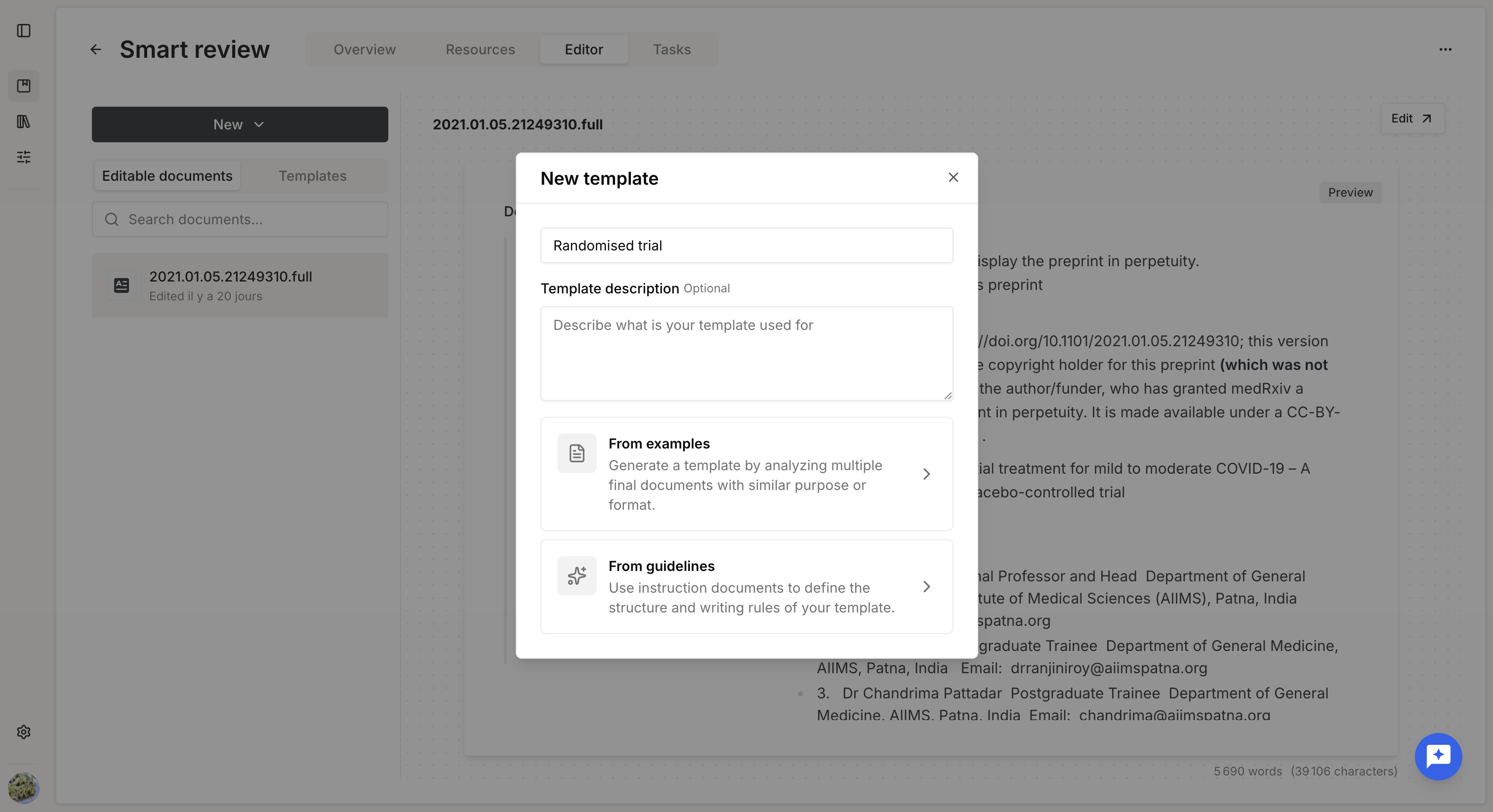
- Click New Template.
- Enter a name.
- Optionally, add a description (recommended).
- Select From examples.
Provide one or more example documents along with instructions describing the template you want to generate.
For example, you can provide several published systematic reviews to generate a template for a systematic review and meta-analysis.
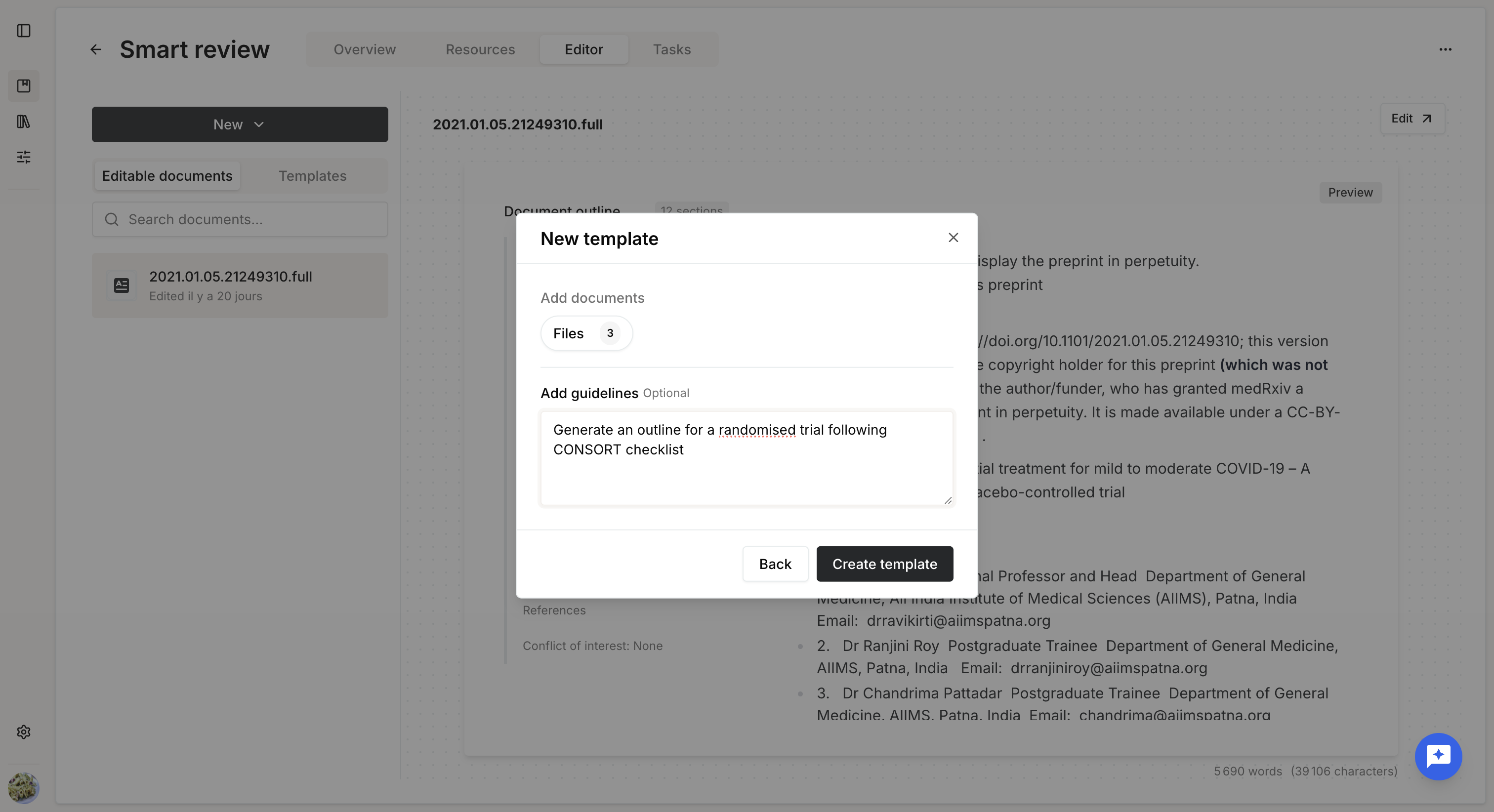
Click Create template to start the generation. A background task appears in the lower-left corner of the Editor.
The process typically completes within five minutes. You can leave the page and return later without interrupting the task.
When the task completes successfully, open it to review the generated outline and any proposed writing guidelines.
You can:
- Insert the template as generated.
- Edit the proposed guidelines before inserting.
- Cancel and regenerate the template if needed.
If the generation fails, an error message is displayed. In that case, restart the process.
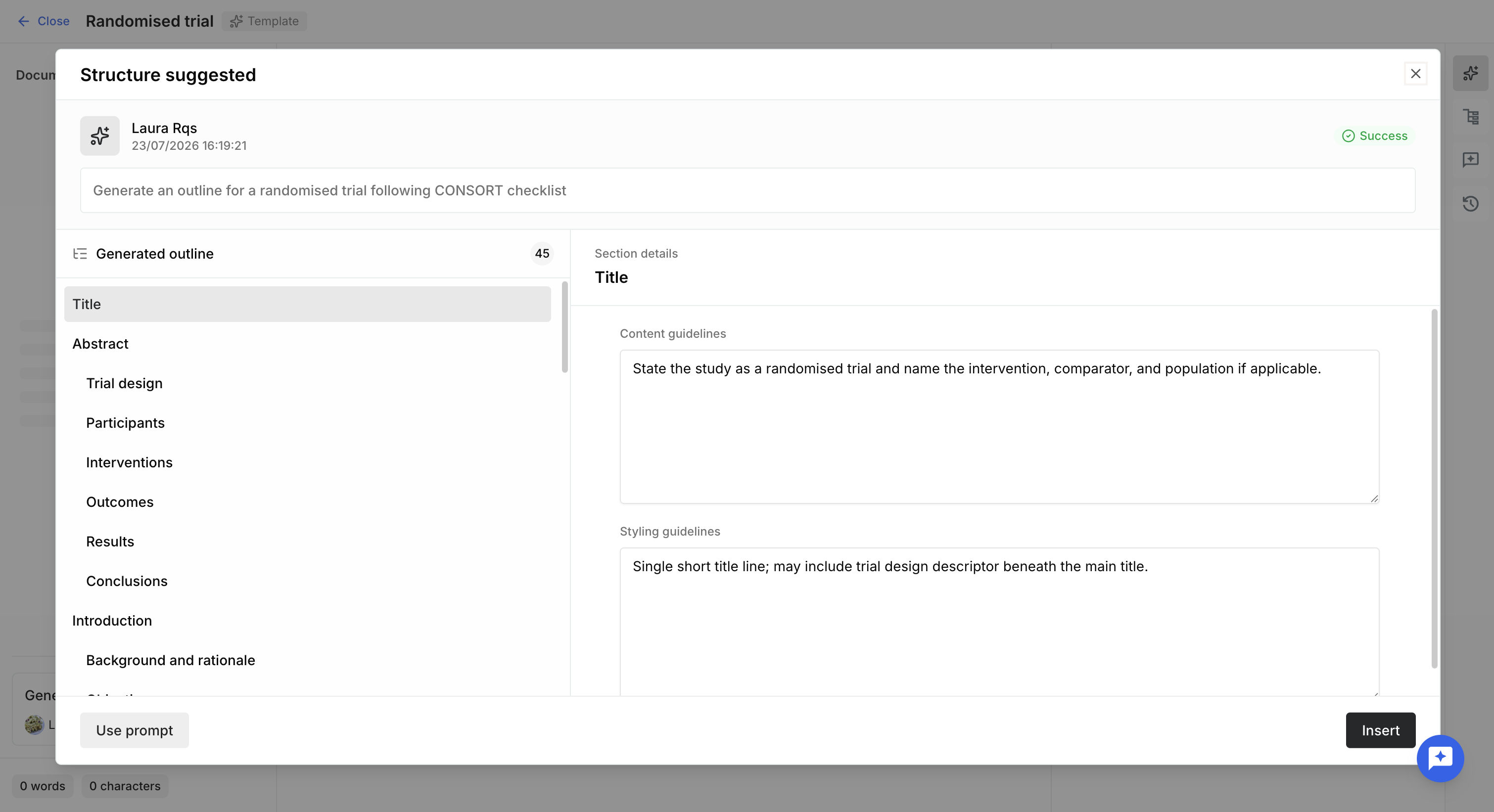
After inserting the generated template, you can edit and improve it. Changes are saved automatically.
The template is then available when creating new editable documents.
From guideline documents
You can also generate a template from guideline documents or from an existing template stored in your resources.
- Click New Template.
- Enter a name.
- Optionally, add a description (recommended).
- Select From guidelines.
Provide the guideline documents together with instructions describing the template you want to generate.
For example, you can provide a journal's author guidelines to generate a publication-ready document structure.
As with templates generated from examples, you can review and edit the proposed outline before inserting it.
Manage templates
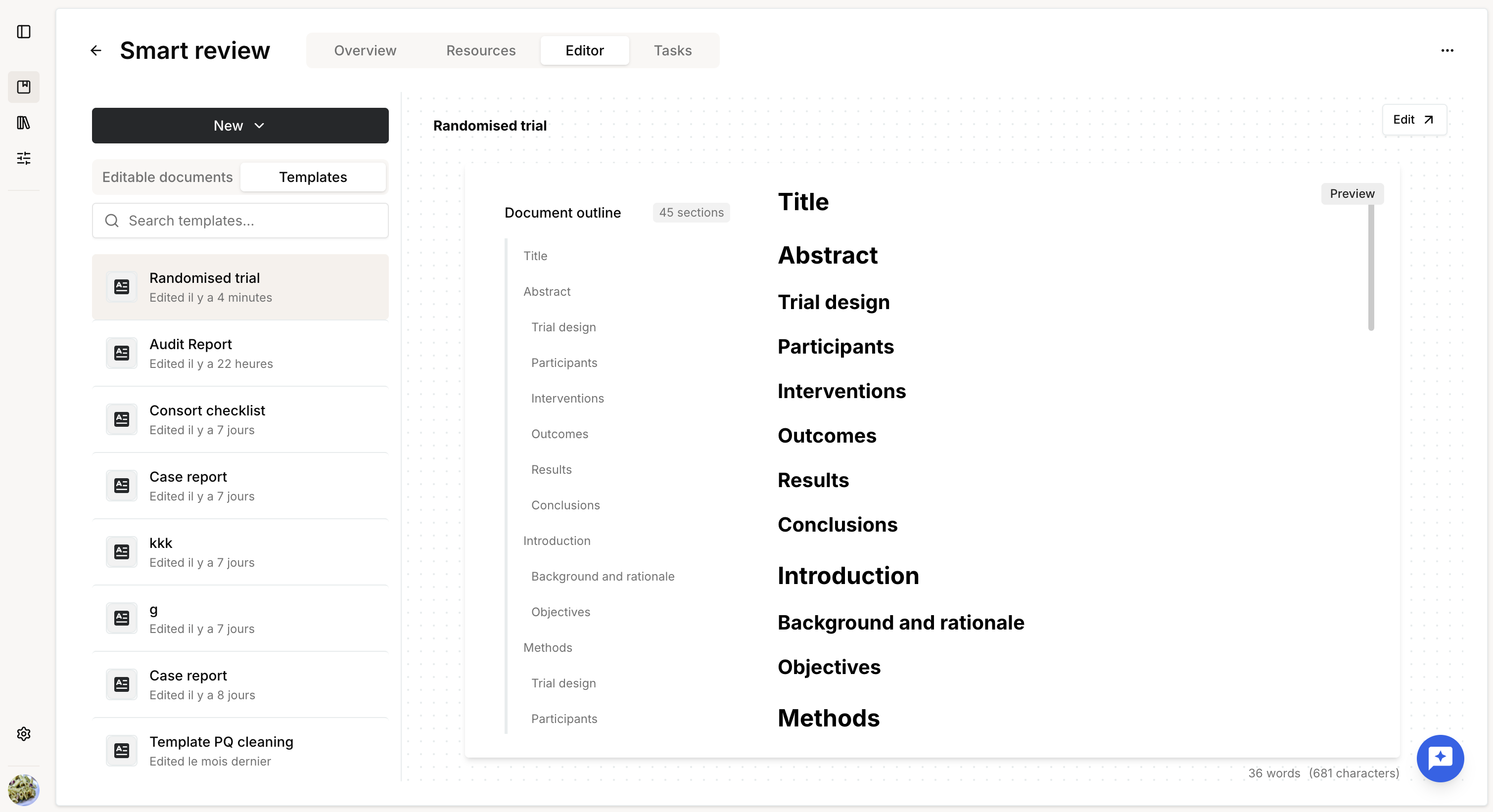
Templates are listed in the Editor, in the tab Templates, next to Editable documents.
Selecting a template displays a preview of its outline and content.
Manage template permissions
To manage a template's access policy:
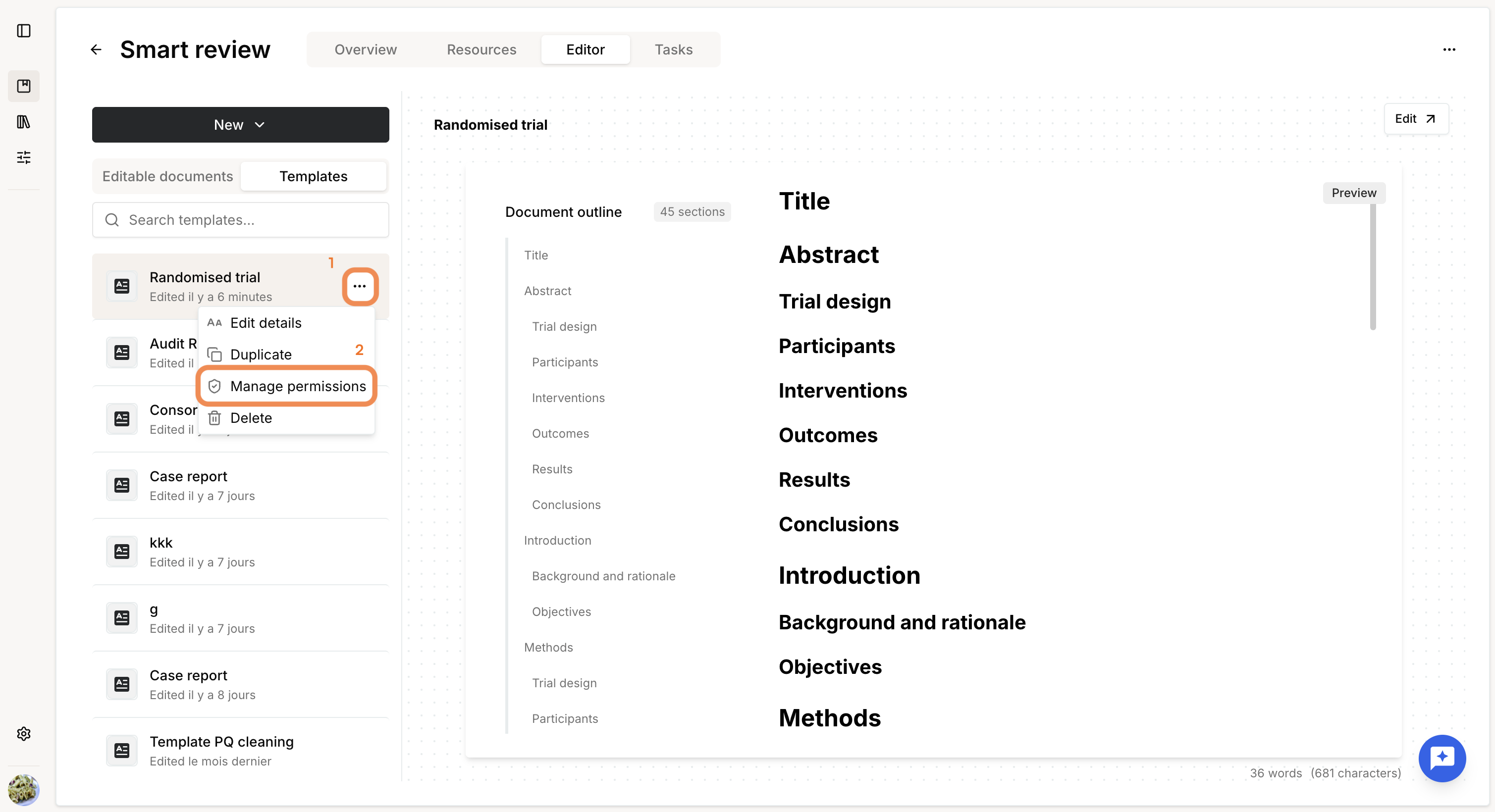
- Go to theTemplates tab.
- Open the template's menu.
- Select Manage permissions.
- Choose an existing policy or create a new one.
Users included in the selected policy are granted Read or Write access, depending on the permissions assigned.
| Action | Sys admin | Owner | User 'write' | User 'read' | User |
| Create a template | OK | OK | OK | OK | OK |
| Duplicate a template | OK | OK | OK | OK | KO |
| Use template | OK | OK | OK | OK | KO |
| Edit a template | OK | OK | OK | KO | KO |
| Delete a template | OK | OK | KO | KO | KO |
| Manage template policy | OK | OK | KO | KO | KO |
Was this article helpful?
That’s Great!
Thank you for your feedback
Sorry! We couldn't be helpful
Thank you for your feedback
Feedback sent
We appreciate your effort and will try to fix the article