| Permissions |
|
| Related readings |
Files can be reviewed manually through collaborative comments or automatically using Smart Review, an AI-powered document review feature.
TABLE OF CONTENTS
Add comments manually
Add a comment
To create a comment:
- Select the text.
- Click Add comment.
- Enter your comment.
- Optionally, mention another user.
Users with at least Read permission on the collection can add comments.
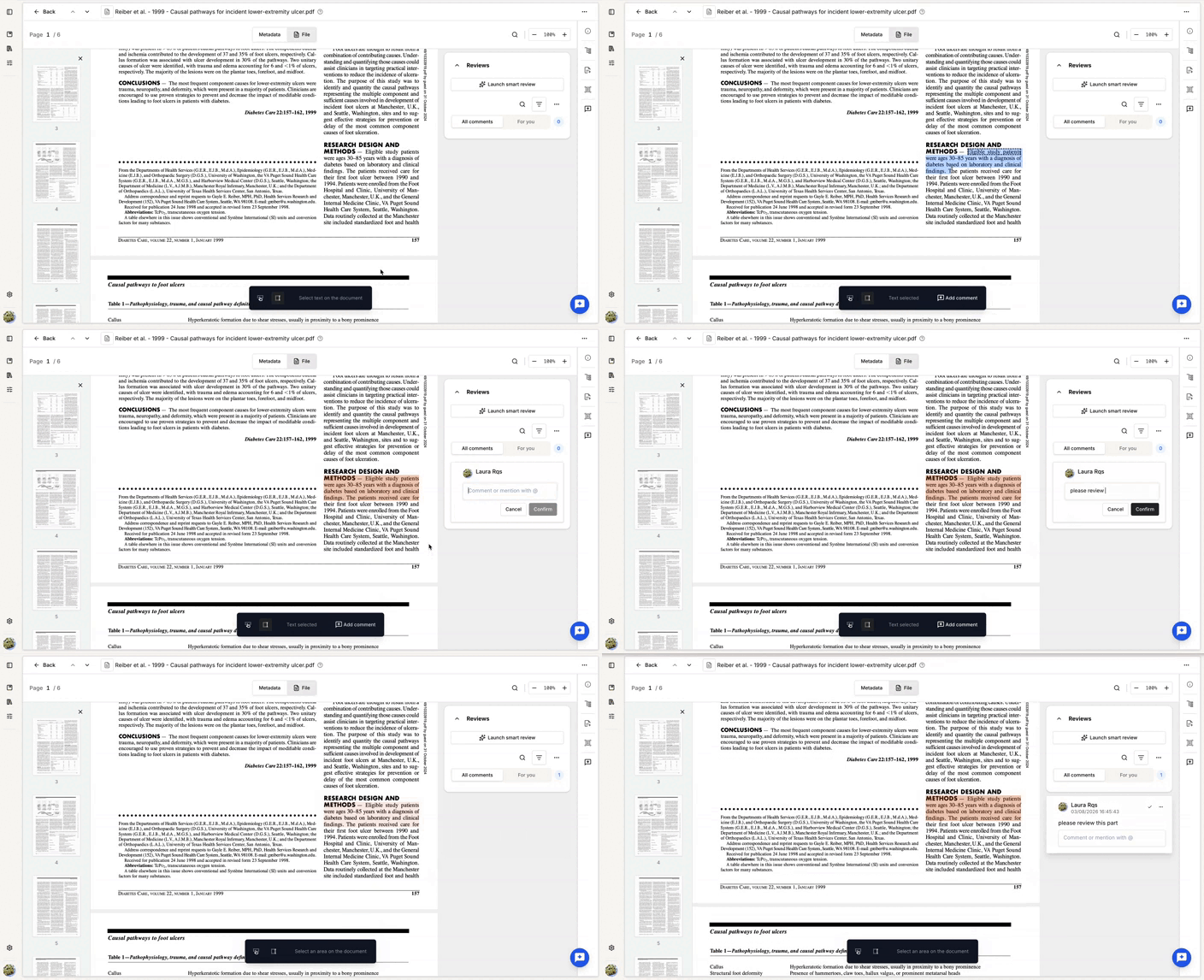
Review comments
The Reviews panel lists all comments associated with the document.
Available features include:
- Viewing all comment threads.
- Filtering comments that mention you using the For you filter.
- Navigating directly to commented text.
- Marking all comments as read.
- Closing and resolving all owned comments.
Notifications are not currently available.
Resolve comments
Comments support threaded discussions.
Once a discussion has been addressed, it can be marked as Resolved to archive it.
Resolved discussions remain accessible through Show resolved comments.
Add comments with AI
Smart Review is an AI-powered feature that reviews a document and generates comments based on a set of guidelines.
Launch a Smart review
To launch a Smart Review:
- Open the document you want to review.
- Open the Reviews tab.
- Click Launch Smart Review.
You can either configure a review from scratch or use an existing preset.
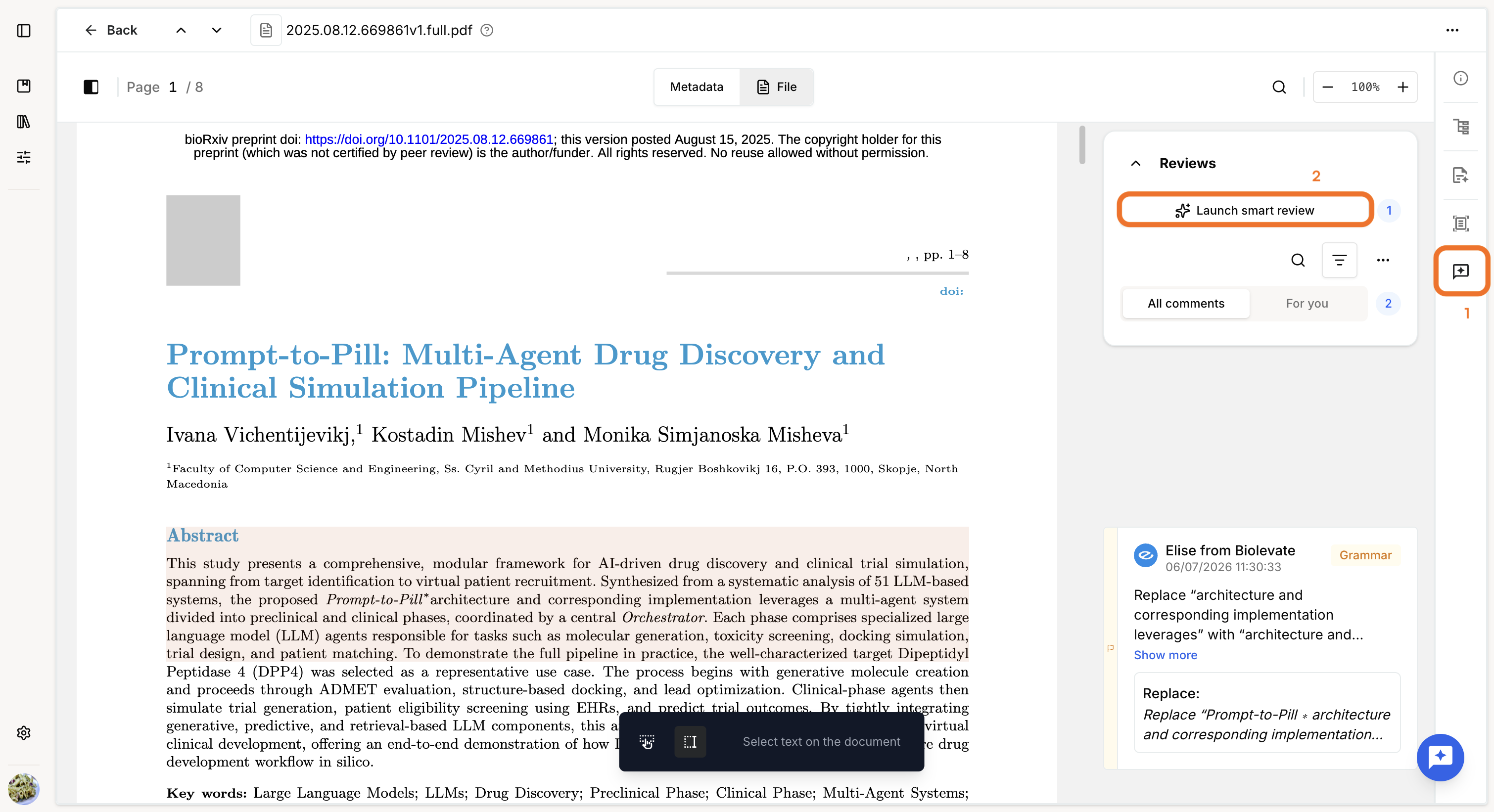
Configure a Smart review
When creating a review from scratch, configure the following:
- Name: used to identify the review and its comments if multiple Smart Reviews are run on the same document.
- Guidelines (optional): provide review instructions as free text, attach one or more guideline documents, or combine both to define the expected review criteria.
- Sources (optional): provide one or more reference documents that the Smart Review can use to support its comments.
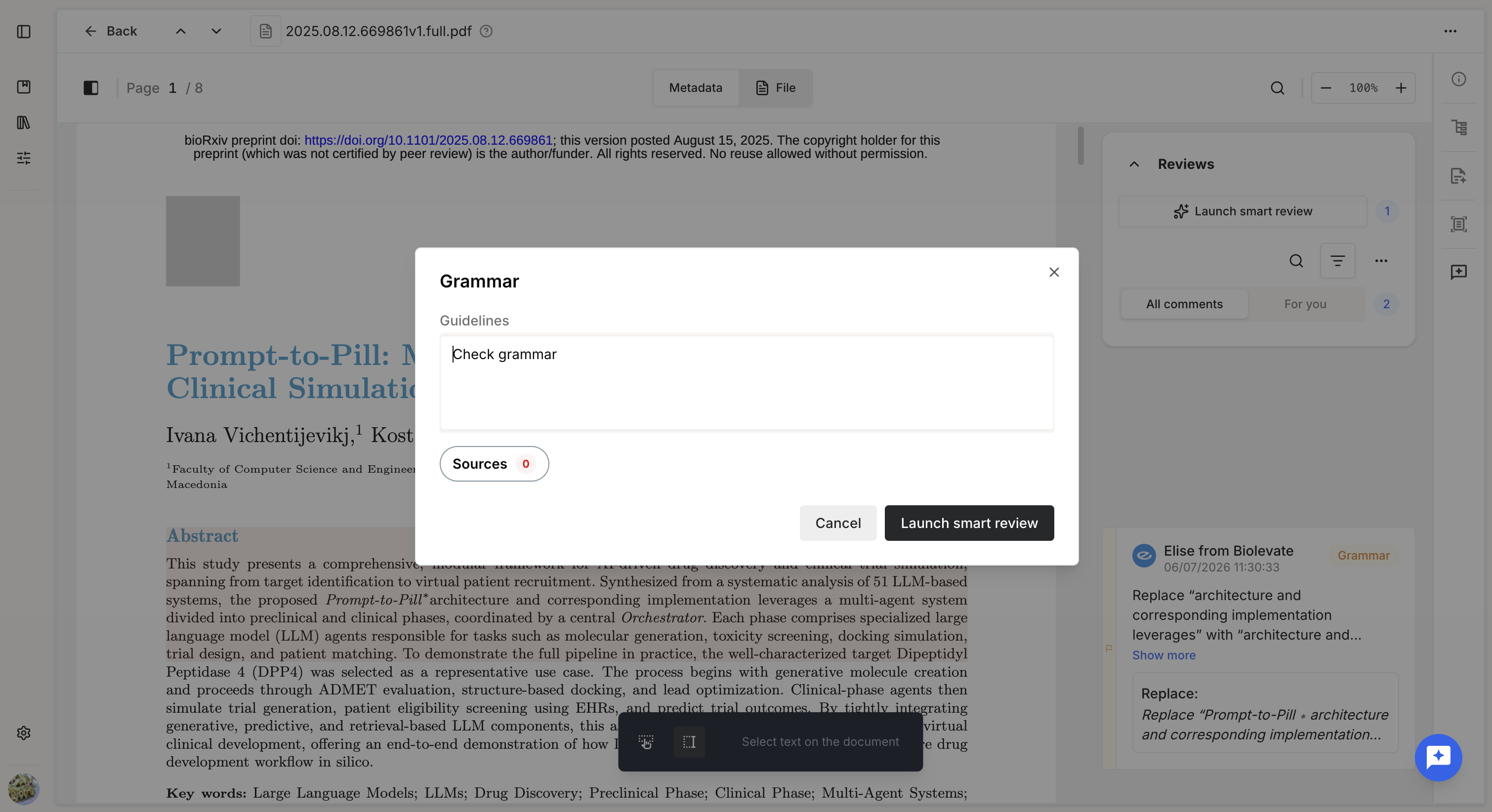
A Smart Review must include at least guidelines, sources, or both. A review cannot be launched if neither is provided.
You can save the configuration as a preset for future use across documents and projects.
Use a Smart review preset
If Smart Review presets are available, they are displayed in the left panel.
Depending on your permissions, you can:
- View a preset's configuration.
- Edit the preset (Write permission required).
- Duplicate the preset.
- Delete the preset (owner only).
- Manage the preset's access policy (owner only).
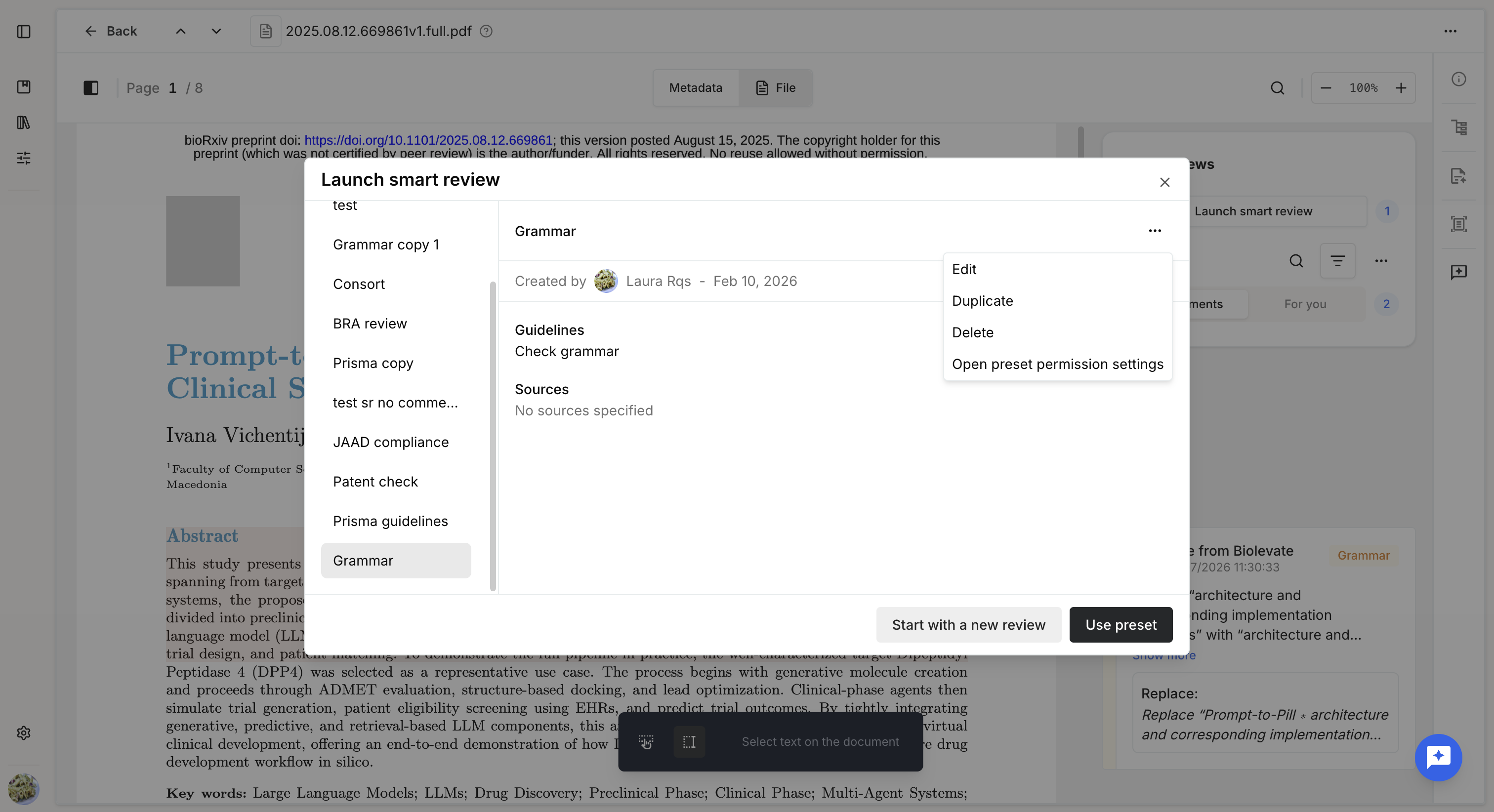
Click Use preset to load the selected configuration.
Before launching the review, you can modify the preset if needed.
If you make changes, you can choose to:
- Use the changes only for the current review.
- Update the existing preset.
- Save the modified configuration as a new preset.
Click Launch to start the Smart Review.
Manage Smart reviews
Review history
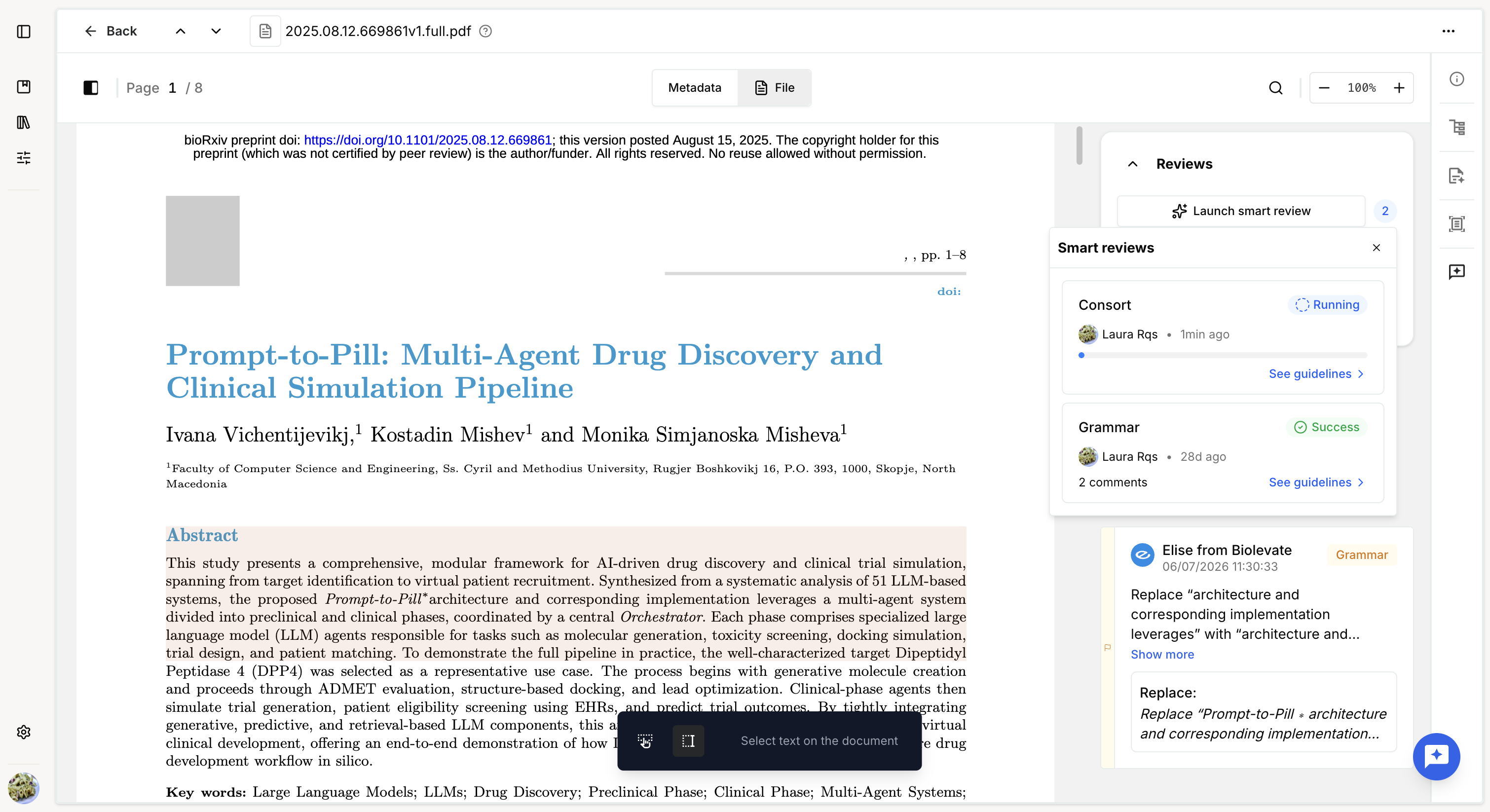
Previous and running Smart Reviews are available by clicking the indicator next to Launch Smart Review.
For each review, you can view:
- Review name.
- Status.
- Owner.
- Creation date and time.
- Review configuration (by clicking on See guidelines).
- Error details for failed reviews (by clicking the copy icon next to the status).
Review AI Comments
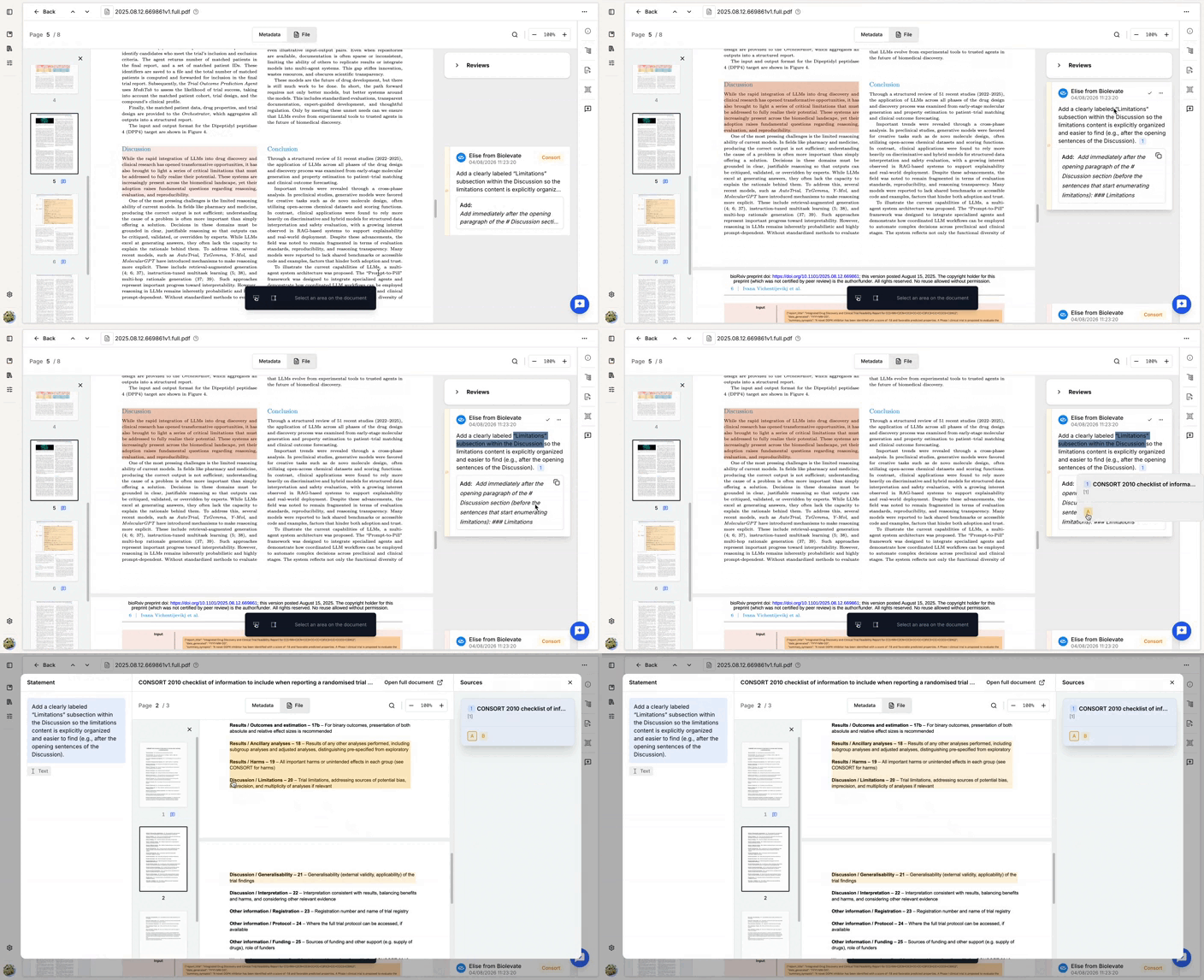
When a Smart Review completes successfully, its comments are added directly to the document.
You can access comments by:
- Clicking highlighted text in the document to open the corresponding comment.
- Clicking a comment to navigate to the highlighted passage in the document.
AI-generated comments cannot be replied to, but they can be:
- Marked as Resolved to hide them from the active review.
- Deleted if they are no longer relevant.
Unlike resolved comments, deleted comments cannot be restored.
If the Smart Review uses guideline documents, the generated comments include the supporting evidence extracted from those documents where applicable.
Was this article helpful?
That’s Great!
Thank you for your feedback
Sorry! We couldn't be helpful
Thank you for your feedback
Feedback sent
We appreciate your effort and will try to fix the article