| Permissions |
|
| Related readings |
Files in the Library include extracted information, metadata, personal notes, and actions available from the document panel. These features help review, organize, and manage documents throughout the platform.
To get the most out of these features, make sure the document is assigned to a collection and correctly indexed.
TABLE OF CONTENTS
View document information
The General information tab is the first tab in the right-hand panel when you open a document.
View general knowledge
Once a document has been indexed, the platform automatically extracts general information, including:
- Document type: scientific publication, technical document, regulation, patent, clinical trial report, regulatory approval, or other.
- Description: a one-line description of the document.
- Keywords: extracted from the document or generated automatically.
- Additional information: information specific to the document type, such as first and last authors, authoring organization, inventors, and more.
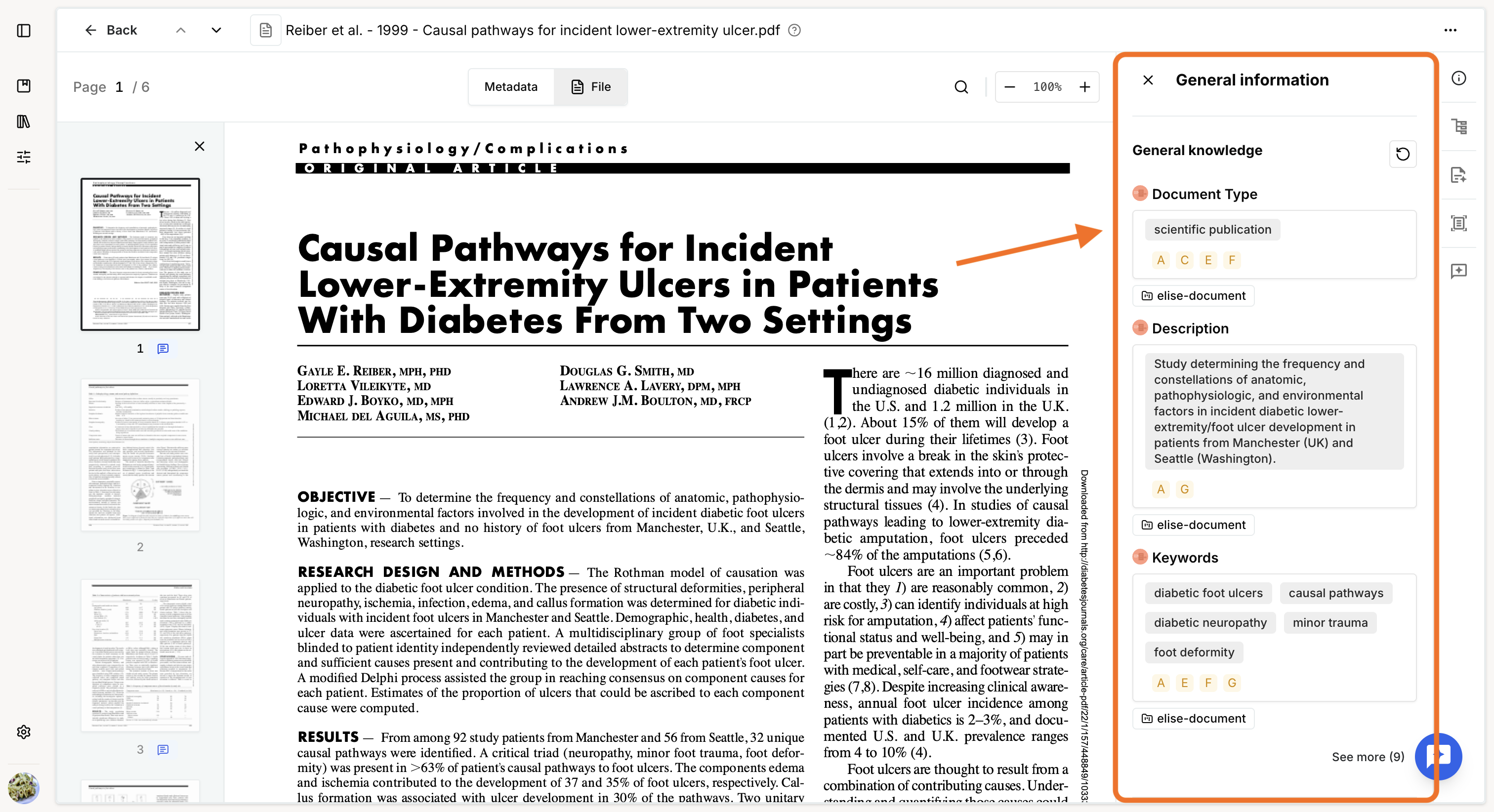
Additional information is available under See more and is used to support citation and bibliography management in the Editor.
If this information is missing or incorrect, click the recompute icon in the upper-right corner to run the computation again.
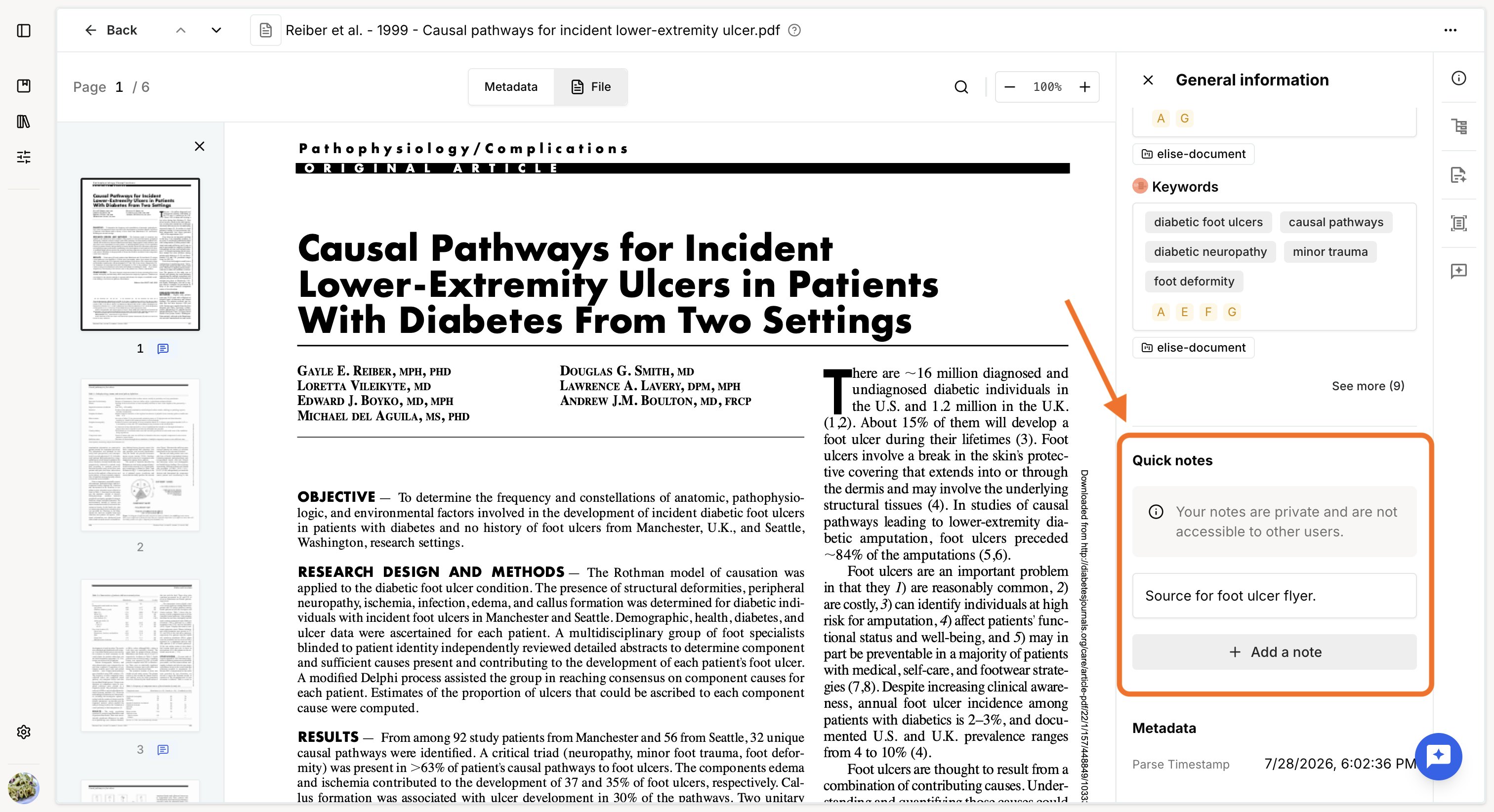
Add personal notes
You can add personal notes to a document at any time.
Personal notes are visible only to you.
View metadata
The document's metadata is also available in this tab.
Depending on the document, metadata can include:
- Last parsing date: internal information.
- Creation date: internal information.
- Format: external information, when available.
- Creator: external information, when available.
- Producer: external information, when available.
- Size: external information, available for images when provided.
- Mode: external information, available for images when provided.
- Class: external information, available for images when provided.
Manage a file
To access file actions, click the More menu (three dots) in the upper-right corner of the document.
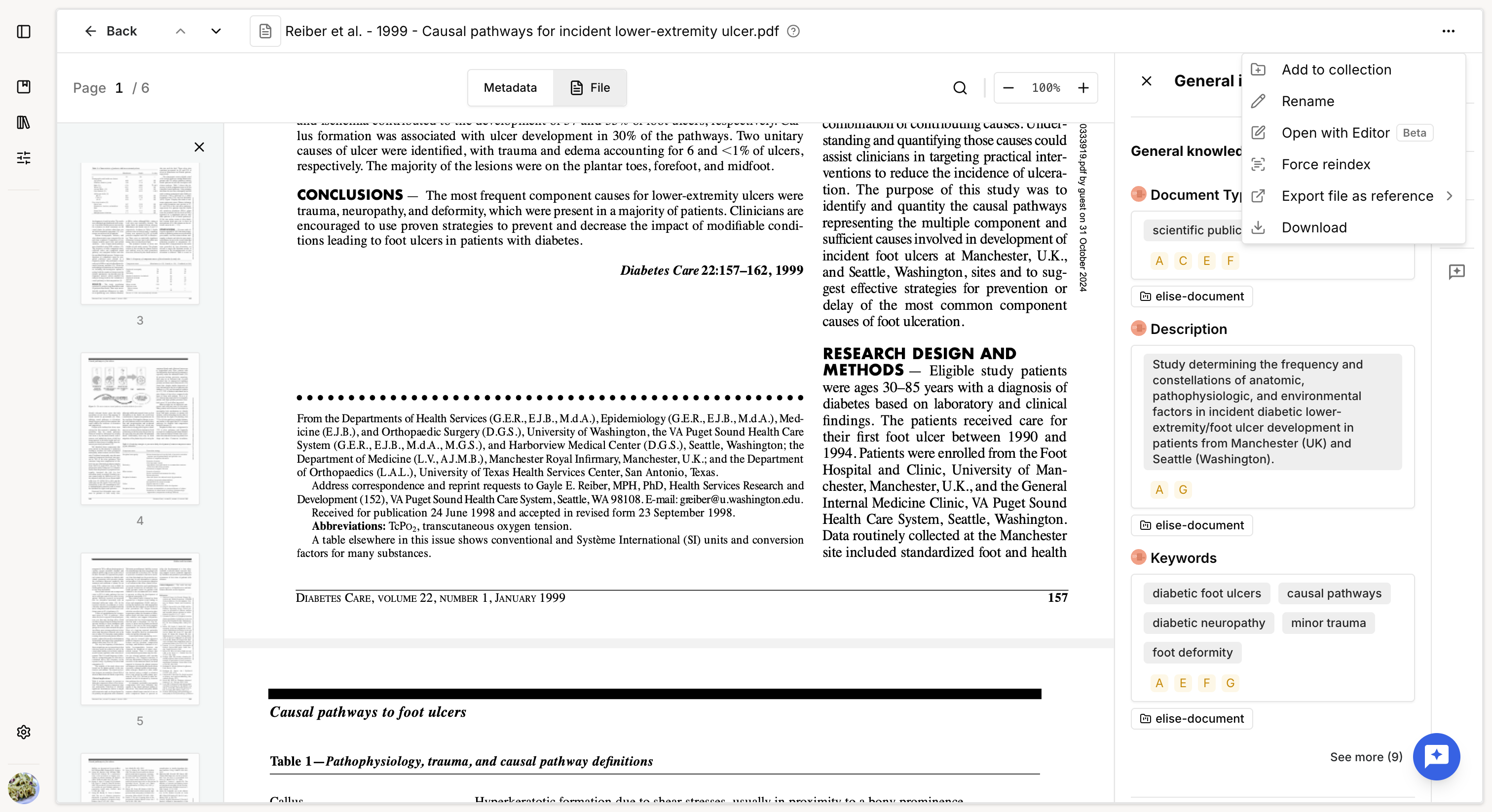
Open a file in the Editor
You can open a file directly in the Editor.
This creates an editable document in the current project using the content available from the file.
Beta
This feature is currently in beta and has some limitations. Annotations such as comments and references are not transferred to the editable document.
The editable document content is based directly on the file's parsing output. It is therefore recommended to review the parsing results before opening the file in the Editor to ensure that the content quality is sufficient.
Add a file to a collection
You can add the file to any collection where you have at least Write permission.
Rename a file
You can rename a file to make it easier to organize and find in the Library, collections, or project resources.
Reindex a file
You can force a file to go through the indexing process again.
This can be useful when the parser has been improved and may produce better results, which can affect how the file is processed and used as a source across the platform.
You can also use this option to retry indexing after an error.
While a file is being reindexed, its status is displayed as Indexing, but the file remains available as a source. Any task using the file runs on the most recently indexed version.
This action is only available to sys admins.
Export file metadata
You can export one or more files as an RIS or NBIB file.
The export contains the files' metadata, not the files themselves.
Download a file
You can download the file in its original format.
The downloaded file is saved to your computer without any changes to the version stored on the platform.
If the file selected for download is a metadata file, it will give a .txt file with all available metadata.
Undo a merge
If a document was created by merging a metadata file with a full-text file, you can undo the merge at any time.
Undoing the merge restores the original metadata file while preserving any associated metadata and knowledge.
The full-text file is not deleted. It remains available as a separate document in the Library and can be merged again later if needed.
Was this article helpful?
That’s Great!
Thank you for your feedback
Sorry! We couldn't be helpful
Thank you for your feedback
Feedback sent
We appreciate your effort and will try to fix the article