| Permissions | Assistant is available to all users and is personal. |
| Related readings |
ELiSE Assistant helps you search, analyze, and discuss the content of your files and collections. You can use it to answer questions, locate information, summarize content, and refine your requests through a conversation.
TABLE OF CONTENTS
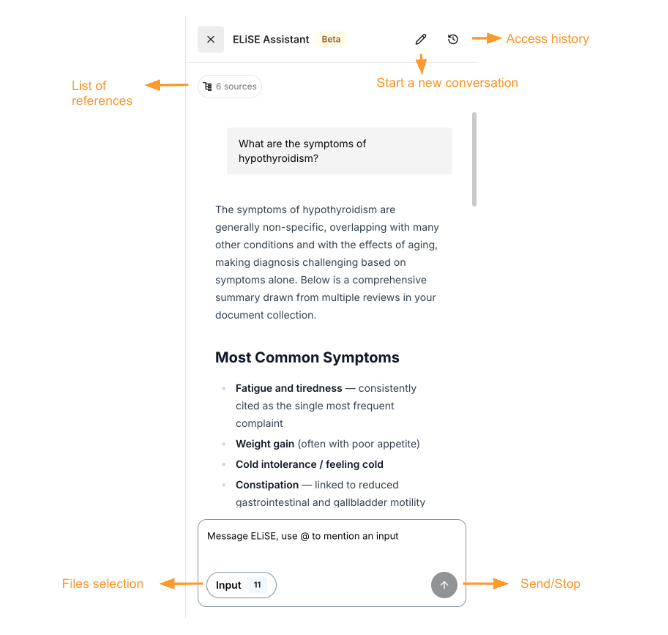
Select inputs
Default selection
ELiSE Assistant is available throughout the platform, but it is recommended to open it from within a project or a collection.
When opened from a specific context, the assistant automatically selects the relevant files:
- From a file, only that file is used.
- From a collection, all accessible files in the collection are selected.
- From a project, all accessible project files are selected.
These files become the default sources for the conversation.
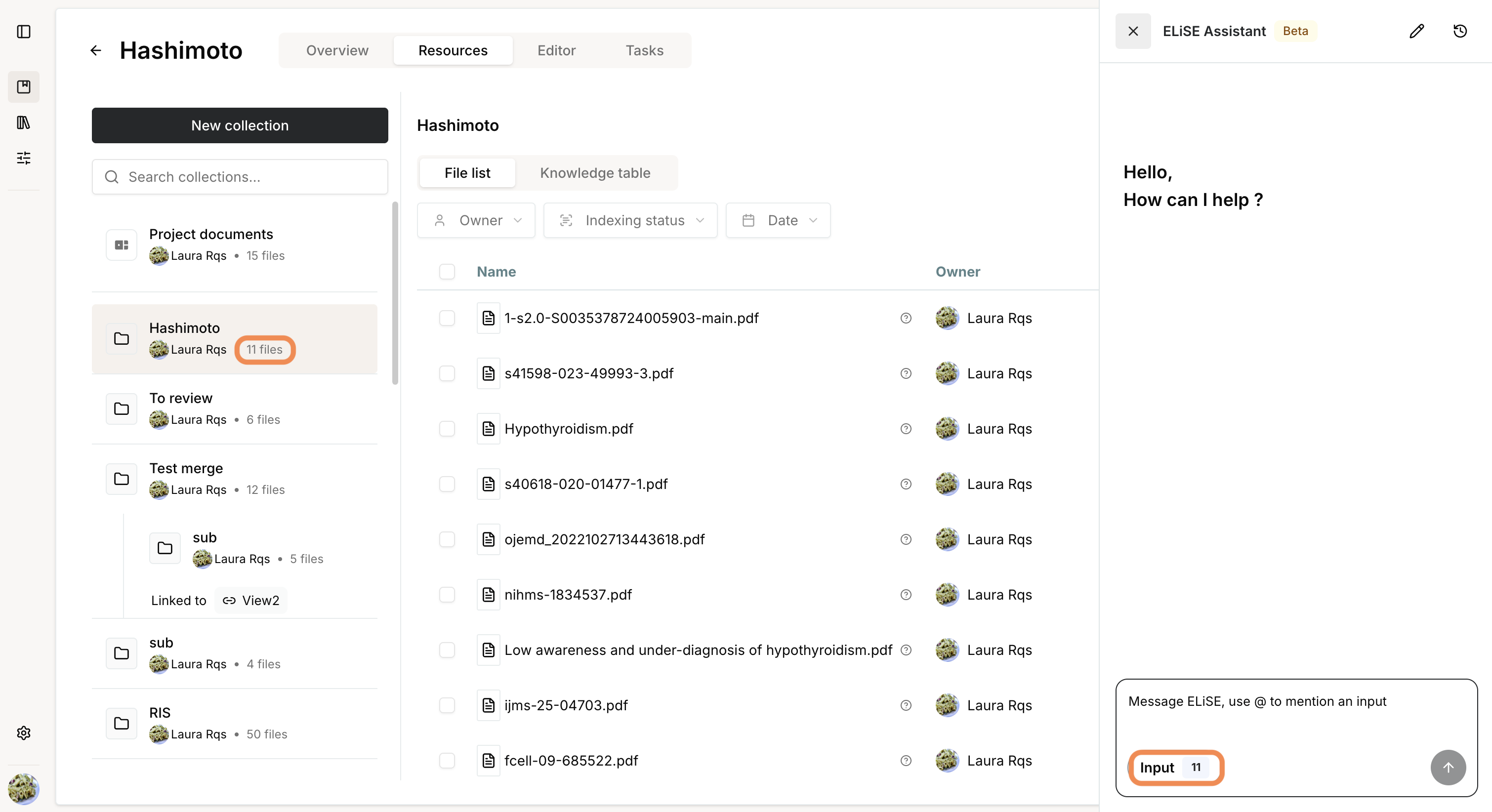
Manual selection
You can change the selected inputs at any time.
- Click Input.
- Browse your files and collections.
- Select the files and/or collections you want to use.
- Click Validate.
The assistant will use the updated selection for subsequent requests.
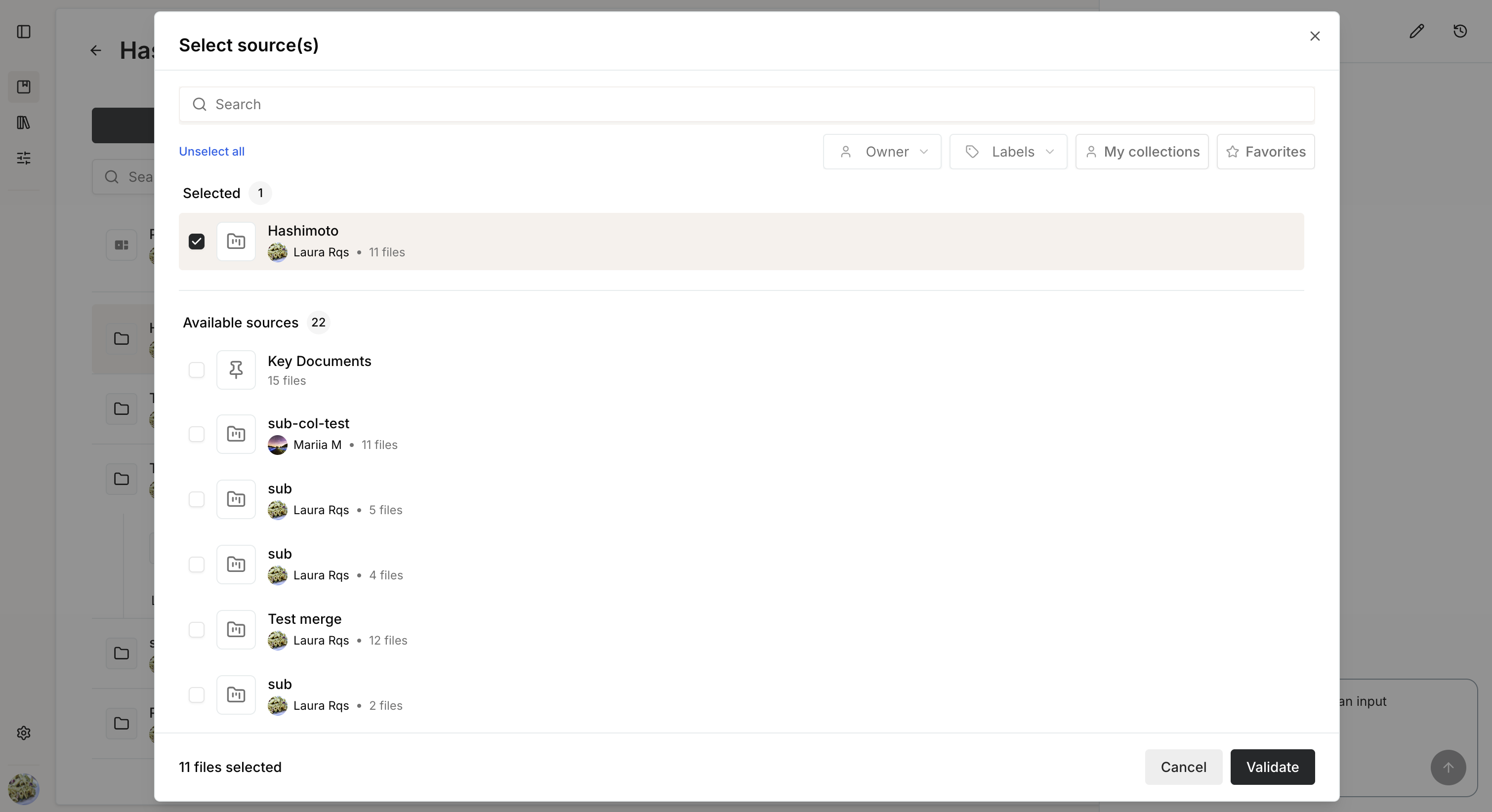
Mentions
You can reference files or collections directly in your prompt using @.
For example:
- Type your request (for example, Summarize).
- Type @.
- Select a file or collection from the list, or continue typing its name to filter the results.
- Submit your request.
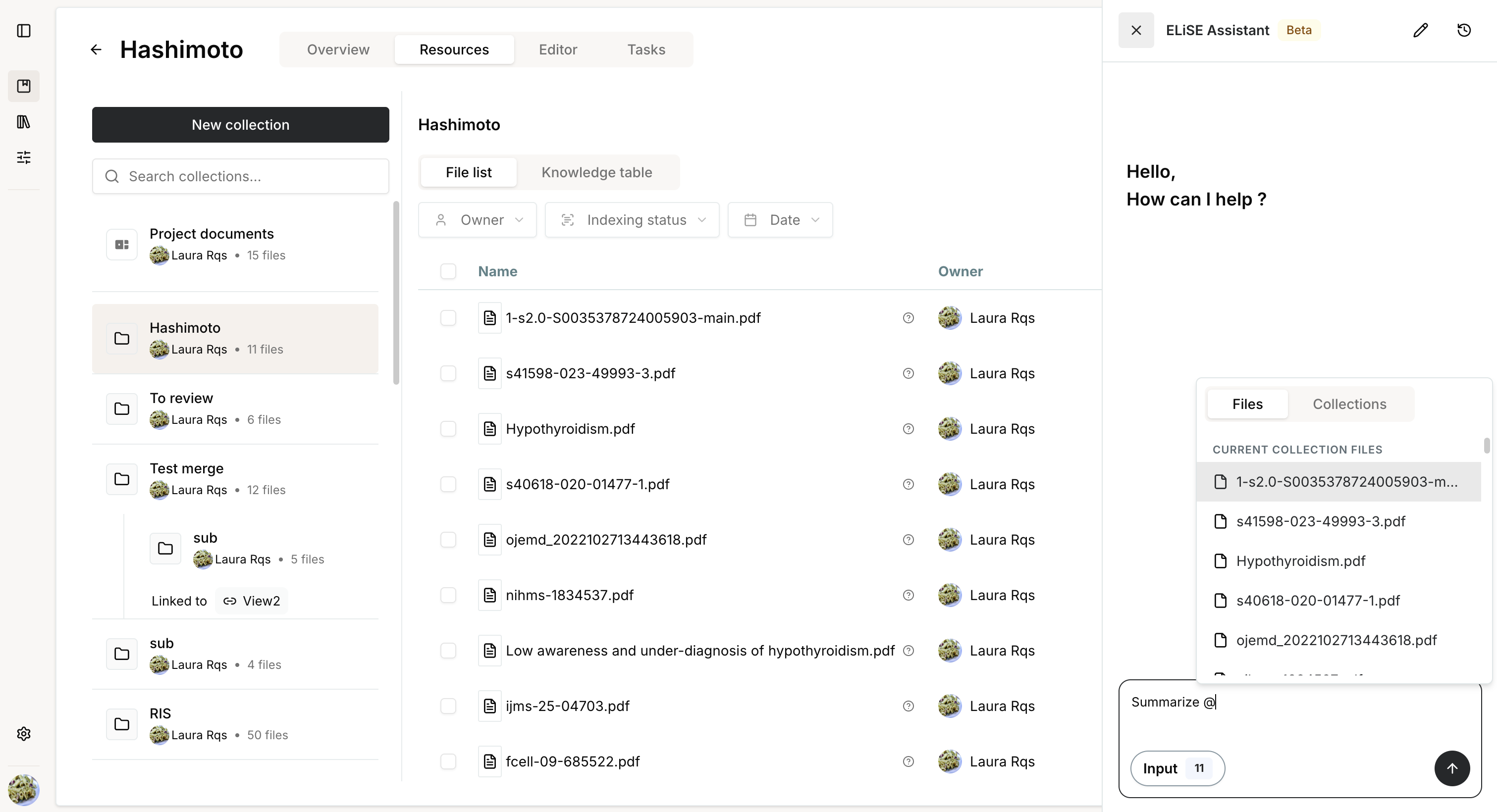
Mentions are useful to:
- Narrow the scope of a request to specific documents.
- Add files or collections that are not part of the current input selection.
Ask questions
The assistant can:
- Search for information within one or more files.
- Find files matching specific criteria.
- Answer questions using one or more files as sources.
If you require a specific output format, include it in your prompt. For example, you can request a response as a bullet list, table, or structured summary.
Start a conversation
To begin a conversation:
- Click the Assistant button in the lower-right corner of the screen.
- Select the files or collections to use as inputs.
- Enter your prompt.
- Press Enter or click Send.
During processing, the assistant displays its reasoning steps.
If you want to modify your request or stop a long-running response, click Stop.
To begin a new conversation, navigate to the desired project, collection, or file and click the New conversation (pencil) icon.
Starting a new conversation is recommended when changing topics or working with a different set of documents, as it helps keep the assistant focused on the current context.
After 20 minutes of inactivity, the current conversation is automatically saved to your history and a new session is created.
Review response
When the assistant finds relevant information, it returns a response supported by references.
You can:
- Click inline references to view the supporting evidence.
- Open the Sources panel to review all supporting passages.
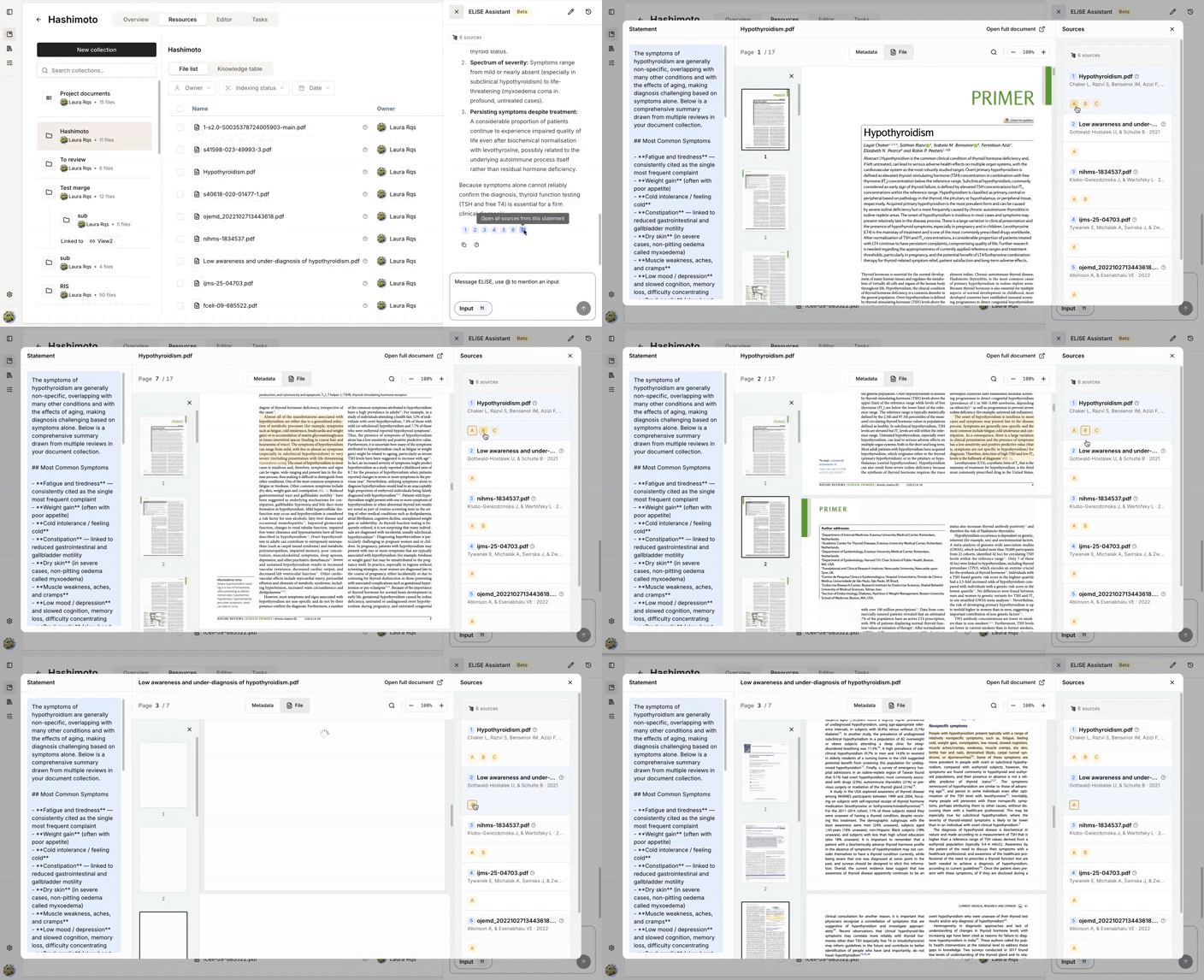
Responses are normally source-backed, except when:
- The conversation is purely conversational.
- The requested output is a generated document.
- The request is to identify matching documents (for example, Which documents mention... ?). In this case, the assistant returns the matching documents rather than individual supporting excerpts.
Understand responses
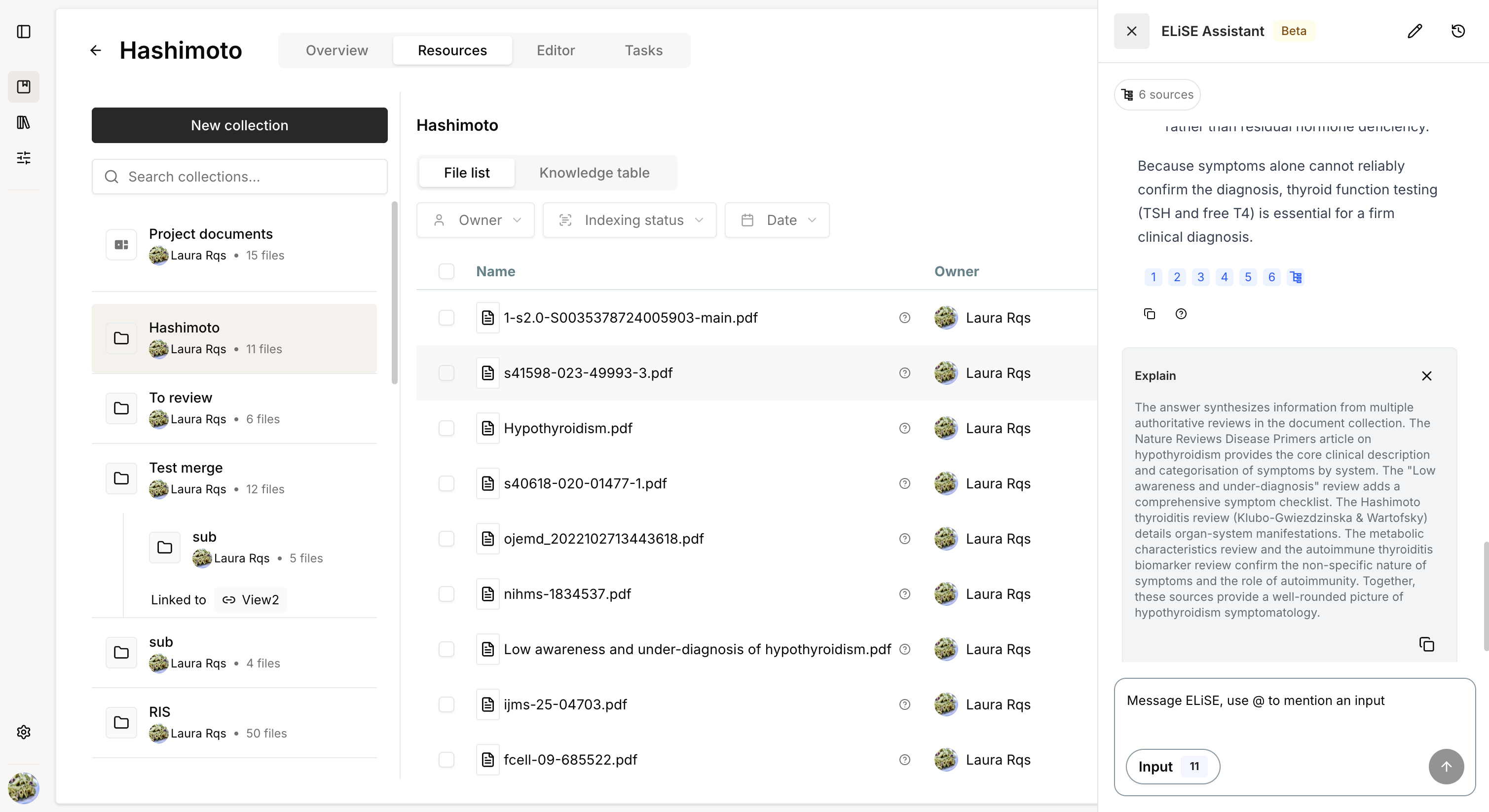
The Explain feature is available for assistant responses, just as it is for task results.
Hover over a response and click the ? icon to view an explanation of how the answer was generated.
Handle errors
The assistant may return one of the following errors:
- Outside of scope: the request exceeds the assistant's current capabilities.
- Nothing found: no relevant information was found in the selected inputs.
- Unexpected error: an unexpected issue occurred. Retry the request or contact support if the problem persists.
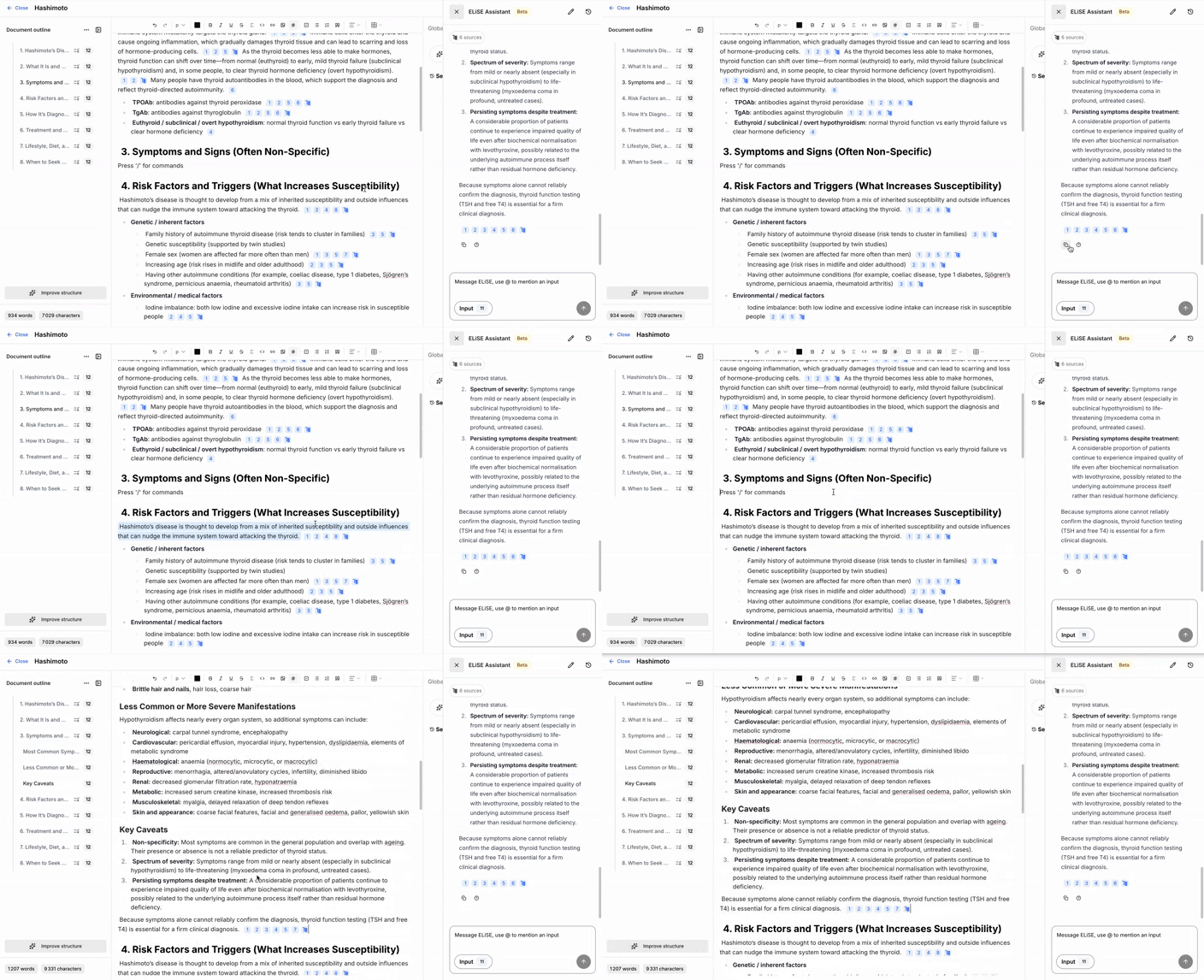
Copy responses
You can copy any response together with its references.
When pasted into an editable document, references are automatically inserted as in-text citations and added to the bibliography with the correct indexing.
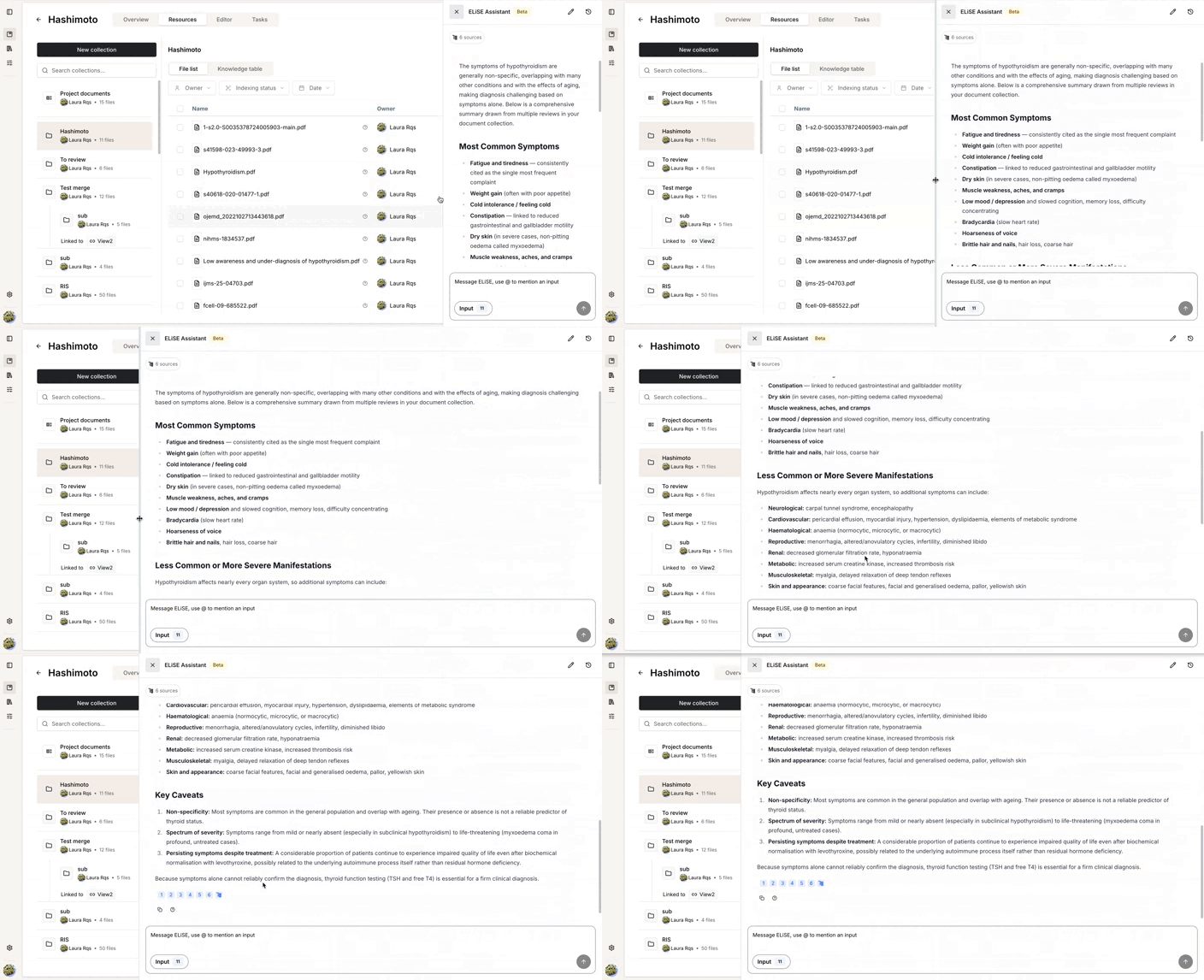
Resize the assistant
You can resize the assistant panel for improved readability.
Drag the left edge of the panel until it reaches the desired width.
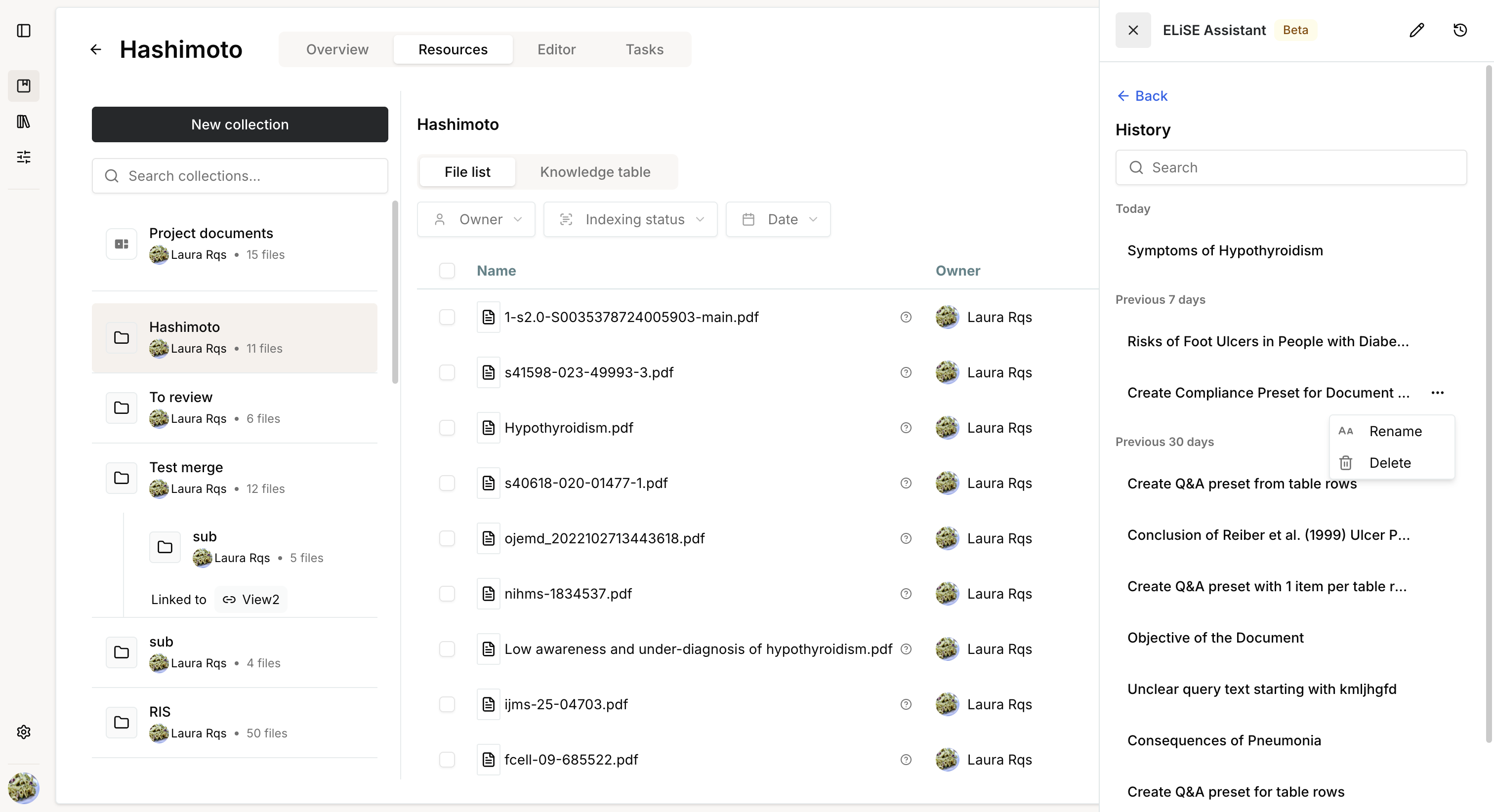
Conversation history
Each new conversation is automatically saved to your history with a generated title summarizing its topic.
You can:
- Rename conversation titles.
- Reopen previous conversations.
- Continue existing conversations.
- Delete conversations.
Deleting a conversation permanently removes all messages, responses, and supporting references.
Was this article helpful?
That’s Great!
Thank you for your feedback
Sorry! We couldn't be helpful
Thank you for your feedback
Feedback sent
We appreciate your effort and will try to fix the article