| Permissions |
|
| Related readings |
External searches retrieve scientific publications from multiple literature databases using configurable search queries. Search results can then be imported into collections.
TABLE OF CONTENTS
Create a search
You can start a search from several locations.
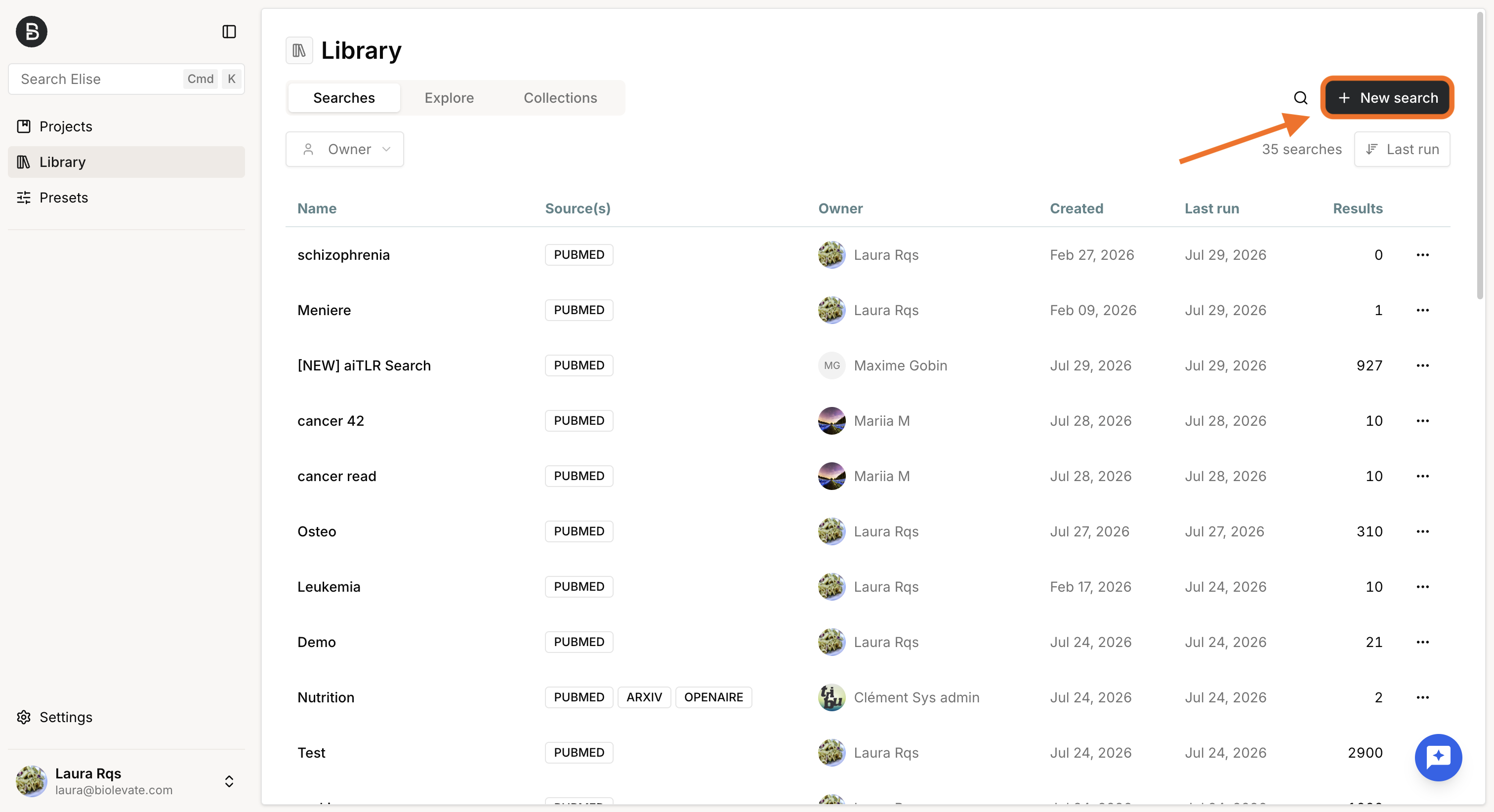
From the Library
The Searches tab in the Library displays:
- Searches you own.
- Searches shared with you.
Click Add search to create a new search.
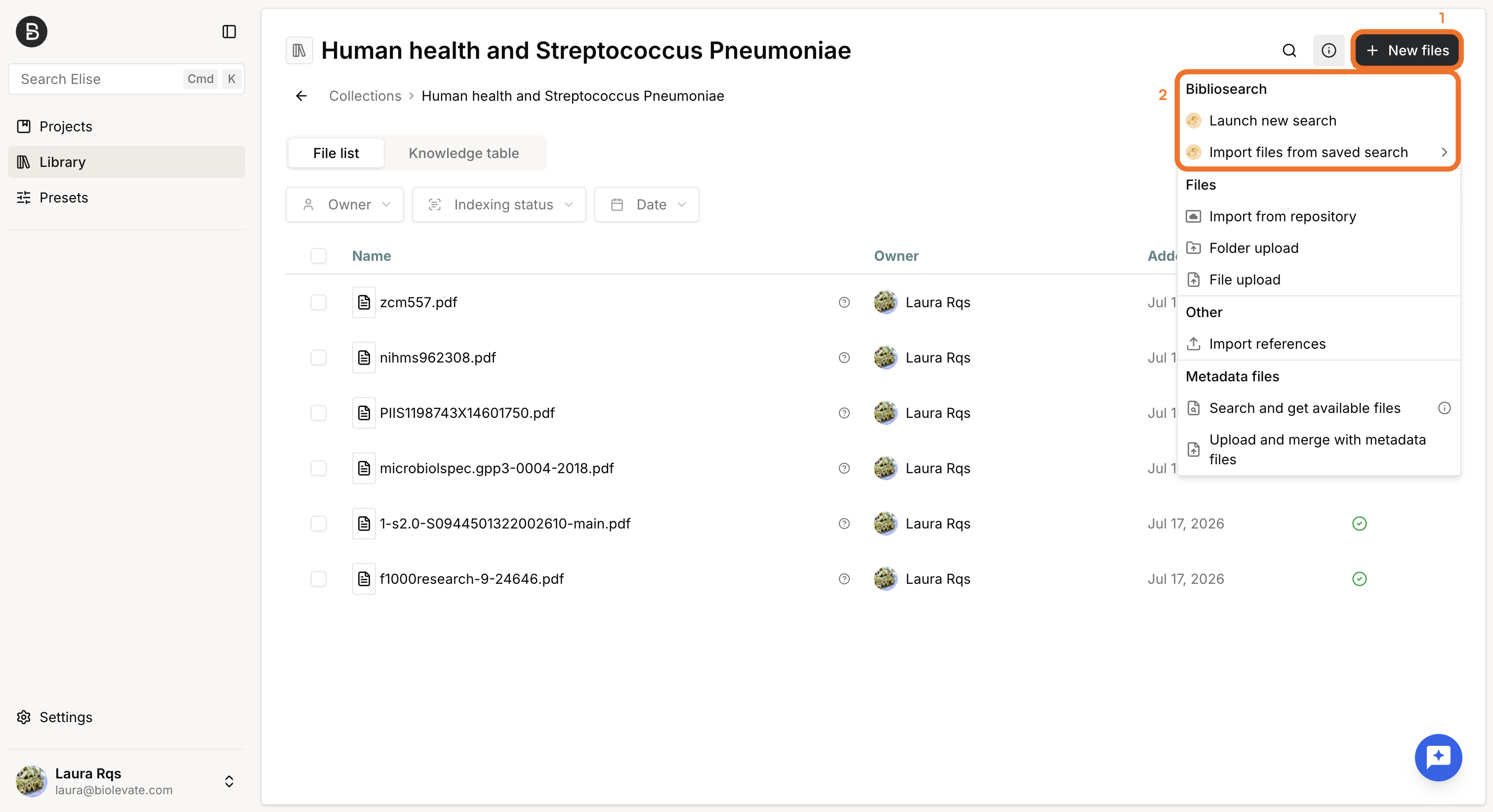
From a collection
You can launch a search directly from an existing collection to enrich it with additional documents.
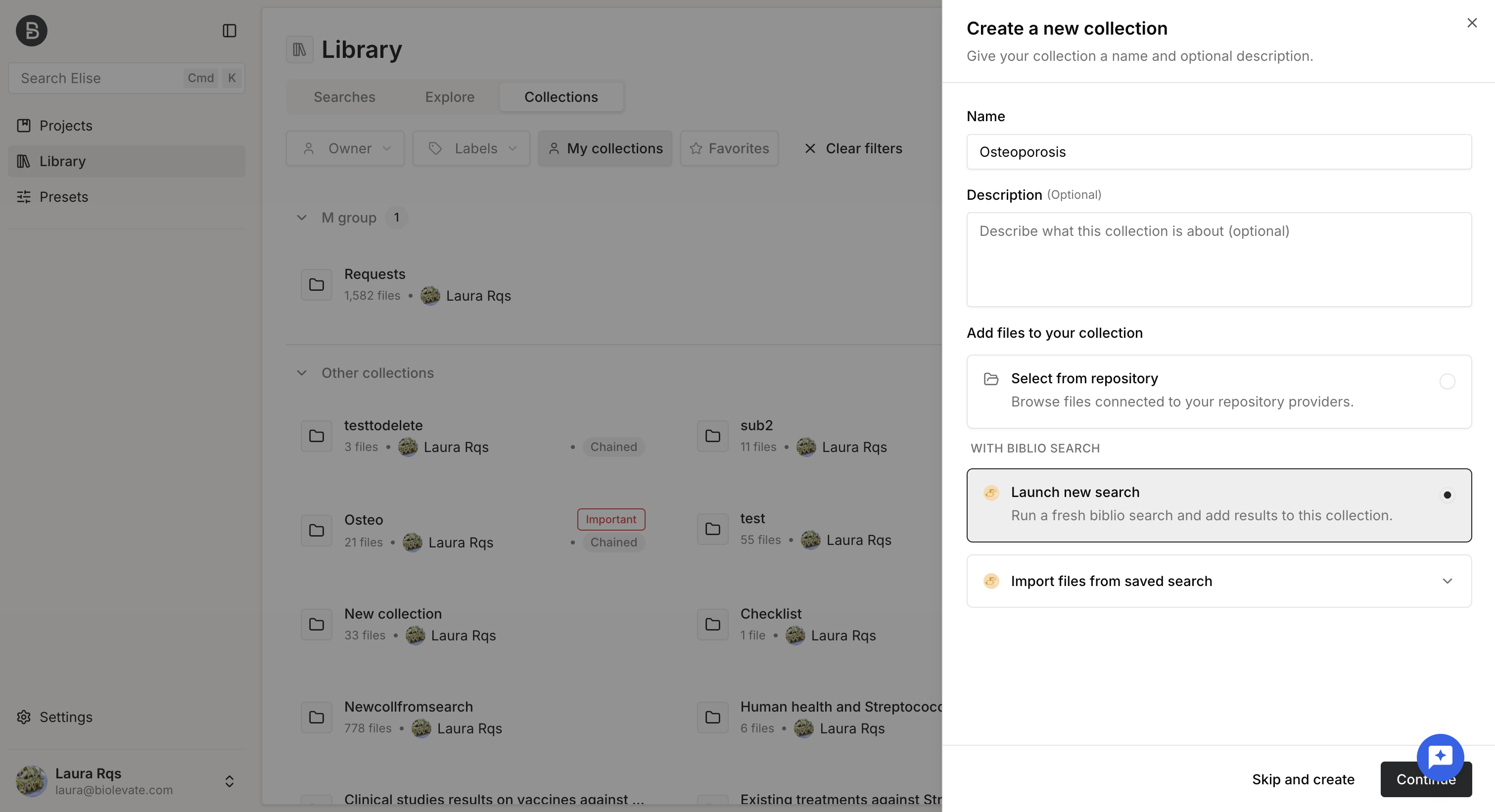
You can also start a search while creating a new collection.
Configure a search
A search requires:
- One or more data sources.
- A query.
Select data sources
You can search one or several databases simultaneously.
Currently supported sources are:
- PubMed: biomedical and life sciences literature maintained by the U.S. National Library of Medicine.
- arXiv: open-access repository for research in physics, mathematics, computer science, and related disciplines.
- OpenAIRE: aggregation of publications and metadata from major scholarly repositories across Europe.
Build a query
Once you have selected your data sources, you can build your query in several ways.
All query methods are compatible with each other, allowing you to combine manual editing, AI assistance, and existing queries throughout the search creation process.
Build manually
Use the query builder to create a structured search.
A query is composed of:
- Conditions, which define a field and the value to search for.
- Boolean operators (
AND,OR,NOT), which connect conditions. - Groups, which contain one or more conditions and translate into parentheses in the generated query.
For each condition, select:
- A field.
- A value.
Available fields include:
- Title and abstract
- MeSH terms (PubMed only)
- Title
- Author (one author per condition)
- Publication date
- Country (PubMed and OpenAIRE)
- Journal (PubMed and arXiv)
- DOI
- Identifier (ID) (PubMed and arXiv)
- Public Download ID
Supported Boolean operators are:
- AND: all linked conditions must be satisfied.
- OR: at least one linked condition must be satisfied.
- AND NOT: excludes matching records.
Groups allow you to control how Boolean operators are evaluated by enclosing one or more conditions within parentheses.
Both conditions and groups can be:
- Reordered using drag and drop.
- Duplicated.
- Deleted.
You can modify the query at any time before launching the search.
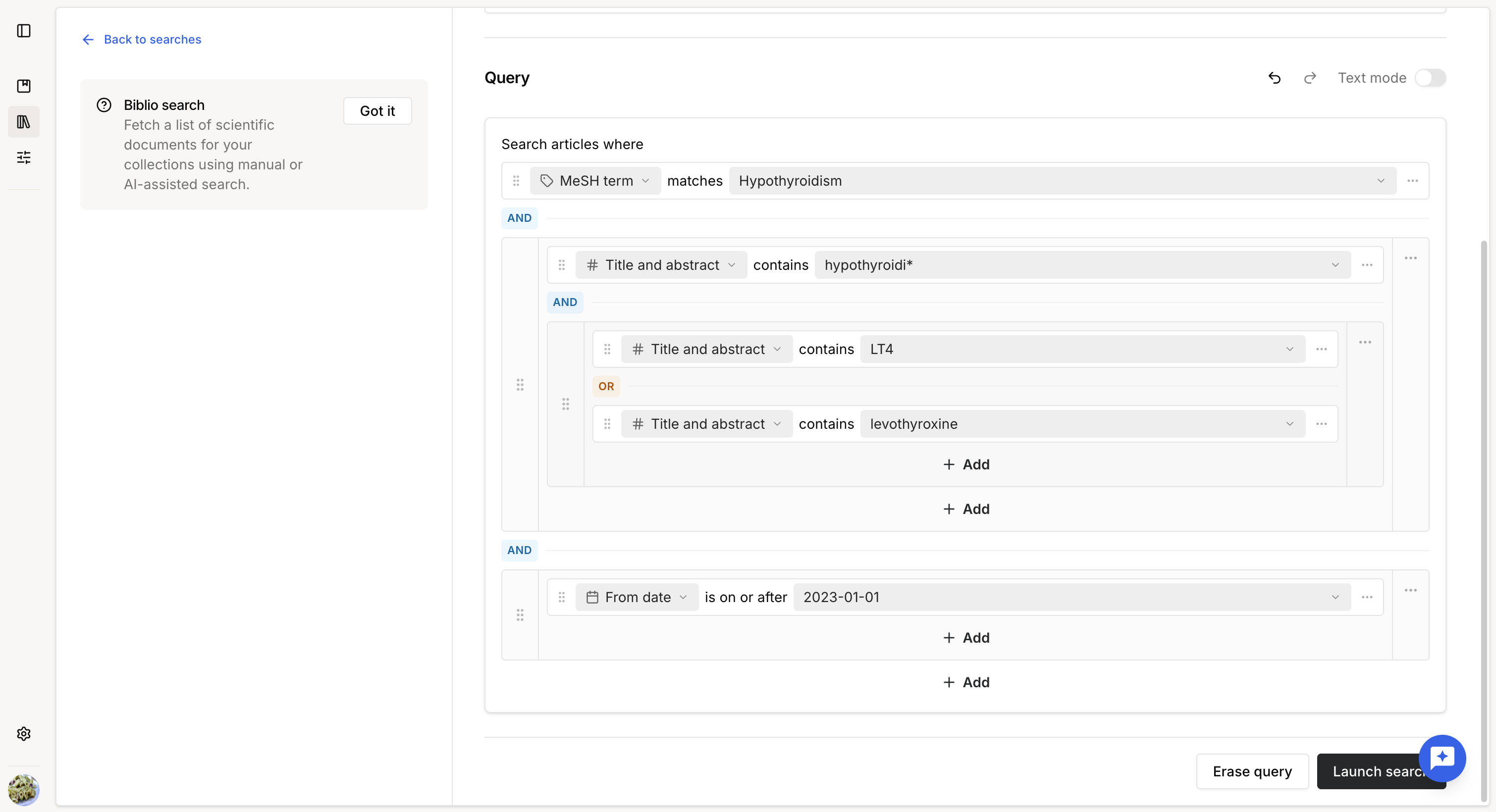
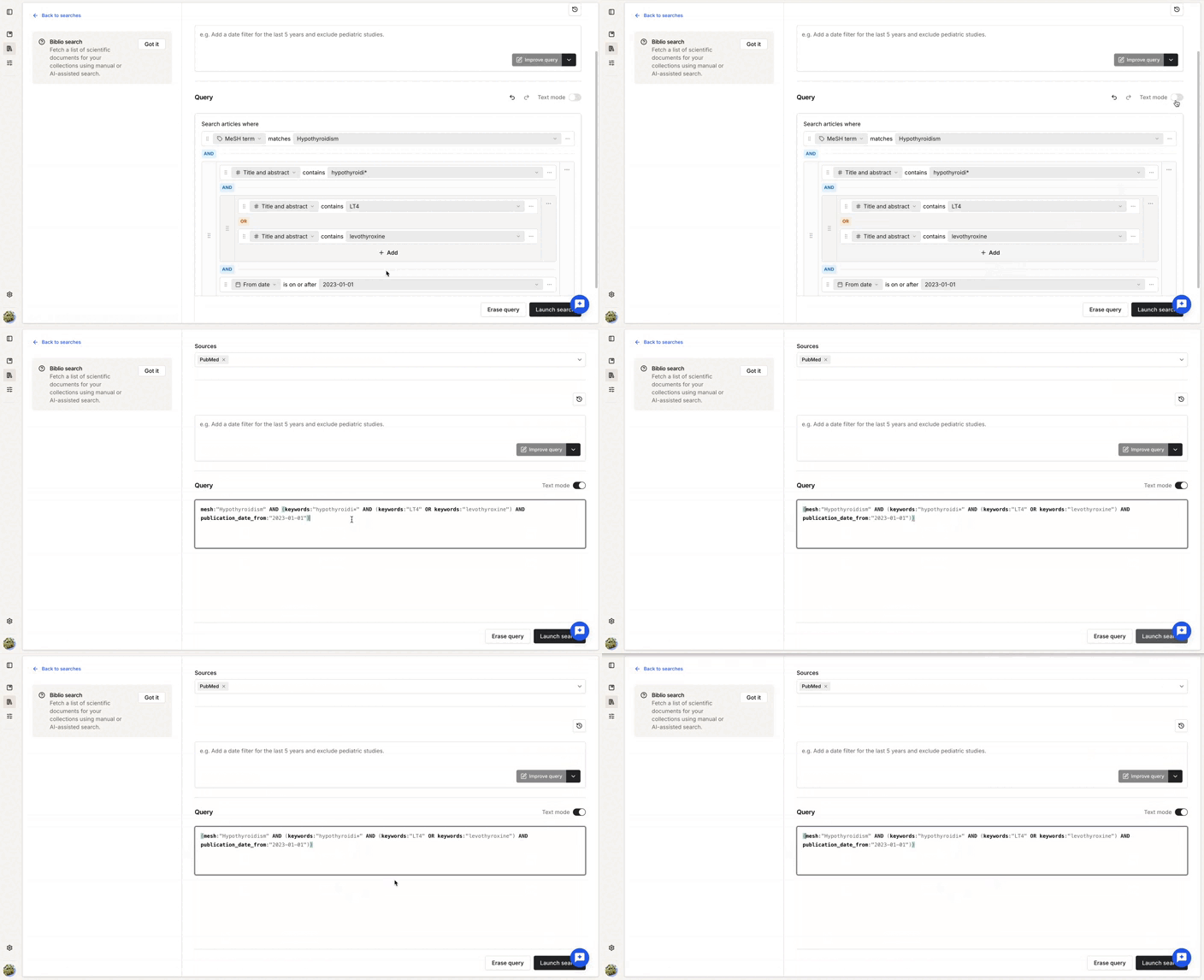
Queries can be displayed in two formats:
- Builder mode, which displays the graphical query builder.
- Text mode, which displays the equivalent textual query.
You can switch between these views at any time by enabling or disabling Text mode.
Use AI assistance
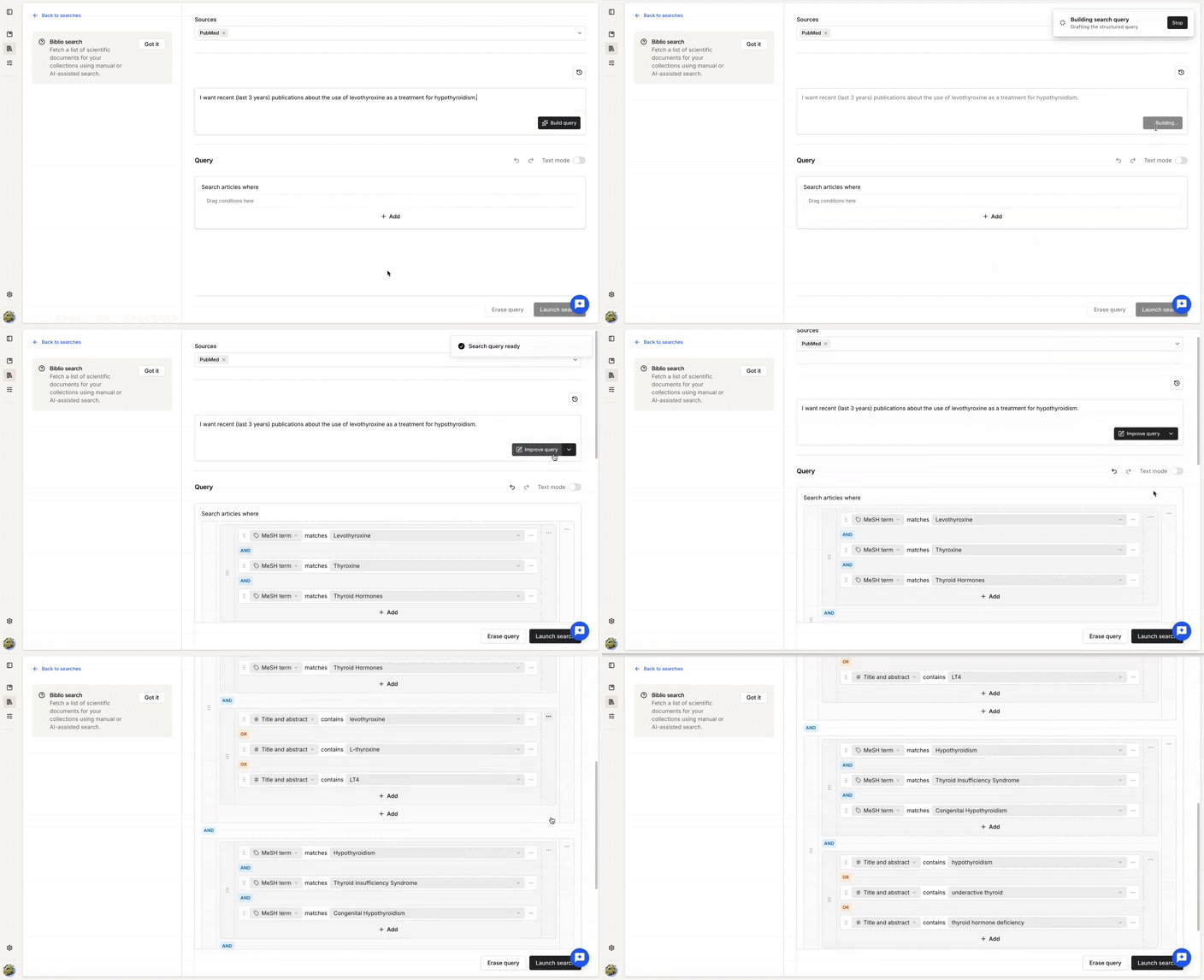
AI can help you create or improve a query.
You can:
- Describe the topic you want to search for and click Build query to generate a new structured query.
- Enter additional instructions and click Improve query to optimize an existing query while preserving its intent.
The generated query remains fully editable using the manual query builder.
Paste an existing query
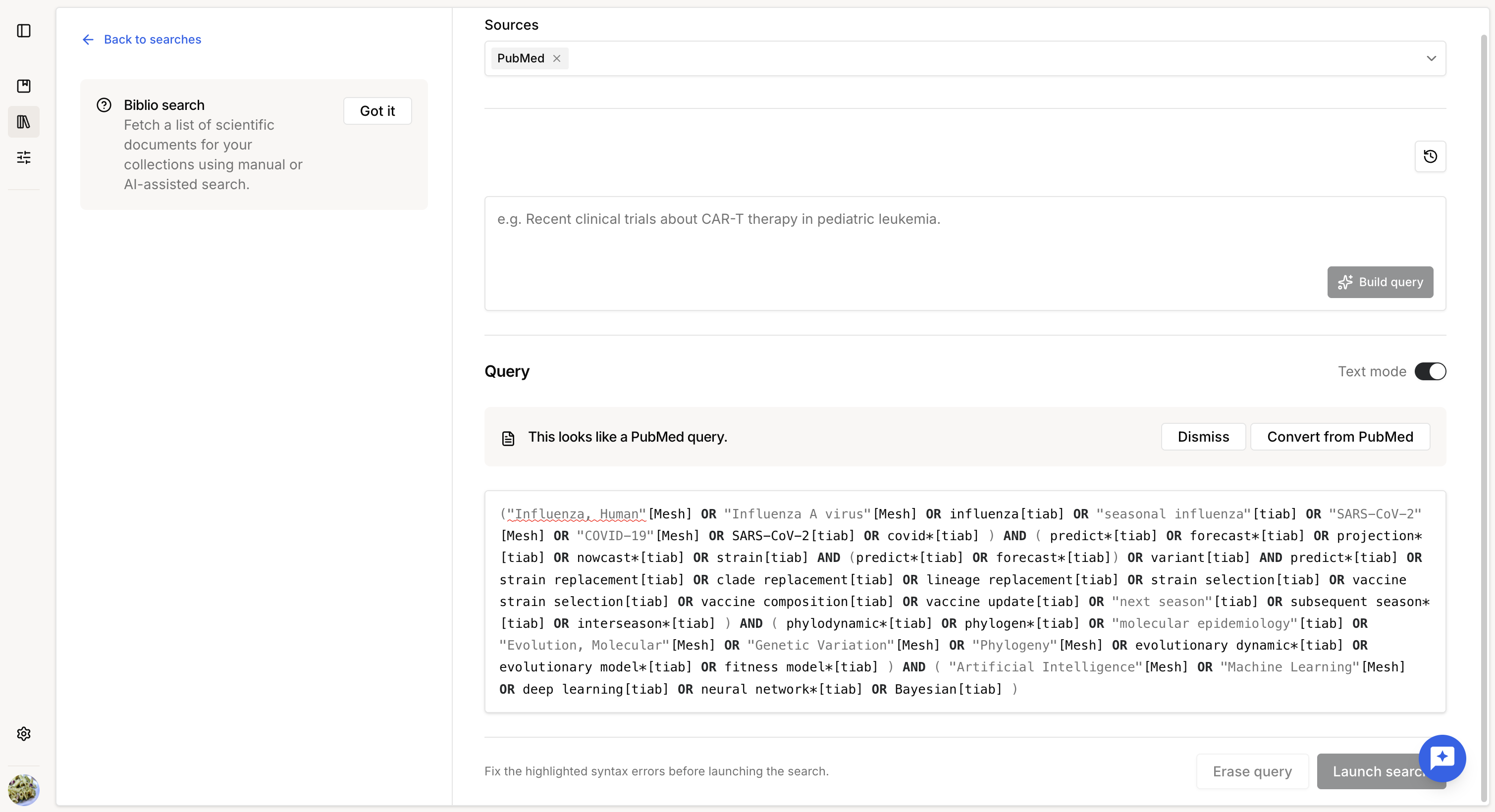
If you already have a query from another database (for example, PubMed), you can paste it directly into the search editor.
The platform automatically converts supported queries into its own query format.
Once converted, you can continue refining the query manually or use AI to optimize it before launching the search.
Pasting an existing query is available only while Text mode is enabled.
View query history
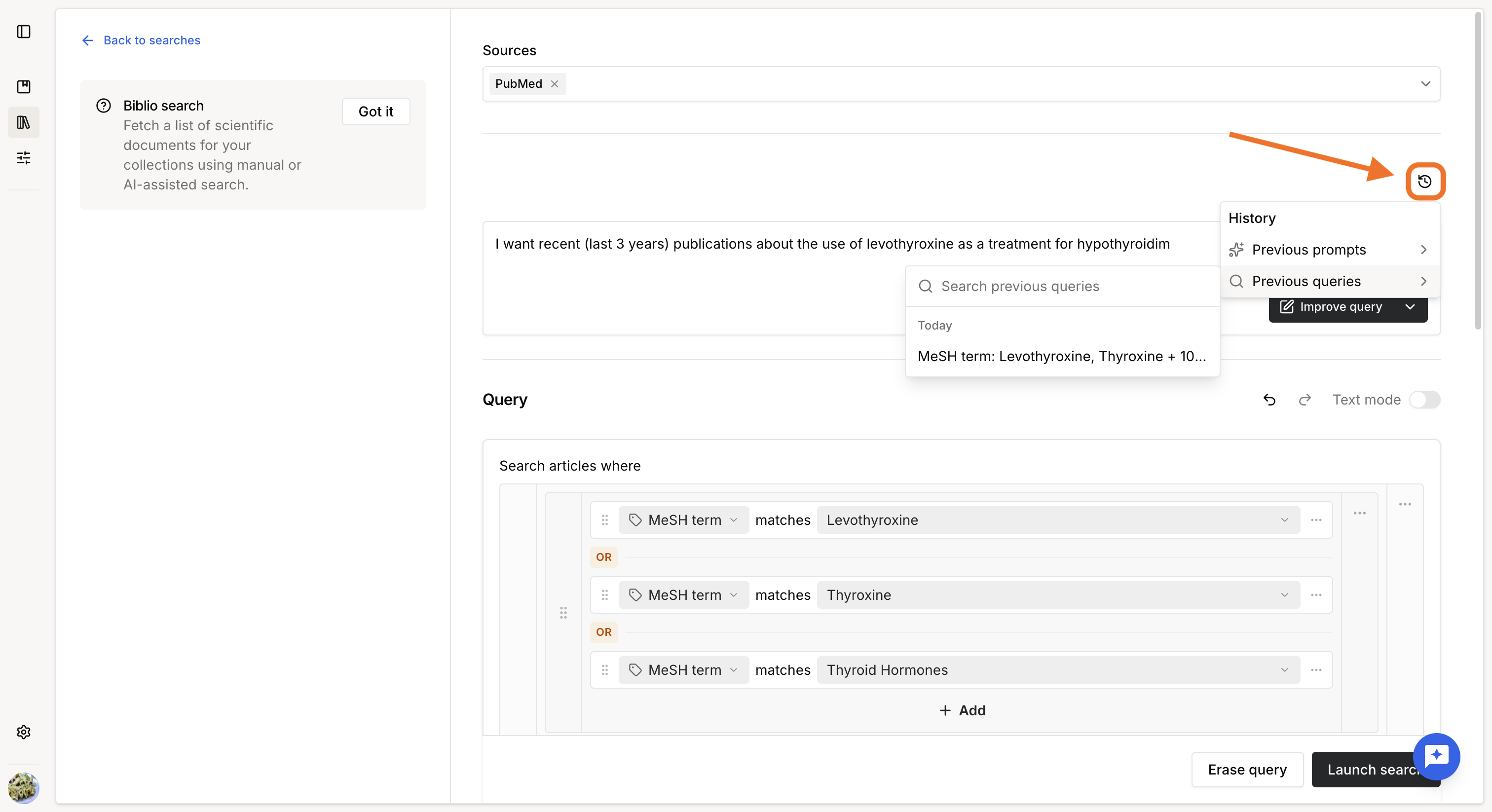
Click the History (clock) icon to access the history of your prompts and generated queries.
From there, you can review and reuse previous query versions before launching your search.
Was this article helpful?
That’s Great!
Thank you for your feedback
Sorry! We couldn't be helpful
Thank you for your feedback
Feedback sent
We appreciate your effort and will try to fix the article