| Permissions |
|
| Related readings |
The Parser tab provides access to the structured output generated when a document is parsed. It allows you to review how the document was interpreted, navigate between the original content and its parsed elements, and retrieve extracted content such as text, figures, and tables.
TABLE OF CONTENTS
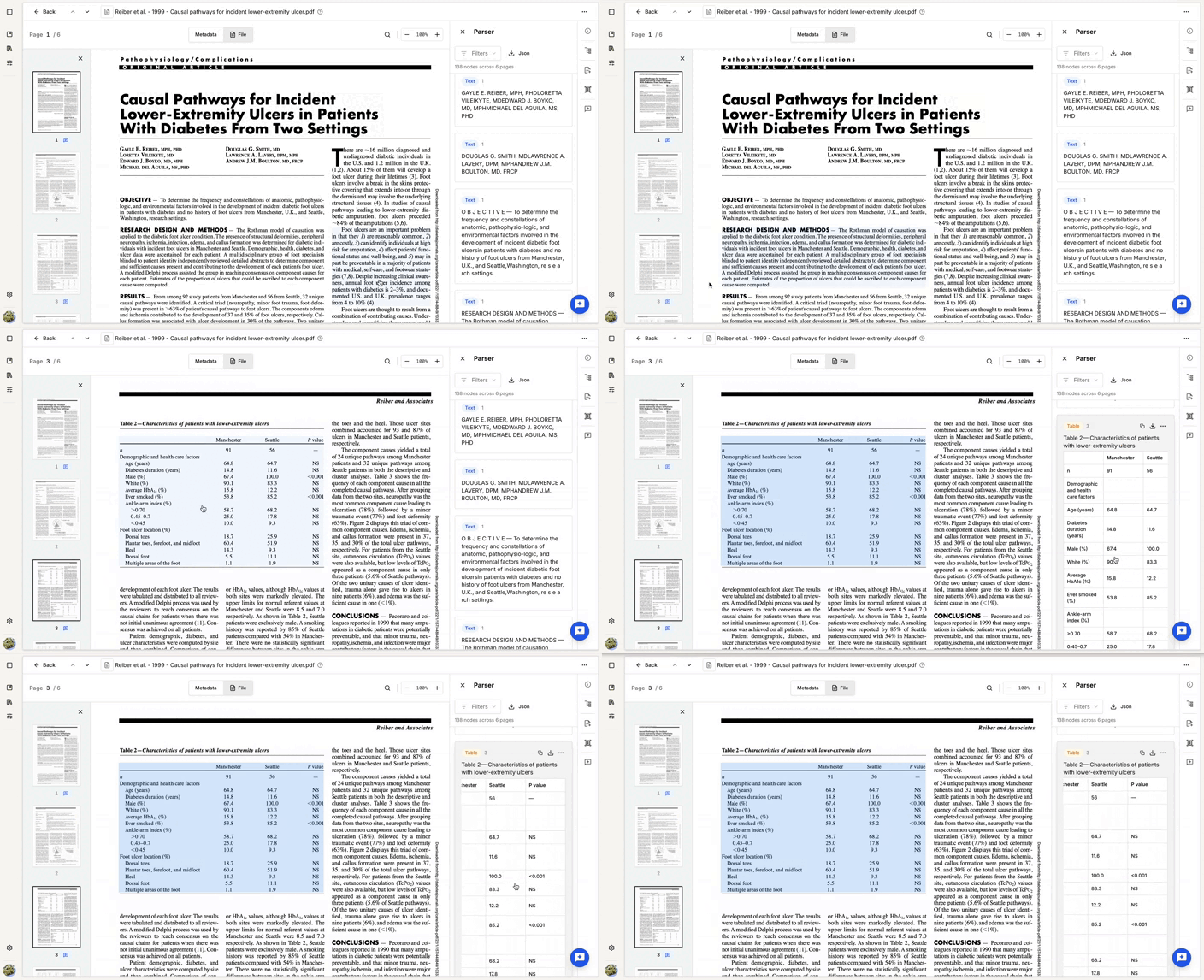
Navigate parsed elements
To access the elements extracted during parsing:
- Open the document preview.
- Select the Parser tab in the right-hand panel.
The parsed elements, or nodes, are listed in the same order as they appear in the document.
Navigation is synchronized between the document and the parsing output:
- Click an element in the document to jump to the corresponding parsed node.
- Click a node in the parsing output to scroll to its corresponding location in the document.
Filter parsing outputs
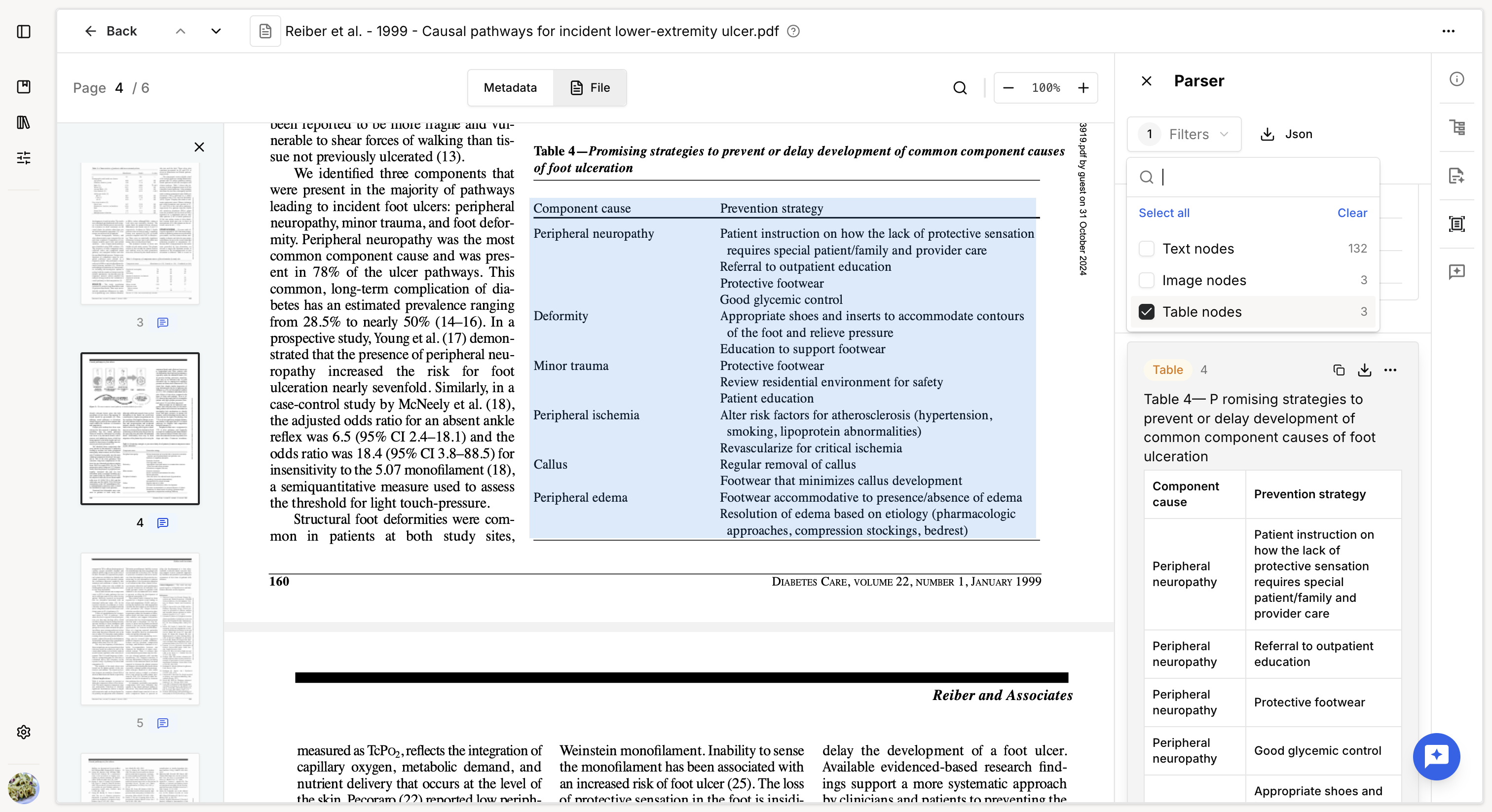
You can filter the parsing output by node type to focus on specific elements, such as:
- Text
- Images
- Tables
This can make it easier to review a specific type of extracted content in a large document.
Export parsed elements
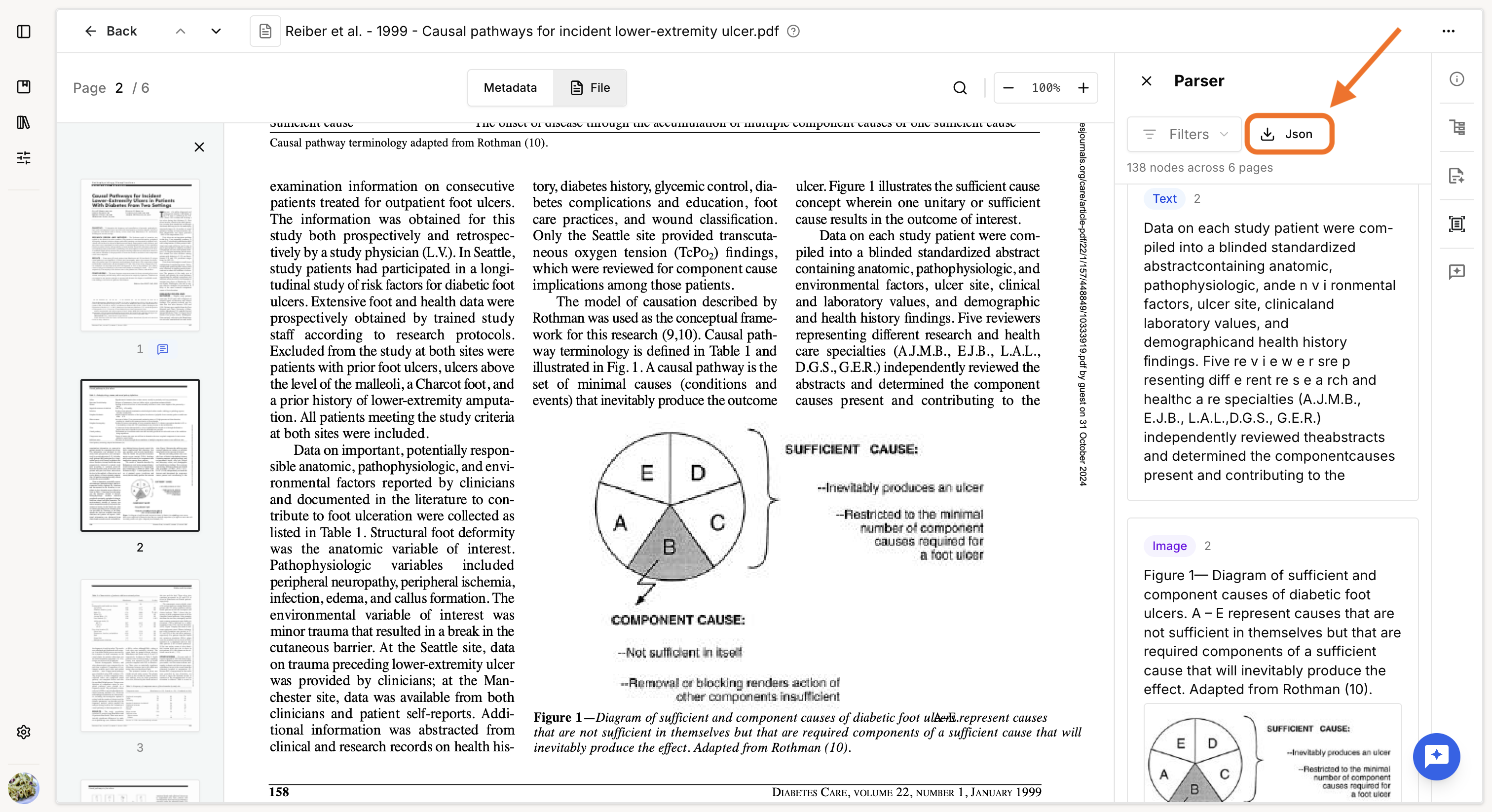
Export as JSON
You can export the complete parsing output as a JSON file.
This can be useful for analyzing the parsing results outside the platform or providing the raw output to support when investigating an issue.
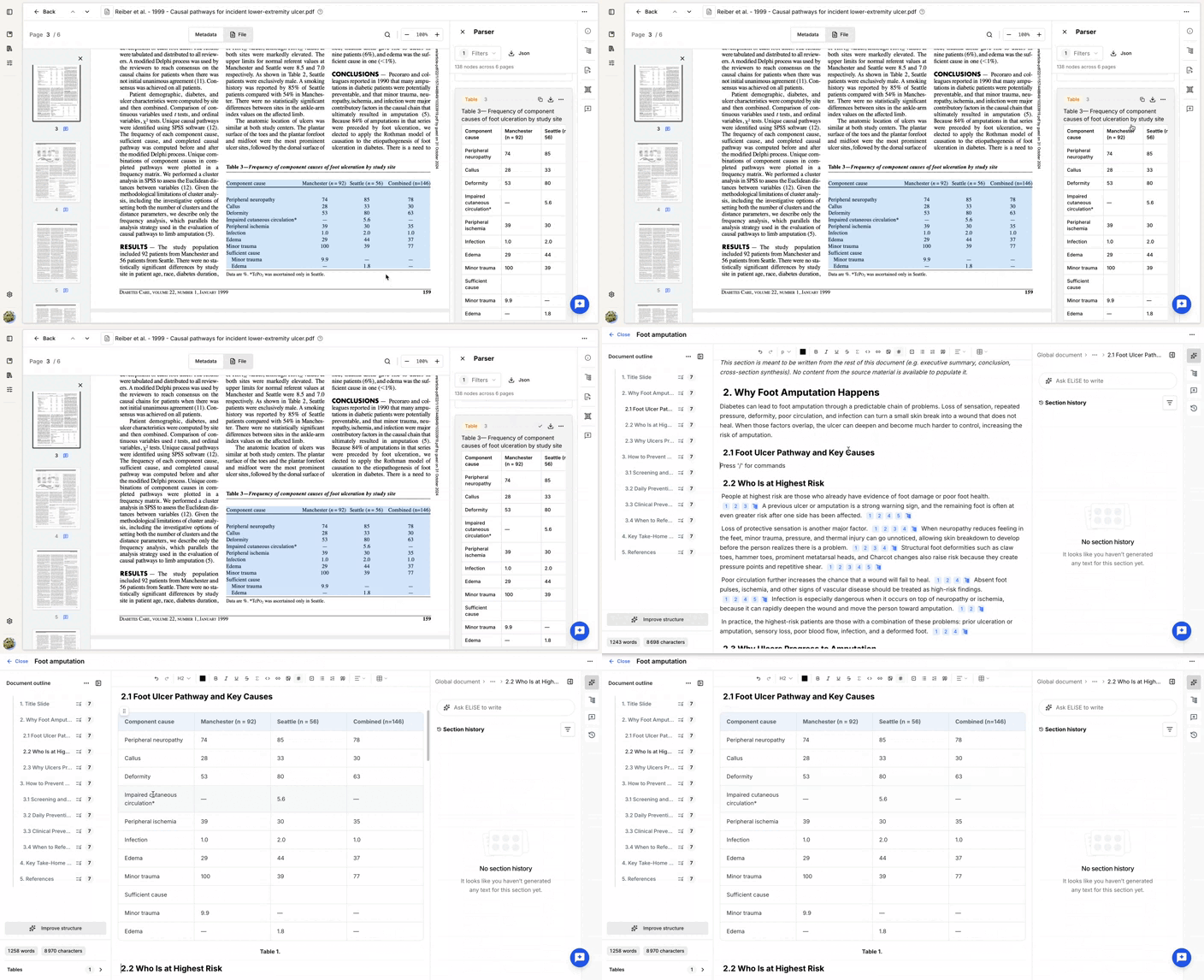
Each parsed node can also be copied or downloaded individually.
Copy a node
Use Copy to copy the parsed content and paste it elsewhere, either within the platform or in another application.
For example, you can copy:
- text to use in the Assistant
- figures for reuse elsewhere
- tables as raw content in the Editor when you need to preserve the parsed version
Download a node
The download format depends on the node type:
- Text →
.txt - Figure →
.png - Table →
.csv
Node-specific actions
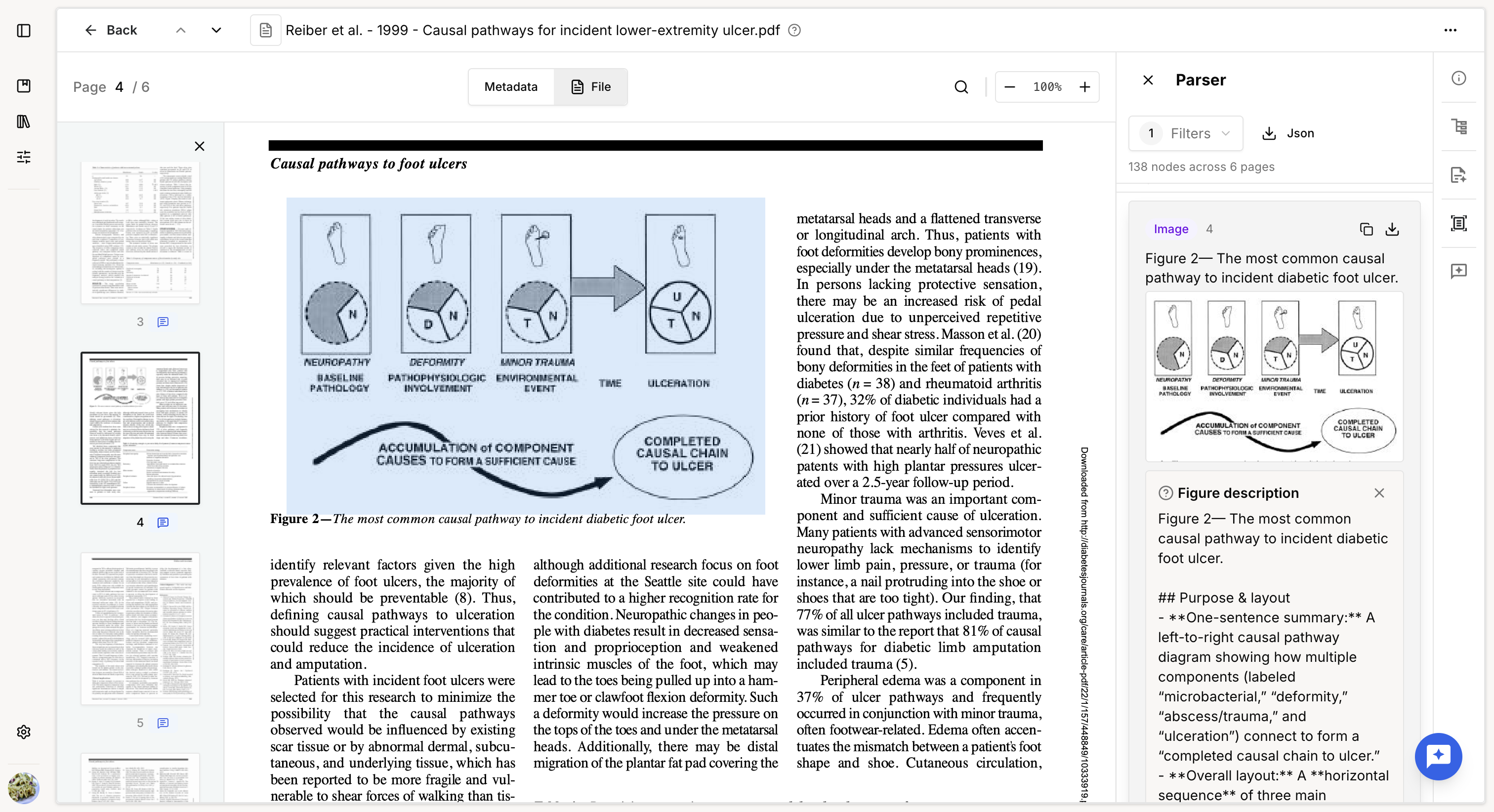
Figures
For each figure, you can access a semantic description by selecting the image node in the parsing output.
The description summarizes what the platform understood from the figure during parsing and OCR. It can help you verify whether the figure has been correctly and sufficiently interpreted before using it in AI-powered tasks.
Tables
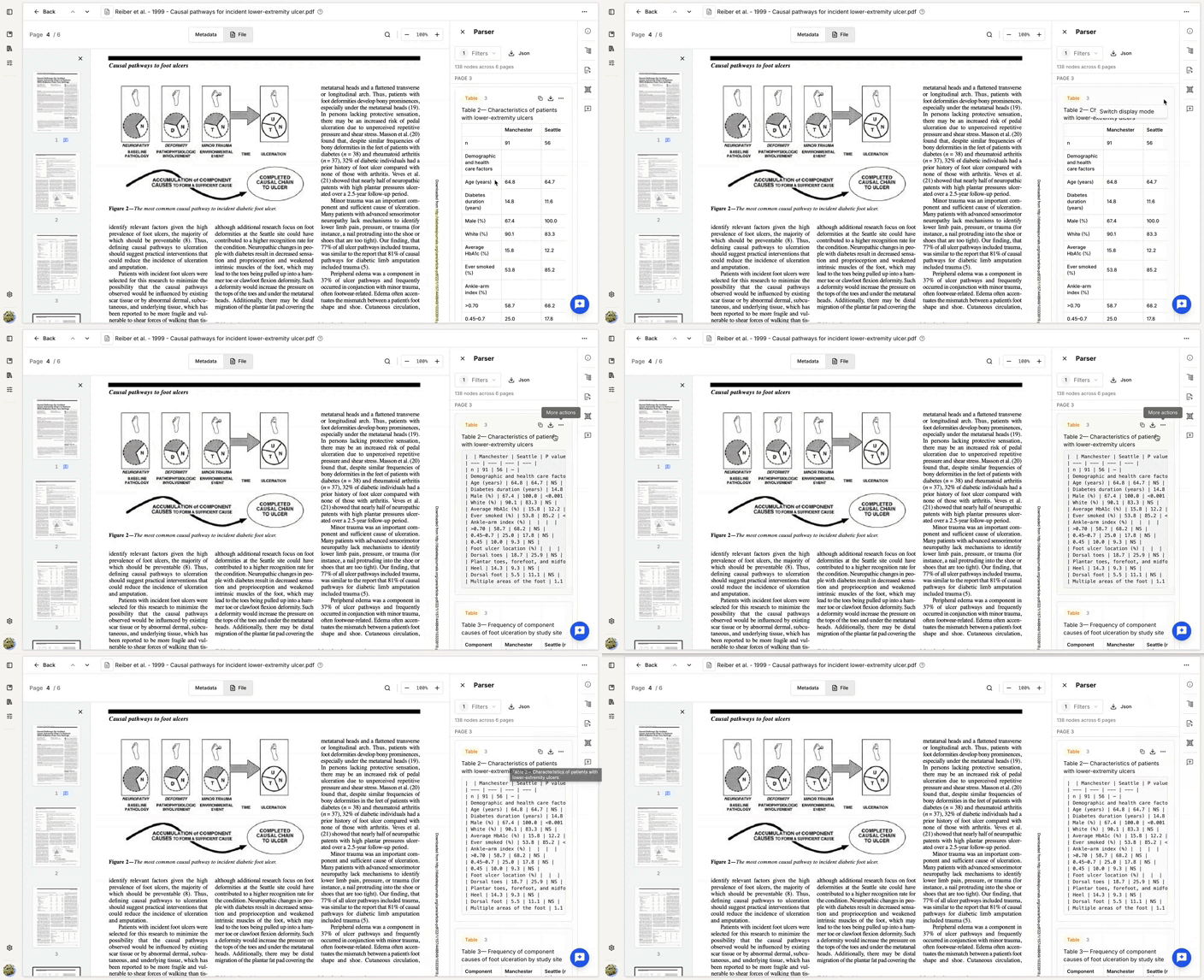
Tables are displayed in a dedicated table preview to make the extracted structure easier to review.
You can switch between the rendered table and its Markdown representation.
If a table cannot be correctly transformed into a structured table because of a parsing error, the Markdown representation can be displayed by default.
Was this article helpful?
That’s Great!
Thank you for your feedback
Sorry! We couldn't be helpful
Thank you for your feedback
Feedback sent
We appreciate your effort and will try to fix the article