| Permissions |
|
| Related readings |
Resources are the documents and collections available within a project.
There are two types of resources:
- Collections: organized sets of files used as knowledge sources throughout the platform.
- Project documents: standalone files stored within the project that are not intended to be used directly for AI tasks or knowledge extraction.
Project permissions and resource permissions are managed independently.
Giving a user access to a project does not automatically grant access to the collections it contains. Collections must be shared separately through their own permissions.
TABLE OF CONTENTS
Add resources
Supported file formats
The platform supports multiple file formats:
| Format | Preview | Parsing | Arguments highlighted |
| ✅ | ✅ | ✅ | |
| .csv | ✅ | ✅ | ❌ |
| .xlsx | ✅ | ✅ | ❌ |
| .xls | ✅ | ✅ | ❌ |
| .ods | ✅ | ✅ | ❌ |
| .jpg | ✅ | ✅ | ❌ |
| .png | ✅ | ✅ | ❌ |
| .ico | ✅ | ❌ | ❌ |
| .webp | ✅ | ✅ | ❌ |
| .bmp | ✅ | ✅ | ❌ |
| .tiff | ❌ | ✅ | ❌ |
| .gif | ✅ | ❌ | ❌ |
| .txt | ✅ | ✅ | ❌ |
| .html* | ✅ | ✅ | ✅ |
| .doc * | ✅ | ✅ | ✅ |
| .docx* | ✅ | ✅ | ✅ |
| .ris** | ✅ | ✅ | ✅ |
| .nbib** | ✅ | ✅ | ✅ |
| .json* | ✅ | ✅ | ✅ |
| .epub* | ✅ | ✅ | ✅ |
| .tsv* | ✅ | ✅ | ✅ |
| .tex* | ✅ | ✅ | ✅ |
| .xml* | ✅ | ✅ | ❌ |
Preview: the document can be viewed directly in the platform.
Parsing: the document can be processed and understood by AI features.
Arguments highlighted: AI-generated evidence can be highlighted directly in the document preview.
*documents that are transformed into .pdf or .txt automatically to facilitate their treatment by the platform.
**documents that are transformed into metadata files.
Collections
Collections organize files and allow them to be reused across multiple projects.
Click New collection in the left panel, then choose one of the following options:
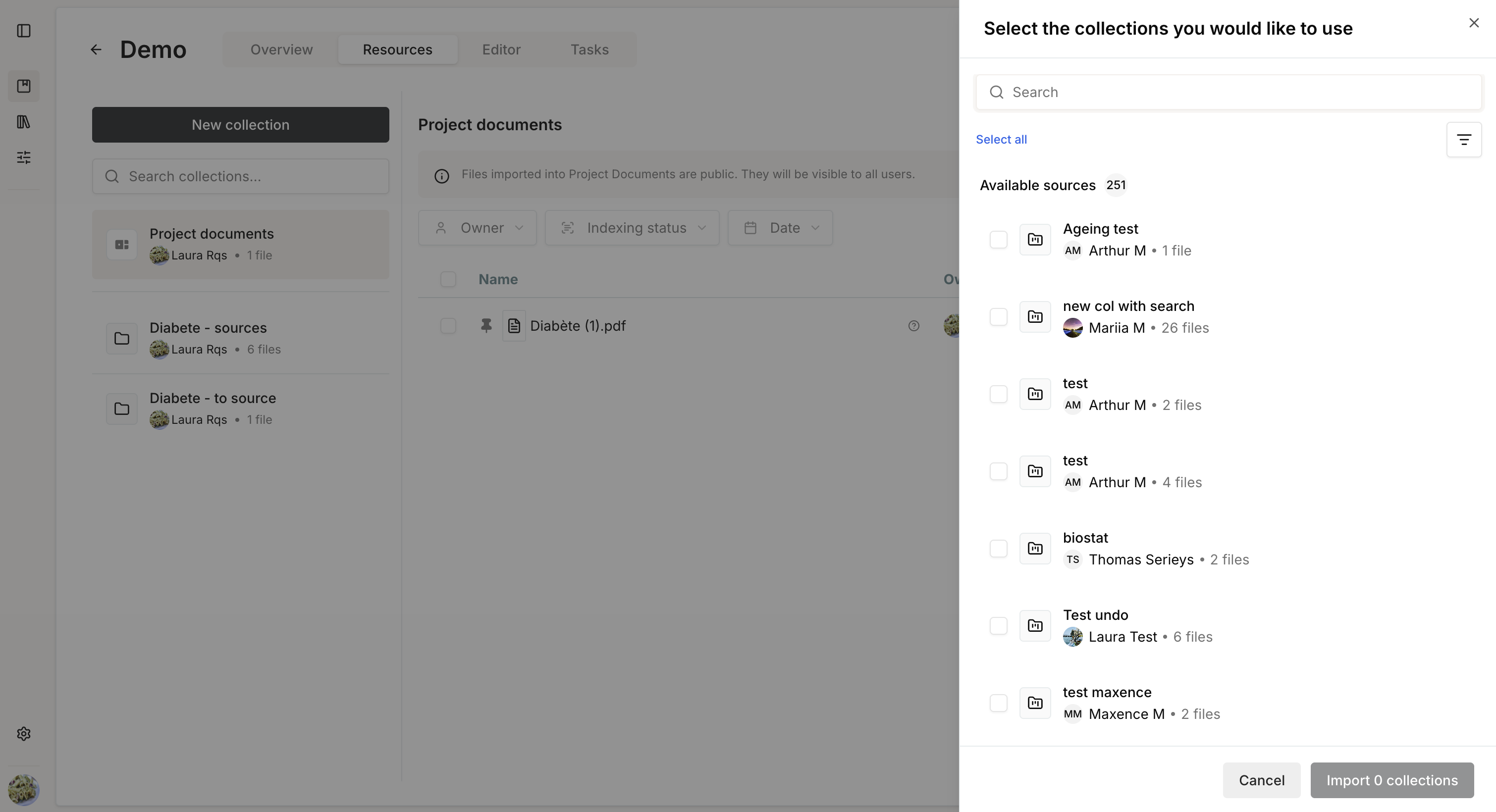
- Add an existing collection from the Library.
- Create a new collection.
Add from Library
Select one or more existing collections and add them to the project.
If needed, click Explore to review a collection before adding it.
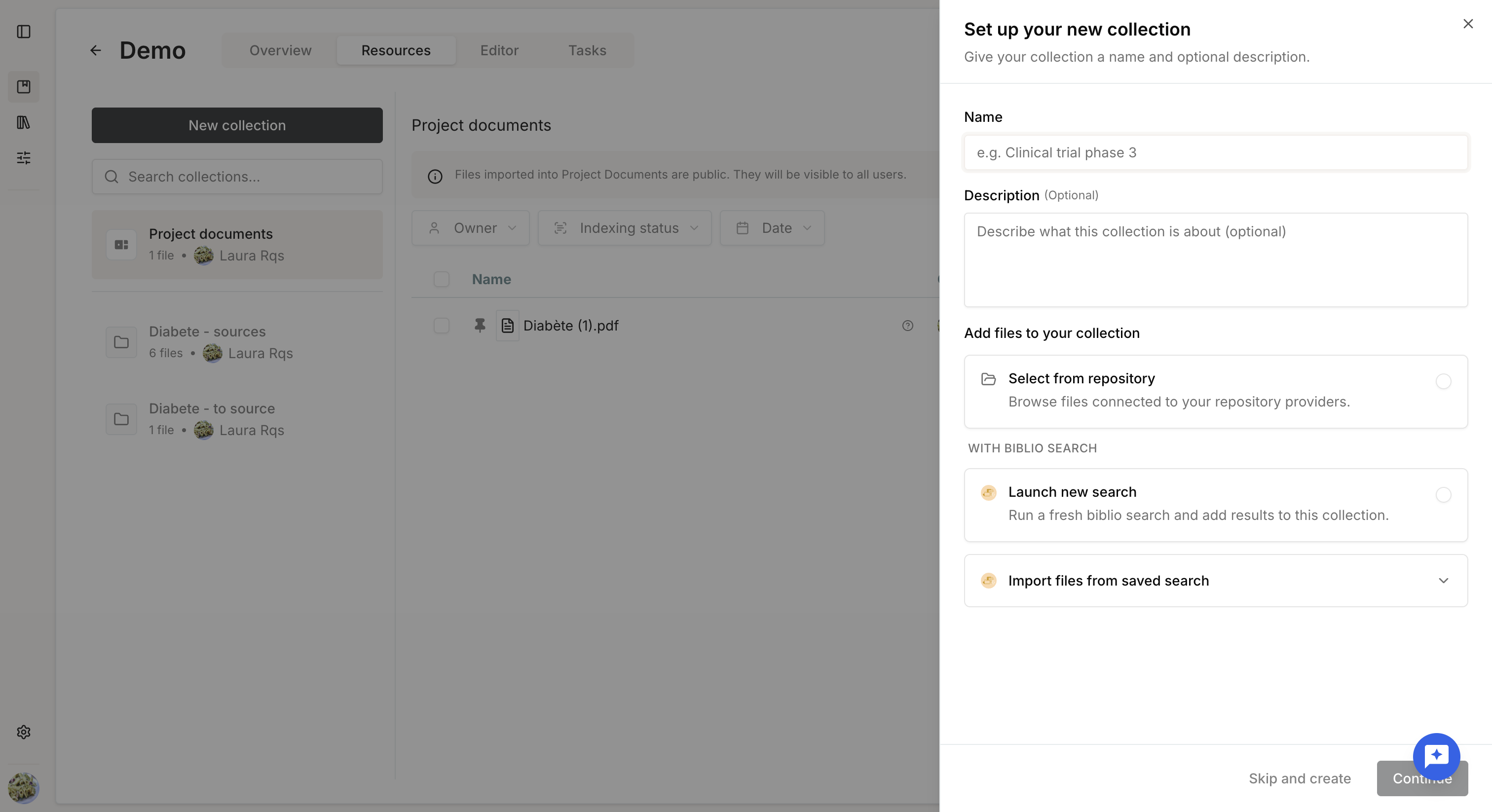
Create a new collection
To create a collection:
- Enter a name.
- Optionally add a description.
- Choose one of the following options:
- Skip and create to create an empty collection.
- Select from repository to browse connected repositories and select files.
- Launch new search to search external databases and import the selected files.
- Import files from saved search to reuse the results of a previously saved search.
- Complete the selected workflow and click Create.
The new collection is automatically:
- added to the current project
- saved in the Library for future reuse
To share the collection with other users, assign an appropriate access policy after creation.
Manage resources
Within a project, you can:
- add or remove collections
- add or remove documents
- rename collections
- add or remove files from collections
- preview documents
- download files
- export references in RIS or NBIB format
Collections are shared objects.
Any modification made to a collection, including renaming it, adding or removing files, or updating its content, is reflected everywhere the collection is used.
If you need a project-specific version, create a separate collection instead of modifying the original.
The actions available to each user depend on their project and resource permissions.
Indexing resources
Indexing status
When a file is added to a collection, it is automatically indexed so it can be used throughout the platform.
Possible statuses are:
- Not indexed / In queue: waiting to be processed.
- Indexing: currently being processed.
- Indexed: ready to use across all platform features.
- Error: indexing failed.
Once a successful index exists, the file remains usable while a new indexing operation is running. The platform continues using the latest successful version until the new index is complete.
Processing time
Most files are indexed within five minutes.
Processing may take longer for:
- very large documents
- documents containing many figures or tables
- documents with several hundred pages
If indexing appears stalled, a System Administrator can restart the indexing process. If the problem persists, contact support.
Indexed vs. non-indexed files
Files remain accessible immediately after upload.
However, until indexing completes, they cannot be used for AI-powered features such as:
- Knowledge extraction
- Semantic search
- Content generation
- Document analysis
Metadata extracted during indexing
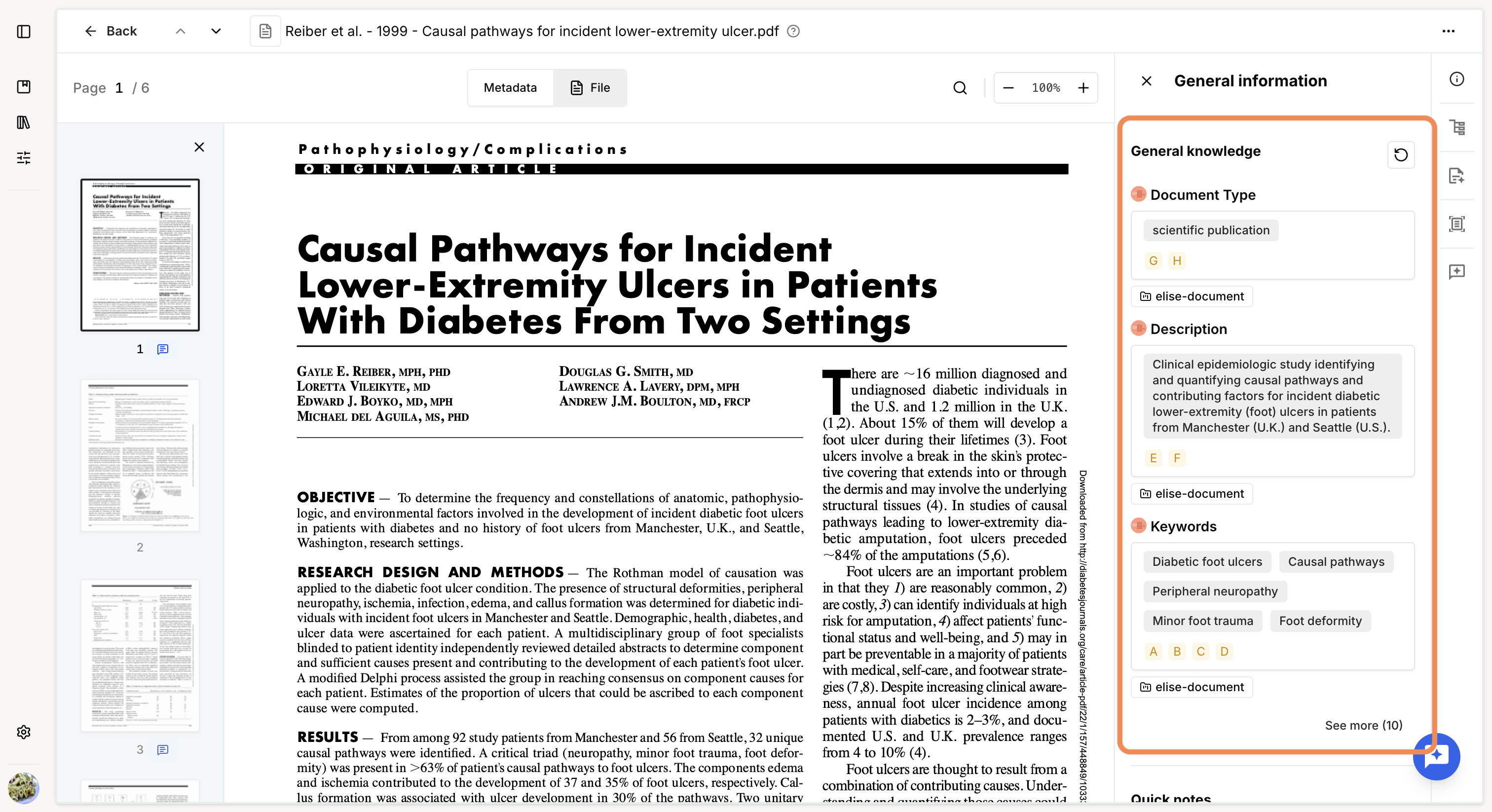
After indexing, the platform automatically extracts general metadata, including:
- document type (scientific publication, technical document, regulation, patent, clinical trial report, regulatory approval, or other)
- one-line summary
- keywords
Additional metadata is extracted depending on the document type, such as:
- authors
- authoring organization
- inventors
- publication details
Click See more to display all available metadata.
This information is used throughout the platform, particularly for citation and bibliography generation in the Editor.
If some metadata is missing or appears incorrect, click Recompute in the upper-right corner of the document to regenerate it.
Once your files have been uploaded, indexed, and organized into collections, they are ready to be used for AI tasks.
Was this article helpful?
That’s Great!
Thank you for your feedback
Sorry! We couldn't be helpful
Thank you for your feedback
Feedback sent
We appreciate your effort and will try to fix the article